Transform ordinary photographs into stunning pencil sketch artwork that captures the essence of hand-drawn illustrations. This comprehensive technique demonstrates four distinct variations: classic black and white sketches and three creative colorization methods using original photo colors, single color tints, and gradient effects.
The non-destructive workflow preserves your original image while creating professional-quality results that rival traditional pencil artwork.
Watch the Video Tutorial
Essential Tips for Photo to Sketch Effects
Master these key techniques to achieve realistic pencil sketch results:
- Use Smart Filters instead of regular filters to maintain complete editability and allow radius adjustments at any time
- Apply Color Dodge blend mode to the inverted layer copy to create the foundation sketch effect before adding blur
- Choose lower Gaussian Blur radius values (5-15 pixels) for fine, detailed pencil lines or higher values (35-50 pixels) for photorealistic sketches
- Add a Levels adjustment layer set to Multiply blend mode to darken sketches that appear too light or lack contrast
- Control colorization intensity by adjusting the opacity of color layers rather than modifying blend mode settings
More Tutorials About Pencil Sketch Effects
Explore additional techniques for creating artistic photo transformations in Photoshop.
Turn a Photo into a Pencil Sketch Drawing in Photoshop
In this Photoshop tutorial by Tony from Psych Studio, learn to transform photos into realistic pencil sketches using advanced techniques.
The instructor avoids basic filters, focusing on duplicating layers, desaturating images, and applying precise blending modes like Gaussian blur to mimic authentic pencil strokes. This approach ensures sketches maintain a natural, hand-drawn quality rather than a digital filter appearance. Ideal for designers seeking to integrate a hand-drawn look into digita
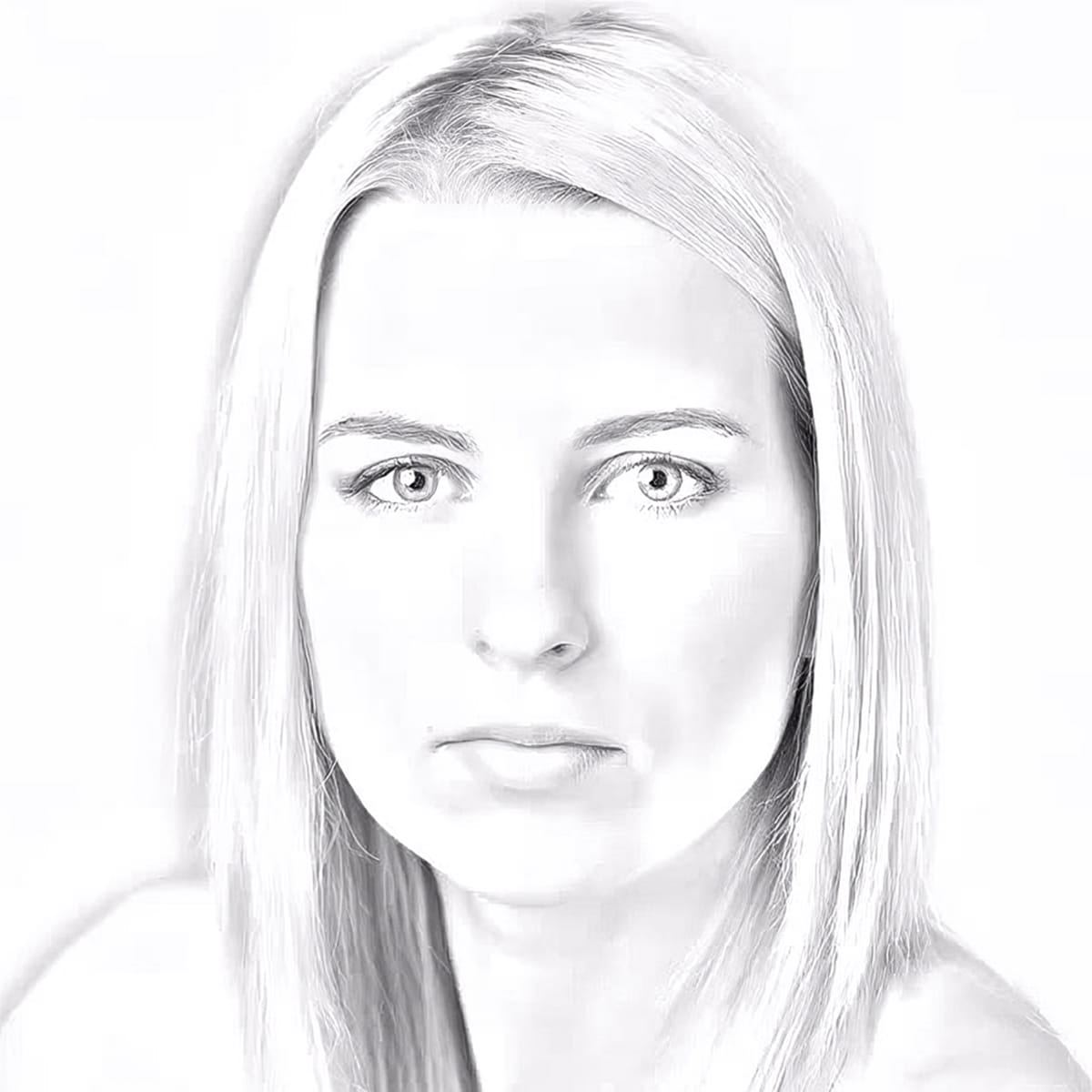
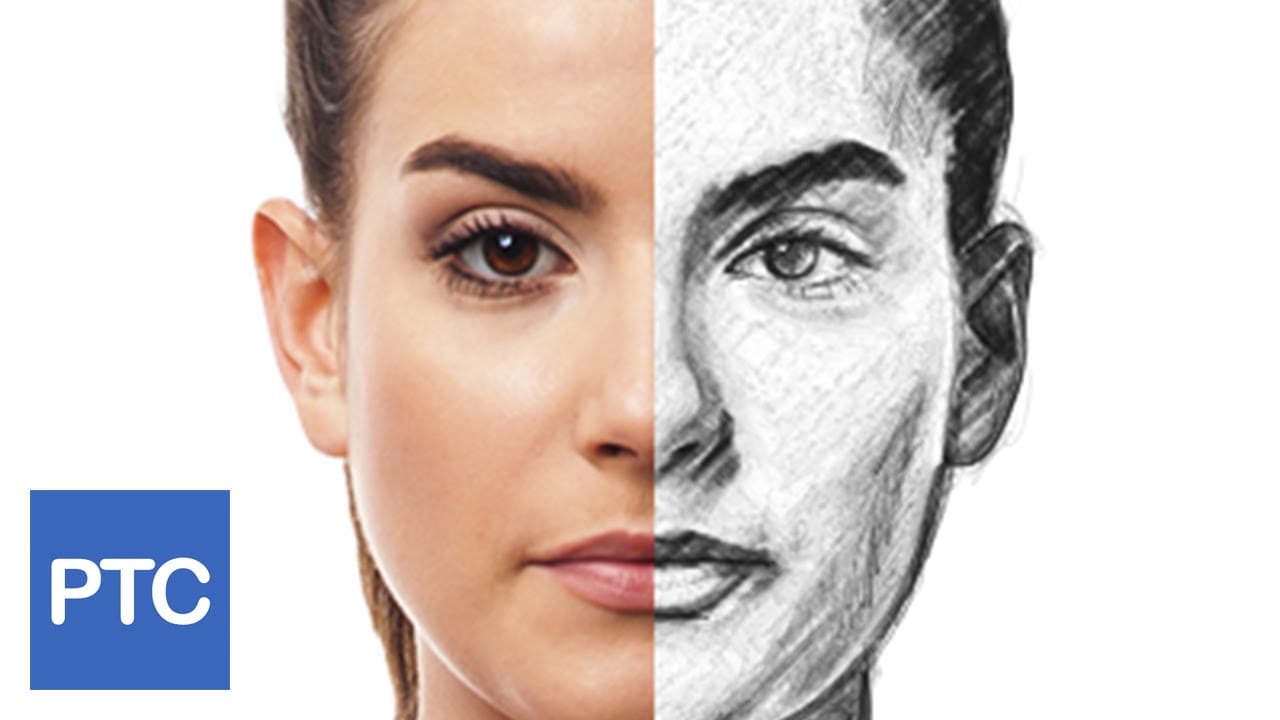
Photo to sketch effect in Photoshop
In this tutorial, Jesus Ramirez from the PTC Photoshop Training Channel demonstrates how to transform photos into pencil sketch drawings. Ramirez guides viewers through the process step-by-step, providing clear instructions and helpful tips along the way.
The tutorial begins by explaining the necessary tools and settings within Photoshop. Ramirez then walks users through the image conversion process, showing how to adjust layers, filters, and blending modes to achieve the desired pencil sketch
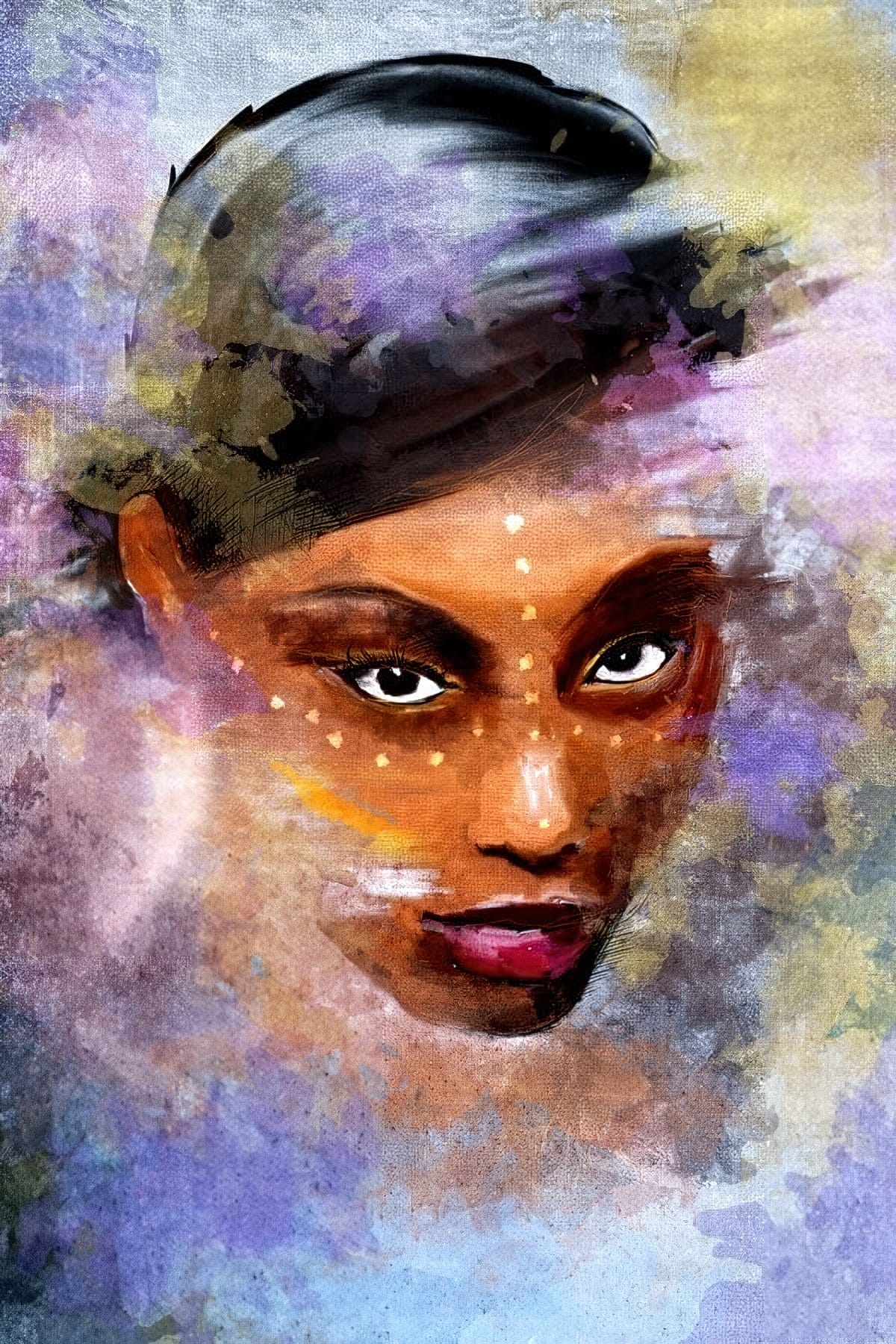
Add a Painterly Effect to a Portrait in Photoshop
Transforming a simple photograph into a breathtaking pencil sketch is a skill that sits at the intersection of art and technology. For designers seeking to push the boundaries of their creativity, mastering this technique can open up new avenues for artistic expression. Adobe Photoshop, with its vast array of tools and features, provides the perfect platform to achieve this intricate effect. In today's post, we delve into the sophisticated process of turning a photo into a pencil sketch, offerin
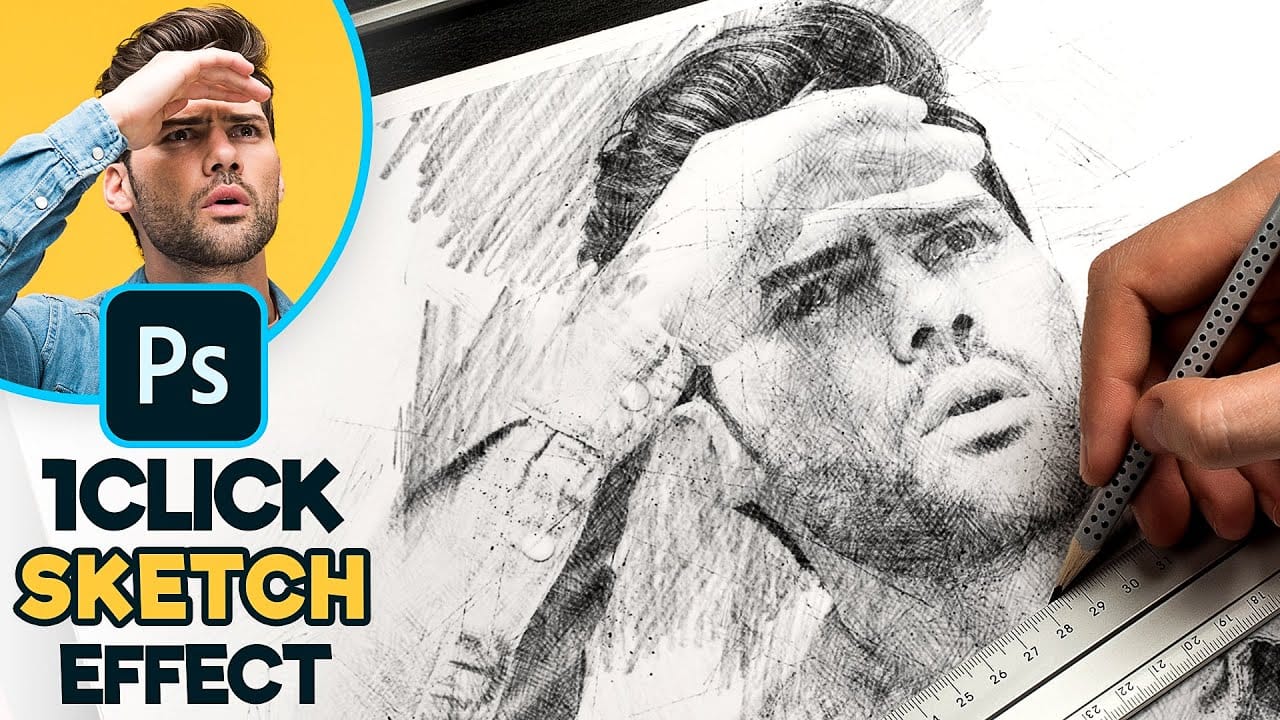
Create a 1-Click Photo to Pencil Drawing Sketch Effect in Photoshop
Transform your photos with a stunning sketch effect in Photoshop using smart objects. This tutorial by Pixivu guides you through creating a reusable PSD file to apply this effect effortlessly on any image. With detailed steps on using blend modes, pattern overlays, and custom brushes, you'll master techniques to achieve professional-quality results.
Whether you're a design enthusiast or a professional, this tutorial offers a blend of creativity and practicality, enhancing your Photoshop skills