Starry Night Sky Effect in Photoshop

Starry Night Sky Effect in Photoshop

This tutorial demonstrates how precise selection techniques are crucial for isolating elements like trees and landscapes. It ensures that the subsequent addition of detailed celestial phenomena, such as stars and aurora borealis, seamlessly integrates with the original image.

The process goes beyond simple overlays, showcasing how to invert layer masks to precisely apply effects to the sky while preserving the foreground. This unexpected inversion step is vital for achieving a visually compelling and realistic starry night sky with Northern Lights, illustrating the power of non-destructive editing.

Watch the Full Photoshop Tutorial

Video by Blue Lightning. Any links or downloads mentioned by the creator are available only on YouTube

Building Atmospheric Effects Through Layering and Blending

When crafting intricate digital compositions in Photoshop, particularly those involving atmospheric elements like skies or natural phenomena, a layered approach proves indispensable. Each element, from the subtle shimmer of distant stars to the dynamic flow of Northern Lights, can be developed on its own dedicated layer. This allows for individual adjustments without affecting other parts of the image.

This method harnesses the power of Photoshop’s blending modes and layer masks. Blending modes, such as Screen for stars or Color for light effects, dictate how layers interact with those beneath them, creating luminous or subtle integrations. Layer masks offer unparalleled control, allowing artists to precisely reveal or conceal portions of a layer, ensuring effects appear only where desired. For instance, creating a selection of the landscape and then applying it as a mask on the star layer ensures stars only appear in the sky.

This non-destructive workflow allows for iterative refinement and experimentation. It ensures that every creative decision can be revisited and adjusted, providing flexibility in achieving the desired visual impact for dramatic sky transformations.

Useful Tips for Creating Dynamic Skies

  • Utilize the Refine Edge tool for precise selections of complex foreground elements, such as trees, ensuring clean integration with a new sky.
  • Rename layers descriptively, like "Stars" or "Lights," to maintain an organized and understandable workflow.
  • Employ the Channels panel to recall previous selections, which is crucial for applying masks accurately to specific areas.
  • Invert layer masks (Control or Command + I) when an effect needs to be applied to the opposite area of the initial selection.
  • Experiment with blending modes, such as Screen for adding light effects or Color for subtle hue shifts, to enhance the visual impact of your sky elements.

More Tutorials about Sky Manipulation

Explore additional resources to deepen your understanding of creating stunning sky effects and atmospheric enhancements in Photoshop.
How To Easily Change The Sky In Photoshop
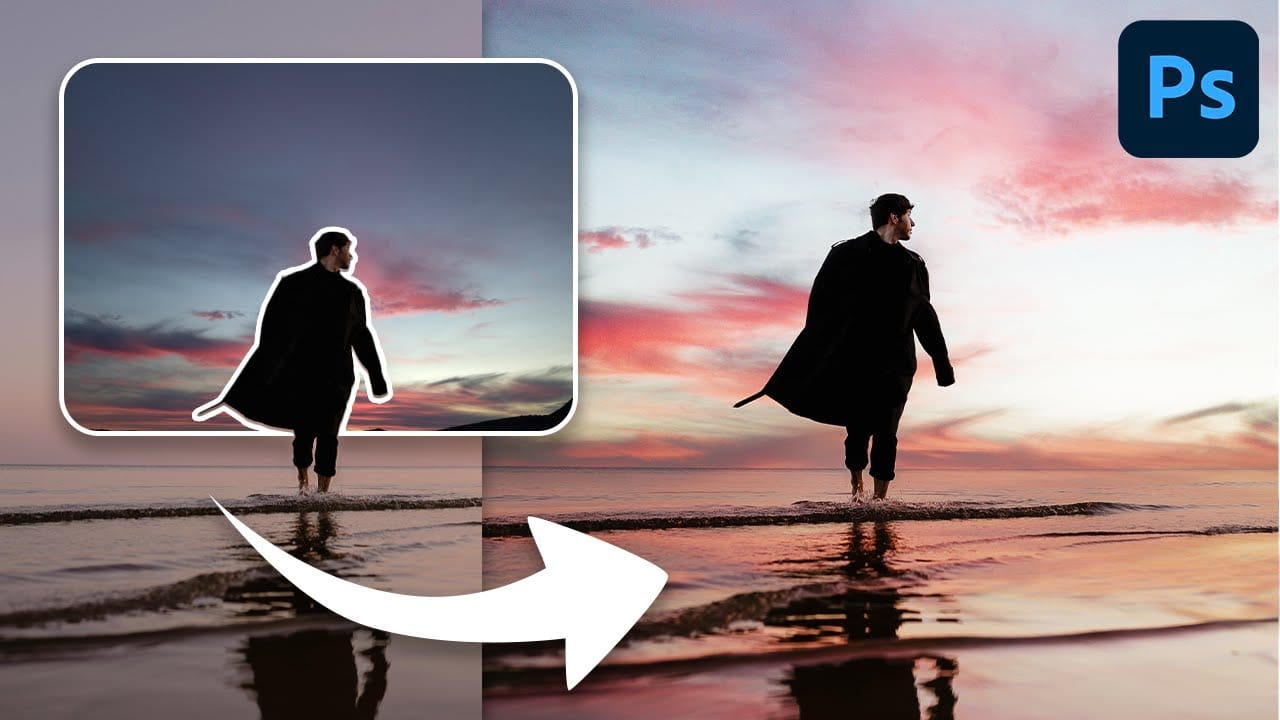
In this lesson, you’ll explore how to replace skies in Photoshop effortlessly. The tutorial begins by showing you how to access the Sky Replacement Panel. This tool gives you control over enhancing images with dynamic skies. You’ll also learn how to add a new sky to your photo, transforming the atmosphere and overall impact of the image. The video breaks this step down for you, making it easy to follow along. Additionally, the tutorial covers creating realistic sky reflections. This step is cr
Create colorful dramatic skies with a simple blending trick in Photoshop
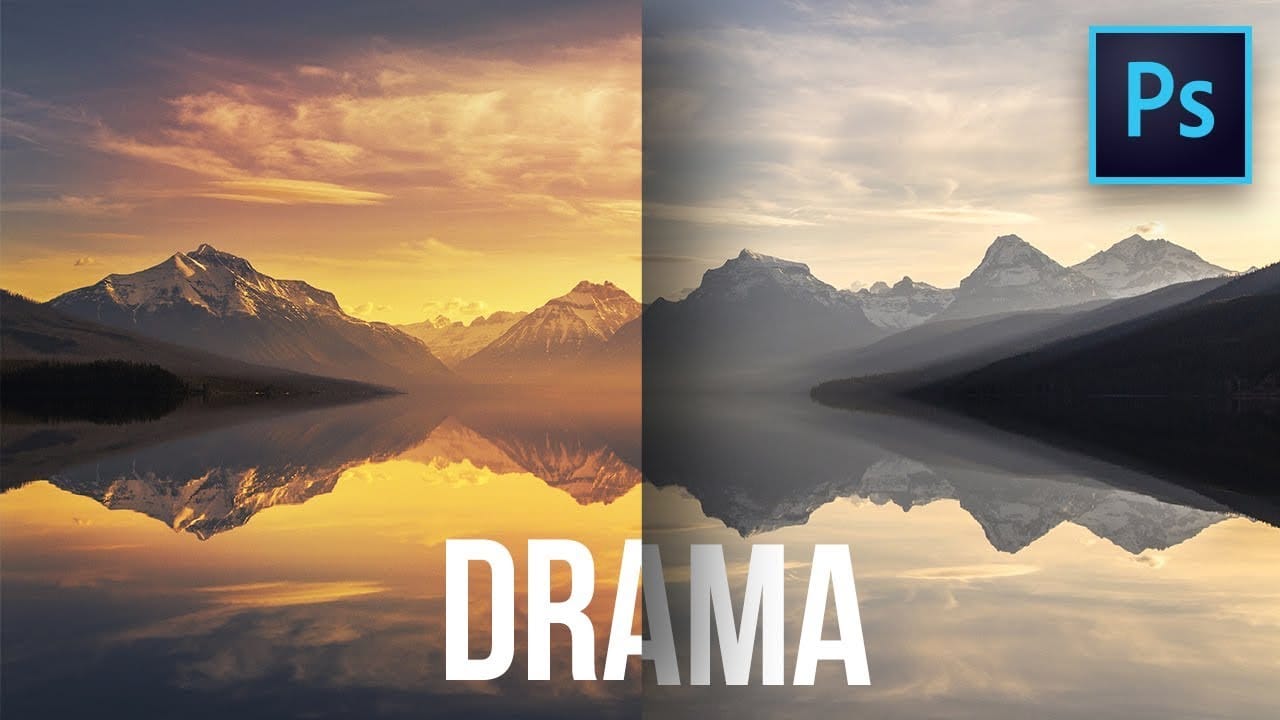
In this Photoshop tutorial by Unmesh Dinda from PiXimperfect you will learn how to extract amazing details from the sky, bring out the clouds, and add brilliant colors just using the Blend If sliders in Photoshop. Learn how to add drama, mood, and details to your skies by utilizing the power of Blending Options, Blend Modes, and Layers. In this video, we will simply paint the sky with the colors we desire and the details will simply follow. Whether you want to add the colorful sunset lights or
Colorful and Snowy Christmas Photoshop Tutorials
As Christmas approaches, a fresh collection of festive tutorials has arrived, showcasing snowy scenes, vibrant decorations, and delightful designs. Each tutorial captures the spirit of the holiday season, featuring white trees, colorful ornaments, and various cheerful effects that bring joy to any project. These tutorials not only highlight traditional Christmas themes but also incorporate the latest design trends, making them both relevant and inspiring. Whether you’re looking to enhance your
How to create a sun glow effect in Photoshop
In this tutorial, Aaron Nace shows how to add a vibrant sun glow effect to your photos with ease. The process involves a few straightforward steps to simulate the warm, radiant look of sunlight. Aaron explains how to use blending modes, gradients, and layer adjustments to achieve a natural and eye-catching glow. The tutorial includes a free Sun Glow Gradient, which you can download and use immediately to enhance your images. This effect is perfect for adding a dreamy, sunlit atmosphere to your

Get tutorials & freebies delivered to you.

Subscribe to the Photoshop Roadmap newsletter, a weekly roundup of new tutorials, insights and quality downloads, trusted by 6500+ readers.

You might also like

7 Photoshop AI Tools You're Probably Not Using Yet

Photoshop’s AI features now go far beyond simple object removal. Some of the newer tools can completely change the way you edit photos, create composites, clean up distractions, or expand scenes — often with just a few clicks. The interesting part is that many of these features still feel surprisingly...

Transform Photos into Ink Drawings in Photoshop

Traditional ink drawings capture bold contrasts and artistic expression through pure black and white elements. This technique transforms ordinary photographs into striking ink artwork by combining specific filters with smart object workflows for complete creative control. The method uses oil paint effects, shadow adjustments, and threshold conversion to create authentic...

How to Build Monochromatic Color Palettes with Layers in Photoshop

Creating harmonious color schemes requires understanding how to layer colors strategically rather than relying on single adjustments. A monochromatic palette uses tints, tones, and shades from the same color family to create depth and visual unity. This technique demonstrates how to build rich, textured backgrounds by combining solid color fills,...

How to Use the New 3D Object Rotation Feature in Photoshop

Photoshop's new Rotate Object feature transforms flat 2D images into interactive 3D models that can be repositioned from any angle. This AI-powered tool automatically creates cutouts, maintains original textures, and generates missing details when objects are rotated beyond their original perspective. The feature opens new possibilities for product...

How to Use Depth Range Masking in Camera Raw

Adobe Camera Raw's depth range masking feature allows you to select and adjust specific depth layers in any photograph without needing special camera equipment. Unlike traditional subject and background masks that focus on shapes, depth range masking works with the spatial distance between elements in your image. This...

How to Remove Objects Using Photoshop's Updated Remove Tool Without Credits

Photoshop's updated Remove tool offers powerful AI-powered object removal without consuming any generative credits, regardless of your subscription plan. The tool features automated distraction detection that categorizes different types of visual clutter—from trash and people to urban elements and blemishes—making it easy to selectively remove unwanted...

You’ve successfully subscribed to Photoshop Roadmap
Welcome back! You’ve successfully signed in.
Great! You’ve successfully signed up.
Success! Your email is updated.
Your link has expired
Success! Check your email for magic link to sign-in.