
Quick and Easy way to create Glowing Lights Photoshop Brushes

Quick and Easy way to create Glowing Lights Photoshop Brushes

This time, I'll commit myself to tech you a nice illustration technique in a few steps, rather than my usual detailed explanations. This tutorial explains how to create glowing lights brushes using the Lens Flare filter included in the default installation of Adobe Photoshop.

This technique is amazingly simple, but the resulting brushes are so cool that you might find yourself spending your Saturday nights experimenting with brush dynamics and blending settings instead of hanging out with a bunch of bums.

If you can’t wait to start painting, download these glowing lights brushes below. But don’t be lazy—read the tutorial to create your own.

Step One: Create the Base Glowing Light

Create a new 500×500 pixels RGB document and fill the background with black. Go to Filters > Render > Lens Flair… and use the same settings below. It is important that you center the position cross the most accurately you can. Anyway, using different positions may result in other interesting effects.
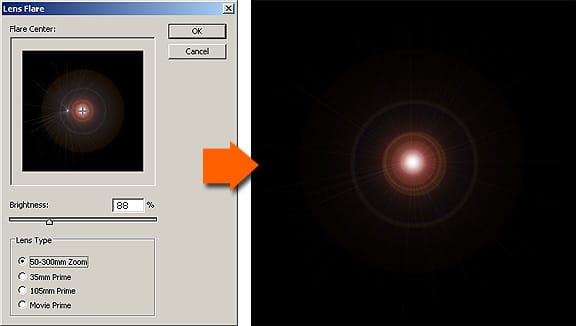
In this example, setting the Brightness = 88% will make the surrounding rings and glow fade to none before reaching the borders of the image. This will allow the final brush to blend smoothly with the background.

Step Two: Invert the image and convert it into a brush tip

Select the image with Select > All and invert the colors using Image > Adjustment > Invert. The result will be the following:
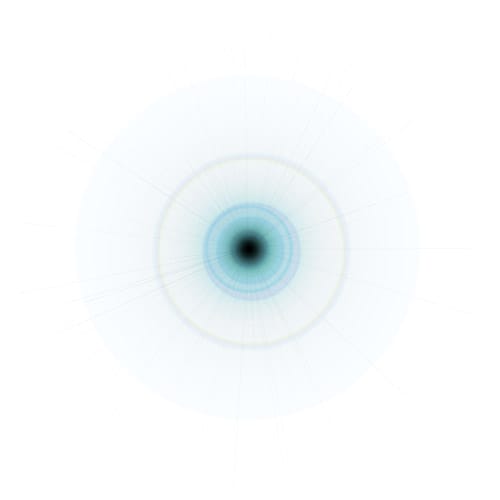
Now select the whole image again and go to Edit > Define Brush Preset. Now your brush has been successfully added to your brushes list.

The following image shows some simple examples of what you can achieve with this brush:
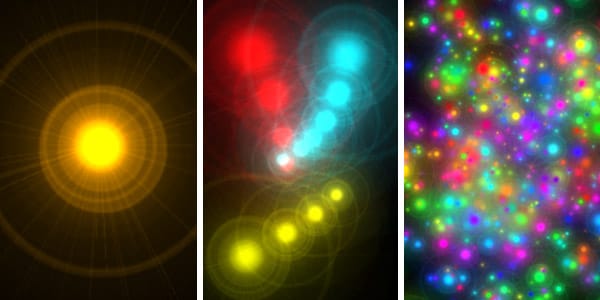
The first and second examples were achieved by superimposing brush clicks with different colors sizes and blending options. The third example was created using different color and shape dynamics. There is nothing new in this. It’s all in the brush tip and your creativity.

Two variations of the same brush

For the first alternative we will apply a Radial blur filter and a Sharpen More filter. The Radial blur will get rid of the most visible halos surrounding the glow. And the Sharpen More filter will increase the visibility of the light rays.
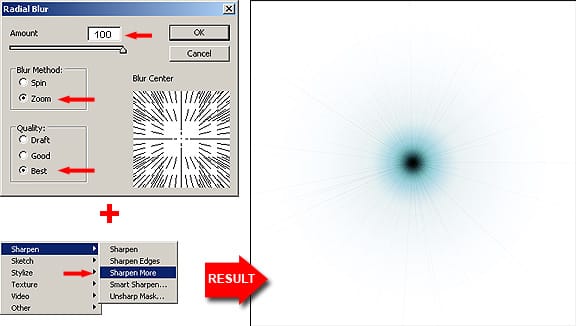
For the second alternative we will just apply a Motion blur filter. This will give  the glow a different shape.
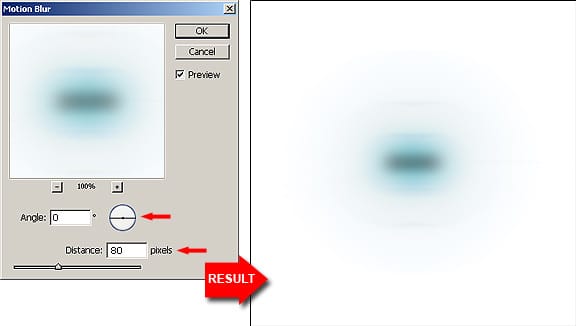
The following examples were made with these two new brushes:
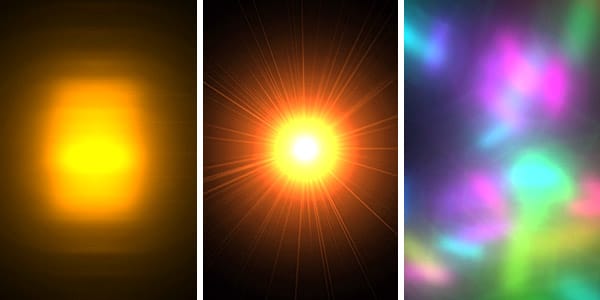
These examples were created the same way than the previous ones. Play with the brush tool blending modes (not with the layer blending modes) and also play with the brush dynamics. These settings can give you a lot of cool effects.

Get tutorials & freebies delivered to you.

Subscribe to the Photoshop Roadmap newsletter, a weekly roundup of new tutorials, insights and quality downloads, trusted by 6500+ readers.

You might also like

How to Use AI Masking in Adobe Camera Raw for Professional Photo Editing

Adobe Camera Raw's AI masking tools automatically detect subjects, backgrounds, skies, and landscapes, letting you make precise adjustments to specific areas of your photos. These intelligent masks eliminate the need for manual selection work, while allowing you to combine and refine them for complete creative control. The technique...

How to Remove Objects from Photos Using AI Tools in Photoshop

Photoshop's AI-powered object removal tools can eliminate unwanted distractions from your photos with minimal effort. The Remove Tool and Generative Fill feature automated detection for common distractions like people and wires, plus manual painting options for custom removals. These tools work on separate layers, preserving your original image...

Speed Up Your Color Grading Workflow with Photoshop Actions

Color grading can transform your images, but manually adjusting curves and levels for every photo takes time. Photoshop actions offer a faster approach by applying professional color treatments with a single click. This workflow uses pre-built actions, tints, and LUTs to achieve various moods and styles instantly, letting you layer...

7 Essential Tips for Speed Painting in Digital Art

Speed painting isn't just about working faster—it's about eliminating friction from your creative process. These seven techniques help you get ideas onto canvas quickly without getting bogged down in unnecessary decisions or premature details. Whether you're exploring concepts for professional work or personal...

Professional Color Grading Techniques in Photoshop

Color grading transforms ordinary photos into compelling images with professional mood and atmosphere. These non-destructive techniques let you adjust tones, enhance specific colors, and create cinematic looks while preserving your original image data. Master these four essential color grading methods to develop a consistent editing workflow that elevates your photography....

How to Save Cut-Out Elements with Transparent Backgrounds in Photoshop

Creating seamless photo composites requires properly saving cut-out elements with transparent backgrounds. Whether you're extracting people, objects, or other elements for later use, the file format you choose determines how easily you can place these elements into new scenes. Two main approaches work best: saving as PSD files...

You’ve successfully subscribed to Photoshop Roadmap
Welcome back! You’ve successfully signed in.
Great! You’ve successfully signed up.
Success! Your email is updated.
Your link has expired
Success! Check your email for magic link to sign-in.