Create a Nice Polaroid Photo Montage in Photoshop

Create a Nice Polaroid Photo Montage in Photoshop

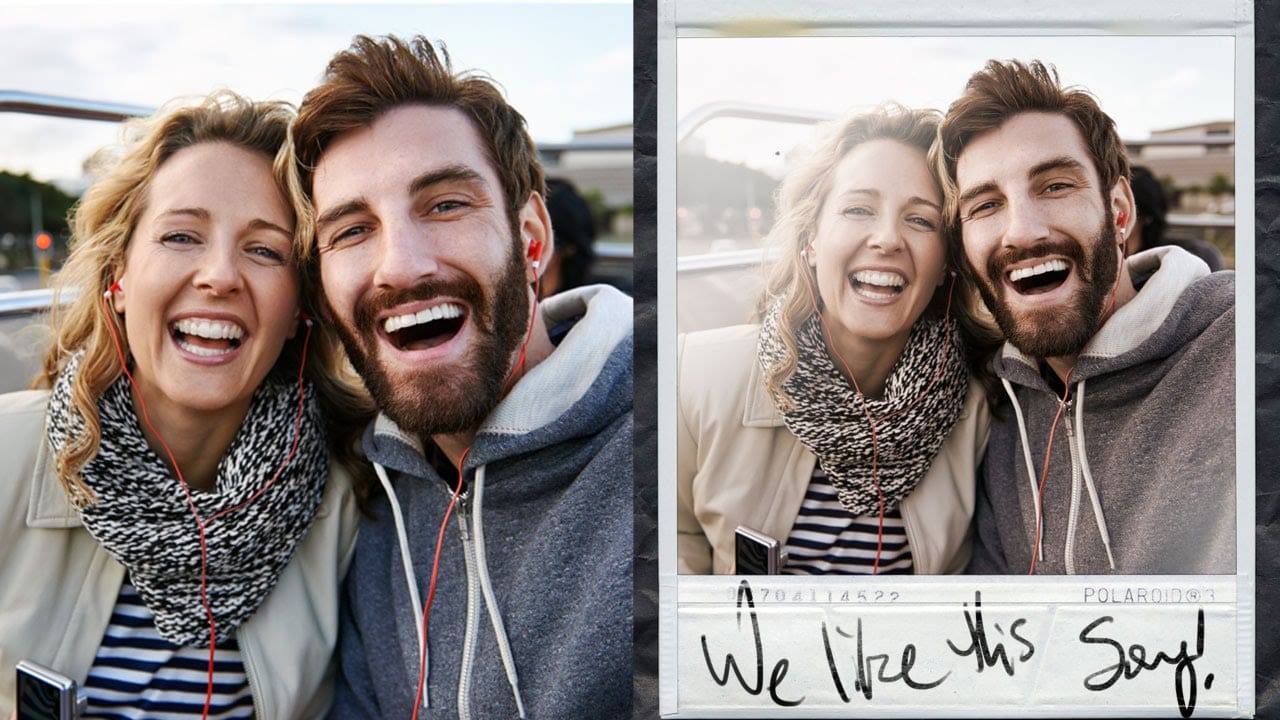
Creating a sense of nostalgia with photo effects remains a popular trend. The Polaroid look, with its distinctive frame and vintage vibe, can transform ordinary photos into something special. By arranging multiple Polaroid-style images from a single source, you can create a unique collage effect.

This tutorial demonstrates how to craft a Polaroid photo montage using Photoshop. The process involves duplicating and arranging Polaroid frames, adding shadows for depth, and applying creative lighting effects to enhance the final composition.

Watch the Video

Video by Blue Lightning. Any links or downloads mentioned by the creator are available only on YouTube

Exploring the Art of Photo Montages

Photo montages are more than just a collection of images; they tell a story through visual arrangement. The human brain is wired to seek patterns and connections, and a well-crafted montage plays into this cognitive tendency. By strategically positioning and overlapping images, artists can guide the viewer's eye and create a narrative flow that enhances the emotional impact of the piece.

The art of photo montage gained prominence in the early 20th century with Dadaist and Surrealist movements, used to express anti-establishment sentiments and explore subconscious themes. Today, digital tools make it easier than ever to experiment with this technique. Modern artists use montages to explore themes ranging from personal identity to social commentary, taking advantage of the layered and complex narratives that this medium can convey. This includes, for example:

  • Juxtaposing contrasting elements
  • Creating visual metaphors
  • Adding layers of meaning through careful composition

Practical Tips for Creating a Polaroid Montage

  • Start with a high-resolution image: Beginning with a high-quality image ensures the final montage retains detail, especially when creating multiple Polaroid copies.
  • Use consistent drop shadows: Applying consistent drop shadows to each Polaroid frame adds depth and realism, making the montage visually appealing.
  • Vary the rotation and placement: Rotate and reposition each Polaroid to create a dynamic and organic arrangement, avoiding a static or uniform look.
  • Add a background texture: Incorporating a background texture or pattern complements the Polaroid montage, enhancing the overall aesthetic and providing context.

Expand your knowledge with these hand-picked tutorials and articles. Learn new skills, discover different techniques, and boost your creative ideas.
Create A Collage Of Polaroids From A Single Photo
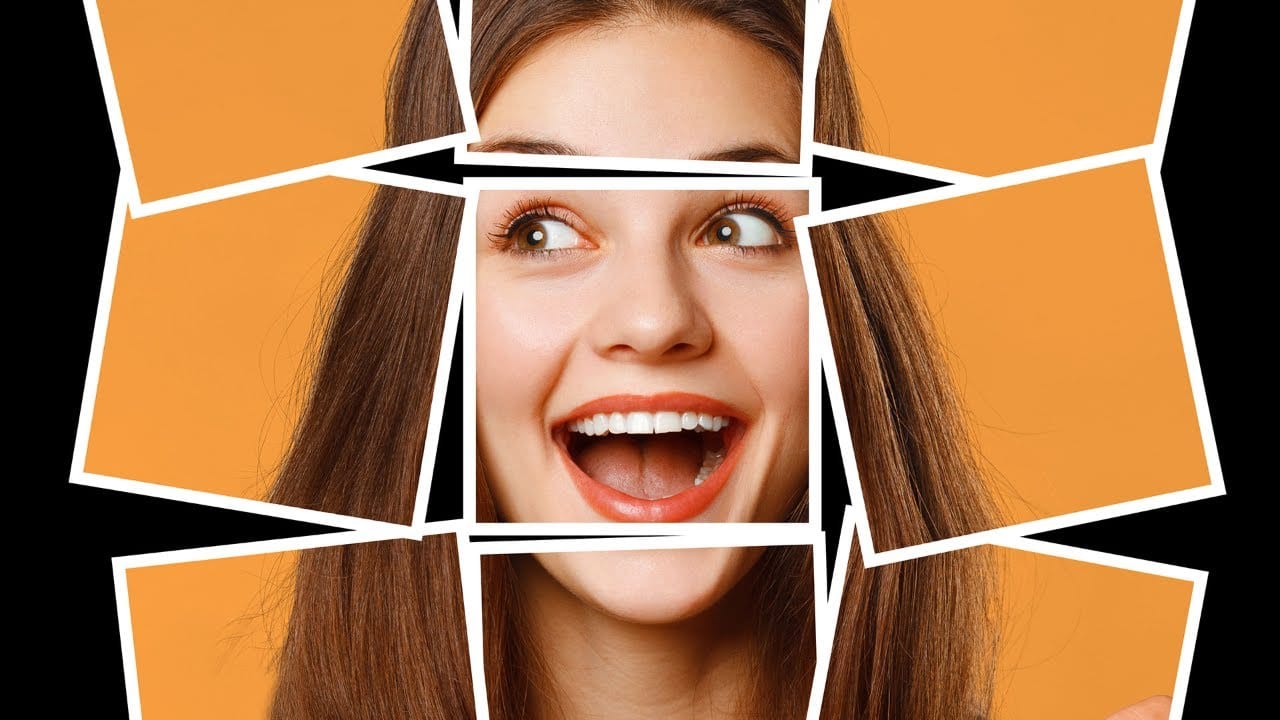
Transforming a single photo into a collage of polaroids is a straightforward yet enjoyable process. Begin by selecting your image and cropping it into a square format. This sets the foundation for creating multiple smaller sections, each representing a part of the whole. Next, you divide the square image into smaller squares. Adding a white border around each square will give them a distinct polaroid look. Once that's done, the fun continues as you arrange and rotate each piece to create an eye
How to Make a Polaroid Framed Picture in Photoshop
You can create a Polaroid-framed picture in Photoshop using a tutorial by Aaron Nace from Phlearn. In this tutorial, you will learn how to make a Polaroid-style frame for your image in just a few simple steps. The process involves downloading a Polaroid frame image and then incorporating it into your photo using Photoshop. The tutorial guides you through the necessary techniques, such as resizing the frame, adjusting the placement, and blending it seamlessly with your image. By following this
How to Make a Photo Collage in Photoshop
In this tutorial by Envato Tuts, you'll delve into a unique technique for creating photo collages in Photoshop. Rather than assembling a traditional multi-image composition, this approach focuses on crafting a striking portrait using scattered polaroid-style photos. The tutorial guides you through the process of arranging individual snapshots of a young teen girl smiling, each positioned to contribute to a cohesive, unified portrait. This technique is distinct from standard collages as it forms
How to Create Simple Photo Collages in Photoshop
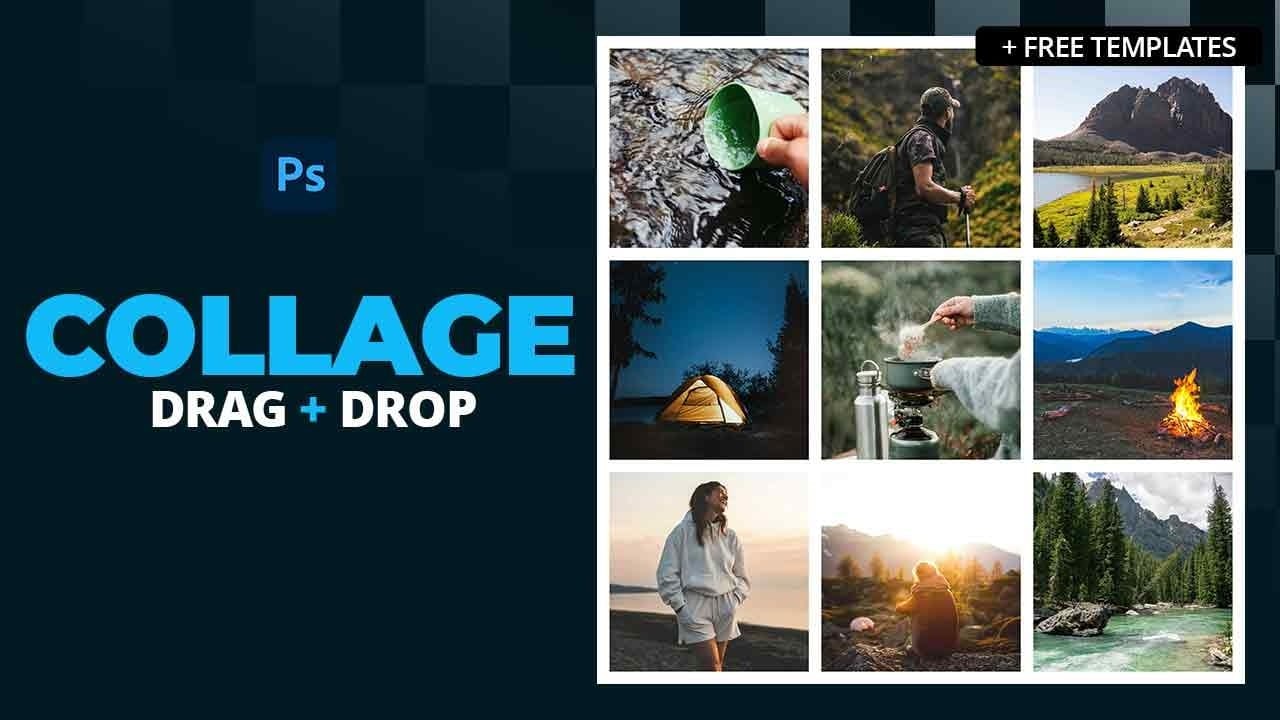
In this Photoshop tutorial, you’ll learn an easy technique for creating collages by using grids and the Frame Tool. The process starts with setting up guides to create a structured layout, making it simple to place and organize your images. You’ll see how to position photos within frames, adjust them as needed, and even add clean borders for a polished look. This method is adaptable to any collage style, allowing you to customize layouts and frame sizes based on your preferences. Once your desi

Get tutorials & freebies delivered to you.

Subscribe to the Photoshop Roadmap newsletter, a weekly roundup of new tutorials, insights and quality downloads, trusted by 6500+ readers.

You might also like

10 Photoshop Tricks You Probably Forgot Exist

There’s a funny pattern with Photoshop. The longer you use it, the more you rely on the same small set of tools… while some of the most powerful techniques quietly fade into the background. Not because they stopped working — but because they’re just a bit hidden, or not...

Add Floral Patterns to Black Dresses Using Brushes in Photoshop

Transform plain black clothing into vibrant, patterned garments using custom brushes and strategic layer blending. This non-destructive technique combines precise selections with clipping masks to paint realistic floral designs directly onto fabric while preserving the original photograph. The method works particularly well on black materials because the hard light blend...

How to Replace Objects Using Reference Images in Photoshop Generative Fill

Reference images transform Generative Fill from a text-based tool into a precise visual command system. Instead of describing what you want, you show the AI exactly which object to create, leading to more accurate and predictable results. This technique works by combining traditional selection tools with the new reference image...

How to Use Blend If Sliders for Pixel-Perfect Transparency in Photoshop

Blend If sliders control transparency based on brightness levels, making complex selections unnecessary. Understanding how these two simple sliders work with RGB channels opens up precise compositing possibilities that would otherwise require multiple masks and selections. The technique works by targeting specific brightness ranges from 0 to 255, allowing you...

How to Create a Double Exposure Effect in Photoshop Using Screen Blend Mode

Double exposure effects transform ordinary portraits into striking artistic compositions by blending two images seamlessly. This technique works best with high-contrast images—silhouettes against bright backgrounds paired with nature scenes or textures. The key to successful double exposures lies in the contrast between light and dark areas. When you combine...

You’ve successfully subscribed to Photoshop Roadmap
Welcome back! You’ve successfully signed in.
Great! You’ve successfully signed up.
Success! Your email is updated.
Your link has expired
Success! Check your email for magic link to sign-in.