How to Paint Graphics onto a Face in Photoshop

How to Paint Graphics onto a Face in Photoshop

Achieving realistic digital face paint in Photoshop can transform portraits, bringing creative visions to life for various purposes. This technique is particularly effective for applying elements like flags, sports team logos, or intricate designs directly onto a subject's face, making it appear as if the graphic is truly painted on.

This video tutorial guides you through the process of seamlessly applying graphics to a face using Photoshop's powerful features. You will learn how to prepare your images, utilize displacement maps for realistic warping, and refine selections to create convincing digital face paint effects.

Watch the Video

Video by Blue Lightning. Any links or downloads mentioned by the creator are available only on YouTube

Integrating Graphics with Facial Contours

Applying a flat graphic onto a three-dimensional surface like a human face requires techniques that account for the natural curves and undulations of the skin. Merely overlaying an image would result in an unrealistic, flat appearance. This is where tools like Photoshop's Displace filter become invaluable, allowing the graphic to warp and conform to the underlying contours of the face, mimicking how actual paint would adhere.

The creation of a "displacement map" is central to this process. This map is essentially a grayscale representation of the subject's facial topography, where lighter areas indicate higher points and darker areas represent lower points. When applied, Photoshop uses this map to distort the graphic, pushing and pulling its pixels to align with the perceived depth and form of the face.

This method ensures that the painted graphic looks integrated rather than simply pasted on, making it suitable for applications such as:

  • Adding team spirit for sports fans
  • Creating theatrical makeup effects
  • Designing digital prototypes for real-world face painting

Proper blending modes and masks further enhance this illusion, ensuring the graphic interacts realistically with the skin's texture and color.

Practical Tips for Digital Face Painting

  • Convert your subject image into a Smart Object to allow for non-destructive modifications and easy replacement of the subject.
  • Create a "displacement map" from your subject's face by desaturating and blurring a duplicated layer, then saving it as a PSD file.
  • Use the Quick Selection Tool and Refine Edge to make a precise selection around the face, creating a layer mask to isolate the area for the graphic.
  • Apply the Pinch filter to the graphic to introduce an initial curve that approximates the face's natural shape before more precise warping.
  • Utilize the Displace filter with your saved displacement map to warp the graphic realistically around the contours of the face.
  • Adjust the graphic's blend mode, such as Color Burn, to integrate it naturally with the underlying skin tones.
  • Employ a Vibrance adjustment layer, clipped to the graphic, to enhance the graphic's color vibrancy without affecting the rest of the image.

Explore more techniques to enhance portraits and create stunning visual effects in Photoshop.
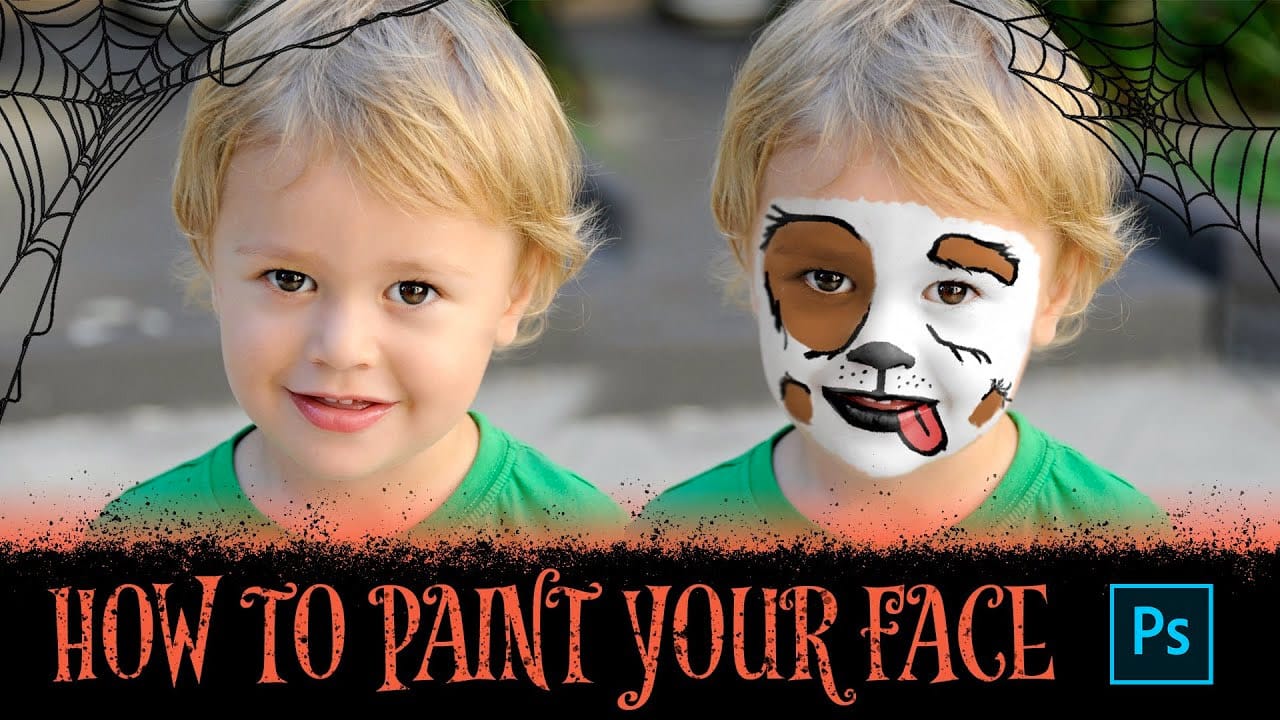
How to Paint Your Face in Photoshop
This exciting tutorial by PHLEARN dives into the world of digital face paint. Learn how to utilize a custom face paint brush (potentially included in the video) and Adjustment Layers to create vibrant and realistic designs, perfect for both adorable Halloween looks or spooky transformations. The video will guide you through the process, allowing you to unleash your creativity and design unique face paint effects for any project. Watch tutorial
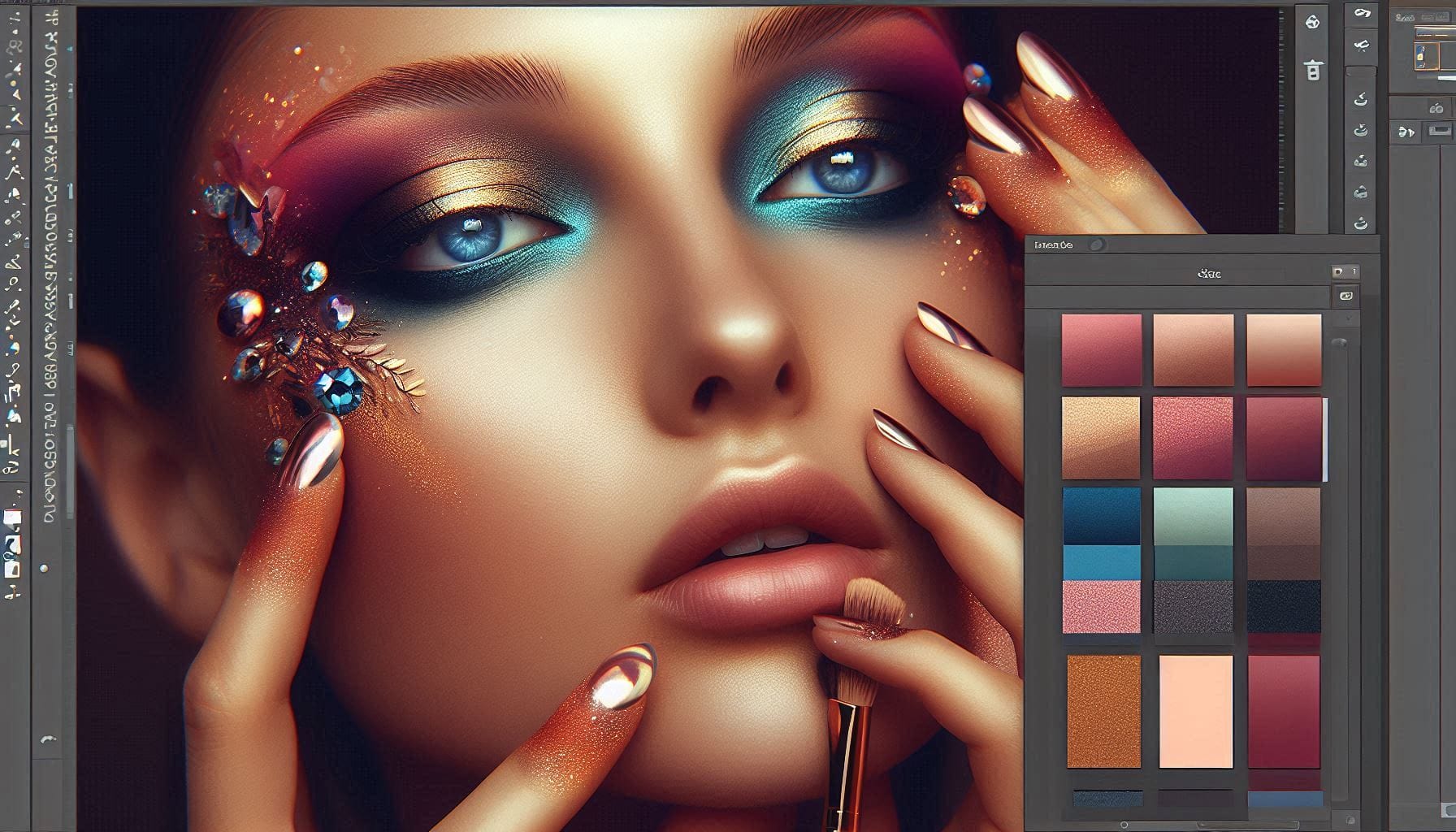
Learn How to Create Beauty Makeup and Face Painting Effects in Photoshop
This guide is designed to help you learn how to create beauty makeup and face painting effects using Photoshop. With clear instructions, you'll discover how to apply makeup digitally, utilizing techniques that professional makeup artists rely on in their work. The focus is not limited to beauty makeup alone. You will also explore various effects, including horror themes, bruises, and scars. The content is suitable for anyone interested in enhancing their portrait skills, whether for personal pr
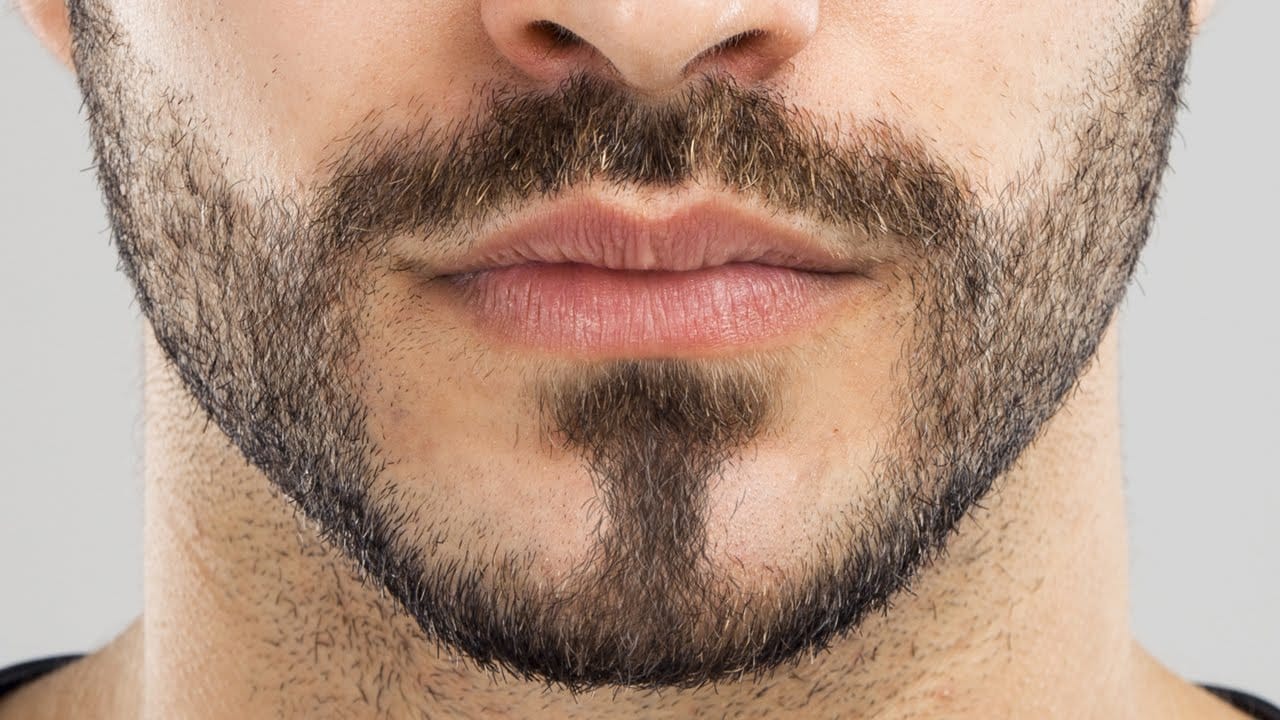
How to Create Facial Hair in Photoshop
This video by PHLEARN will teach you how to add realistic facial hair to your photos in Photoshop. Aaron Nace breaks down the process into clear steps. Whether you’re looking to fill in patchy beard areas or give someone a complete makeover with a mustache, goatee, or full beard, this tutorial will show you the ropes. You’ll even learn how to create your own custom hair brush from scratch using a single hair! In short, this video is perfect for anyone who wants to master the art of adding facia
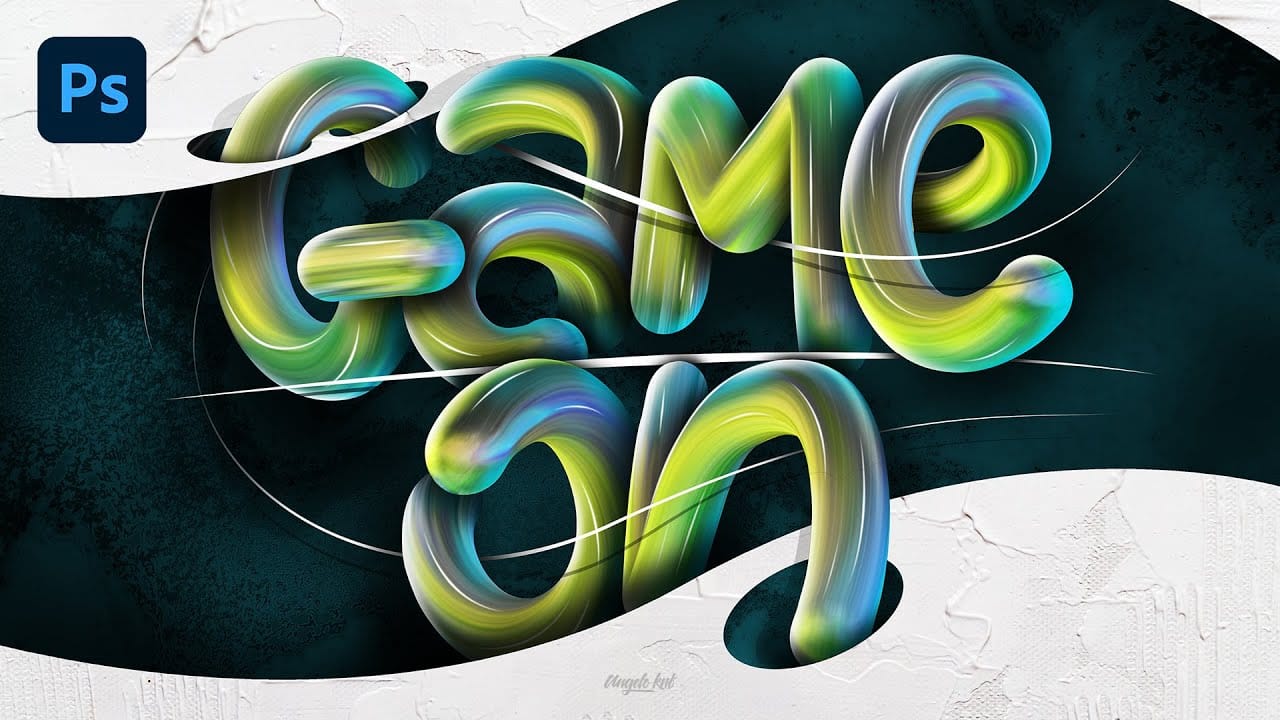
Colorful Painted 3D Text Effect Tutorial in Photoshop
In this tutorial by Angelo Konofaos, you'll explore how to create a 3D-style text effect in Photoshop, alongside techniques like adding shadows, highlights, shines, and colors. Utilizing a variety of Photoshop tools such as the Mixer Brush, Pen Tool, clipping masks, and adjustment layers, the tutorial demonstrates the process of refining text to achieve a polished and dimensional look. For optimal results, Konofaos recommends using a pen tablet like the Wacom Intuos to enhance precision and fl

Get tutorials & freebies delivered to you.

Subscribe to the Photoshop Roadmap newsletter, a weekly roundup of new tutorials, insights and quality downloads, trusted by 6500+ readers.

You might also like

How to Create Custom Keyboard Shortcuts in Photoshop

Many essential Photoshop functions surprisingly lack default keyboard shortcuts, forcing you to navigate through menus repeatedly for common tasks like creating smart objects or layer masks. Learning to create custom shortcuts transforms your workflow by giving you instant access to the tools you use most. This comprehensive guide walks you...

How to Convert a Portrait Photo into a Black and White Logo Design

Portrait photos can be transformed into bold, graphic logos with the right combination of filters and adjustments. This technique uses Gaussian blur and threshold adjustments to convert photographs into high-contrast black and white designs suitable for branding, badges, or stamps. The process involves subject isolation, smart filtering, and precise path...

How to Create Sharp Halftone Effects in Photoshop

Traditional halftone effects in print media created depth through visible dot patterns that gave images character and texture. While Photoshop's built-in Filter Gallery offers a quick halftone option, it produces blurry results that lack the crisp definition of professional halftone work. This technique uses the Color Halftone filter...

Create a Sci-Fi Hologram Effect in Photoshop

Transform ordinary portraits into futuristic holographic projections with this sci-fi effect technique. The process combines motion blur, gradient mapping, and scan line patterns to create the distinctive translucent appearance of holographic displays. This method keeps your subject vibrant and colorful while converting the background to black and white, emphasizing the...

How to Use Reference Images with Generative Fill in Photoshop

Generative Fill transforms when you replace text prompts with actual images. Instead of describing what you want, you show the AI exactly what to create using reference photos. This feature works for adding objects like toys and electronics, or swapping clothing items with precise visual control. The AI automatically matches...

Photoshop's Generative Fill Gets Major Upgrade: New Model Comparison and Quality Test

Adobe's latest Generative Fill update brings the new Firefly Fill and Expand model with double the resolution and dramatically improved quality for generating people, hands, and complex objects. The upgrade moves from 1024x1024 to 2048x2048 pixel output, allowing for larger selections without quality loss. This comprehensive comparison tests...

You’ve successfully subscribed to Photoshop Roadmap
Welcome back! You’ve successfully signed in.
Great! You’ve successfully signed up.
Success! Your email is updated.
Your link has expired
Success! Check your email for magic link to sign-in.