Transform Photos into Jigsaw Puzzles in Photoshop

Transform Photos into Jigsaw Puzzles in Photoshop

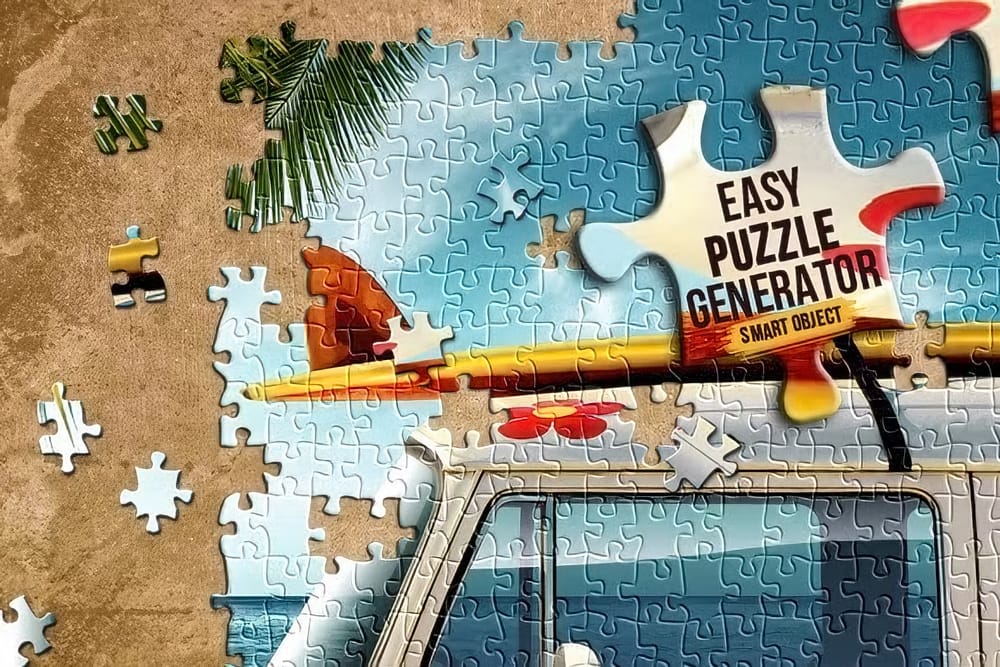
This video demonstrates a creative method for transforming ordinary photographs into engaging jigsaw puzzles using Adobe Photoshop CC and later versions. It showcases how to achieve a realistic puzzle effect, complete with individual pieces, bevels, and shadows.

Viewers will learn to leverage a free Adobe plugin to automatically generate puzzle pieces, define custom background patterns, and artfully reposition individual elements. The tutorial emphasizes practical steps to achieve a dynamic visual effect, making images more interactive and visually appealing.

Watch the Tutorial

Video by Blue Lightning. Any links or downloads mentioned by the creator are available only on YouTube

Creative Applications of Digital Puzzle Effects

Transforming an image into a digital jigsaw puzzle is more than a mere visual trick; it's a technique that can add depth and intrigue to various design projects. This effect inherently breaks down a complete visual into smaller, distinct components, which can symbolize themes of deconstruction, reassembly, or intricate detail. Designers often employ such effects in marketing materials to create a sense of curiosity, inviting viewers to metaphorically "put the pieces together" to understand a message or product.

Beyond marketing, digital puzzle effects find their place in artistic compositions and interactive media. An image presented as a scattered puzzle can evoke a narrative of memory, fragmentation, or the process of discovery. It challenges the viewer's perception by presenting a familiar form in an unconventional manner, thus enhancing engagement and leaving a lasting impression.

The ability to manipulate individual pieces—adjusting their position, rotation, and layering—offers a high degree of creative control. This allows for:

  • Dynamic compositions that suggest movement
  • Emphasis on specific parts of the image
  • Creation of abstract or surreal visual narratives

This flexibility makes the puzzle effect a versatile tool in a digital artist's toolkit.

Practical Tips for Digital Puzzle Transformations

  • Install the free "Puzzle Pieces" plugin from Adobe Add-ons to streamline the automated puzzle generation process.
  • Crop your image to the exact dimensions and resolution specified by your chosen puzzle action before playing the action.
  • Adjust the bevel and drop shadow settings in the Layer Style window immediately after the action completes for a unified look across all pieces.
  • Increase the canvas size significantly after puzzle creation to provide ample space for background patterns and individual piece repositioning.
  • Utilize the "Auto Select" feature with the Move Tool to easily manipulate individual puzzle pieces, then group all pieces for global effects like perspective and overall drop shadow.

Explore additional resources that delve into creative image manipulation and puzzle-themed designs.
Jigsaw Puzzle Piece Photoshop Brushes
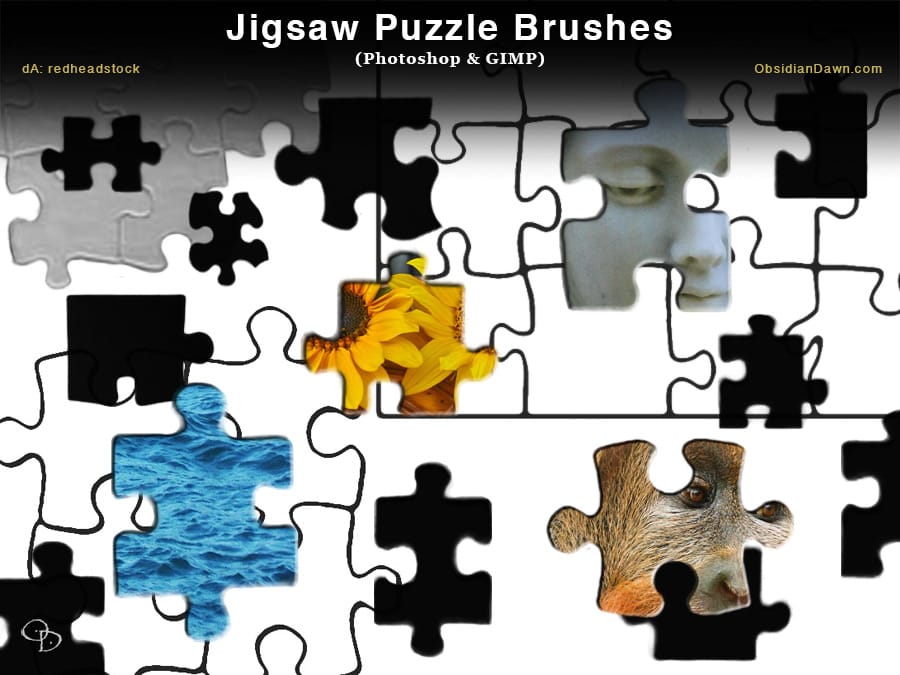
The author has created a set of brushes that are inspired by jigsaw puzzle pieces. These brushes come in a variety of shapes, including corner pieces, edge pieces, and even full puzzle templates. By using a layer mask, these brushes can be applied to another image, allowing the user to create their very own unique puzzle. The brushes are versatile and can be used for a wide range of projects, from creating collages to adding a playful touch to digital art. The inclusion of several puzzle templa
Create a colorful Print-and-Play puzzle for your kids with Photoshop
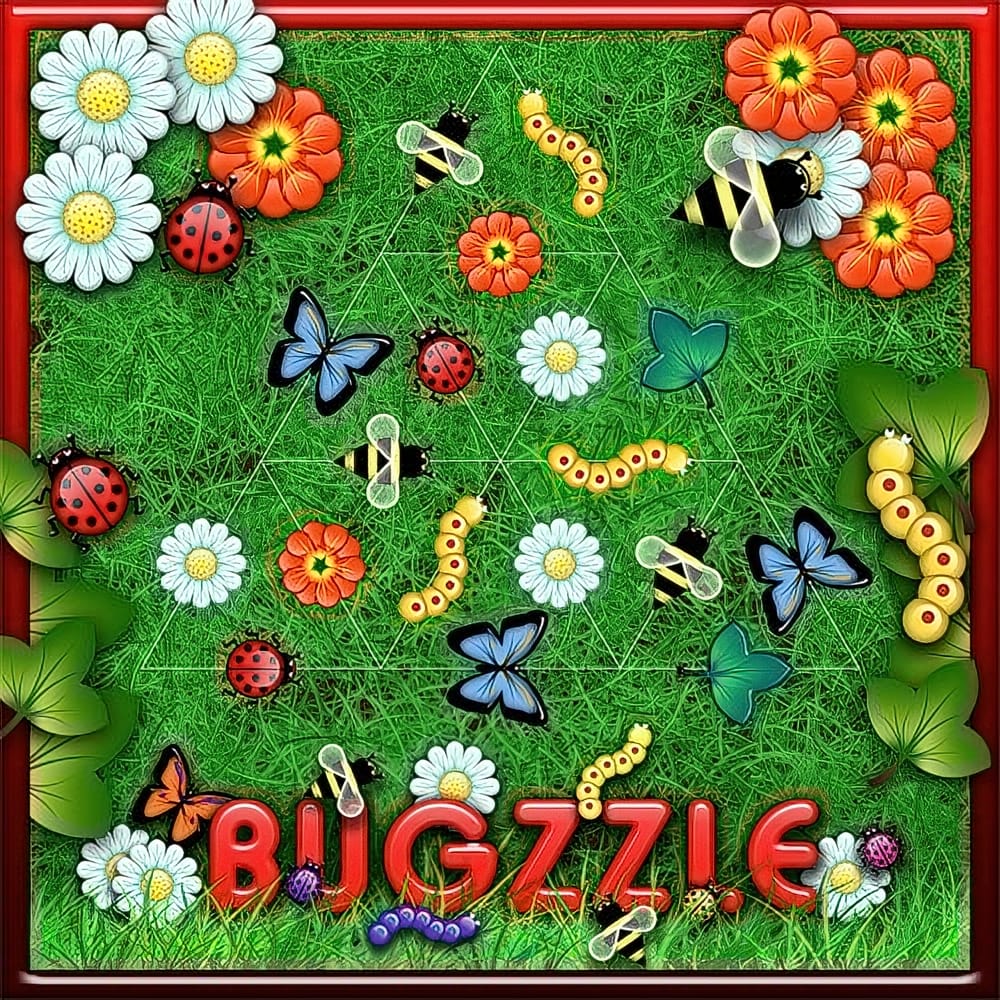
I’m quite sure that many of you had the chance to try those wonderful Triazzle™ puzzles that are being sold at toys stores all over the country. Triazzle™ puzzles were invented by Dan Gilbert, a Graphic Artist, Product Designer and founder of the Dan Gilbert Art Group, after a request from the National Aquarium in Baltimore to create something special for a new exhibit. That original puzzle was never released, but some years later the DaMert Company expressed their interest in that original brai
30 Essential Photo Manipulation Photoshop Tutorials for Beginners
When exploring new Photoshop tutorials, it's common to encounter complex techniques aimed at professionals. However, the reality is that many users often need to tackle basic tasks, such as removing red-eye or altering colors in their images. Sometimes, they might just want to learn a single skill from a more intricate project. This compilation focuses on essential photo manipulation techniques suitable for beginners. It includes methods like changing skies, fixing red-eye issues, creating a ti
Colorful Puzzle Generator Premium Photoshop Action
The Puzzle Generator Premium Photoshop Action is a powerful tool that allows users to transform any image into a stunningly realistic jigsaw puzzle. With just a few clicks, the action can create a puzzle that appears to be in the process of being assembled, complete with visible pieces and a partially completed background. This makes it an excellent choice for creating unique and eye-catching designs, whether for personal projects or professional use. The action is easy to use and can be appli

Get tutorials & freebies delivered to you.

Subscribe to the Photoshop Roadmap newsletter, a weekly roundup of new tutorials, insights and quality downloads, trusted by 6500+ readers.

You might also like

How to Use AI Masking in Adobe Camera Raw for Professional Photo Editing

Adobe Camera Raw's AI masking tools automatically detect subjects, backgrounds, skies, and landscapes, letting you make precise adjustments to specific areas of your photos. These intelligent masks eliminate the need for manual selection work, while allowing you to combine and refine them for complete creative control. The technique...

How to Remove Objects from Photos Using AI Tools in Photoshop

Photoshop's AI-powered object removal tools can eliminate unwanted distractions from your photos with minimal effort. The Remove Tool and Generative Fill feature automated detection for common distractions like people and wires, plus manual painting options for custom removals. These tools work on separate layers, preserving your original image...

Speed Up Your Color Grading Workflow with Photoshop Actions

Color grading can transform your images, but manually adjusting curves and levels for every photo takes time. Photoshop actions offer a faster approach by applying professional color treatments with a single click. This workflow uses pre-built actions, tints, and LUTs to achieve various moods and styles instantly, letting you layer...

7 Essential Tips for Speed Painting in Digital Art

Speed painting isn't just about working faster—it's about eliminating friction from your creative process. These seven techniques help you get ideas onto canvas quickly without getting bogged down in unnecessary decisions or premature details. Whether you're exploring concepts for professional work or personal...

Professional Color Grading Techniques in Photoshop

Color grading transforms ordinary photos into compelling images with professional mood and atmosphere. These non-destructive techniques let you adjust tones, enhance specific colors, and create cinematic looks while preserving your original image data. Master these four essential color grading methods to develop a consistent editing workflow that elevates your photography....

How to Save Cut-Out Elements with Transparent Backgrounds in Photoshop

Creating seamless photo composites requires properly saving cut-out elements with transparent backgrounds. Whether you're extracting people, objects, or other elements for later use, the file format you choose determines how easily you can place these elements into new scenes. Two main approaches work best: saving as PSD files...

You’ve successfully subscribed to Photoshop Roadmap
Welcome back! You’ve successfully signed in.
Great! You’ve successfully signed up.
Success! Your email is updated.
Your link has expired
Success! Check your email for magic link to sign-in.