Create Fun Colored Grid Photo Mosaics in Photoshop

Create Fun Colored Grid Photo Mosaics in Photoshop

Digital art enthusiasts often seek innovative ways to transform ordinary photographs into engaging visual experiences. One compelling technique involves creating a color-grid mosaic, which reinterprets an image through a structured pattern of colored squares.

This tutorial demonstrates how to construct such a mosaic in Photoshop, providing a flexible workflow that allows for easy photo replacement and creative color manipulation. Viewers will learn step-by-step methods to build the grid, apply selections, and introduce dynamic color variations across the image.

Watch the Video

Video by Blue Lightning. Any links or downloads mentioned by the creator are available only on YouTube

The Art and Technique of Grid-Based Mosaics

Mosaics, traditionally crafted from small pieces of material, have a rich history in art, creating larger images from fragmented components. In digital art, this concept translates into grid-based designs where pixels or predefined squares become the building blocks. This approach emphasizes structure and geometric precision, transforming photographic realism into an abstract, patterned representation.

The use of a grid provides a foundational framework, allowing for systematic division and manipulation of an image's color and form. By assigning distinct colors or tonal shifts to individual grid cells, artists can achieve a dynamic interplay between the original photograph's content and the new, stylized interpretation. This method offers a unique perspective on image deconstruction and reconstruction, blurring the lines between photography and graphic design.

Practical Tips for Creating Photo Mosaics

  • Set up a precise grid: Utilize Photoshop's "New Guide Layout" (CC+) or "Guides, Grids & Slices" (earlier versions) to establish a 10x10 grid for consistent mosaic squares.
  • Efficiently select grid lines: Employ the "Single Row Marquee Tool" and "Single Column Marquee Tool" with "Add to Selection" to quickly select all grid lines for filling.
  • Manage layers for flexibility: Create a separate "Grid" layer and use Lock Transparent Pixels to change grid color without affecting transparency, ensuring non-destructive edits.
  • Colorize segments with Adjustment Layers: Use Hue/Saturation adjustment layers with layer masks derived from Magic Wand selections to selectively colorize grid squares, maintaining original tonal values with Color blend mode.
  • Simplify photo replacement: Design the mosaic so that the base photo can be easily swapped out and repositioned without redoing the entire grid or colorization effects.

Explore more creative techniques and effects to enhance your images in Photoshop.
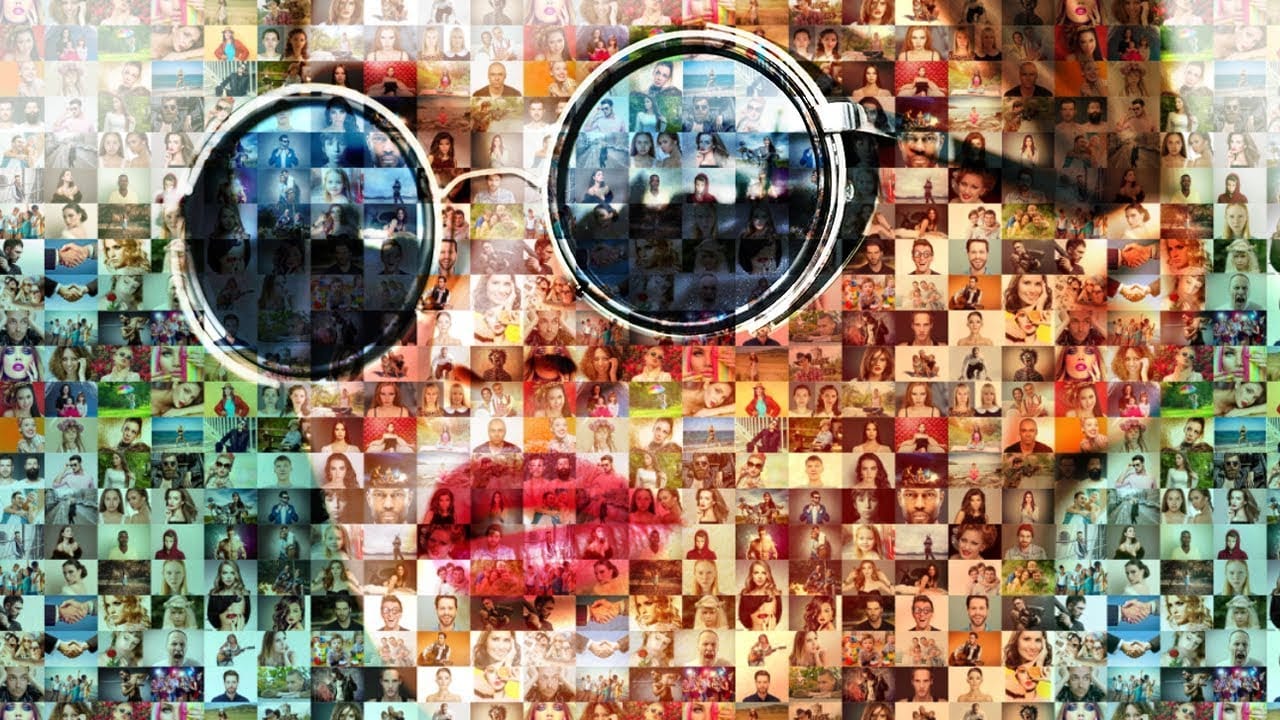
Create a stunning photo mosaic portrait in Photoshop
In this Photoshop tutorial by Marty Geller from Blue Lightning Tv, you will learn how to create a photo mosaic in Photoshop. There are many free applications that can be used to create a photo mosaic effect instantly and easily. But the advantage of using Photoshop is that it is more flexible in arranging the photos and the size of the mosaic pattern. Watch tutorial
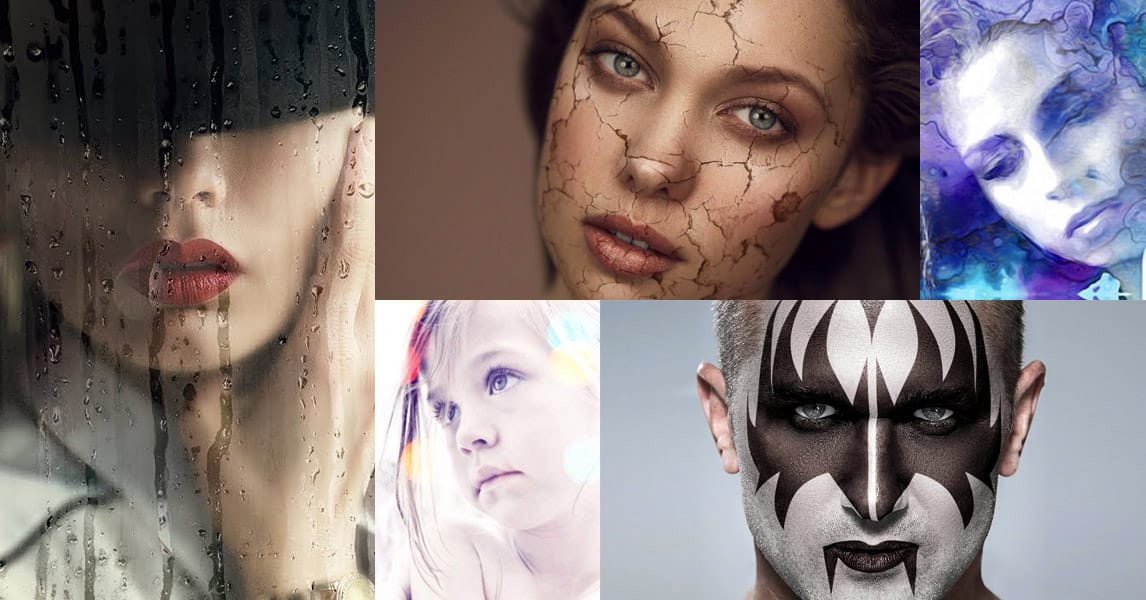
35 Creative Portrait Effects Photoshop Tutorials
When it comes to mind-bending portrait creativity, nothing rivals Photoshop's capabilities. This curated list elevates portraiture far beyond basic filters and effects, exploring 35 of the most innovative and original Photoshop techniques out there. From seamless double-exposures blending humans and nature, to hyperreal pencil renders, to surreal reality-bending manipulations - it's an expansive showcase of artistic frontiers. These tutorials offer step-by-step guidance from elite Photoshop art
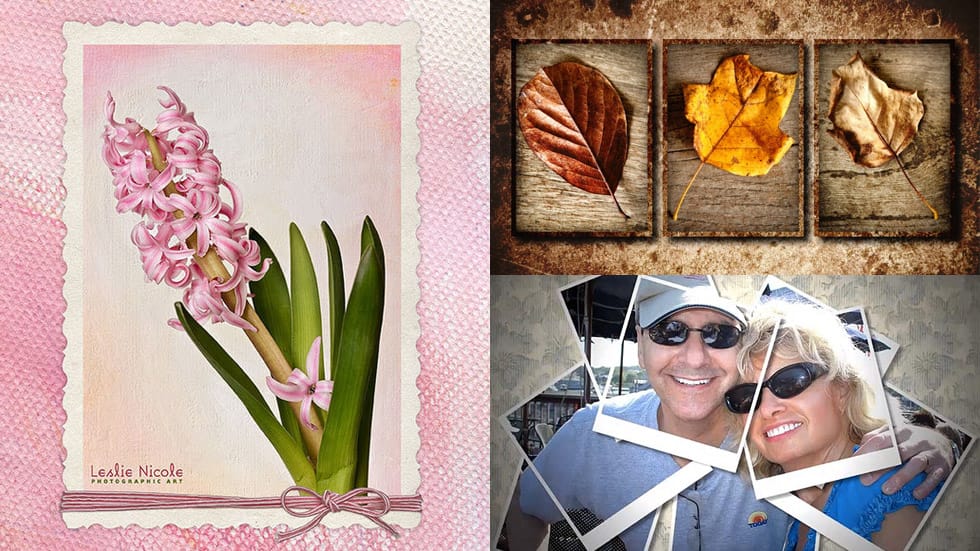
Beautiful Photo Frames and Borders Photoshop Tutorials
Photo Effects has become one of the most popular topics in Photoshop today. Many users find themselves eager to add that final touch to their images after applying various effects. One effective way to enhance photos is by incorporating frames, which can elevate the overall aesthetic. In this article, you will discover a selection of beautiful frames, edges, and borders that can transform your images. Each tutorial offers step-by-step guidance, making it easy for you to apply these artistic ele
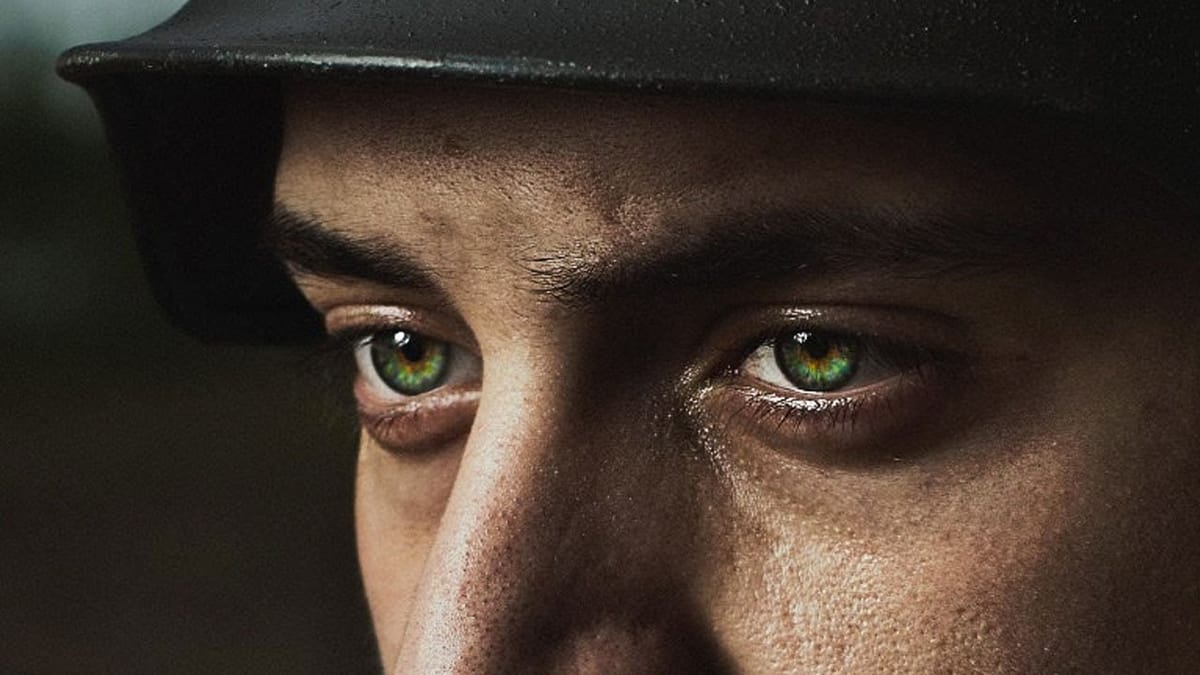
How to Color, Brighten and Sharpen Eyes in Photoshop
In this tutorial by Aaron Nace from Phlearn, learn how to enhance eyes in Photoshop to make them captivating and sharp. Techniques include coloring the eyes by sampling natural hues and adjusting lightness and saturation, using blending modes like “Soft Light” or “Overlay” for a natural look, and softening edges

Get tutorials & freebies delivered to you.

Subscribe to the Photoshop Roadmap newsletter, a weekly roundup of new tutorials, insights and quality downloads, trusted by 6500+ readers.

You might also like

How to Enhance Skin Tones Using Gradients in Photoshop

Skin tones often appear washed out or lifeless in photographs due to challenging lighting conditions or camera settings. This gradient-based technique brings vibrancy back to portraits while creating natural-looking dimensional highlights that draw the viewer's eye to key facial features. The method uses Color Range selections combined with...

7 Signs You're a Photoshop Pro - Skill Assessment Guide

Professional Photoshop mastery isn't about memorizing every menu or filter. It's about developing efficient workflows, understanding core concepts, and building muscle memory for essential techniques. Real pros focus on the right tools for their specific needs rather than trying to learn everything. This comprehensive assessment covers...

How to Use Generative Upscale with Multiple AI Models in Photoshop

Pixelated vintage photos and low-resolution images no longer need to stay small. Photoshop's Generative Upscale feature now offers multiple AI models to enlarge images up to 4x their original size while adding remarkable detail and clarity. This new feature includes three distinct AI models—Adobe's Firefly...

Create a Pointillism Effect in Photoshop

Pointillism, the late 19th-century painting technique that uses small dots of color to form images, creates a distinctive artistic look where colors blend optically when viewed from a distance. This digital recreation technique transforms ordinary photographs into artwork that mimics the style of masters like Paul Signac. The process combines...

How to Convert WebP to JPEG in Bulk Using Image Processor

Converting large folders of WebP images to JPEG format can be time-consuming when done manually. Image Processor provides an efficient solution for batch conversion, automatically handling multiple files while maintaining quality settings and organization. This method works with any image format conversion and creates organized output folders, making it ideal...

How to Use Generative Credits in Adobe Creative Cloud: Standard vs Premium Features

Adobe's generative AI features transform how creatives work, but understanding which tools consume credits can save you time and budget frustration. The credit system divides features into standard and premium tiers, with different consumption rates based on processing complexity. Knowing the difference between assistive AI tools that cost...

You’ve successfully subscribed to Photoshop Roadmap
Welcome back! You’ve successfully signed in.
Great! You’ve successfully signed up.
Success! Your email is updated.
Your link has expired
Success! Check your email for magic link to sign-in.