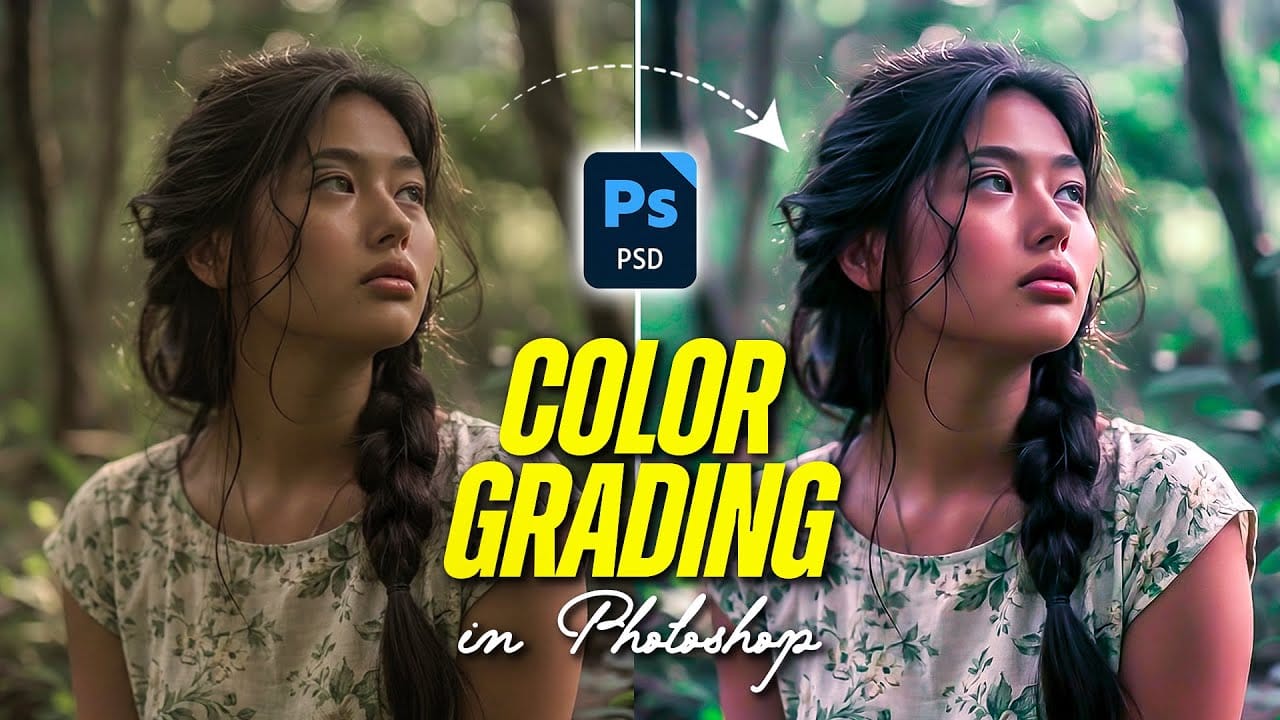
How to Use Textures for Color Grading in Photoshop

How to Use Textures for Color Grading in Photoshop

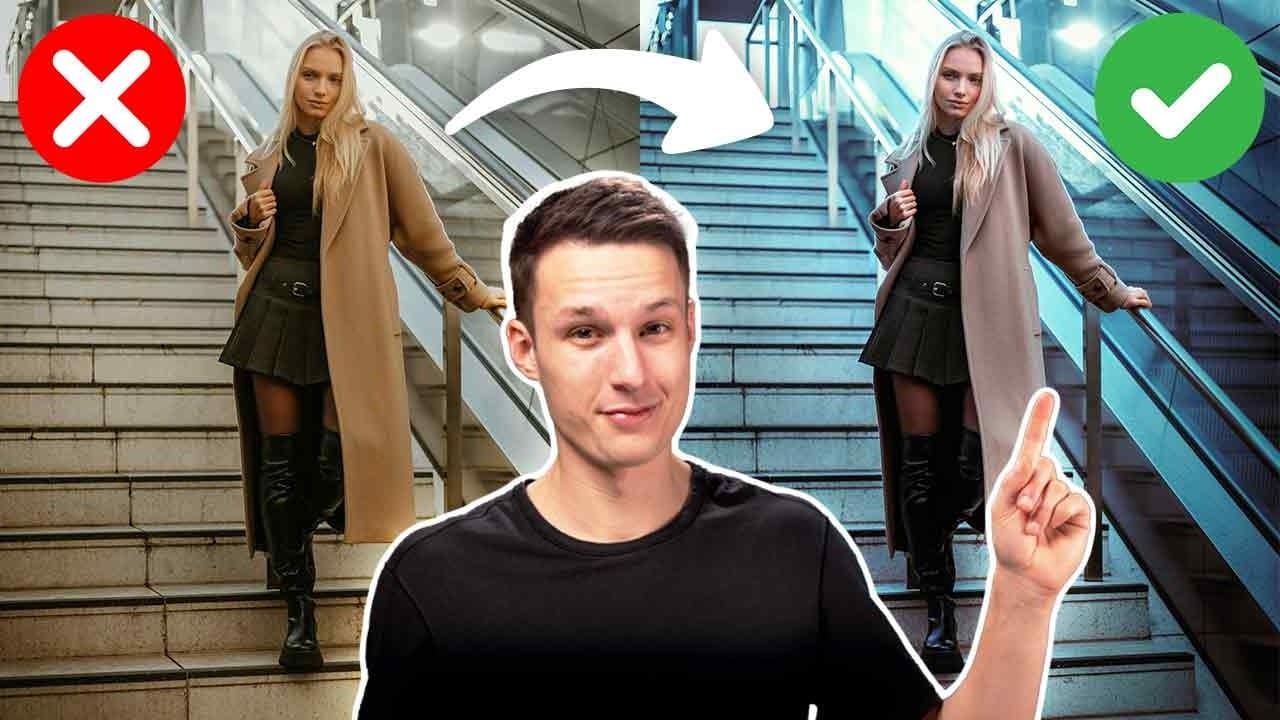
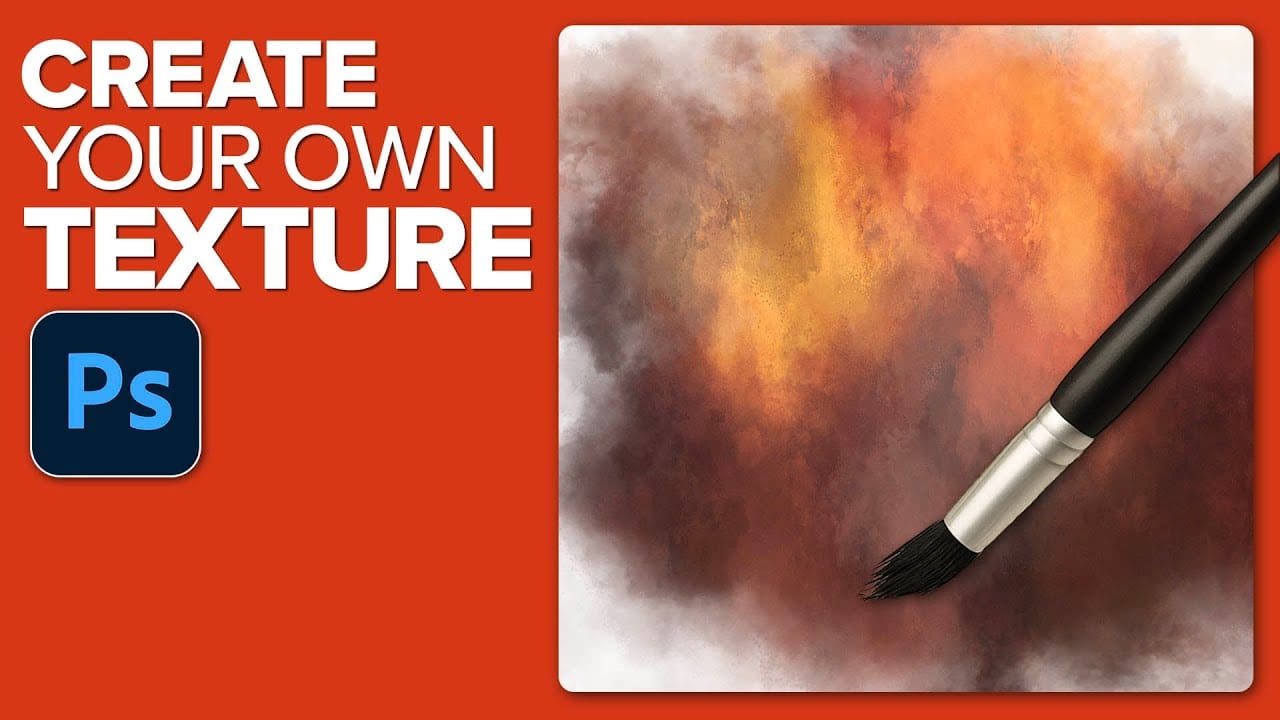
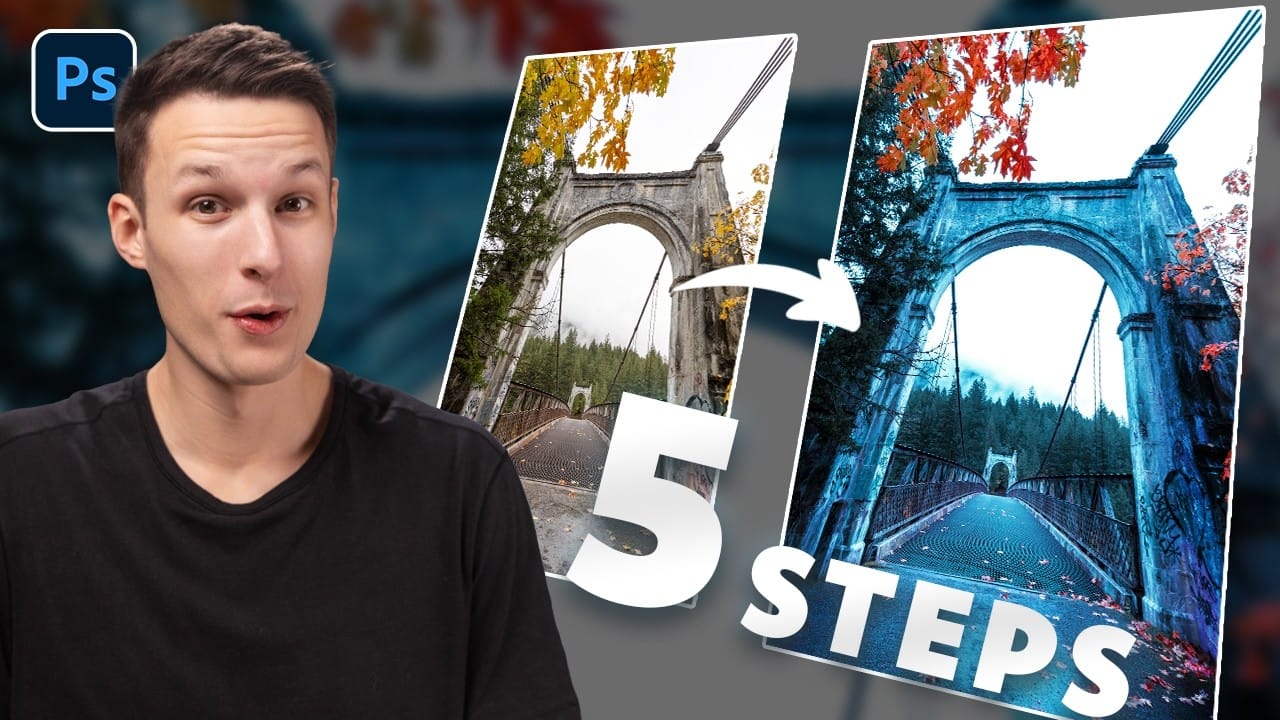
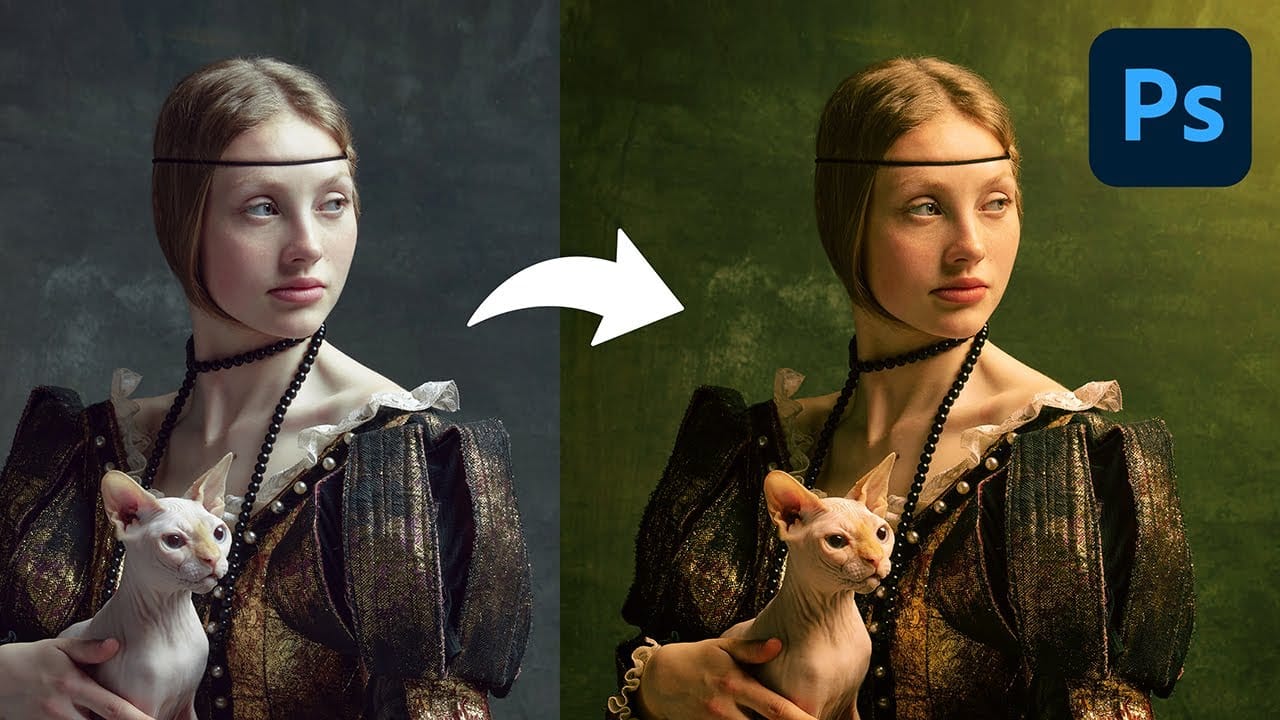
Textures offer a powerful way to color grade images beyond traditional adjustment layers. By layering colored textures with specific blend modes, you can create unique tonal shifts, add visual depth, and achieve artistic looks that standard color correction can't match.

This technique works by using the color information in textured overlays to influence your image's existing tones, similar to how traditional film photographers used colored gels and multiple exposures to create mood and atmosphere.

Watch the Video

Video by SandraD Imagery. Any links or downloads mentioned by the creator are available only on YouTube

Practical Tips

These essential techniques will help you master texture-based color grading:

  • Start with multiply or soft light blend modes for natural-looking color shifts that preserve image detail
  • Experiment with opacity settings between 60-90% to find the sweet spot where texture enhances without overwhelming
  • Use layer masks to selectively remove texture from areas where it creates unwanted effects or color casts
  • Duplicate texture layers with different blend modes to build complex, layered color treatments
  • Sample colors from successful areas and paint over problem spots using a low-opacity brush for seamless blending

Explore more color grading and texture techniques to expand your creative toolkit:
Professional Color Grading Techniques in Photoshop
Color grading transforms ordinary photos into compelling images with professional mood and atmosphere. These non-destructive techniques let you adjust tones, enhance specific colors, and create cinematic looks while preserving your original image data. Master these four essential color grading methods to develop a consistent editing workflow that elevates your photography. Watch the Video Practical Tips These techniques will help you achieve professional color grading results: * Start wi
Advanced Color Grading with Apply Image Layer Masks in Photoshop
Professional color grading can transform ordinary photos into cinematic masterpieces, but heavy adjustments often create that obvious "filtered" look that screams amateur editing. The difference between natural-looking color enhancement and overdone processing lies in how the adjustments interact with your image's existing tonal structure. This advanced technique uses layer masks combined with selective color adjustments to create rich, believable color grades that enhance rather than overpower
How to Create Custom Textures in Photoshop Using Brushes
Custom textures add depth and character to photos without relying on expensive texture packs. This technique uses specialized Photoshop brushes and blending modes to create unique overlay textures from scratch. The process combines multiple layers, color variations, and finishing filters to produce professional-quality textures that work perfectly for photo blending projects. Watch the Tutorial Essential Tips for Creating Custom Textures * Start with a large brush size nearly as big as yo
How to Create Dramatic Colors in Photoshop: A 5-Step Color Grading Process
Photography often captures moments in natural tones, but sometimes an image calls for something bolder. Dramatic color grading transforms ordinary photos into striking visual statements that grab attention and evoke emotion. This comprehensive approach combines Camera Raw adjustments with Photoshop's powerful color tools to create rich, cinematic looks. The process works especially well for outdoor scenes where you can push blues, oranges, and complementary colors to their limits. Watch the T
Create a Professional Color Grade in 90 Seconds in Photoshop
Cinematic color grading transforms ordinary photos into visually compelling narratives, creating mood, directing focus, and enhancing storytelling. This subtle yet powerful technique allows photographers and digital artists to infuse their images with the atmospheric depth and professional finish often seen in film. In this concise tutorial, you'll discover a rapid workflow for achieving a cinematic color grade directly within Photoshop. The method leverages the powerful Camera Raw filter as a
Create a bright and beautiful color grade in Photoshop
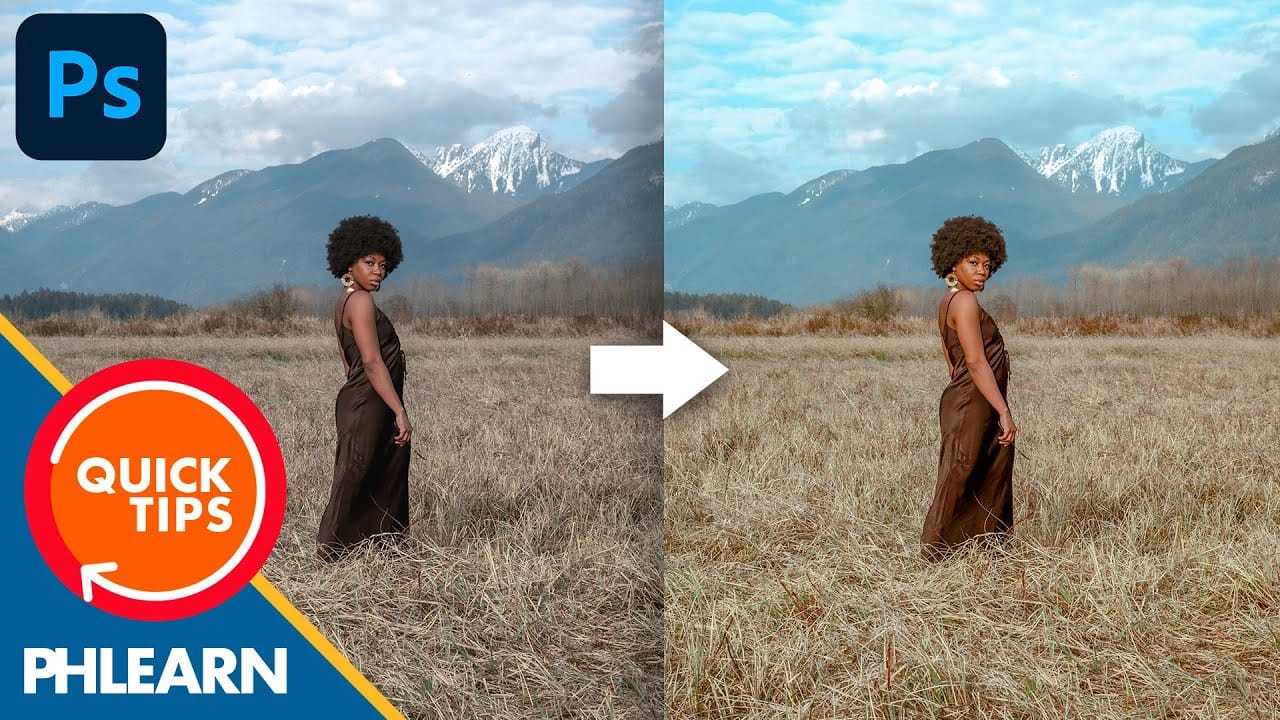
In this tutorial, Aaron Nace from Phlearn demonstrates how to enhance your photos with a bright and vibrant color grade using the Camera RAW filter in Photoshop. This technique is particularly effective for model photography and landscape shots, offering a way to elevate the visual appeal of your images with a polished, professional finish. Aaron guides you through the process of applying and adjusting color grades, showing how the Camera RAW filter can be used to fine-tune colors and achieve a
Two Simple Color Grading Techniques Using Photoshop Curves and Levels
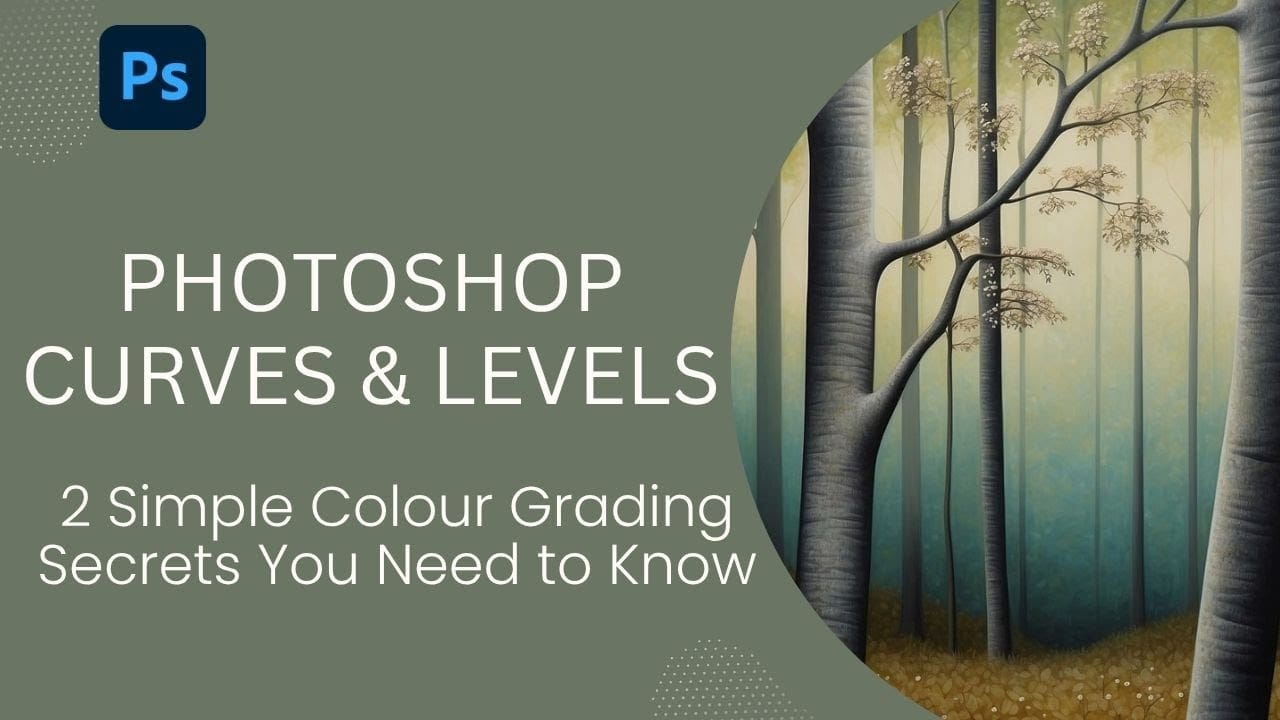
Color grading transforms flat images into vibrant, cinematic visuals that capture attention and convey mood. The difference between an ordinary photo and one with professional depth often comes down to how well shadows, midtones, and highlights work together to create visual interest. These two Photoshop techniques using Curves and Levels offer a quick path to achieving that coveted "pop of color" without complex workflows or advanced skills. Watch the Tutorial Understanding Auto Color Opti
Speed Up Your Color Grading Workflow with Photoshop Actions
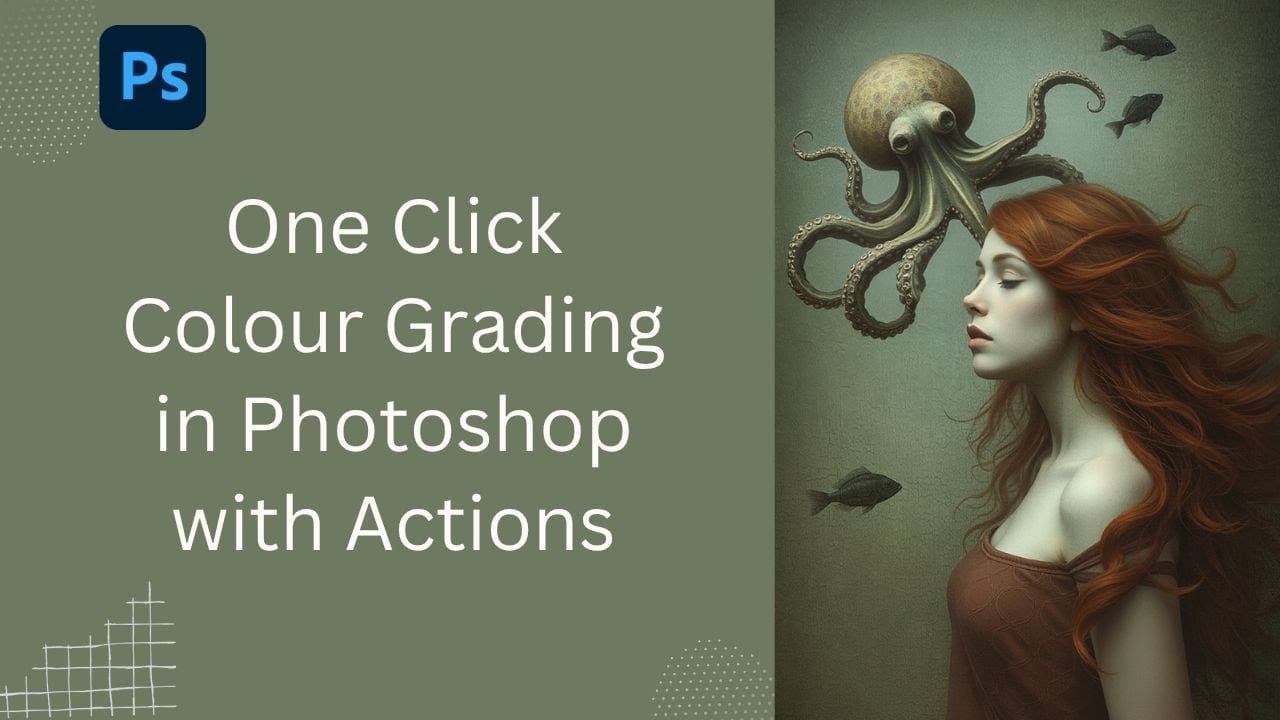
Color grading can transform your images, but manually adjusting curves and levels for every photo takes time. Photoshop actions offer a faster approach by applying professional color treatments with a single click. This workflow uses pre-built actions, tints, and LUTs to achieve various moods and styles instantly, letting you layer multiple effects to build the exact look you want. Watch the Tutorial Practical Tips for One-Click Color Grading * Set your Actions panel to button mode for fa
Add Grady Shading to Enhance Your Photoshop Art
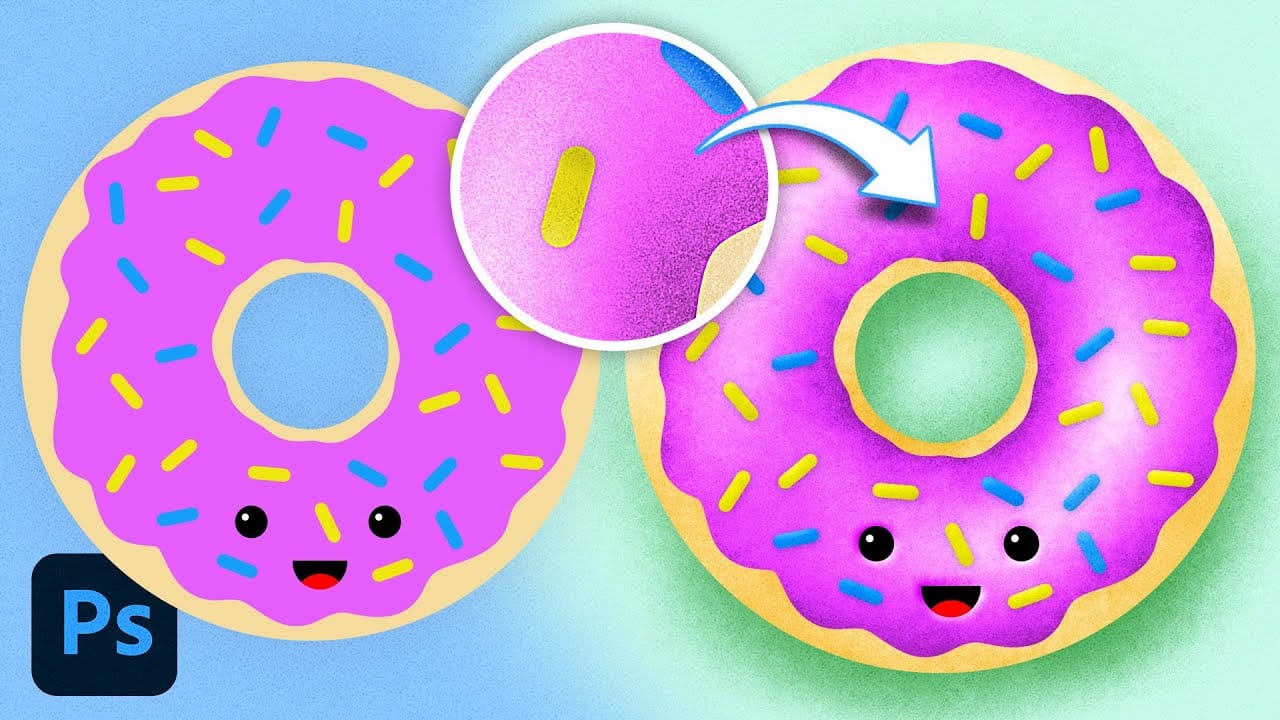
Flat digital artwork often lacks the visual depth and organic texture that makes illustrations feel alive and engaging. While clean vector-style graphics have their place, many artists struggle to add convincing shadows, highlights, and surface textures without making their work look muddy or overworked. This tutorial demonstrates how to use specialized grain shader brushes and blending modes to create realistic textured shading effects in Photoshop. The techniques shown work for any type of di
How to Color Grade Without Oversaturating Skin Tones Using Camera Raw
Professional color grading often creates a dilemma: boosting vibrant colors while keeping skin tones natural. Traditional saturation adjustments can make portraits look overprocessed, turning skin an unflattering orange or magenta. This technique uses Camera Raw's masking tools to selectively enhance background colors while protecting skin tones, creating vibrant images that still look authentic. Watch the Video Practical Tips These key techniques will help you achieve professional color g

Get tutorials & freebies delivered to you.

Subscribe to the Photoshop Roadmap newsletter, a weekly roundup of new tutorials, insights and quality downloads, trusted by 6500+ readers.

You might also like

How to Create a Steel Engraving Effect from Photos in Photoshop

Steel engravings were a traditional printmaking technique that created intricate illustrations with fine lines and rich tonal variation. This effect transforms ordinary photographs into artwork that mimics the detailed crosshatching and precise lines characteristic of vintage engravings found in old books and currency. The technique combines strategic filter combinations with...

How to Customize Your Photoshop Workspace for Better Workflow

A cluttered workspace can overwhelm new users and slow down experienced editors. The default interface includes dozens of panels and tools, many of which you may rarely use, while the ones you need most remain scattered across the screen. This tutorial shows you how to reorganize panels, position toolbars, and...

Creating a Fantasy Photo Composite with Grapes as Balloons in Photoshop

Transform ordinary photographs into whimsical fantasy scenes using creative vision and modern compositing tools. This detailed walkthrough demonstrates how to build a surreal image of a young girl floating through the sky, held aloft by grapes reimagined as colorful balloons. The project combines just two main photos—a portrait and...

How to Use Photoshop's Auto Distraction Removal Tool

Removing unwanted elements from photos used to require hours of careful work with clone stamps and healing brushes. The new General Distractions feature in Photoshop's Remove Tool changes this completely by automatically detecting and eliminating distractions across 26 different categories with a single click. This AI-powered upgrade can...

How to Apply Gradients to Any Object Using Hue/Saturation and Layer Masks

Changing colors and adding gradients to clothing or objects in photos requires precise selection techniques to avoid affecting surrounding elements like skin tones. This method combines hue/saturation adjustment layers with layer masks to create stunning gradient effects while maintaining full control over which parts of your image are affected....

How to Use Layer Filtering to Organize Complex Projects in Photoshop

When working with dozens of layers in complex composites or designs, finding specific elements becomes a time-consuming challenge. The layer filtering system in the Layers panel offers powerful tools to instantly isolate different types of content, making organization and editing far more efficient. These filtering options help you quickly group...

You’ve successfully subscribed to Photoshop Roadmap
Welcome back! You’ve successfully signed in.
Great! You’ve successfully signed up.
Success! Your email is updated.
Your link has expired
Success! Check your email for magic link to sign-in.