How to Use Nano Banana Pro in Adobe Firefly for Advanced AI Image Generation

How to Use Nano Banana Pro in Adobe Firefly for Advanced AI Image Generation

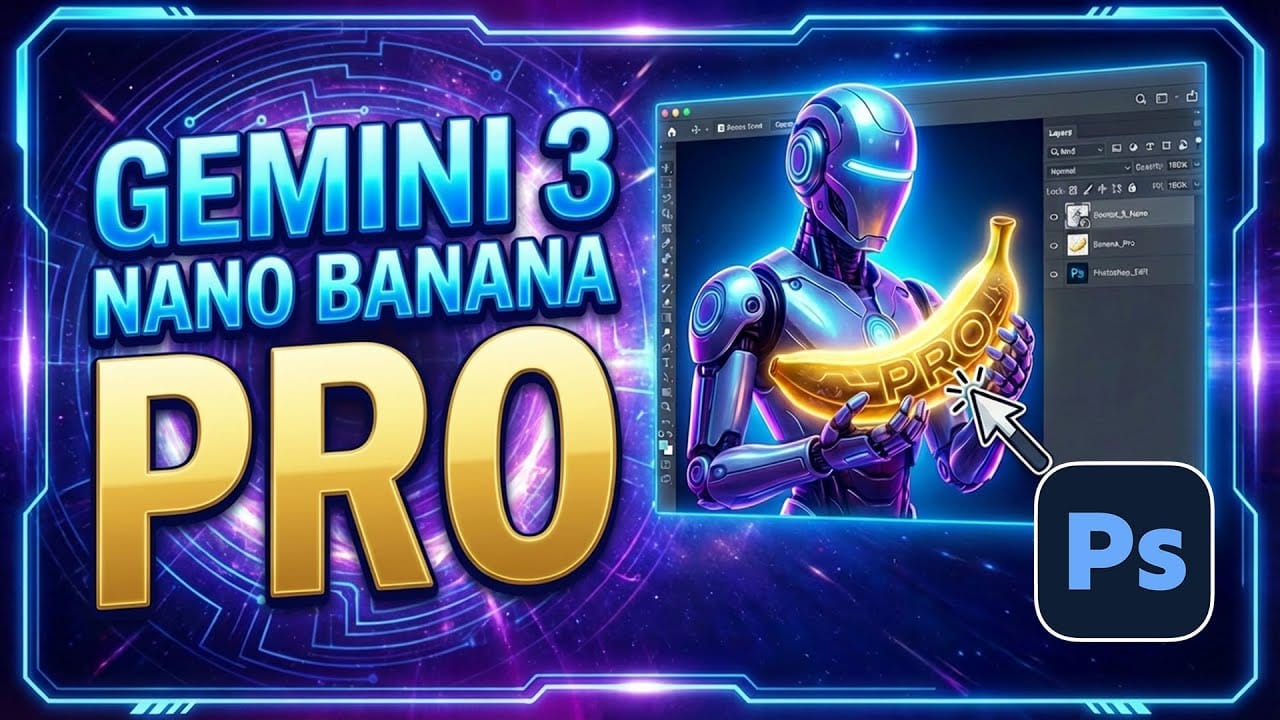
Adobe Firefly now includes Gemini 3 with Nano Banana Pro, offering sharper 2K image generation with improved text clarity and precision blending. This advanced AI model works seamlessly within Firefly's generative workspace, enabling powerful workflows like multi-image composition and virtual try-on effects.

The integration provides access to sophisticated presets and reference image capabilities that go beyond basic Photoshop workflows, making complex generative tasks simple and intuitive.

Watch the Video

Video by Photoshop Training Channel. Any links or downloads mentioned by the creator are available only on YouTube

Practical Tips

Essential techniques for maximizing Nano Banana Pro's capabilities in Adobe Firefly:

  • Access the generative workspace by clicking "more" for better visibility and easier navigation compared to the dropdown interface
  • Upload up to six reference images from your device or Creative Cloud libraries to create complex multi-image compositions
  • Switch preset models to Gemini 3 with Nano Banana Pro using the "view prompt" option for superior results over default models
  • Use Firefly Boards for organized workflows - create boards, upload multiple images, and apply presets like virtual try-on automatically
  • Take advantage of automatic upscaling to 2K resolution when uploading lower-resolution source images

Explore more advanced AI editing techniques and workflows:
50+ Nano Banana Uses in Photoshop Beta for Advanced Image Editing
Google's Nano Banana AI model now integrates directly into Photoshop Beta, bringing powerful generative capabilities to image editing. The tool excels at maintaining subject likeness while transforming backgrounds, clothing, and entire scenes with simple text prompts. This integration offers professional-grade AI editing within Photoshop's familiar interface, complete with advanced selection tools and workflow optimization. Watch the Tutorial Essential Tips for Using Nano Banana in Photosho
Photoshop Beta: How to Use Google's Nano Banana AI for Advanced Image Editing
Google's Nano Banana AI model now integrates directly into Photoshop Beta, offering superior detail preservation and more realistic results than Adobe's Firefly. This powerful generative fill tool excels at maintaining subject likeness while transforming backgrounds, clothing, and entire scenes. The integration brings professional-grade AI editing capabilities directly into Photoshop's familiar interface, complete with advanced selection tools and workflow optimization. Watch the Tutorial E
How to Use Gemini 3 Nano Banana Pro in Photoshop for Advanced AI Editing
Google's Gemini 3 Nano Banana Pro brings powerful AI capabilities to Photoshop with features like focus shifting, text recognition, and 4K resolution support. Adobe integrated this advanced model immediately upon release. The tool excels at maintaining context while transforming images, creating storyboards, and generating realistic text replacements with proper fonts and reflections. Watch the Video Essential Tips for Gemini 3 Nano Banana Pro * Put text prompts in quotation marks when wo
Flux Kontext Pro vs Nano Banana: Comparing Photoshop's AI Models for Realistic Image Generation
Photoshop Beta now includes two powerful AI partner models that handle image generation differently. Flux Kontext Pro excels at creating realistic, detailed results while maintaining original photo elements, making it ideal for natural-looking edits. This comparison reveals when to choose Flux over the popular Nano Banana model for your creative projects. Watch the Tutorial Key Differences Between AI Models * Use Flux Kontext Pro for realistic, photograph-like results that preserve origin

Get tutorials & freebies delivered to you.

Subscribe to the Photoshop Roadmap newsletter, a weekly roundup of new tutorials, insights and quality downloads, trusted by 6500+ readers.

You might also like

How to Create a Steel Engraving Effect from Photos in Photoshop

Steel engravings were a traditional printmaking technique that created intricate illustrations with fine lines and rich tonal variation. This effect transforms ordinary photographs into artwork that mimics the detailed crosshatching and precise lines characteristic of vintage engravings found in old books and currency. The technique combines strategic filter combinations with...

How to Customize Your Photoshop Workspace for Better Workflow

A cluttered workspace can overwhelm new users and slow down experienced editors. The default interface includes dozens of panels and tools, many of which you may rarely use, while the ones you need most remain scattered across the screen. This tutorial shows you how to reorganize panels, position toolbars, and...

Creating a Fantasy Photo Composite with Grapes as Balloons in Photoshop

Transform ordinary photographs into whimsical fantasy scenes using creative vision and modern compositing tools. This detailed walkthrough demonstrates how to build a surreal image of a young girl floating through the sky, held aloft by grapes reimagined as colorful balloons. The project combines just two main photos—a portrait and...

How to Use Photoshop's Auto Distraction Removal Tool

Removing unwanted elements from photos used to require hours of careful work with clone stamps and healing brushes. The new General Distractions feature in Photoshop's Remove Tool changes this completely by automatically detecting and eliminating distractions across 26 different categories with a single click. This AI-powered upgrade can...

How to Apply Gradients to Any Object Using Hue/Saturation and Layer Masks

Changing colors and adding gradients to clothing or objects in photos requires precise selection techniques to avoid affecting surrounding elements like skin tones. This method combines hue/saturation adjustment layers with layer masks to create stunning gradient effects while maintaining full control over which parts of your image are affected....

How to Use Layer Filtering to Organize Complex Projects in Photoshop

When working with dozens of layers in complex composites or designs, finding specific elements becomes a time-consuming challenge. The layer filtering system in the Layers panel offers powerful tools to instantly isolate different types of content, making organization and editing far more efficient. These filtering options help you quickly group...

You’ve successfully subscribed to Photoshop Roadmap
Welcome back! You’ve successfully signed in.
Great! You’ve successfully signed up.
Success! Your email is updated.
Your link has expired
Success! Check your email for magic link to sign-in.