Creating believable headlight effects transforms a static car image into something dynamic and eye-catching. This technique combines selection tools, blur filters, and layer effects to simulate realistic light beams that appear to project from the vehicle into the surrounding environment.
The process involves building light beams from scratch, adding atmospheric effects, and creating ground illumination to sell the illusion that the headlights are actually turned on.
Watch the Video
Practical Tips
These key techniques will help you create more convincing headlight effects:
- Sketch your light beam placement before starting to visualize the final result and plan your approach
- Use Field Blur with multiple blur points to create realistic light falloff from intense near the source to softer farther away
- Apply layer masks with gradients to make light beams fade naturally as they extend from the vehicle
- Create light streaks by painting random dots on a layer, then applying radial blur set to zoom for authentic light scatter
- Add ground illumination using soft light blend mode to simulate headlights actually hitting the pavement
Related Articles and Tutorials
Explore more lighting techniques to enhance your photo manipulation skills.
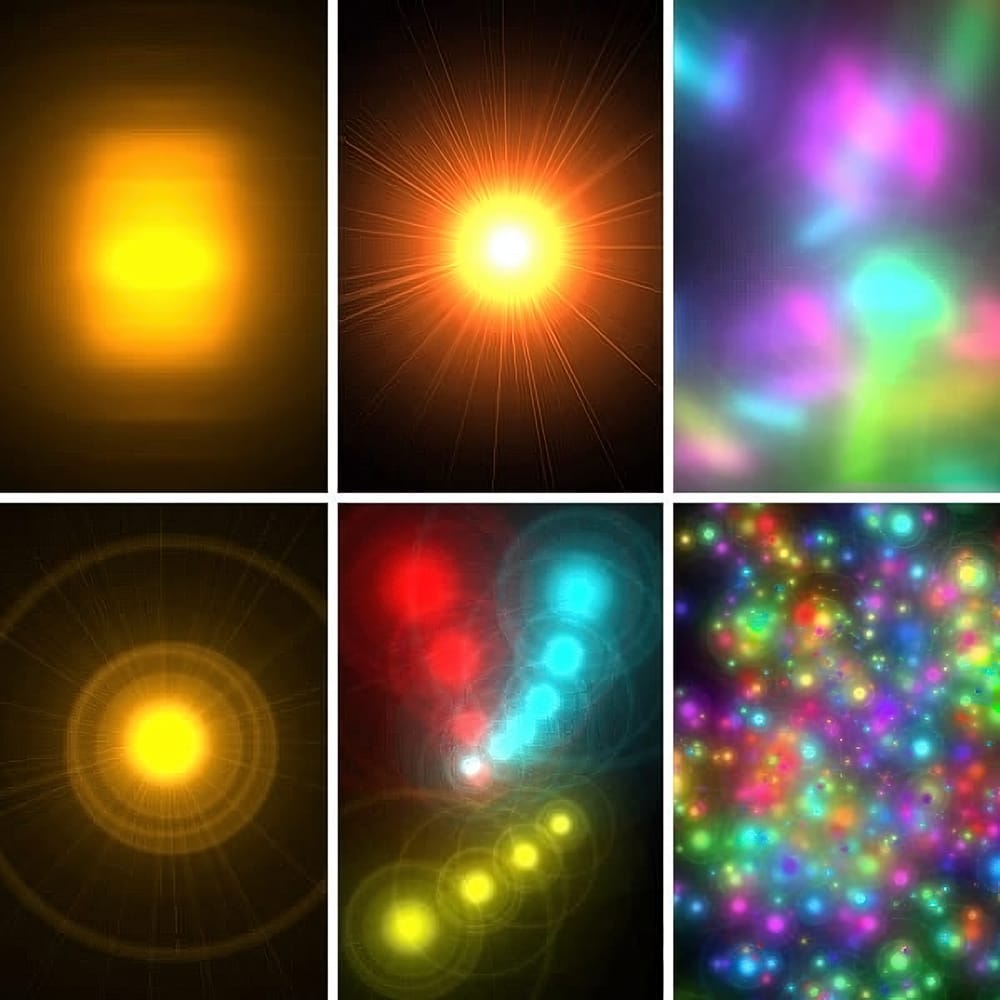
Quick and Easy way to create Glowing Lights Photoshop Brushes
This time, I'll commit myself to tech you a nice illustration technique in a few steps, rather than my usual detailed explanations. This tutorial explains how to create glowing lights brushes using the Lens Flare filter included in the default installation of Adobe Photoshop.
This technique is amazingly simple, but the resulting brushes are so cool that you might find yourself spending your Saturday nights experimenting with brush dynamics and blending settings instead of hanging out with a bun
Advanced Dave Hill Effect Photo Manipulation Tutorial
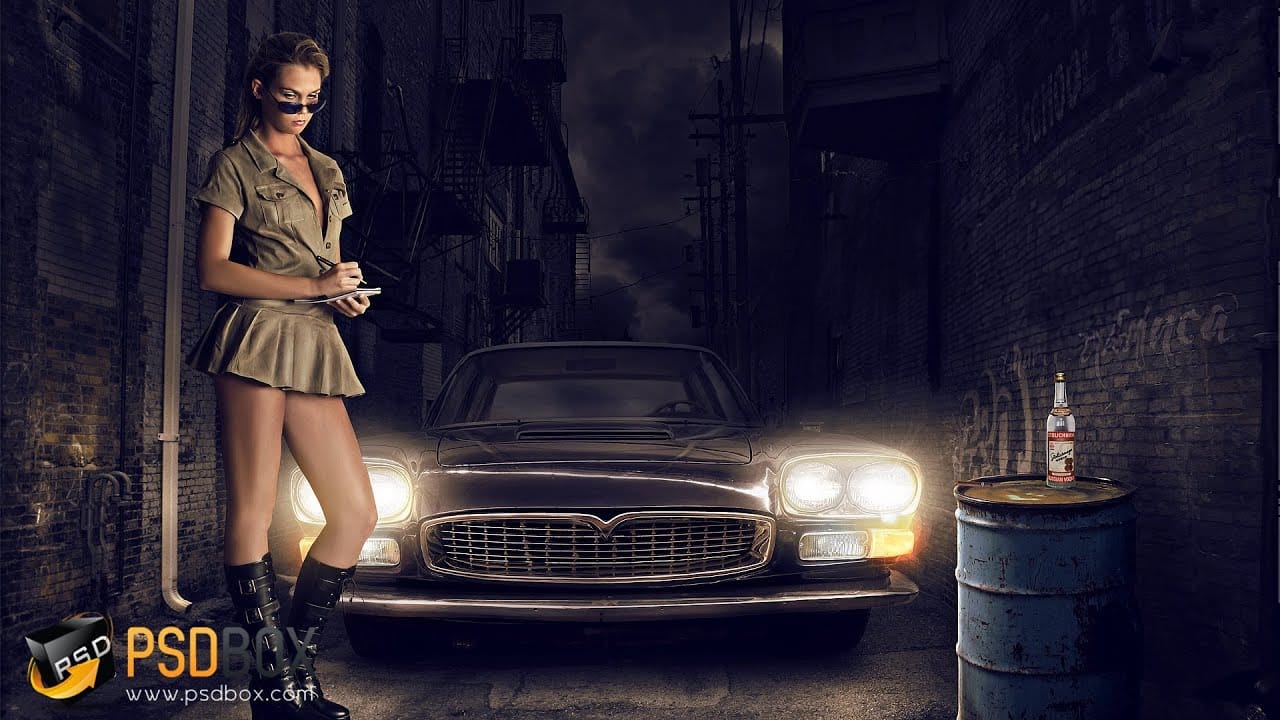
In this advanced Photoshop tutorial by PSD Box, Andrei shows how to transform a daytime photo into a nighttime scene.
They start with basic adjustments like cropping and precise sky selection using color range and layer masks. Adding a dark, cloudy sky layer sets the nighttime tone, enhanced by layer styles for shadow depth. Adjustments with hue/saturation and gradient maps add warmth and darkness. Introducing a car, they paint shadows and soften with Gaussian blur, then use layer styles and hu
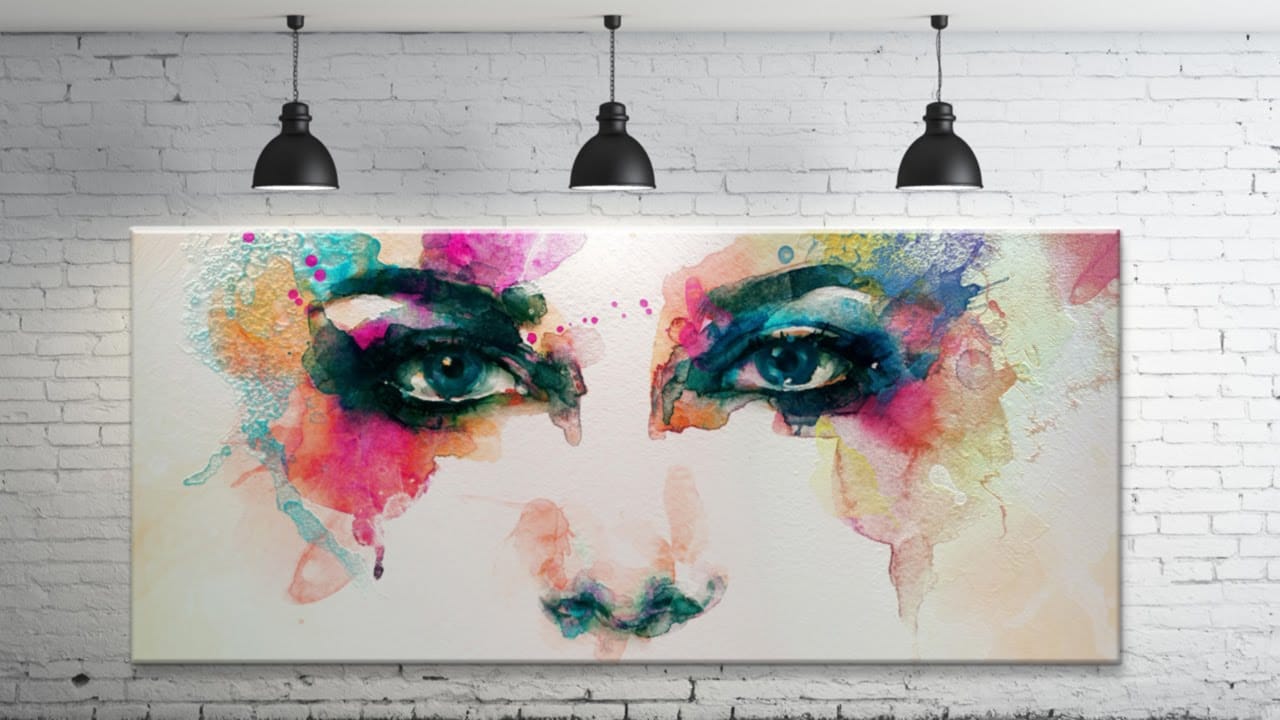
Learn how to use lighting effects in Photoshop
Bringing different elements together in Photoshop requires more than just careful selection and placement; it demands mastery of lighting to achieve true realism. When composing an image, the way light interacts with each object determines its perceived depth, form, and how seamlessly it integrates into the scene. Neglecting proper lighting can make even the most detailed composite look flat and artificial.
This tutorial demystifies Photoshop's powerful lighting effects, showing how to transfor
Add Striking Light Effects to Your Photos in Photoshop
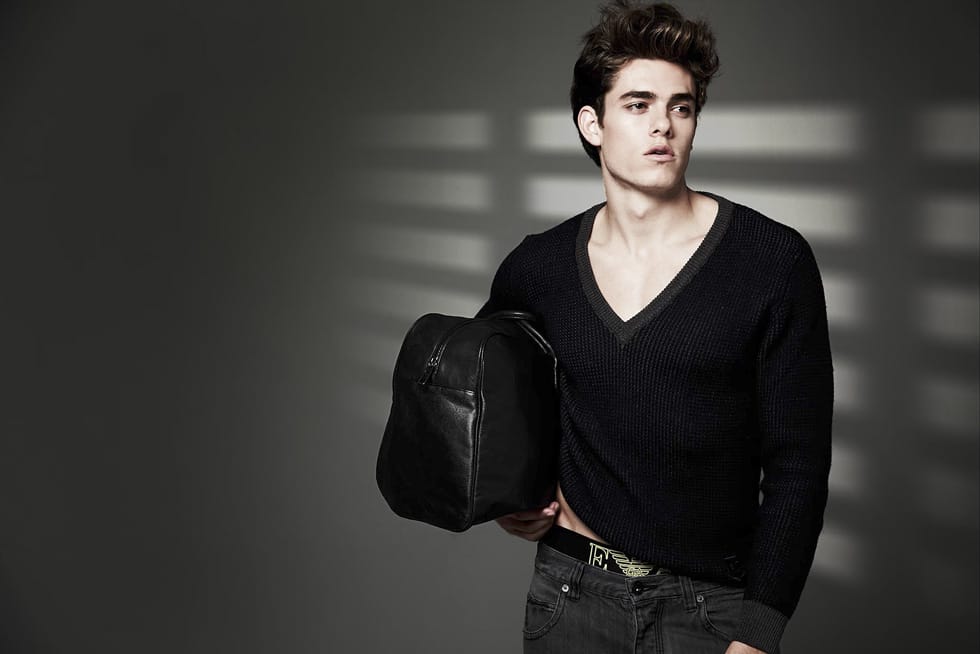
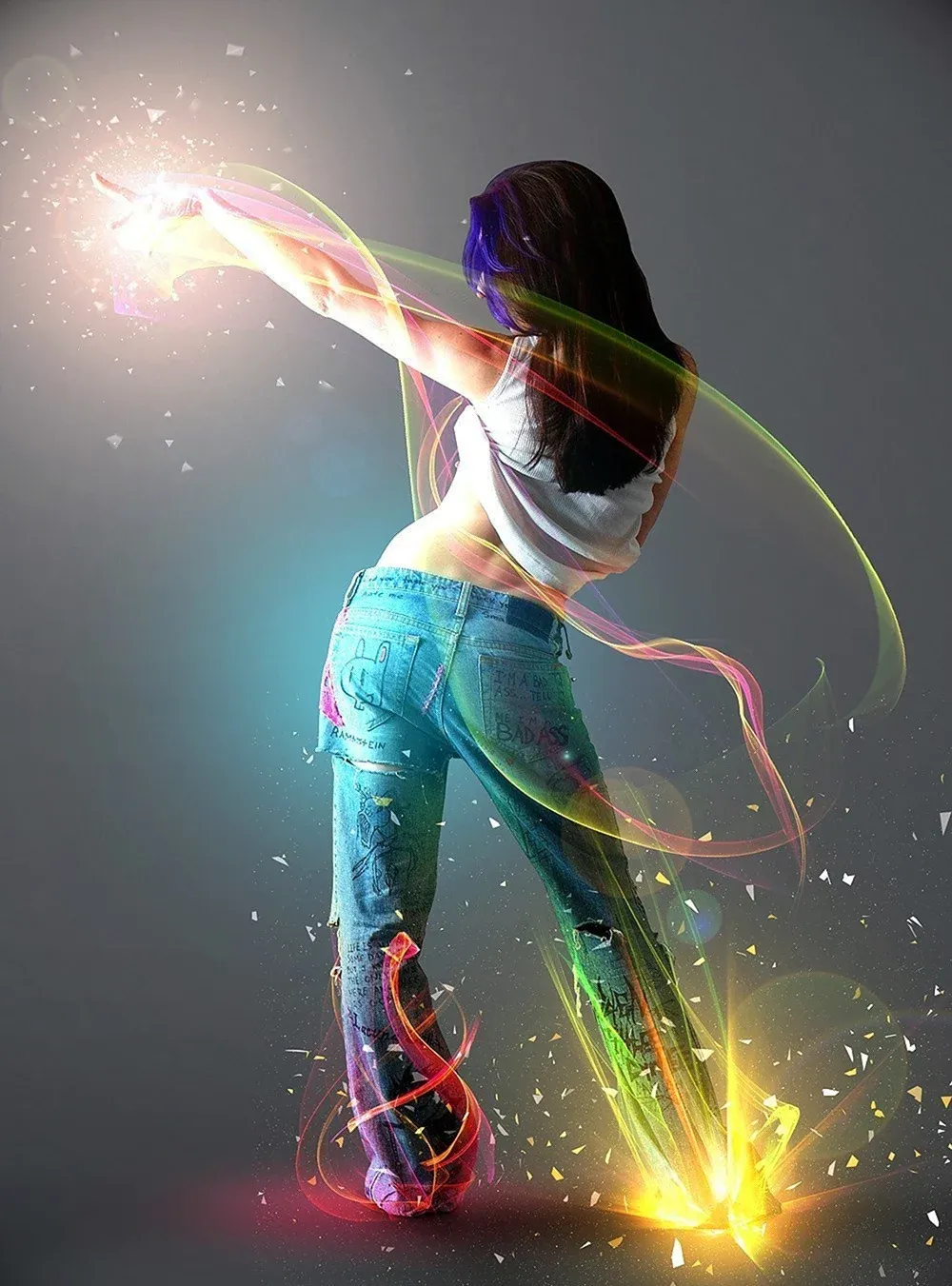
In this Photoshop tutorial from PSD Box, using the "Colors in Motion" textures pack and a model image from deviantArt or ISO Stock, you'll create a vibrant digital artwork.
Start by meticulously removing the background with the Pen Tool and placing the model on a new canvas with a gradient backdrop. Enhance the image with non-destructive adjustments for color and contrast, adding realistic shadows for depth. Integrate various light effects from the packs, adjusting blending modes and using tool
Lighting Effects to Create Drama in Photoshop
In this tutorial, John Whitehead demonstrates how to add dramatic lighting effects in Photoshop to transform flat lighting into something much more dynamic. You'll learn how to use various tools such as lighting effects filters, lens flare, smart objects, and LUTs to completely alter the mood and appearance of your image.
If you want to follow along with the tutorial, you can download the provided image and apply the same techniques. This guide is perfect for photographers and digital artists l
Create Fake Rim Lights in Photoshop
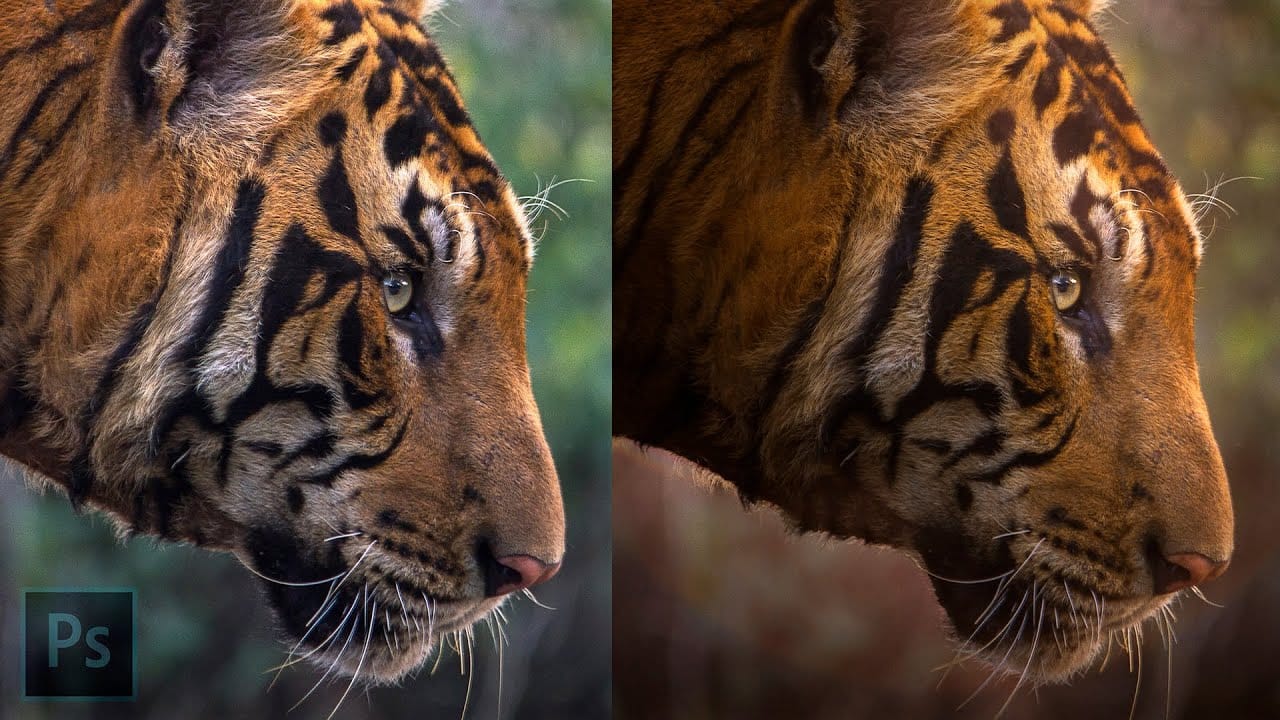
Rim lighting adds dramatic atmosphere to portraits by creating bright highlights around the edges of your subjects. This technique simulates light hitting the outer contours of people or objects, making them stand out from their background with realistic glowing effects.
Using Photoshop's Inner Glow layer style with the Color Dodge blend mode, you can create convincing rim lights that wrap naturally around your subjects, then fine-tune the placement with layer masks for professional results.
Create a dual lighting effect with just 2 layers in Photoshop
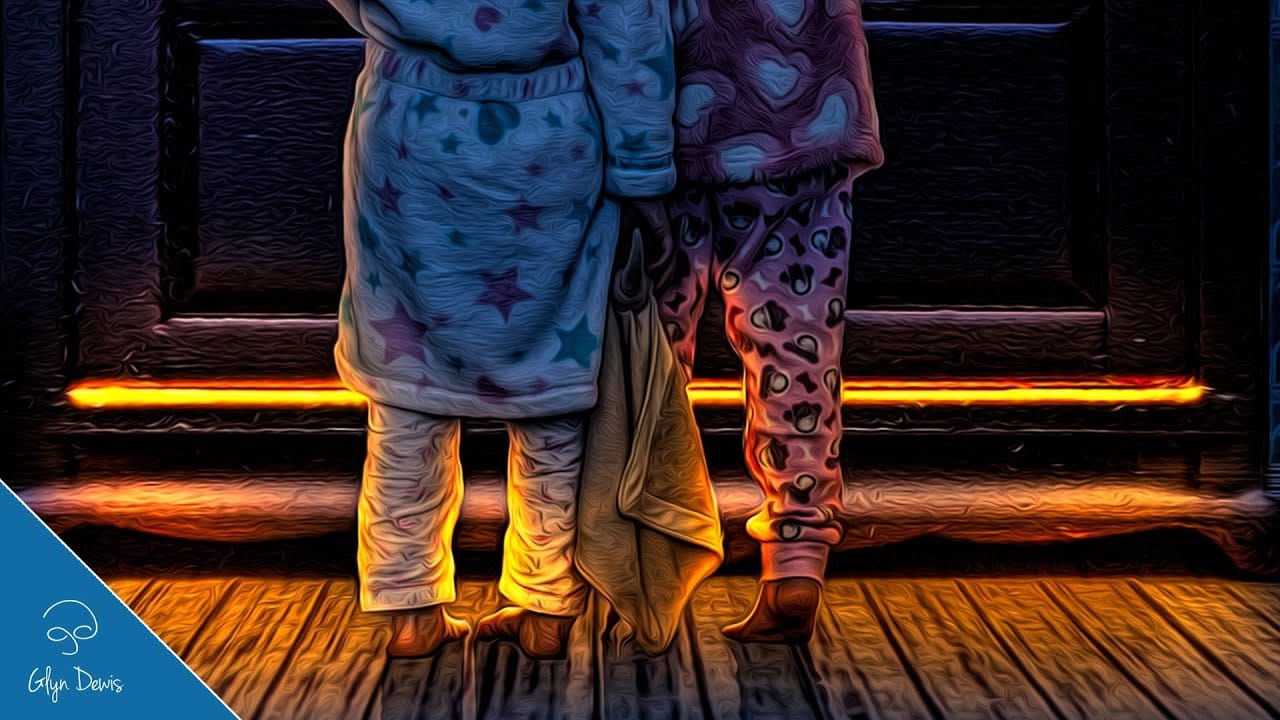
The author, PixImperfect, presents a straightforward technique to create the dual color lighting effect in Photoshop. Using the power of Gradient Maps, this tutorial demonstrates how to color multiple lights from different directions. Viewers also learn to utilize the "Blend If" feature to make the light more realistic. Optionally, the video explores techniques to add and modify interesting light elements to the image.
This concise yet informative tutorial guides viewers through the process ste
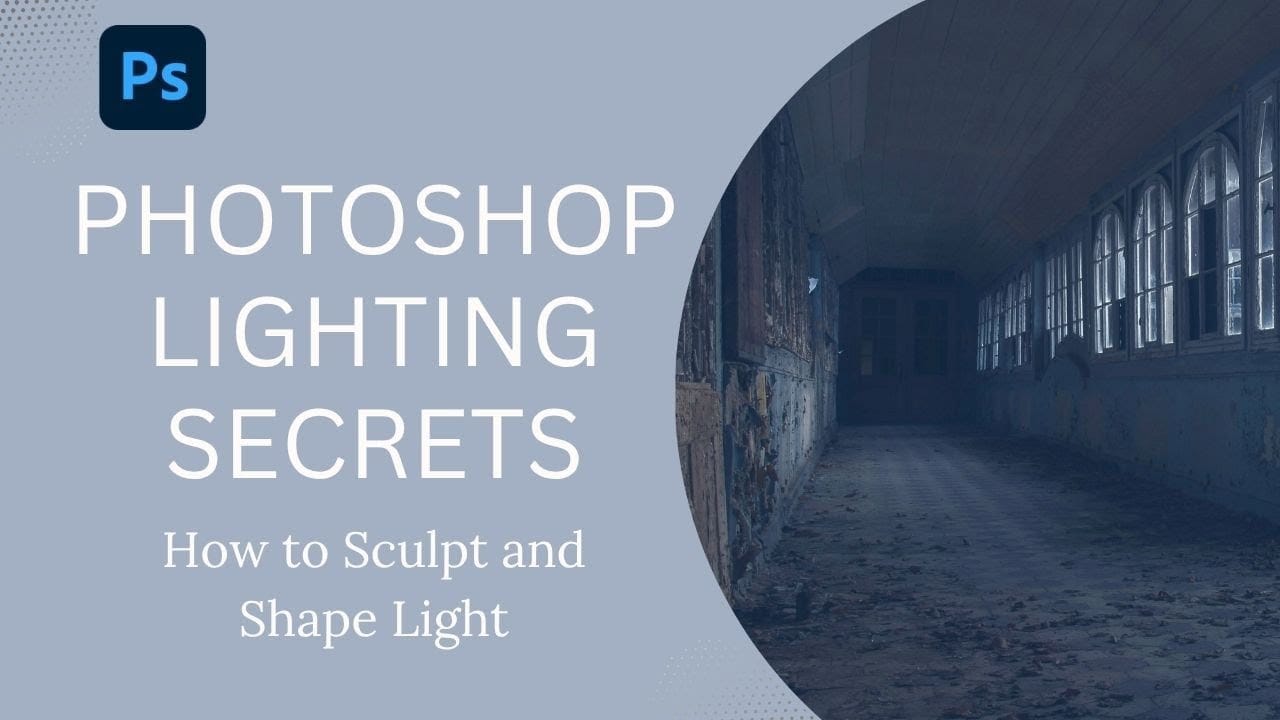
How to Sculpt Light and Add Atmosphere in Photoshop
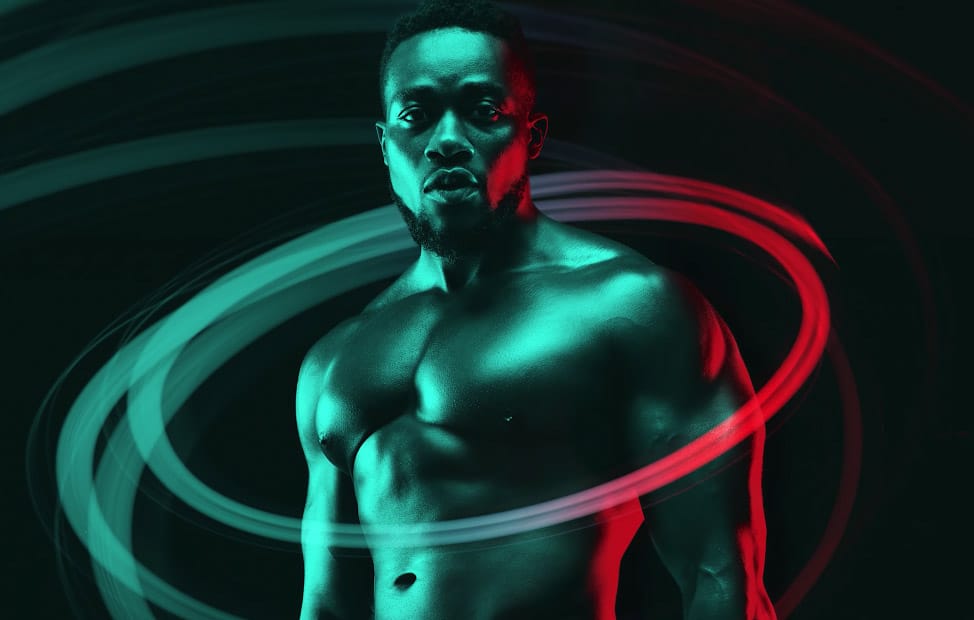
Light transforms a flat image into something with depth, mood, and visual interest. The ability to enhance existing light sources or create entirely new ones opens up creative possibilities that go far beyond what the camera originally captured.
This tutorial demonstrates how to sculpt light using adjustment layers, selection tools, and atmospheric brushes to create convincing light effects that work naturally with your image's existing lighting conditions.
Watch the Video
Understanding Lig
Add beautiful natural background light effects in Photoshop
In this Photoshop tutorial by Unmesh Dinda from Piximperfect you will learn how to make the subject stand out by adding realistic light effects on the background. Learn to create beams of light pouring in from a source (like a window) and falling on the background naturally in Photoshop.
We'll create the light by using Step and Repeat and then apply blend modes and masking to make it as realistic as possible.
Watch tutorial