Retouching mature skin requires a different approach than standard beauty editing. As we age, skin naturally loses color and develops deeper shadows that emphasize wrinkles and pores. The key is enhancing without erasing character—maintaining authenticity while creating a healthier, more vibrant appearance.
This workflow focuses on three essential steps: brightening shadows to reduce the appearance of deep lines, restoring natural color to skin and features, and selectively minimizing unwanted blemishes while preserving realistic texture.
Watch the Video
Practical Tips
Key techniques for natural-looking mature skin retouching:
- Use Shadows/Highlights adjustment with 40% shadow amount and 50% radius to fill in deep lines without over-brightening
- Work with the Spot Healing Brush Tool in Content-Aware mode on a separate layer for easy opacity adjustments
- Zoom out while retouching to see the overall effect—avoid getting lost in close-up details
- Set retouching layer opacity to 50% to maintain natural skin texture and character
- Add selective color saturation to eyes and lips using layer masks to restore youthful vibrancy
Related Articles and Tutorials
Explore more advanced skin retouching techniques and professional workflows.
High-End Skin Retouching in Photoshop
Combining the power of Frequency Separation along with manual Sampling and Painting, learn how to recreate and sculpt the skin, maintaining a beautiful skin texture, in this tutorial by PiXimperfect.
Using this technique, you will not only achieve a smooth skin but also will have the control to naturally remove wrinkles, lift up the cheekbones, and renovate the whole structure of the skin with the skin texture still intact. This is an All-in-One Method whether you want to soften the skin or jus
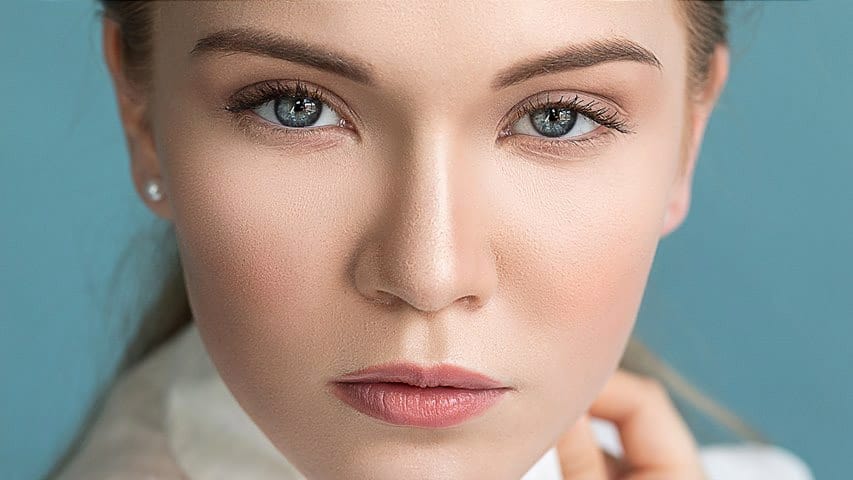
Natural Skin Smoothing in Photoshop
Professional beauty retouching demands techniques that smooth skin while preserving natural texture. This advanced method combines inverted layers with Vivid Light blend mode to create seamless skin enhancement without the artificial "plastic" look common in over-processed images.
The technique works by canceling out layer information through inversion, then selectively applying blur and sharpening filters to reconstruct realistic skin texture while eliminating blemishes and color irregularitie
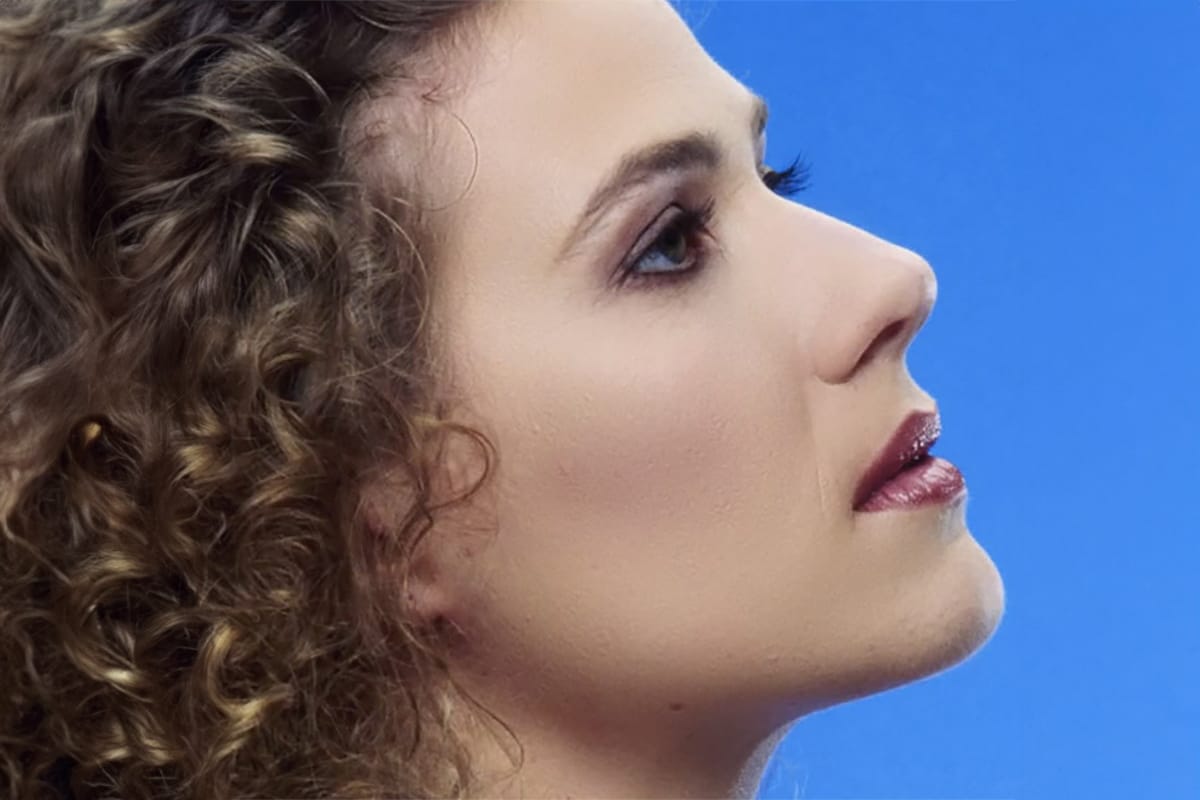
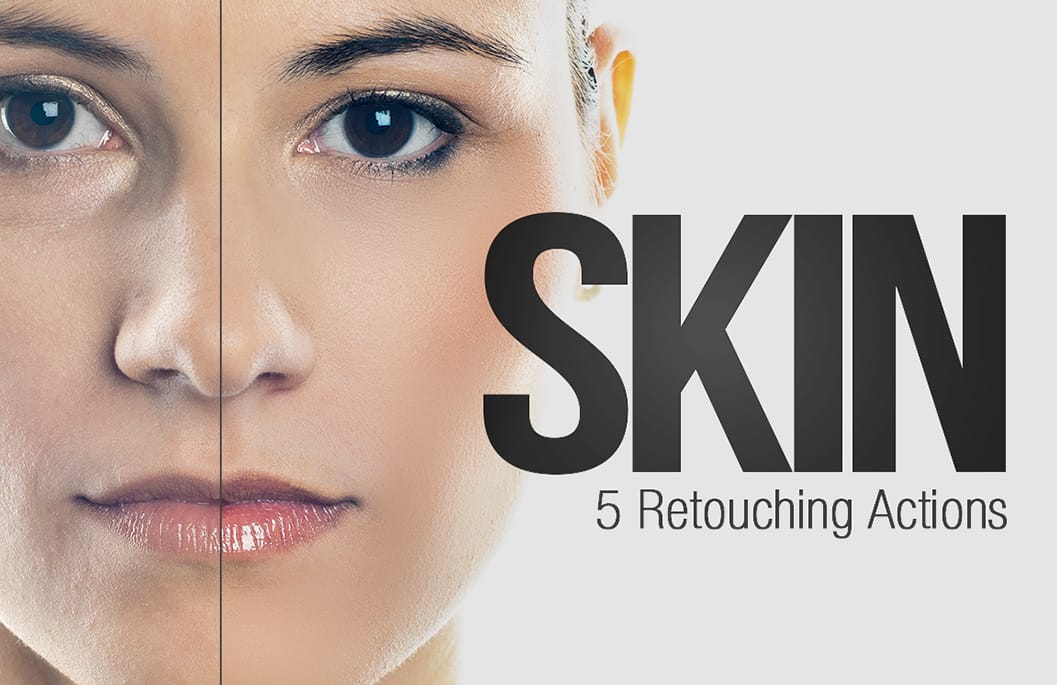
Skin Retouching Photoshop Actions
Discover how to retouch skin effortlessly with a collection of Photoshop actions designed for easy use. These actions allow you to heal, mattify, and airbrush skin with just one click, streamlining your editing process.
In addition to skin retouching, this set includes specific actions for brightening eyes and enhancing contrast. The eye brightening action is particularly effective; it reduces redness while significantly boosting brightness. Meanwhile, the contrast enhancement action improves d
Smooth Skin and Remove Blemishes and Scars in Photoshop
Achieving flawless skin in portraits often requires careful retouching to enhance natural beauty without sacrificing detail. This tutorial demonstrates a reliable Photoshop workflow for refining skin texture and addressing common imperfections.
Viewers will discover how to efficiently smooth skin texture, eliminate blemishes and scars, and precisely restore important facial features like eyes and lips, ensuring a natural and polished outcome.
Watch the Tutorial
The Principles of Natural Ski
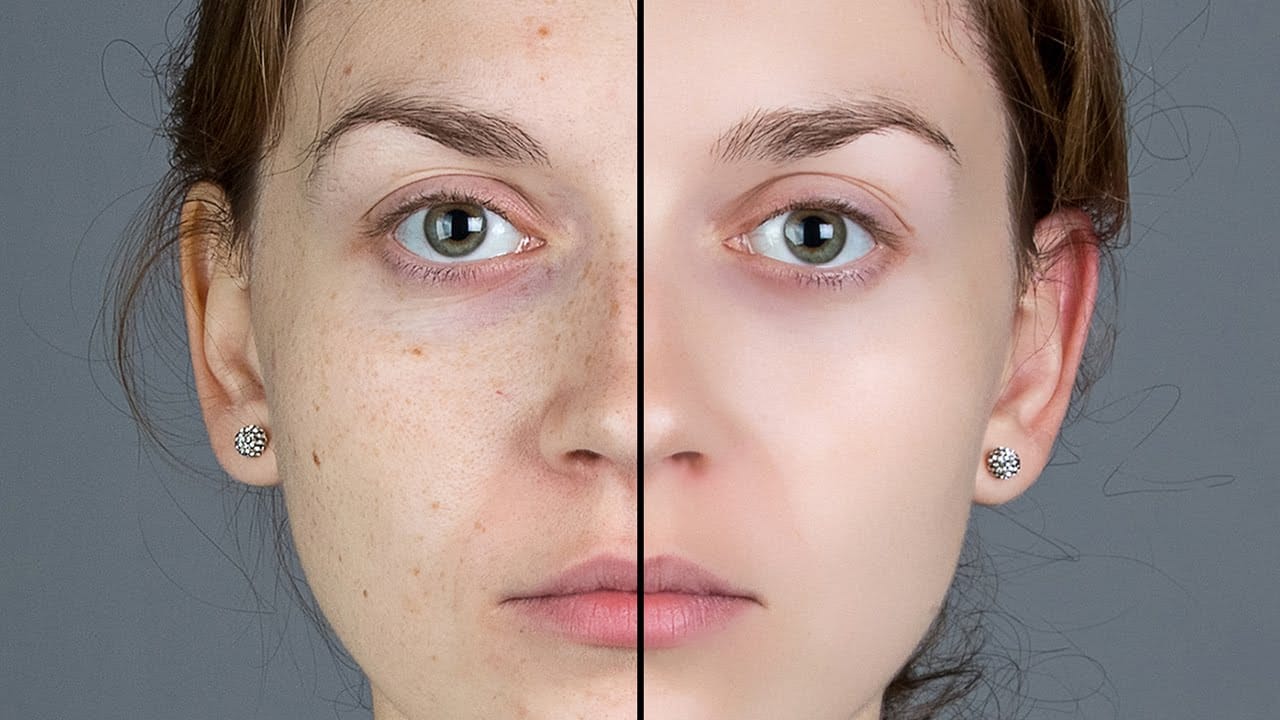
Flawless 1-Min Skin Retouch Action in Photoshop
In this tutorial, you will learn a fast and effective technique for retouching skin using Photoshop. This method focuses on creating smooth, beautiful skin in under a minute.
You'll discover how to generate a brand new skin texture from scratch and apply advanced blurring techniques. The goal is to achieve smooth and even skin without any blemishes, all while preserving the natural skin texture. By following these steps, you can quickly transform your photos without losing detail.
Additionally

Model Skin Retouch Photoshop Actions
Introducing the Model Skin Retouch Photoshop Action, a powerful tool designed for photographers who need a quick and efficient way to retouch skin images. This action separates the skin and texture into different layers, allowing for even skin tones and reduced blemishes without making the image look unnatural or plastic-like. The benefits of this action include:
1. Maintaining Skin Texture: Ensures the skin retains its natural feel.
2. Even Skin Tone: Smooths and evens out skin tones for a p

How to Retouch Newborn Baby Skin in Photoshop
Welcoming a new life into the world is a profound moment that deserves to be captured and shared. In this tutorial, Aaron Nace from Phlearn will cover some of the common traits of newborns and how to apply some light retouching in Photoshop to help them look their best.
From adjusting red, blotchy areas to cleaning up dry, flaky skin, we'll walk you through some techniques that anyone can learn to help capture memories that will last a lifetime.
Watch tutorial

Start to finish high-end skin retouching in Photoshop
PiXimperfect's tutorial offers a comprehensive guide to high-end beauty retouching in Photoshop. The author explores the power of advanced frequency separation, a technique that enables flawless skin retouching with smooth skin and amazing texture.
The tutorial takes the viewer through the complete process, starting from basic adjustments in Lightroom and then moving on to Photoshop. Viewers will learn how to enhance portraits, addressing various aspects from start to finish, and ultimately exp

Easy Beauty Retouching in Photoshop
In this comprehensive Photoshop tutorial by PSD Box, you'll explore various fashion retouching techniques.
Learn how to paint realistic hair, retouch skin, and much more. This tutorial is ideal for photographers looking to enhance their studio or fashion portraits, as well as anyone interested in mastering retouching skills in Photoshop. Whether you're a professional or a hobbyist, these techniques will help you create stunning, polished images.
Enhance your retouching expertise and elevate th