How to Make Grungy Ghost Text Effects in Photoshop

How to Make Grungy Ghost Text Effects in Photoshop

Ghost text effects combine ethereal transparency with gritty texture to create typography that feels both haunting and visually striking. This design technique has become increasingly popular in horror-themed projects, album covers, and creative branding where designers want to convey mystery or edginess.

This tutorial demonstrates how to build a convincing grungy ghost text effect using Photoshop's blur gallery, blend modes, and texture techniques. You'll learn to create translucent, distorted typography with organic grain and atmospheric depth that makes text appear to dissolve into the background.

Watch the Tutorial

Video by P A N T E R. Any links or downloads mentioned by the creator are available only on YouTube

Understanding Path Blur for Text Distortion

Path blur offers precise control over directional distortion that static blur filters cannot match. Unlike traditional Gaussian blur that spreads uniformly in all directions, path blur follows customizable vectors that can bend, taper, and vary in intensity along their length.

The dissolve blend mode plays a crucial role in creating authentic ghostly transparency. When combined with duplicated text layers, this blend mode breaks apart solid edges into scattered pixels that simulate the way light passes through semi-transparent materials. The effect becomes more pronounced when the underlying blur creates varying opacity levels across the text.

Smart filters preserve the original text data while allowing non-destructive adjustments throughout the creative process. This approach enables designers to refine blur parameters, adjust masking, and experiment with different settings without permanently altering the base typography.

Essential Tips for Ghost Text Effects

  • Convert text to smart objects before applying effects to maintain editability and enable non-destructive workflows
  • Use path blur with custom arrow directions and speed settings to create organic, flowing distortions that feel natural
  • Apply dissolve blend mode to multiple text layers for authentic transparency with scattered pixel breakup
  • Combine selective color adjustments with gradient maps to control the overall tone and contrast of the effect
  • Add noise in overlay mode to introduce grain texture that enhances the gritty, atmospheric quality

More Tutorials about Ghost Effects

Explore additional techniques for creating supernatural and atmospheric effects in Photoshop.
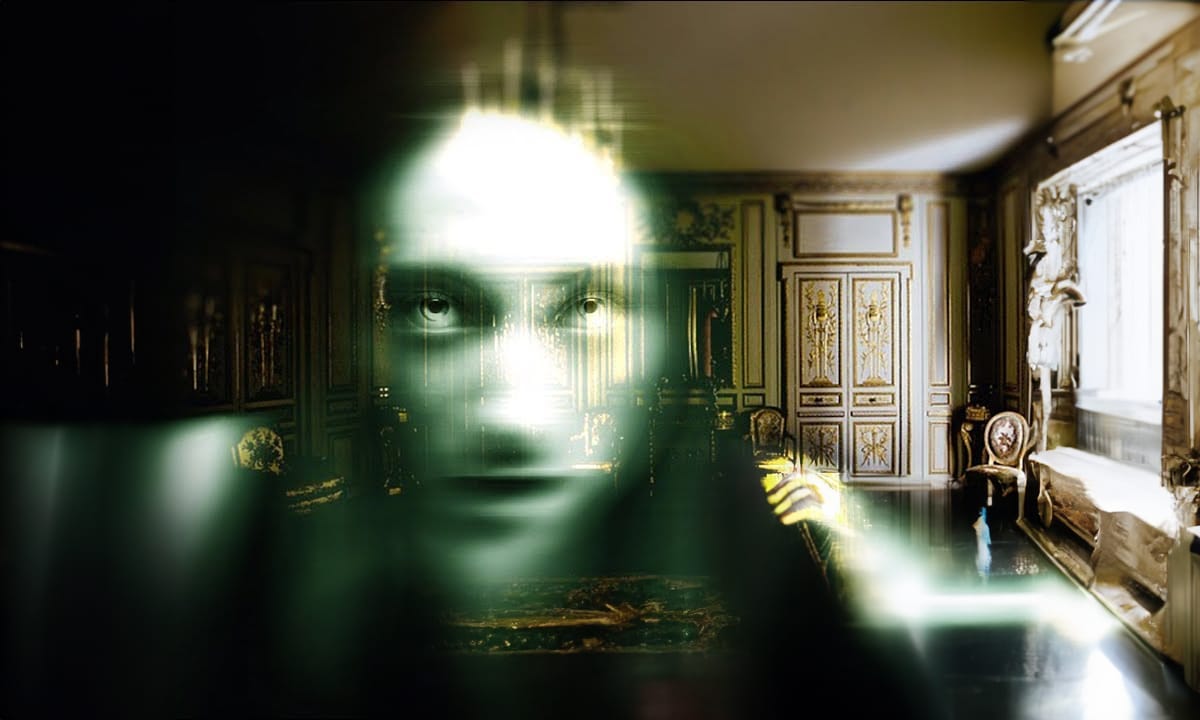
How to create a ghost in Photoshop
In this tutorial, Marty Geller from Blue Lightning TV demonstrates how to transform a subject photo into a haunting ghost image using Adobe Photoshop. You'll learn various techniques to achieve a spectral, ethereal look, perfect for spooky projects or Halloween themes. Marty guides you through each step, covering essential methods such as layer blending, opacity adjustments, and creating a ghostly glow around your subject. The tutorial is designed to be accessible, making complex processes easy
Create a Ghostly Image Effect in Photoshop
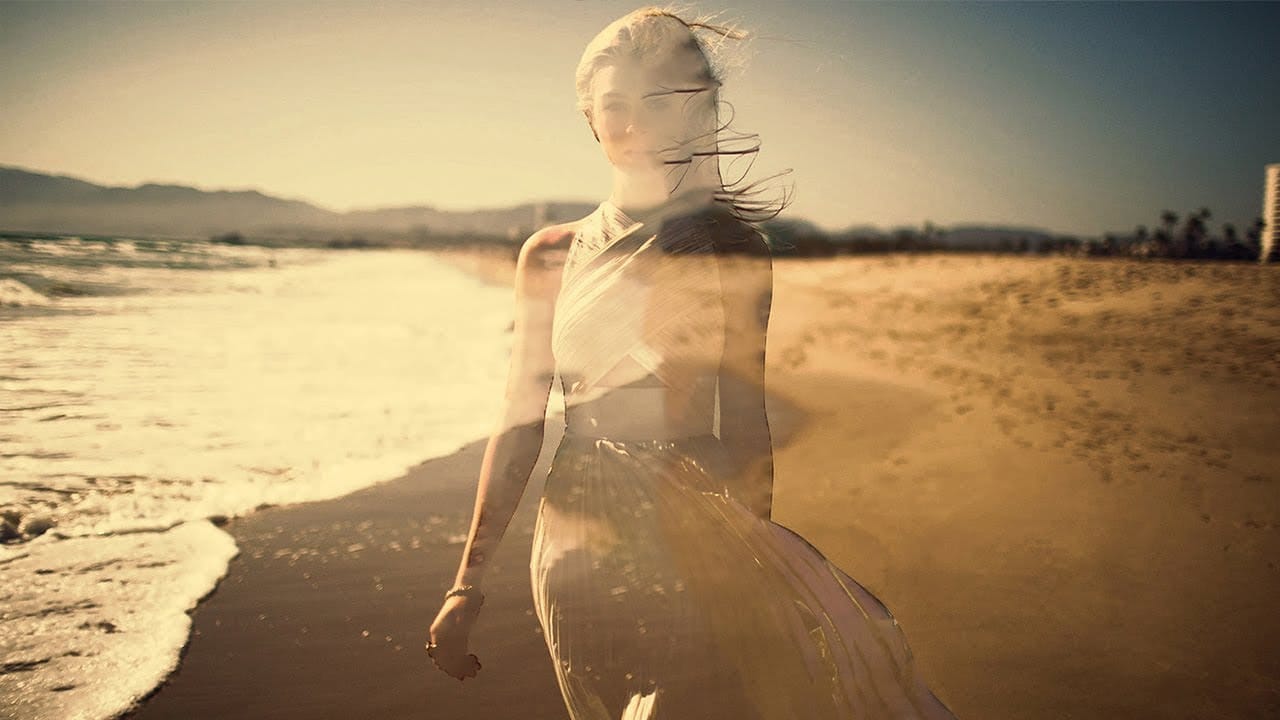
In this engaging Photoshop tutorial, you will discover how to create a ghostly effect that transforms a person into a transparent figure, resembling a ghost. This technique is perfect for adding an eerie vibe to your images. You'll begin by selecting the person in your photo and adjusting the layers to achieve the desired transparency. The step-by-step instructions will guide you through the process of refining the edges and enhancing the overall look to ensure a realistic ghost appearance. By
Create Creepy Lighting and Mysterious Atmosphere Effects in Photoshop
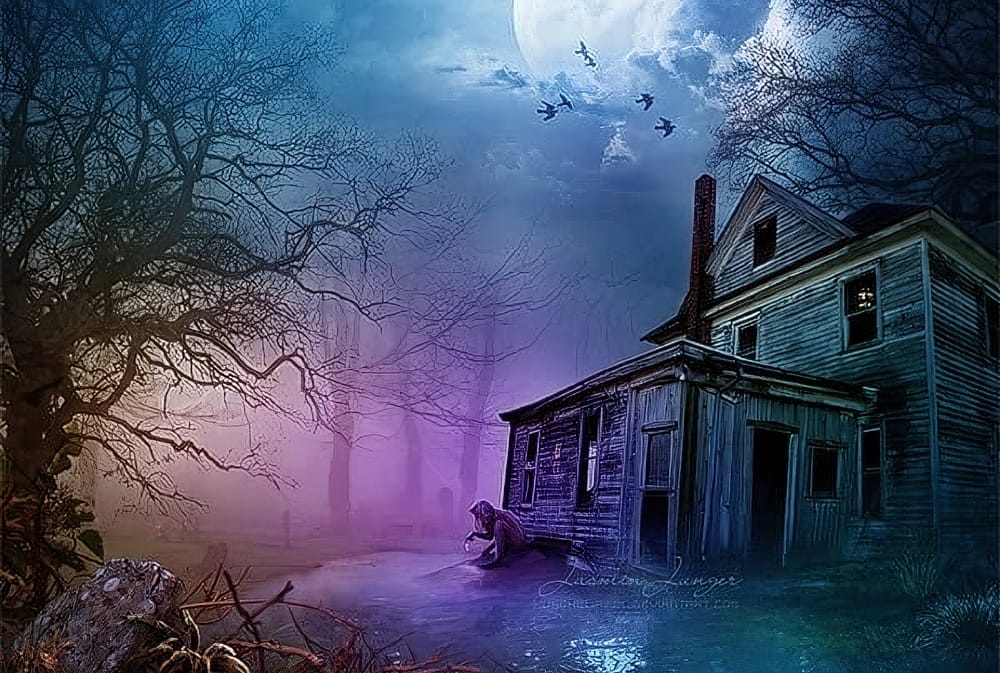
This tutorial offers a clear guide on creating eerie lighting and mysterious atmospheric effects in Photoshop. You will learn how to enhance your photos by manipulating different lighting techniques. The author explains the process step by step, starting with how to select the right colors and apply various effects to a chosen stock image. Each technique is thoroughly detailed, making it easy for you to follow along. The end results are impressive, showcasing how these methods can transform an
Create See-Through Ghost Photos in Photoshop
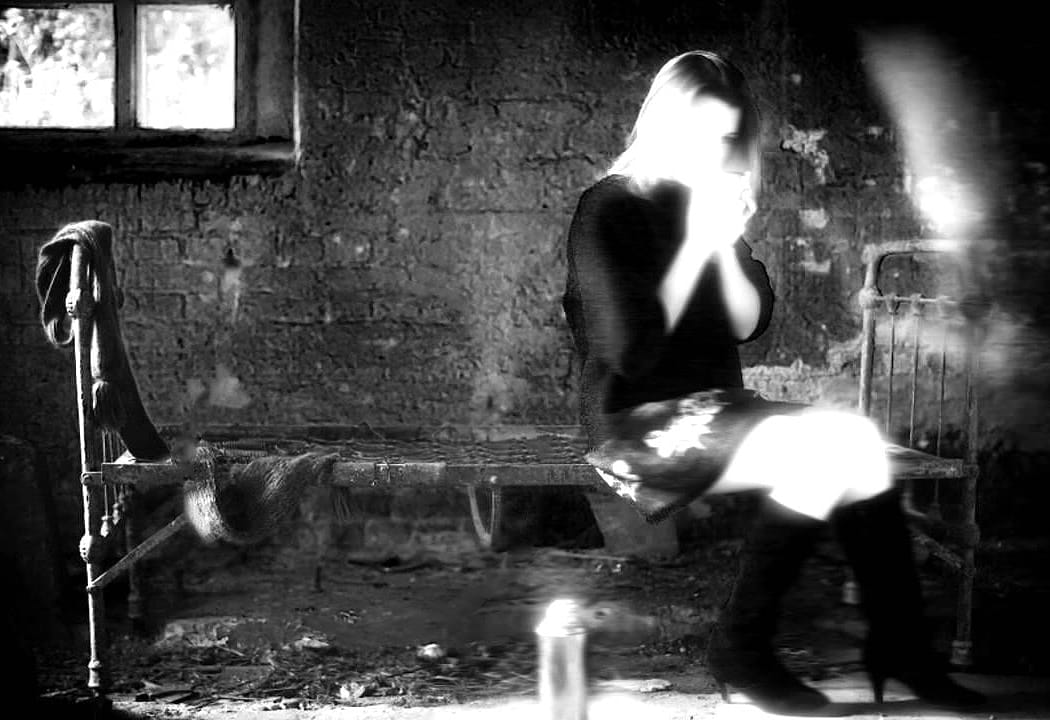
This tutorial offers a straightforward guide to creating an eerie see-through ghost photo using just one image. Perfect for beginners, it simplifies the process while ensuring you can achieve impressive results. You will learn essential techniques that allow you to manipulate your image effectively. The tutorial walks you through each step, ensuring that even those new to Photoshop can follow along with ease. By the end, you'll be able to transform an ordinary photo into something hauntingly b

Get tutorials & freebies delivered to you.

Subscribe to the Photoshop Roadmap newsletter, a weekly roundup of new tutorials, insights and quality downloads, trusted by 6500+ readers.

You might also like

How to Expand Photos Beyond Their Edges Using AI Generative Expand in Photoshop

Sometimes your best photos need more breathing room or a different aspect ratio. Generative Expand in Photoshop lets you extend your canvas beyond the original image boundaries, using AI to intelligently fill in missing areas with content that matches your scene. This technique works for changing portrait photos to landscape...

How to Create Digital Scrapbook Carousels in Photoshop

Digital scrapbook pages capture memories beautifully, but a single page limits your storytelling. Creating a carousel format lets you design multiple connected panels that work together as one cohesive piece while giving viewers more content to explore. This technique uses frames, custom shapes, and smart export settings to build templates...

How to Use Auto Align Layers in Photoshop for Perfect Layer Alignment

When working with multiple layers that need perfect alignment, manual positioning often falls short. Slight camera movement, different crops, or rotated images can make precise alignment seem impossible through visual adjustment alone. Auto Align Layers automatically handles rotation, scaling, and positioning to create perfect layer alignment, even when images have...

How to Use Nano Banana Pro in Adobe Firefly for Advanced AI Image Generation

Adobe Firefly now includes Gemini 3 with Nano Banana Pro, offering sharper 2K image generation with improved text clarity and precision blending. This advanced AI model works seamlessly within Firefly's generative workspace, enabling powerful workflows like multi-image composition and virtual try-on effects. The integration provides access to sophisticated...

Create Colorful Retro Text Compositions in Photoshop

Retro design trends continue to captivate audiences with their bold colors and geometric shapes. This tutorial demonstrates how to build a complete vintage-inspired composition using text, geometric elements, and vibrant color schemes that capture the essence of classic graphic design. You'll learn to combine typography with custom shapes,...

Photoshop's New Color and Temperature Tool for Advanced Color Grading

Photoshop's latest update introduces temperature and tint controls directly into the adjustment layer panel, bringing white balance tools from Camera Raw into the main editing workspace. This addition transforms color grading workflows by enabling precise local adjustments with custom brushes and blend modes. The new Color and Vibrance...

You’ve successfully subscribed to Photoshop Roadmap
Welcome back! You’ve successfully signed in.
Great! You’ve successfully signed up.
Success! Your email is updated.
Your link has expired
Success! Check your email for magic link to sign-in.