How to make any photo look better in seconds in Photoshop

How to make any photo look better in seconds in Photoshop

Many photographs, despite good composition, can often lack that captivating polish or depth. Achieving a professional and visually appealing aesthetic often seems like a complex or time-consuming endeavor for photographers and digital artists.

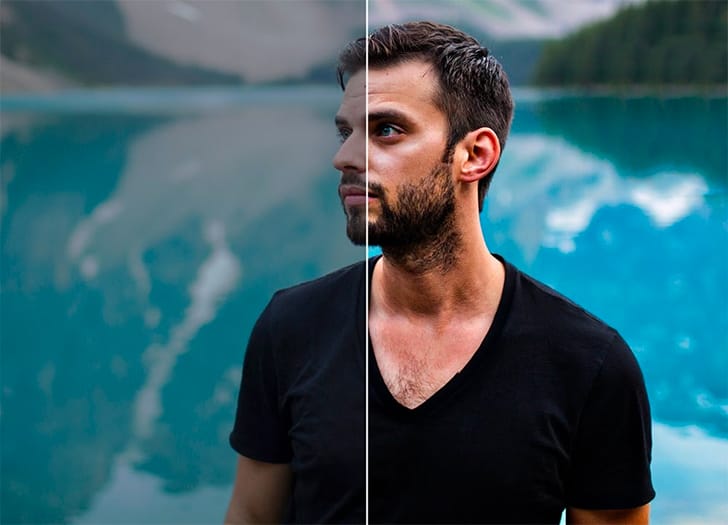
This tutorial introduces a simple yet powerful Photoshop technique, sometimes referred to as the "euro glow" or "euro tint," designed to quickly elevate the quality of any image. Readers will learn how a few clicks can add contrast, vibrance, and a subtle softening effect, enhancing both portraits and landscapes.

Watch the Tutorial: Apply the 'Euro Glow' Effect

Any links or downloads mentioned by the creator are available only on YouTube

Understanding the 'Glow' Effect: Blending Modes and Blur

Effective photo enhancement frequently relies on the strategic use of layers and blending modes to introduce depth and atmosphere. Rather than making destructive direct edits, blending modes like Overlay and Soft Light non-destructively alter how layers interact. These modes influence contrast and color, adding vibrancy or subtlety without permanently modifying the original pixel data, offering immense flexibility in artistic expression.

Similarly, applying a controlled blur, specifically a Gaussian Blur to a duplicated layer, serves more than just de-focusing. When combined with an appropriate blending mode, this blur can create a soft, ethereal glow. This technique is particularly effective for smoothing out textures such as skin and hair, transforming "straw-like" hair into "silky" strands, and diffusing light to achieve a more flattering overall aesthetic. This layered approach allows for precise control, as artists can then use layer masks to selectively refine areas, bringing back sharpness where necessary while maintaining the desired soft glow.

Quick Steps to Apply the 'Euro Glow' in Photoshop

  • Begin by duplicating your background layer (Ctrl+J on Windows or Command+J on Mac) to ensure non-destructive editing and preserve your original image.
  • Experiment with blend modes, choosing Overlay for a strong contrast and color pop, or Soft Light for a more subtle enhancement. Adjust the Opacity of the layer to fine-tune the intensity of the effect.
  • Apply a Gaussian Blur to the duplicated layer. The goal is to find a "sweet spot" where a soft glow emerges without making the image appear overly blurred or unnatural. The optimal blur radius will vary based on the image's resolution and specific content.
  • Utilize a layer mask to selectively apply or remove the effect. Paint with black on the layer mask to bring back sharpness and detail to important areas, such as the eyes and lip lines, while allowing the glow to soften other areas like skin and hair. This can also help smooth out minor imperfections like chapped lips or acne.
  • Remember this technique's versatility: it effectively enhances portraits by improving skin and hair texture, and also adds depth and atmosphere to landscapes or other types of photos.

Explore More Photoshop Enhancement Tutorials

Discover additional techniques and resources to further refine your image editing skills.

How to make your photos look better FAST in Photoshop
In this tutorial, talented photographer and instructor Peter McKinnon is going over some techniques to make your photos pop, stand out and generally just look better, fast! If you are looking for ways to step up your editing game and enter the ring with photoshop, this video is for you! More
5 tips to make your photos better in Photoshop
How to make your photos look better fast in Photoshop. 5 Tips to make all your photos look better in Photoshop. This Photoshop tutorial shows you 5 things you should do to make your photos look better than ever. More
You can learn Photoshop in 15 minutes - here’s how
If you’re looking to learn Photoshop quickly, this beginner tutorial is perfect for you. In just 15 minutes, you can get started with the basics and gain the confidence to explore further. The tutorial covers essential topics such as opening images, creating new documents, and navigating the workspace. You

Get tutorials & freebies delivered to you.

Subscribe to the Photoshop Roadmap newsletter, a weekly roundup of new tutorials, insights and quality downloads, trusted by 6500+ readers.

You might also like

How to Create a 1-Bit Bitmap Effect in Photoshop

The 1-bit bitmap effect transforms modern digital images into stark black-and-white graphics reminiscent of early computer displays and vintage print materials. A bitmap uses exactly one bit of data per pixel, allowing only pure black or white with no gray values in between. This technique works equally well on photographs...

14 New Features in Photoshop 27.6 You Need to Know

Photoshop 27.6 brings significant updates that enhance workflow efficiency and creative possibilities. From improved reflection removal tools to smarter AI models, these features address real challenges photographers and designers face daily. This comprehensive overview covers 14 key additions, including enhanced distraction detection, new AI capabilities, and improved workspace organization...

Create Film Looks with Custom LUTs and Profiles for Any Photo Editor

Film photography's nostalgic warmth and character continue to captivate photographers working in the digital realm. Creating authentic film looks requires understanding how vintage stocks like Kodak Kodacolor and Fujifilm Superia handled color, contrast, and tone. This comprehensive workflow shows you how to build these looks from scratch using...

Create Pixelated Liquid Typography with Chromatic Distortion in Photoshop

Liquid typography combines flowing, organic distortions with digital glitch aesthetics to create text that appears to melt and separate into colorful chromatic components. This technique transforms static letters into dynamic, pixelated designs that suggest movement and technological breakdown. The method uses the Liquify filter to create fluid distortions, then separates...

How to Create Cinematic Color Grading Using Camera Raw Filter in Photoshop

Color grading transforms ordinary photos into cinematic masterpieces by adding mood and visual depth. The Camera Raw filter built into Photoshop provides professional-level color grading tools that rival dedicated editing software, allowing you to adjust shadows, midtones, and highlights with precision. This technique uses smart filters to ensure non-destructive editing,...

You’ve successfully subscribed to Photoshop Roadmap
Welcome back! You’ve successfully signed in.
Great! You’ve successfully signed up.
Success! Your email is updated.
Your link has expired
Success! Check your email for magic link to sign-in.