Creating convincing fire effects starts with understanding that fire acts as a light source. The key to realistic results lies in choosing images that already contain appropriate lighting, then compositing stock fire images using the screen blend mode to naturally integrate flames into your scene.
This technique transforms ordinary photographs into dramatic compositions by layering multiple fire elements and carefully controlling their visibility through masks and blend modes.
Watch the Video
Practical Tips
These essential techniques will help you achieve more convincing fire effects:
- Start with photos that already have a light source where you plan to place the fire
- Use screen blend mode to make dark backgrounds disappear while preserving bright flames
- Adjust levels to darken backgrounds further when screen mode reveals unwanted edges
- Paint layer masks along natural fire edges rather than fading them gradually
- Add orange glow effects using color dodge blend mode to simulate fire's light emission
Related Articles and Tutorials
Explore more fire and flame effect techniques to expand your creative toolkit:
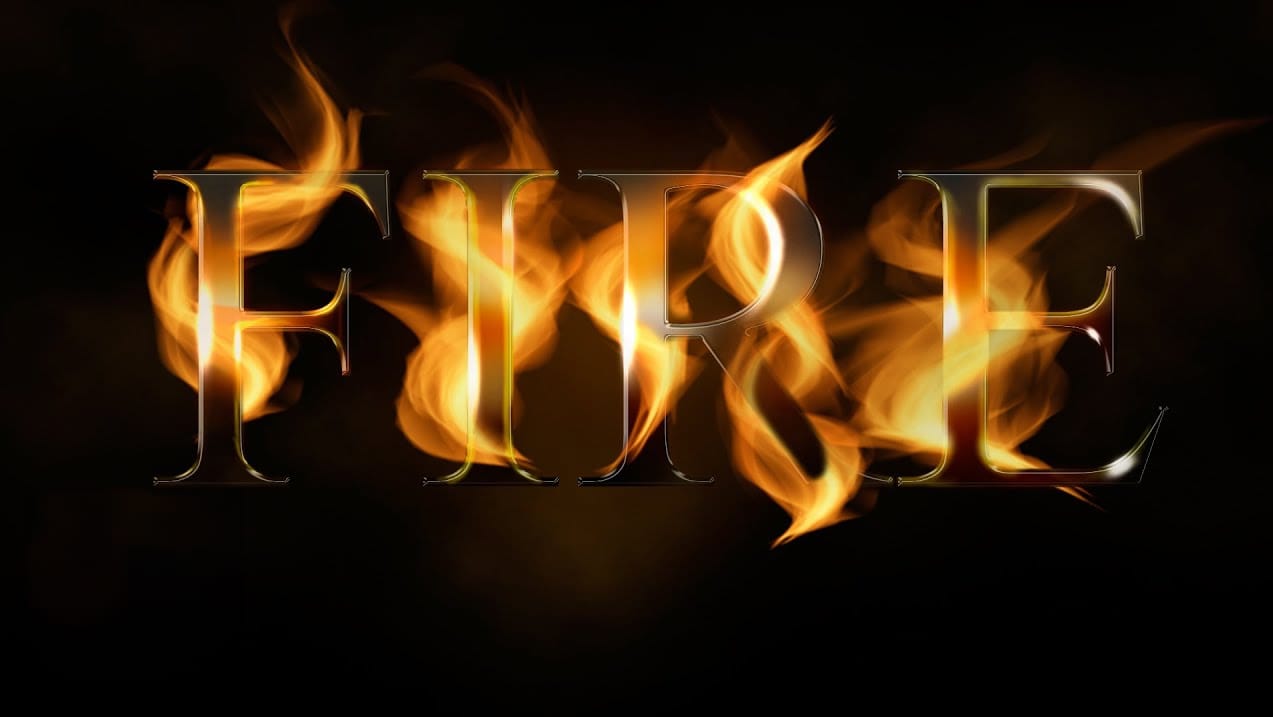
Realistic Fire Text Effect In Photoshop
In this Photoshop text effects tutorial by Jesus Ramirez from PTC Photoshop Training Channel you are going to learn how to create a vibrant flaming text effect.
This effect will be created from scratch, without using any photographs. The flames will be created with The Flame Generator filter, a feature found in Photoshop CC. This filter is designed to render realistic flames on user-defined paths.
Watch tutorial
How to Create Flames in Photoshop
In this tutorial, Julieanne Kost walks you through the process of creating realistic flames in Photoshop. The tutorial simplifies the process into four manageable steps, making it accessible even for beginners.
Kost starts by guiding you through the basics of setting up your workspace and selecting the right tools. She then demonstrates how to use different paths and brush settings to shape and control the flame effect. By adjusting various parameters, you can achieve a dynamic and realistic fl
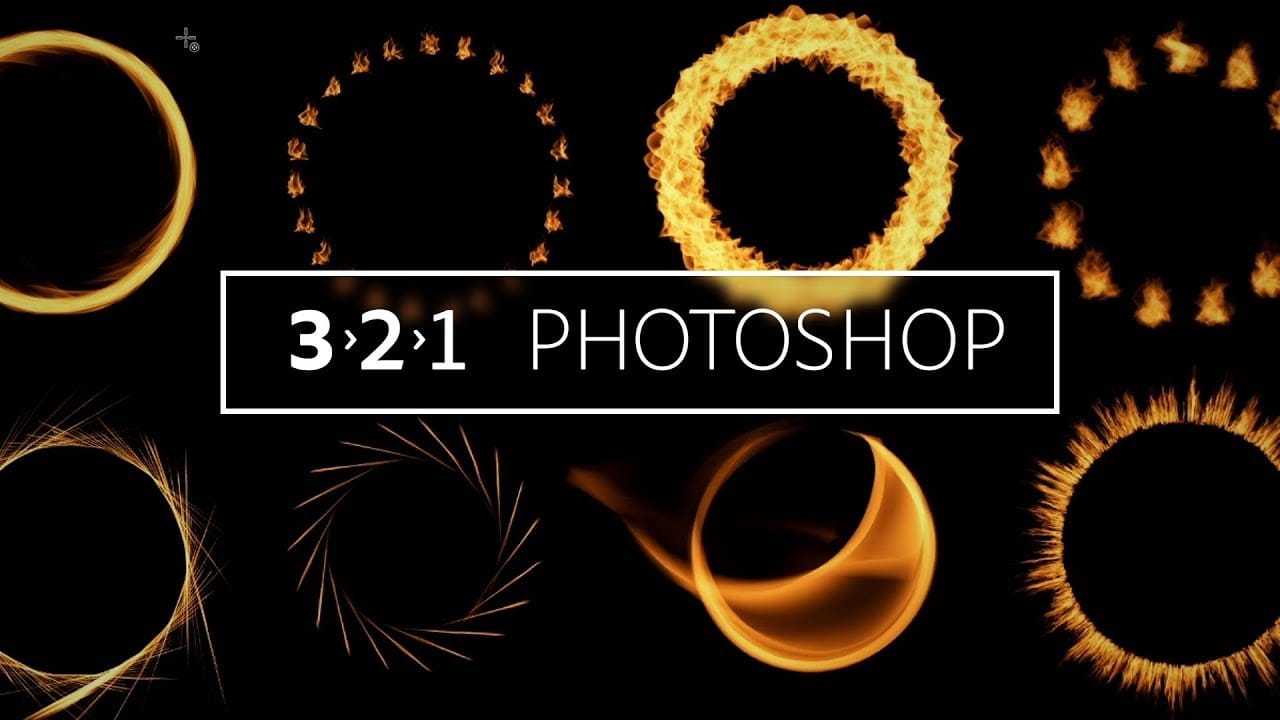
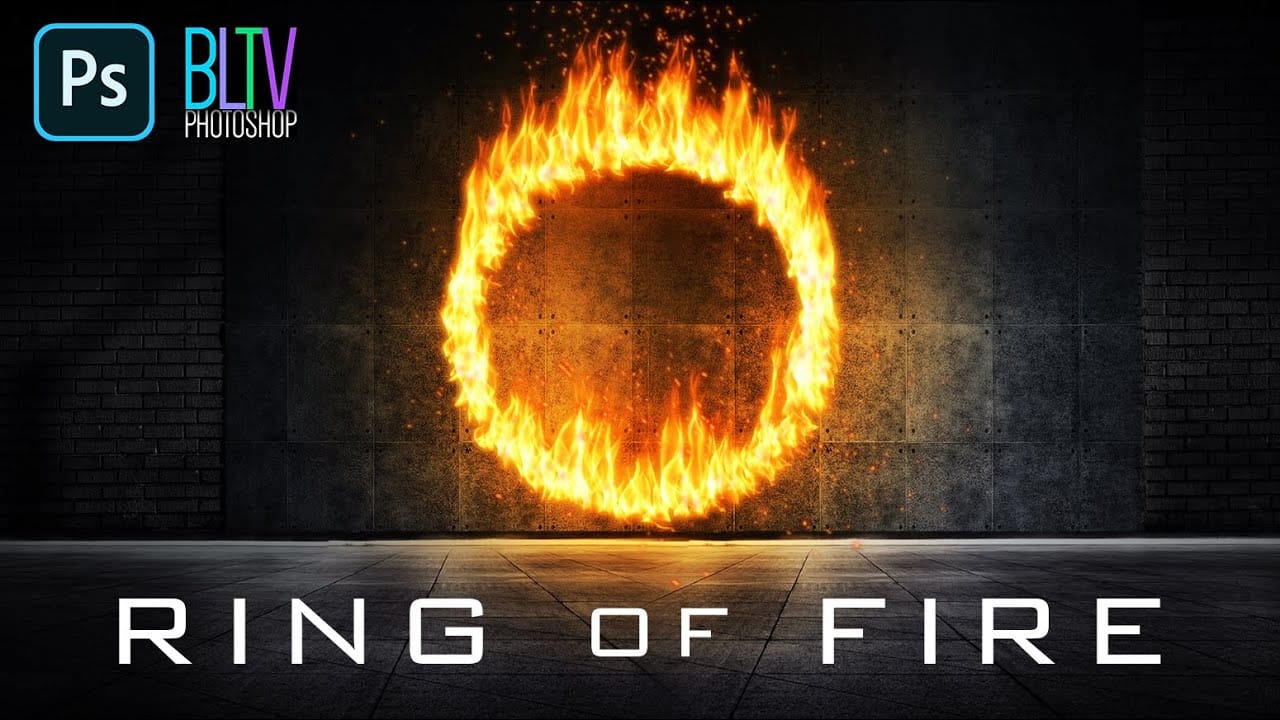
Create a Powerful Ring of Fire in Adobe Photoshop
Adding realistic fire effects can dramatically enhance digital art and photo manipulations, bringing a sense of energy and intensity to any scene. Mastering these techniques allows designers to transform ordinary images into captivating visual narratives.
This tutorial demonstrates how to construct a powerful ring of fire in Photoshop, covering essential steps from path creation to applying dynamic flame and spark effects. Viewers will gain practical skills for integrating complex visual elemen
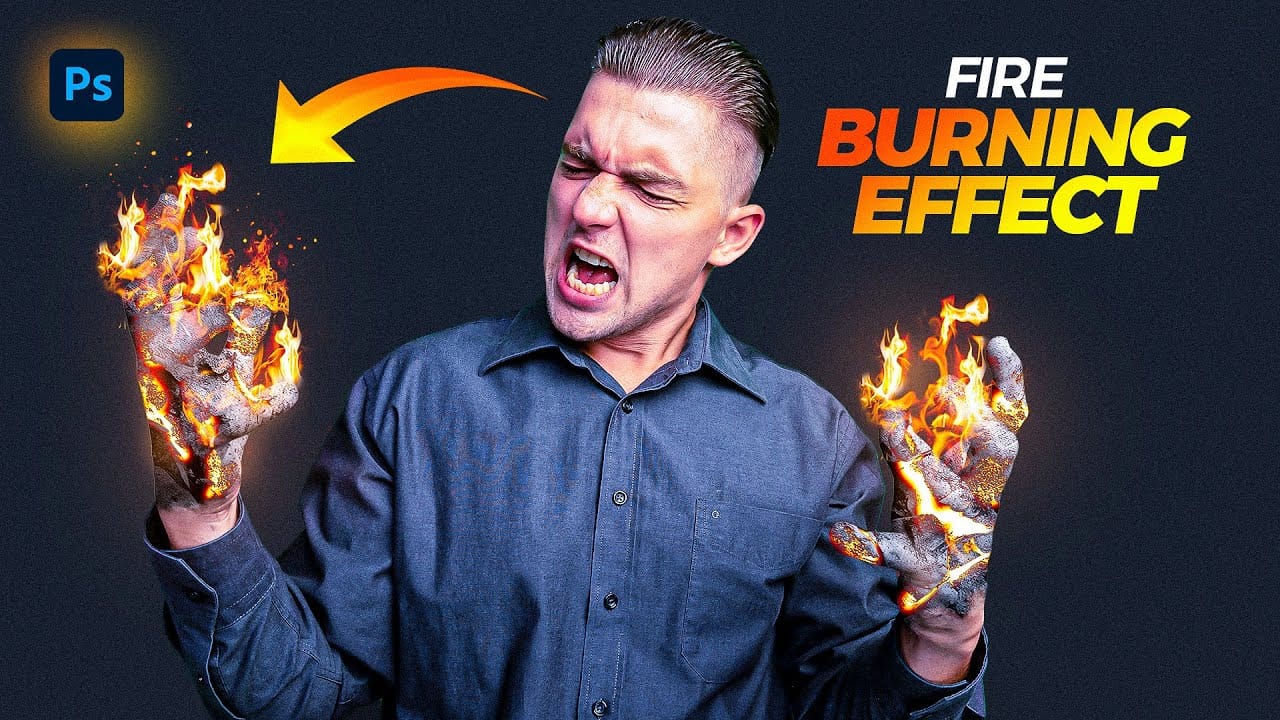
Create a Fire Burning Effect in Photoshop
Creating a fire-burning effect in Photoshop is a fascinating process that can enhance your images dramatically. Start by setting up a new file with dimensions of 1920 x 1080 pixels. Import the necessary images, which can be found in the provided link. Duplicate your main layer using Ctrl + J, then convert it to black and white through the Image Adjustments menu by selecting Hue/Saturation and removing all saturation.
Next, apply an inverted mask to the black and white layer. Use the brush tool
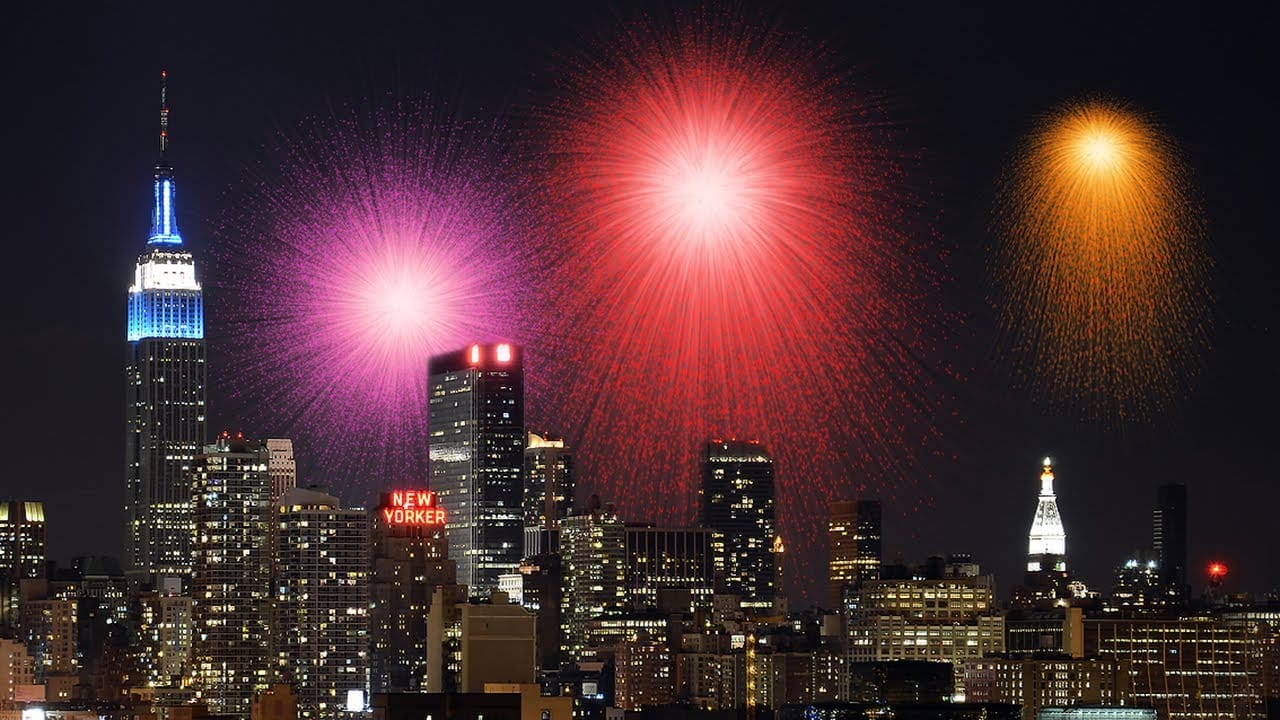
Create awesome fireworks in Photoshop
Achieving the distinct, scattered spark effect of fireworks in Photoshop might seem like a complex task. This tutorial reveals a clever technique, starting with a simple white dot and the often-overlooked "Dissolve" blend mode. This initial step lays the groundwork for realistic bursts by generating a unique scattered pixel pattern, a foundation far more organic than traditional brush strokes.
From this surprising starting point, the process unfolds to incorporate dynamic transformations, vibra
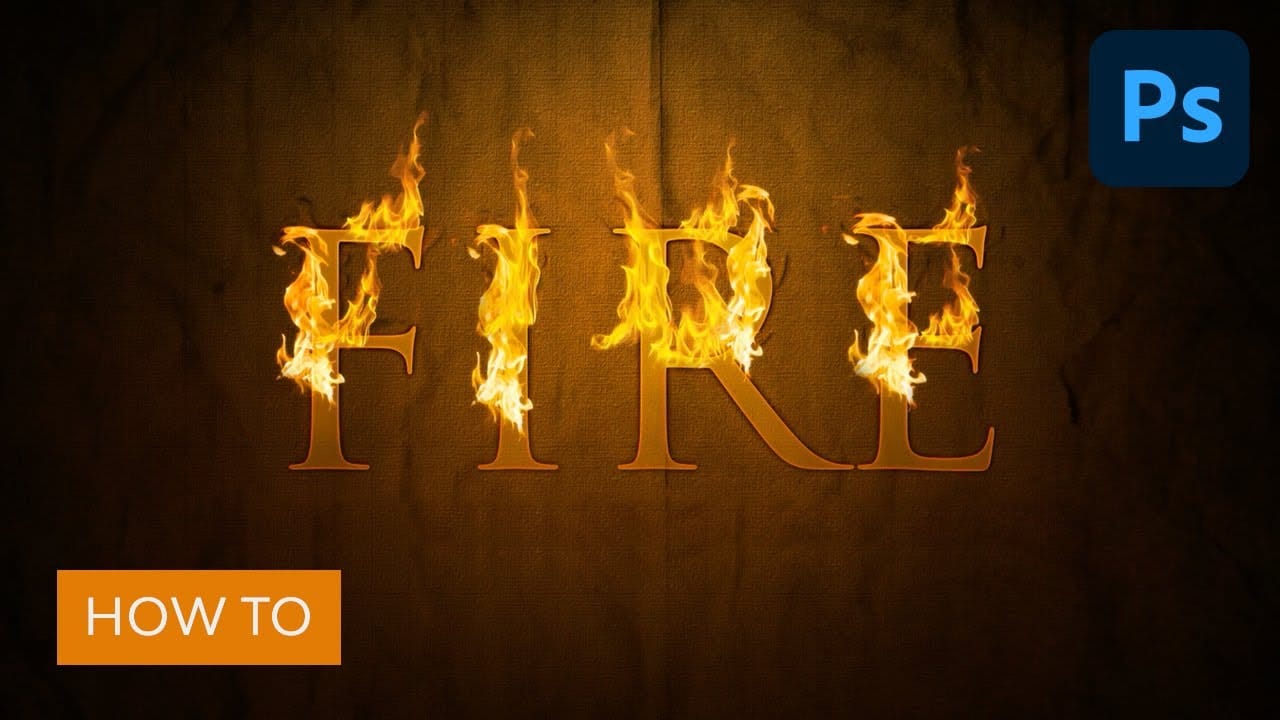
Dramatic text on fire effect
A text on fire effect offers a visually striking way to elevate your graphic design projects, adding an element of intense drama and powerful energy. This technique can transform ordinary text into a captivating visual statement, making your designs truly memorable.
This tutorial provides a comprehensive guide to crafting a realistic fire text effect in Photoshop. You will learn to manipulate layers, apply specialized filters, and blend elements seamlessly, all to achieve an authentic fiery app
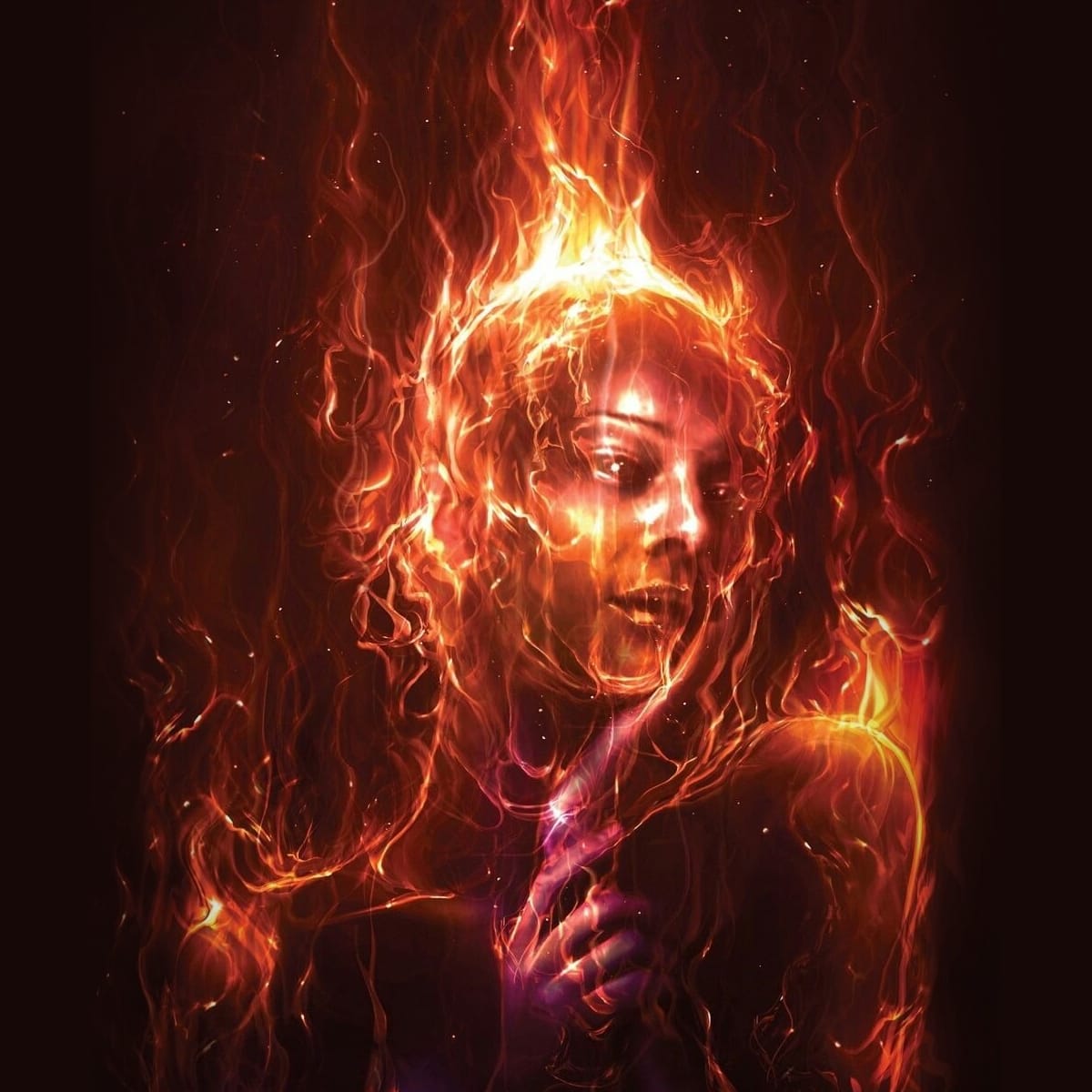
Apply a Burning Flames Effect to a Photo in Photoshop
In this tutorial by Neville D'Souza, you will learn how to take a simple model shot and transform it into a striking, dynamic piece of art that resembles a spitting, crackling beacon of fire. The tutorial guides you through the process using some of the most common tools available in Photoshop, showcasing techniques that allow you to create intricate and impressive effects.
The author meticulously explains each step, ensuring you can follow along without the need for third-party plug-ins. By th
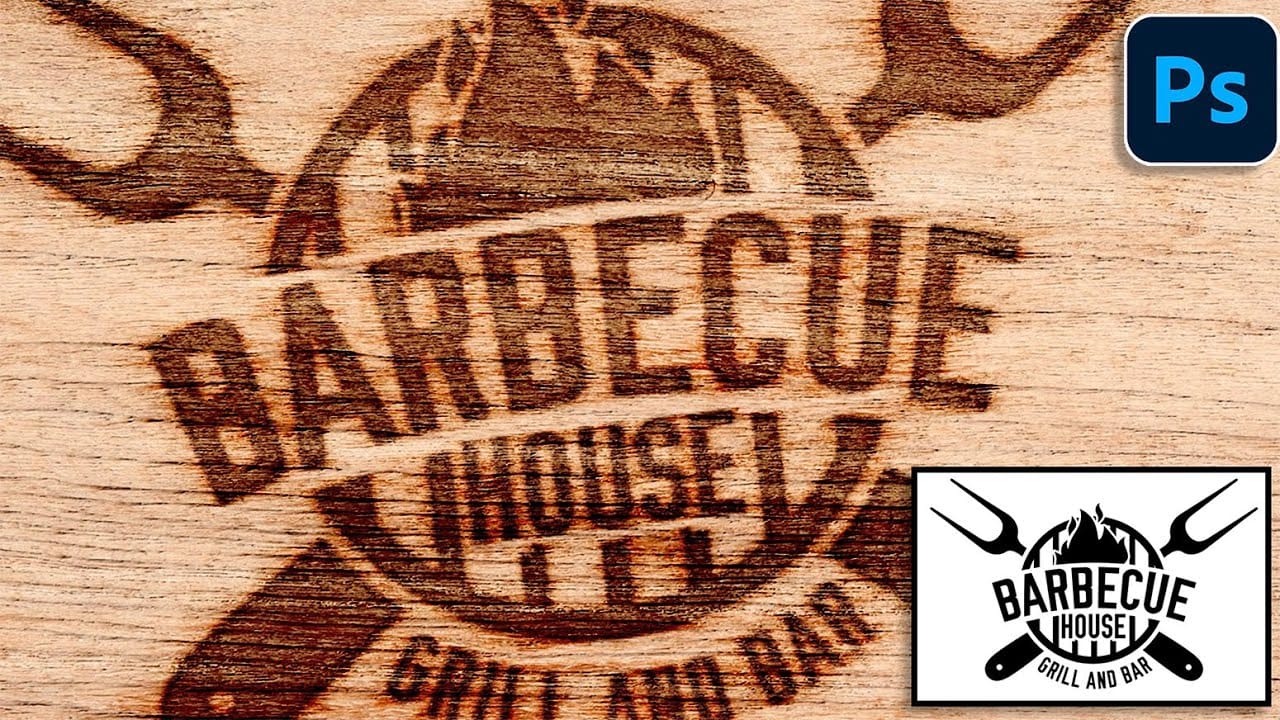
How to Create a Wood Burn Effect in Photoshop
Wood burning transforms simple text and graphics into rustic, branded designs that carry the authenticity of crafted woodwork. This timeless aesthetic connects digital art with traditional craftsmanship, creating visuals that feel both handmade and professional.
Photoshop's layering and blending capabilities make it possible to simulate the charred, weathered appearance of wood burning without needing actual pyrography tools. The technique combines texture work, strategic blending modes, and ca
Create a smoke effect in Photoshop
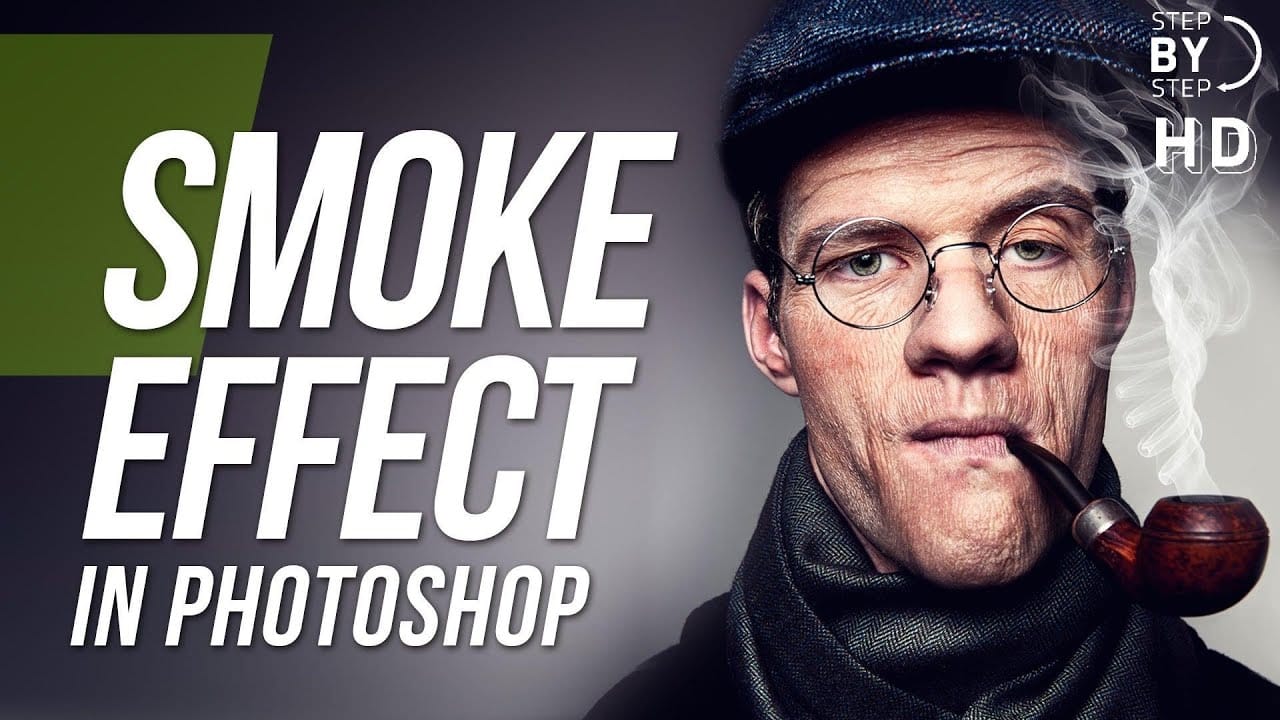
This step-by-step tutorial by RetutPro shows you how to produce a realistic plume of smoke emerging from a pipe.
The tutorial walks you through the entire process, from setting up the initial layers to adding the finishing touches. You'll learn useful techniques like using brushes to shape the smoke, adjusting the opacity and blending modes, and incorporating lighting effects.
By following along, you'll be able to create a visually striking smoke effect that can be used in a variety of design