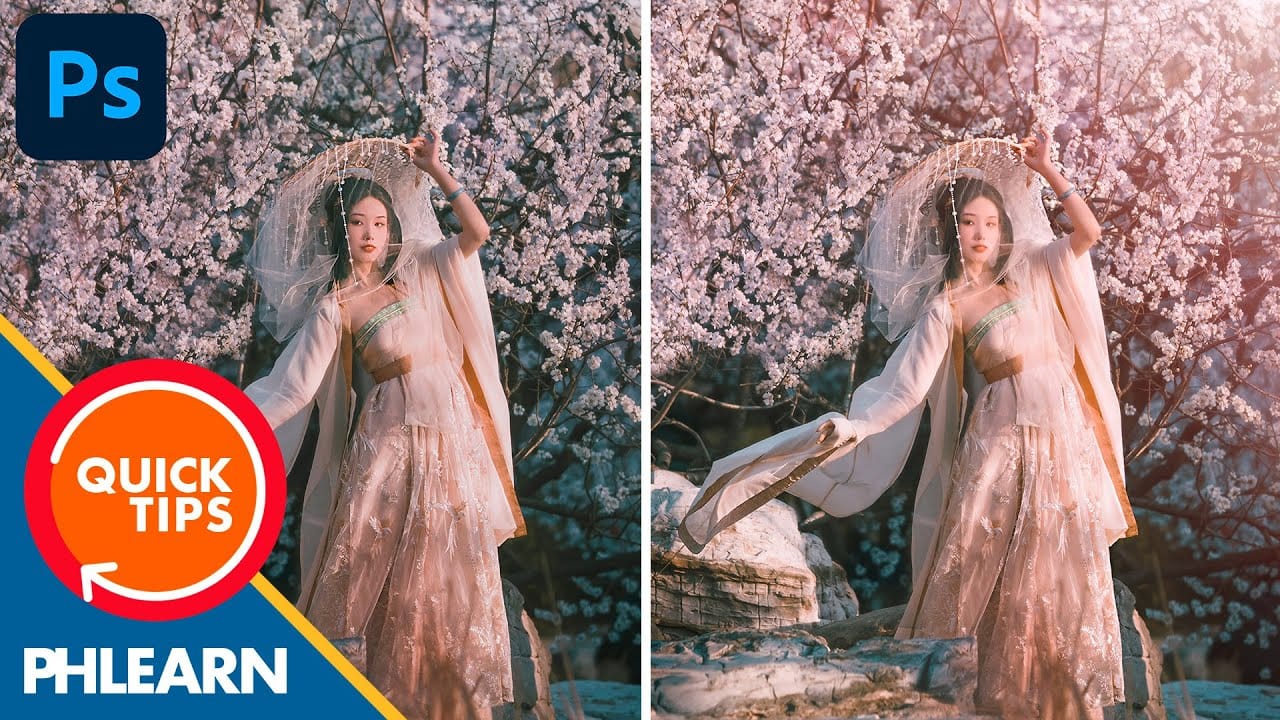
Motion blur combined with colorful gradients creates striking visual effects that transform ordinary photos into dynamic, cinematic images. This technique uses gradient maps to automatically color light and dark values, producing flowing color transitions that follow the movement of your subject.
The process involves subject isolation, strategic gradient placement, path blur for realistic motion, and gradient mapping to achieve vibrant color flows reminiscent of long exposure photography.
Watch the Video
Video by PHLEARN. Any links or downloads mentioned by the creator are available only on YouTube
Practical Tips
Follow these essential techniques to create convincing glow motion effects:
- Convert your subject layer to a smart object before applying path blur to maintain non-destructive editing capabilities
- Use radial gradients positioned behind your subject and experiment with different placements to control color flow direction
- Uncheck "centered blur" in path blur settings to create directional motion instead of bidirectional blurring
- Adjust taper settings in path blur to control how the motion effect fades - higher values create more gradual transitions
- Click "reverse" on gradient maps to flip which colors map to light versus dark areas of your image
Related Articles and Tutorials
Explore more creative glow and motion effects to enhance your photo editing skills.
100 Wonderful Photoshop Photo Effects tutorials
Learn how to create awesome photo effects in photoshop with this gallery of 100 impressive Photoshop tutorials.
 Enrique Flouret
Basic Photoshop techniques you really need to learn
Photoshop hasn’t changed as much as it looks. New features come and go, but the same core techniques keep showing up in real work. If you skip them, everything feels harder than it should. This post focuses on those basics, not as isolated tricks, but as skills you’ll
 Enrique Flouret
Artistic Photoshop Actions to Make Photography Fun
Photoshop actions are a simple way to speed up editing and give your photos a consistent look without spending hours on adjustments. From subtle color shifts to bold artistic transforms, actions can help you work faster and keep your style consistent across different projects. They’re useful for anyone who
 Enrique Flouret
The Beauty of Digital Mistakes: Glitch Effects and Visual Aberrations in Photoshop
Once, a broken image or pixelated frame meant something had gone wrong. Now, those same visual errors are a creative choice. Designers and digital artists are using glitch effects to turn imperfections into style — bending pixels, breaking color channels, and distorting shapes until they feel alive again. Maybe it’s
 Enrique Flouret
8 Crazy and Unusual Photoshop Effects That Will Make You Say “What the…?!”
You know that feeling when you see an image and your brain just... stops for a second? Not because it’s beautiful or well-composed. Because it’s weird. Because someone’s face is splitting open with flowers pouring out, or a city is curled into a tiny floating planet, or two faces are
 Enrique Flouret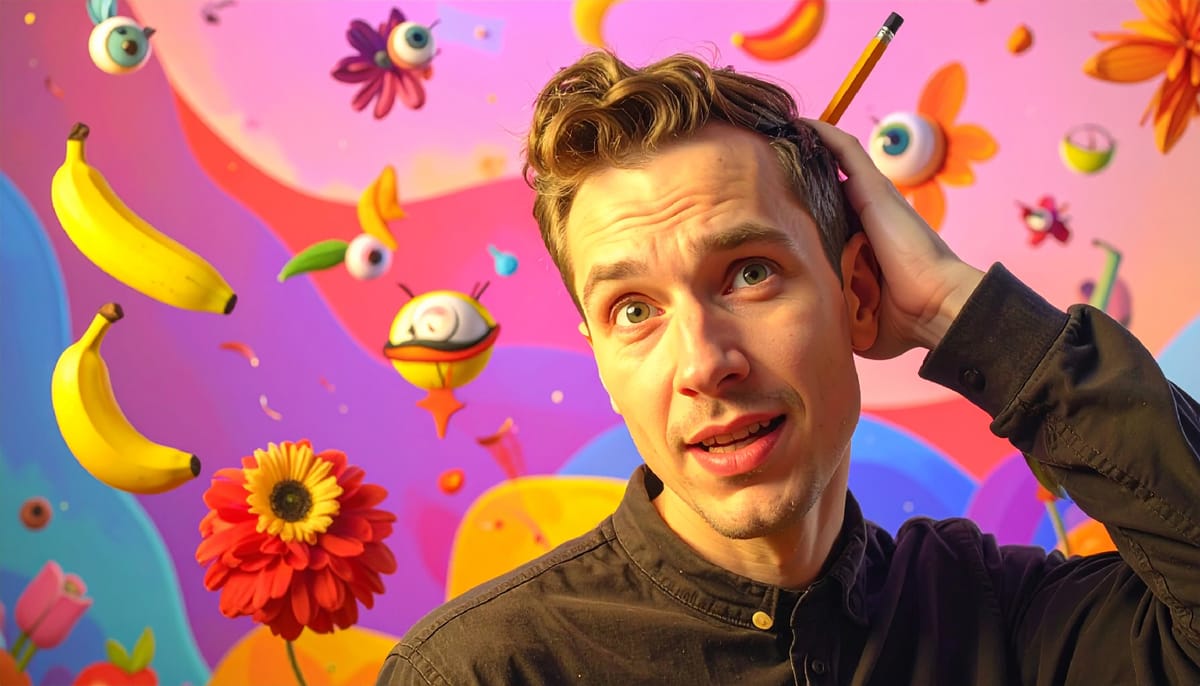
Glowing Text Effect in Photoshop
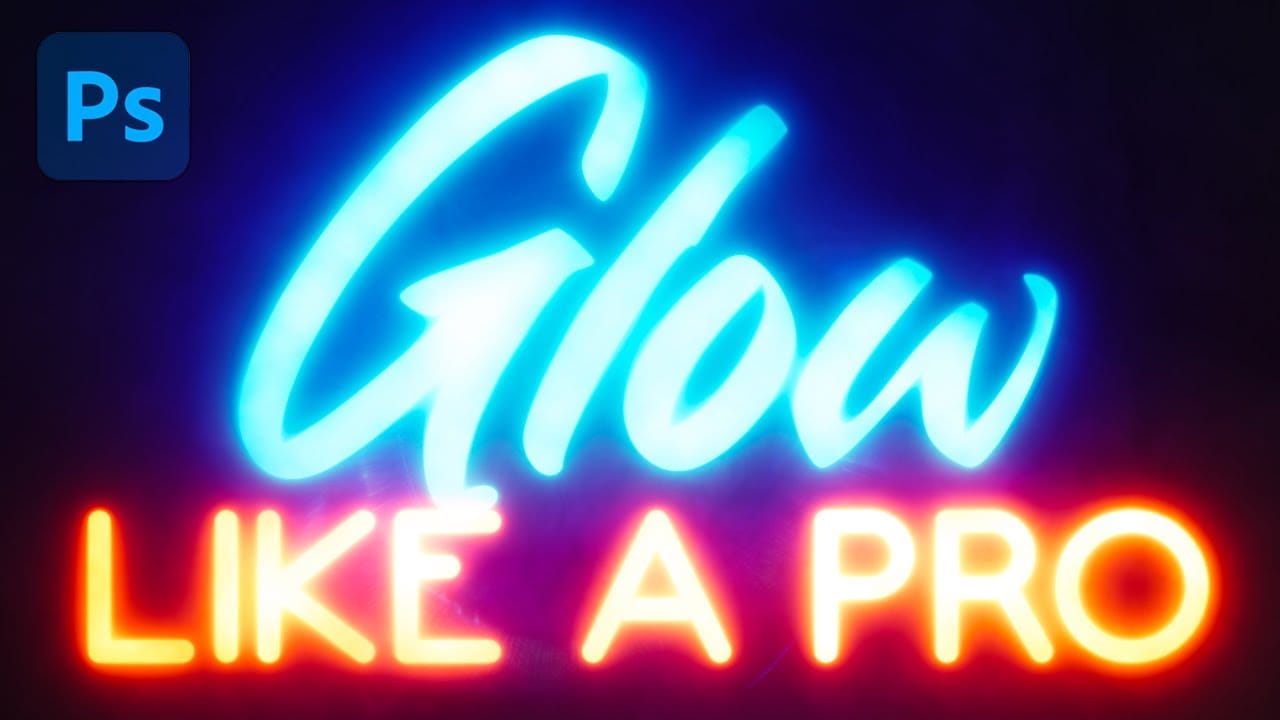
Glowing text transforms ordinary typography into luminous, eye-catching design elements that command attention. The ethereal quality of well-executed glow effects can elevate logos, headers, and graphics with professional polish.
This tutorial demonstrates how to build convincing glow effects using multiple Gaussian blur layers, smart objects, and gradient mapping techniques in Photoshop.
Watch the Tutorial
Practical Tips for Professional Glow Effects
Follow these key techniques to create
Aesthetic Glitter Effect in Photoshop
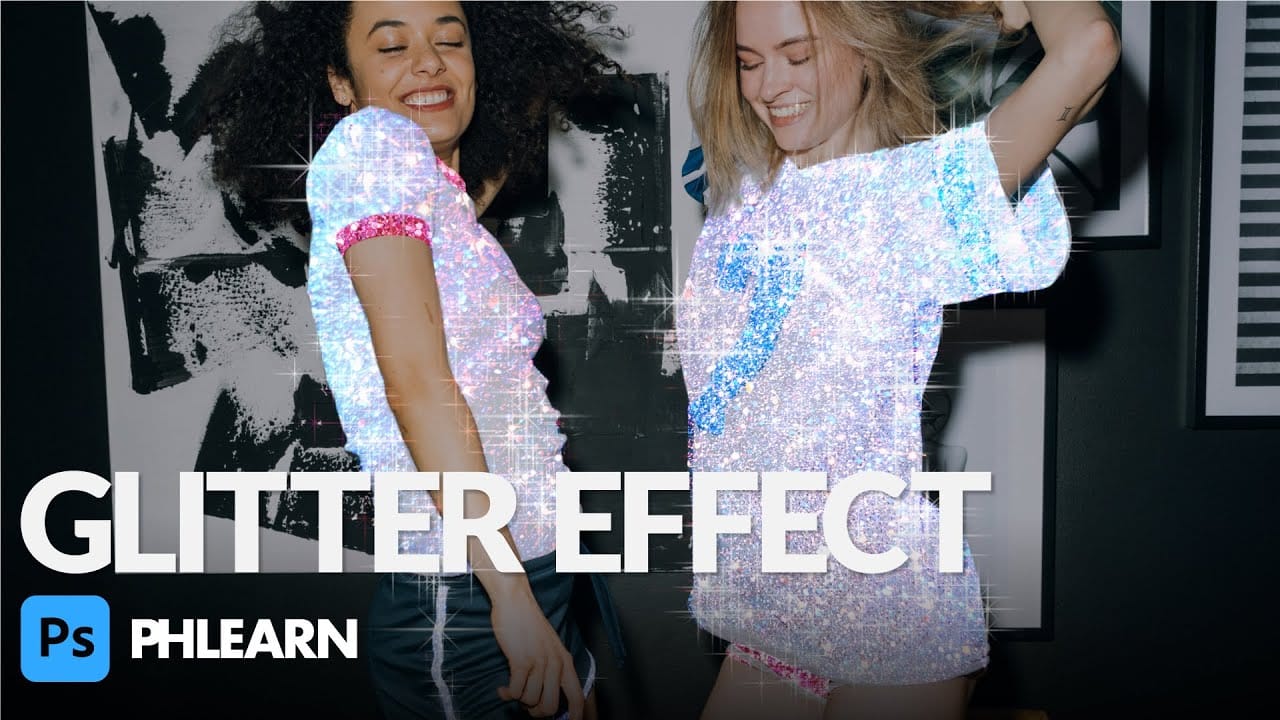
In this tutorial, Aaron Nace from Phlearn shows you how to add a stunning glitter effect to your photos in Photoshop. This effect will make your images shimmer, sparkle, glimmer, and glow, adding a touch of magic to any project.
Aaron demonstrates how to use glitter textures along with Layer Masks and simple adjustments to make any part of a photo shine. He provides a step-by-step guide to seamlessly blend glitter textures into your images, creating a professional and eye-catching result.
Best
Create the Cinematic Bloom Glow Effect in Photoshop
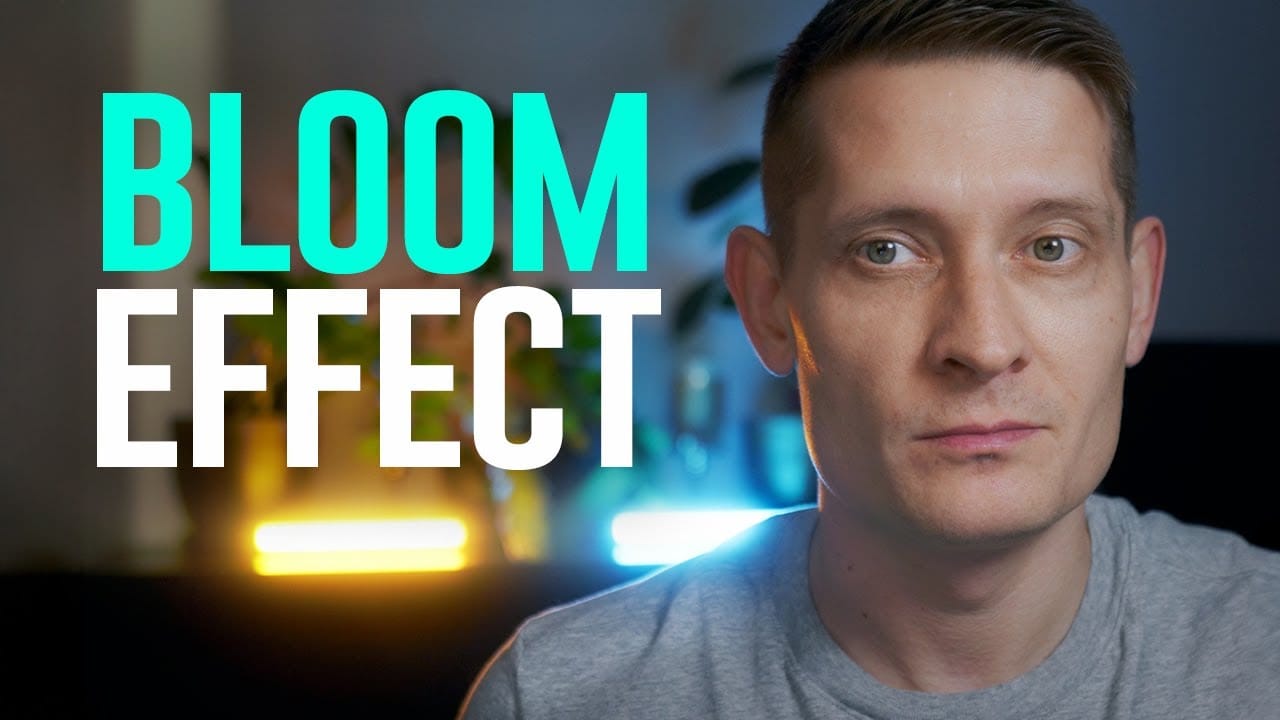
This guide will walk you through the steps to create a stunning bloom effect using Photoshop and DaVinci Resolve.
This technique enhances your highlights, infusing your photos and videos with a cinematic glow that adds a dreamy atmosphere.The bloom effect simulates the appearance of black diffusion filters commonly found in photography and cinematography. These filters soften images and contribute a soft, glowing quality to highlights. This approach is ideal for anyone looking to enrich their v
Create a Grungy Glow Text Effect in Photoshop
Grungy glow effects transform ordinary typography into edgy, atmospheric designs that capture raw urban energy. This technique combines multiple drop shadows with textural overlays to create depth and visual impact.
The video demonstrates a complete workflow for building layered glow effects and applying grunge textures that give text a weathered, street-art aesthetic.
Watch the Video
Practical Tips for Grungy Glow Effects
* Create multiple drop shadow layers with increasing sizes (5, 30,
How to create a sun glow effect in Photoshop
In this tutorial, Aaron Nace shows how to add a vibrant sun glow effect to your photos with ease. The process involves a few straightforward steps to simulate the warm, radiant look of sunlight. Aaron explains how to use blending modes, gradients, and layer adjustments to achieve a natural and eye-catching glow.
The tutorial includes a free Sun Glow Gradient, which you can download and use immediately to enhance your images. This effect is perfect for adding a dreamy, sunlit atmosphere to your