Digital scrapbook pages capture memories beautifully, but a single page limits your storytelling. Creating a carousel format lets you design multiple connected panels that work together as one cohesive piece while giving viewers more content to explore.
This technique uses frames, custom shapes, and smart export settings to build templates you can reuse with different photos. The result is a swipeable gallery perfect for social media platforms.
Watch the Video
Video by Brendan Williams. Any links or downloads mentioned by the creator are available only on YouTube
Practical Tips
These essential techniques will help you create professional-looking carousel templates efficiently:
- Calculate canvas width by multiplying single image dimensions by the number of carousel panels (1080 × 4 = 4320 pixels for four Instagram carousel images)
- Set up guides and slices before creating frames to ensure proper export alignment
- Use custom frame shapes like torn paper effects to add visual interest beyond basic rectangles
- Convert frames to smart objects before applying layer styles to ensure effects apply to frame edges rather than photo edges
- Enable brush smoothing to 100% when adding hand-drawn elements if you don't have steady hands
Related Articles and Tutorials
Explore more drag-and-drop templates and creative design elements for your projects:
How to Access Adobe’s Free Stock Photos in Photoshop and Create Photo Collages
Adobe now includes thousands of free stock photos directly in Photoshop, making it easier than ever to find professional images for your projects. These royalty-free images work perfectly for creating dynamic photo collages without leaving the application. This tutorial covers three different methods to access these free stock images and
 Photoshop Cafe
How to Create Simple Photo Collages in Photoshop
Photo collages offer a versatile way to combine multiple images into a cohesive visual story or artistic display. Whether for personal projects, digital scrapbooks, or social media content, effectively arranging diverse photographs is key to a compelling outcome. This tutorial demonstrates a straightforward method for creating structured photo collages in
 Brendan Williams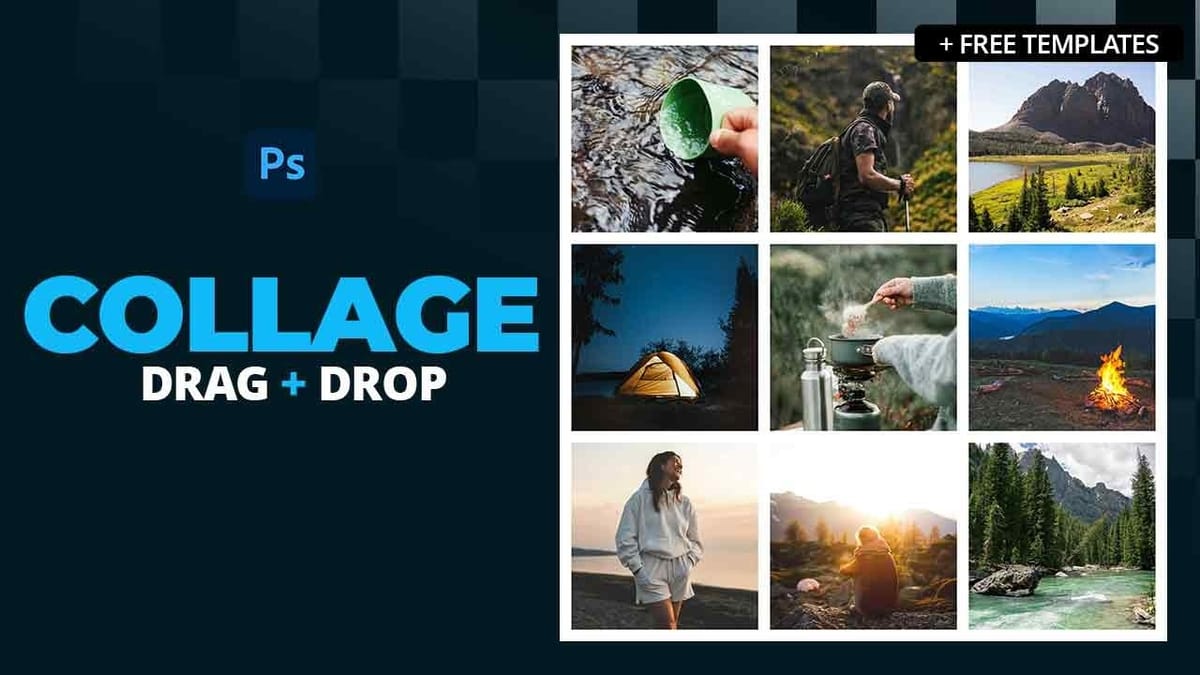
How to Create Reusable Drag & Drop Mockup Templates in Photoshop
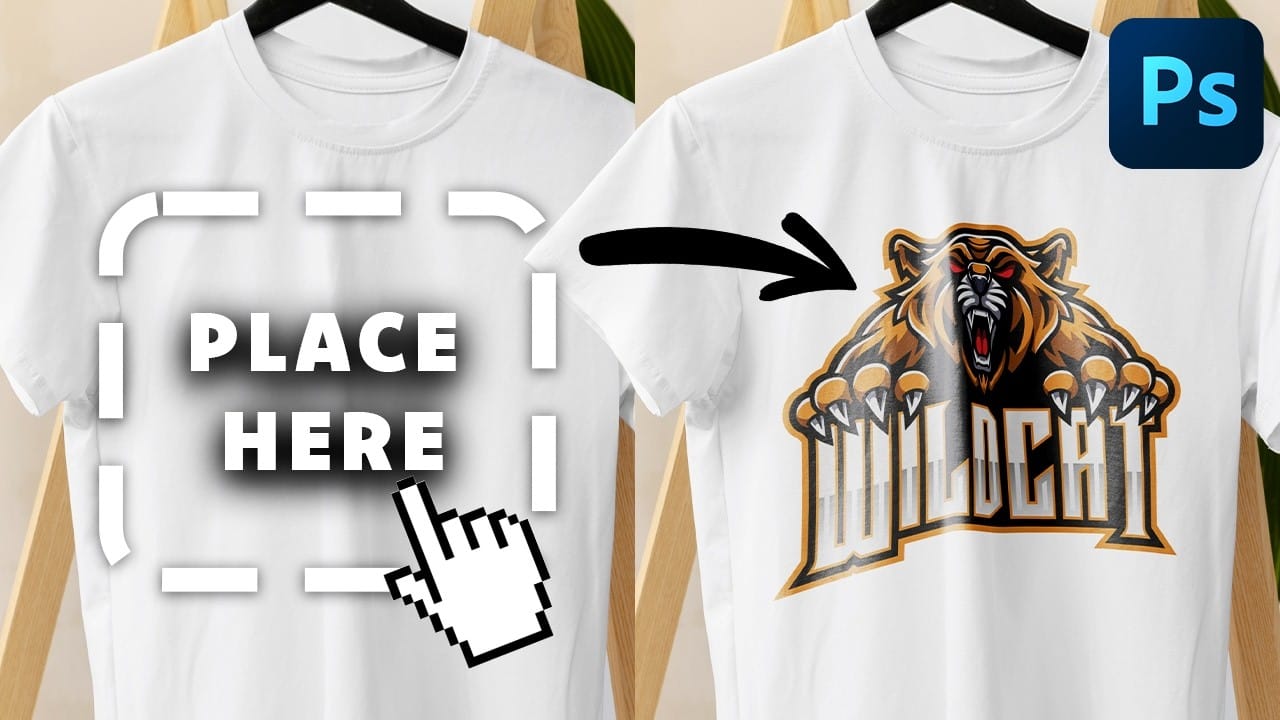
Manually warping and blending logos onto product photos takes 15-30 minutes each time. Smart objects in Photoshop transform this repetitive process into a one-time setup that creates reusable templates.
This technique lets you drag and drop any design into a pre-configured mockup that automatically applies warping, blending, and lighting effects.
Watch the Tutorial
Essential Tips for Drag & Drop Mockups
* Create a rectangular shape layer as your container, then convert it to a smart objec
How to Make a Photo Collage in Photoshop
In this video tutorial, you will learn how to make a photo collage in Photoshop. Once you’ve followed this tutorial and learned how to create a photo collage using your own photos, you can jump over to Envato Elements and discover more photo collage ideas, photo collage art, photo collage templates, photo collage effects, and […] More
 Tuts+
Tuts+