How to Create Digital Collages Using Layers and Blend Modes in Photoshop

How to Create Digital Collages Using Layers and Blend Modes in Photoshop

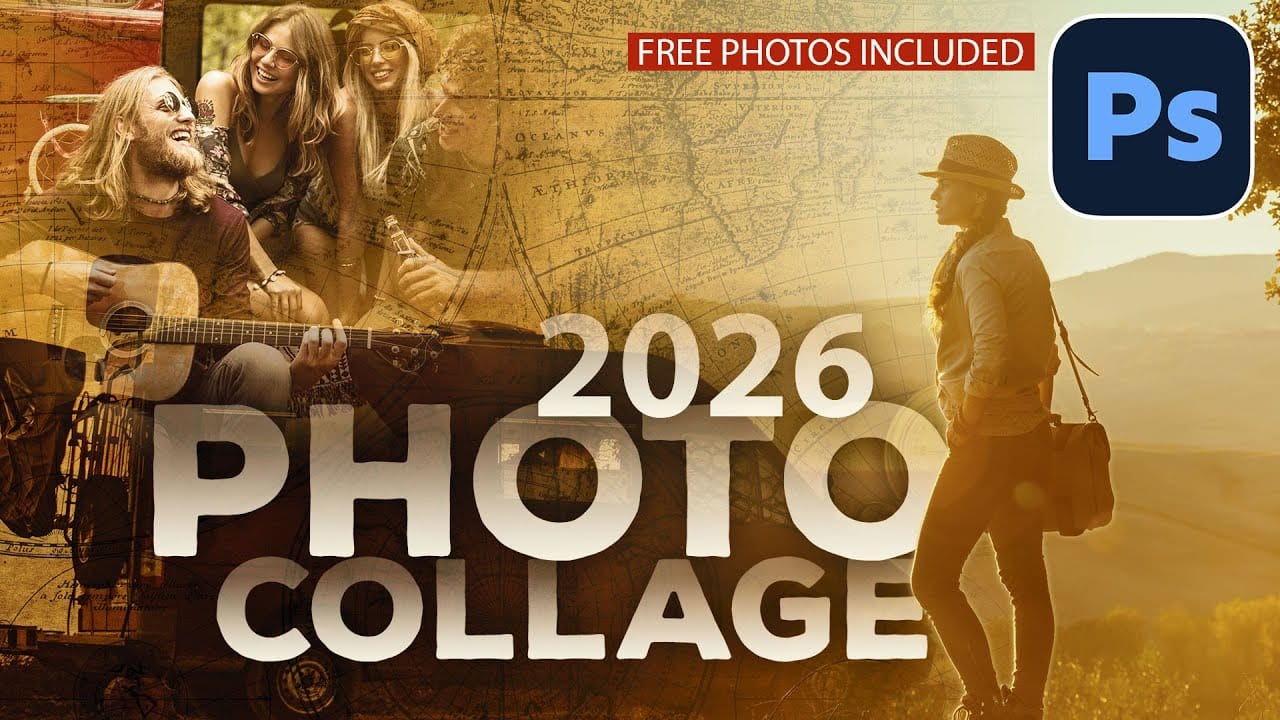
Digital collages combine multiple images through strategic layering and blending techniques to create compelling visual stories. This beginner-friendly approach demonstrates how to build complex compositions by layering textures, portraits, and objects while using blend modes to seamlessly integrate each element.

The process focuses on practical workflow techniques including smart object management, precise subject selection, and effective masking methods that allow for non-destructive editing throughout your project.

Watch the Video

Video by Gary McIntyre Photographer. Any links or downloads mentioned by the creator are available only on YouTube

Practical Tips

These essential techniques will help you create professional-looking collages while maintaining flexibility for future adjustments.

  • Set cloud processing in preferences for more accurate subject selection results when isolating complex objects
  • Drag images directly into your document to automatically create smart objects, preserving editability
  • Use rectangular marquee selections with masks to create clean geometric divisions between different image areas
  • Apply motion blur with blend modes like Screen or Lighten to create dynamic ghosting effects
  • Organize completed work into folder groups and create flattened copies using Shift+Ctrl+Alt+E for final adjustments

Explore these additional collage techniques and creative approaches for combining multiple images into striking compositions.
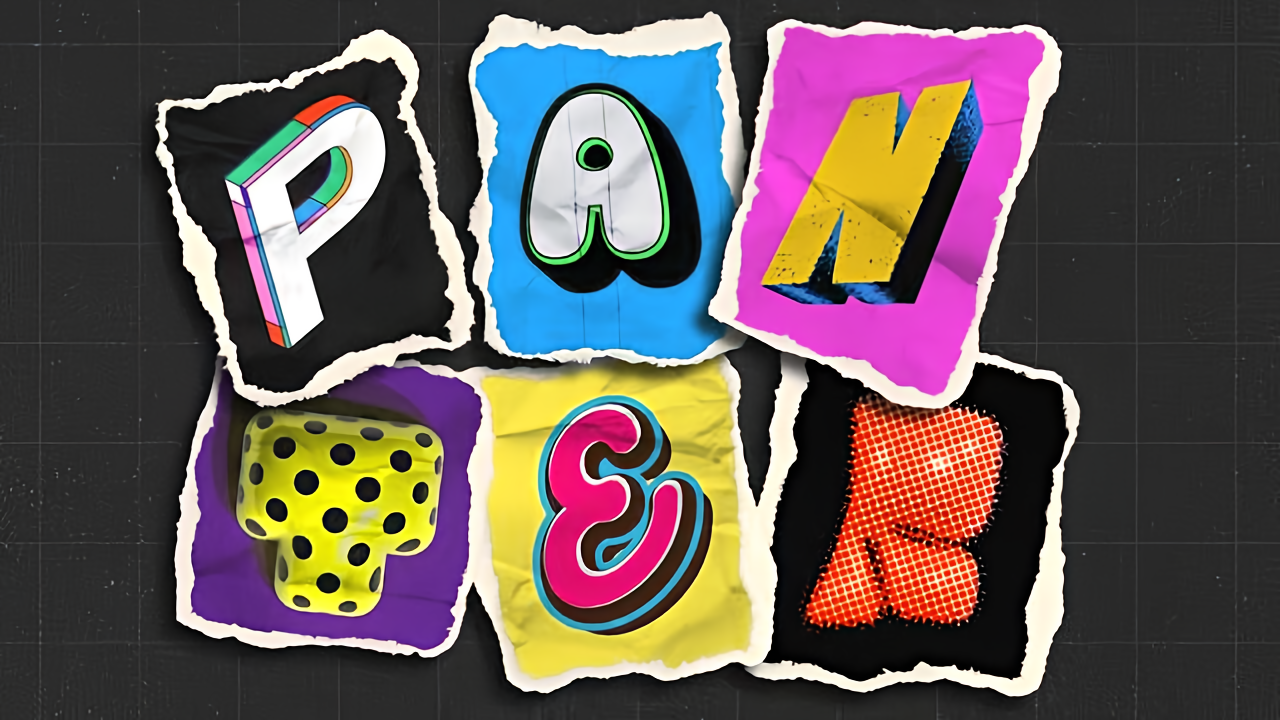
How to Create Collage Text Effects in Photoshop
Collage text transforms simple typography into visually striking artwork by combining wrapped paper textures, strategic warping, and careful masking techniques. This creative approach gives letters dimension and character, perfect for artistic projects and unique design elements. The technique involves layering textured materials within letter shapes, then using Photoshop's puppet warp tool to create realistic folds and curves that bring the collage to life. Watch the Video Essential Tips f
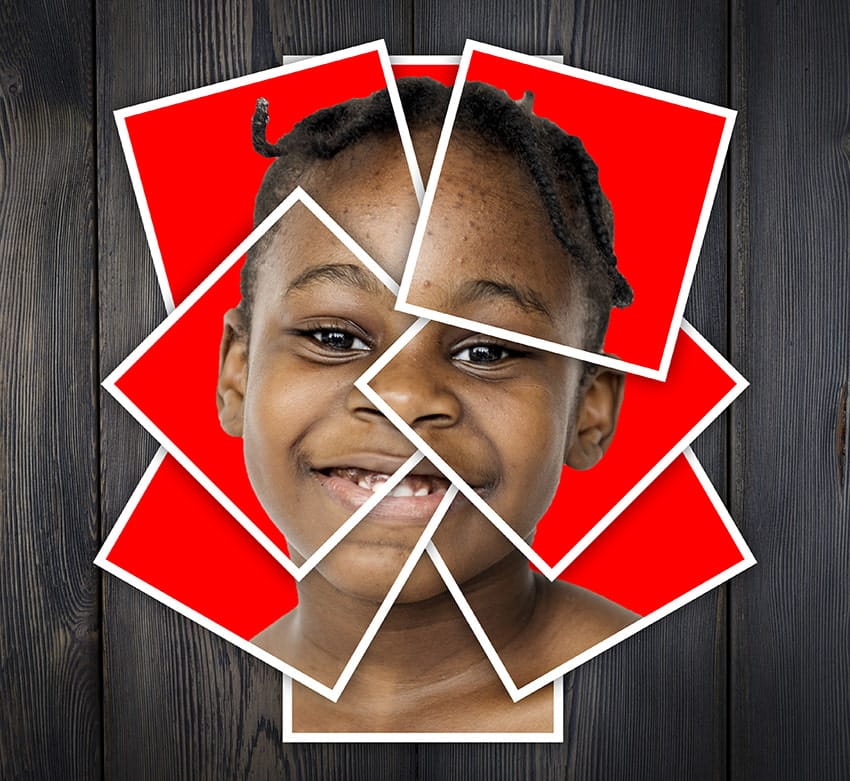
How to Make a Photo Collage in Photoshop
In this tutorial by Envato Tuts, you'll delve into a unique technique for creating photo collages in Photoshop. Rather than assembling a traditional multi-image composition, this approach focuses on crafting a striking portrait using scattered polaroid-style photos. The tutorial guides you through the process of arranging individual snapshots of a young teen girl smiling, each positioned to contribute to a cohesive, unified portrait. This technique is distinct from standard collages as it forms
How to Create a Vintage Collage Effect with Halftone Patterns in Photoshop
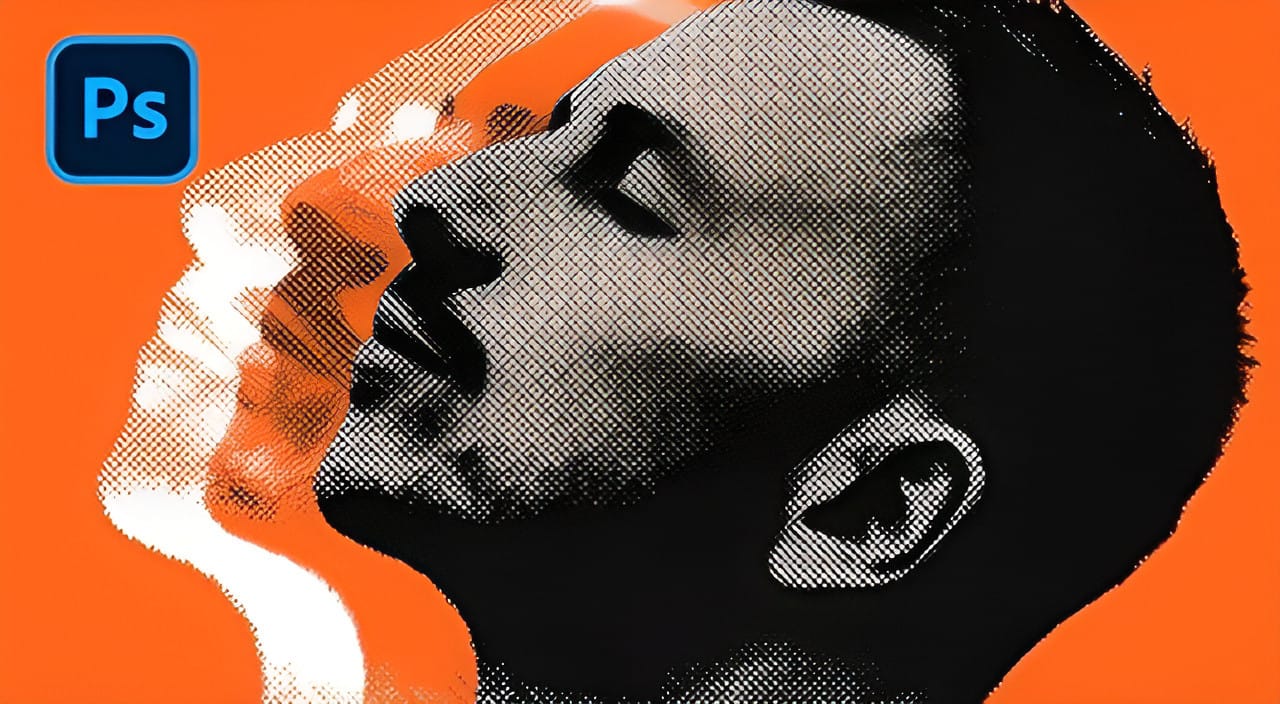
Vintage collage effects combine the nostalgic appeal of old-school printing techniques with modern digital artistry. This technique uses halftone patterns, emboss effects, and strategic layering to transform ordinary portraits into striking retro compositions that evoke classic album covers and vintage advertisements. The process involves duplicating layers with different treatments, applying dot-based halftone filters, and using gradient maps to achieve authentic vintage color grading that bri
How to Create Textured Portrait Collages in Photoshop
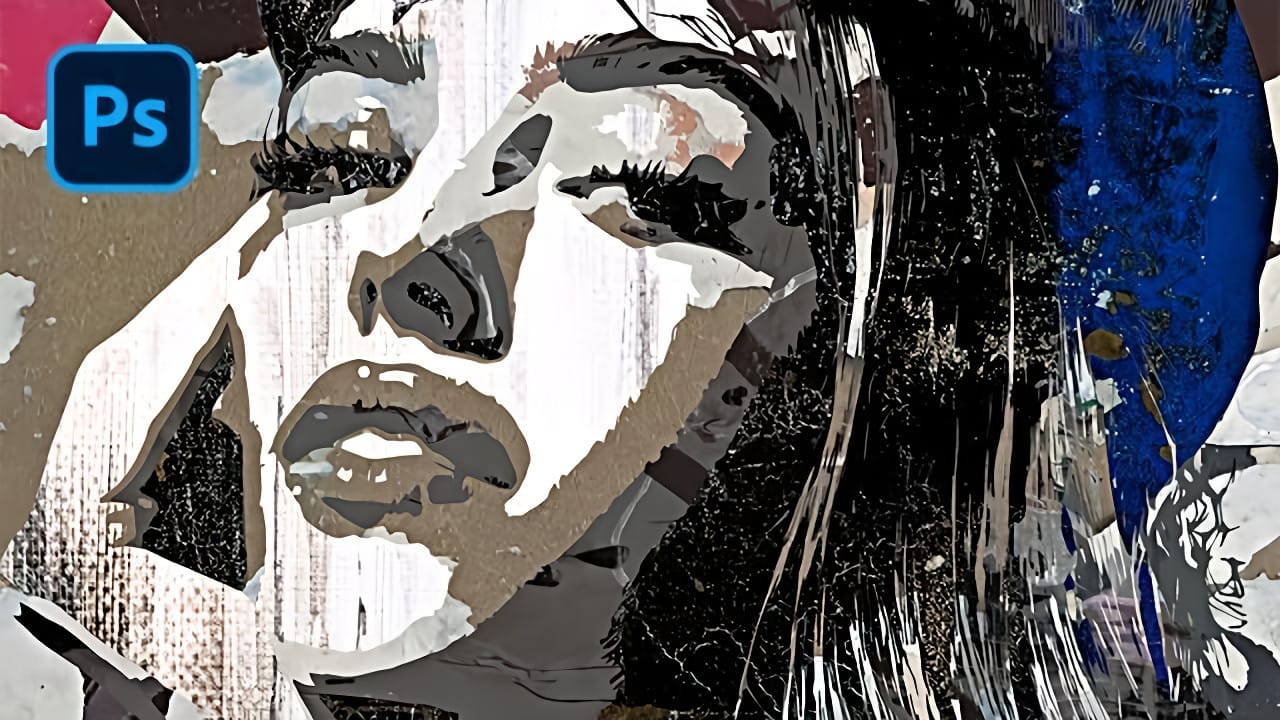
Portrait collages open up creative possibilities that go far beyond traditional photo editing. By combining artistic filters, color manipulation, and texture mapping, you can transform ordinary portraits into striking visual compositions that blend photography with graphic design elements. This technique breaks down complex imagery into simplified color zones, then maps different textures to each area. The result is a unique artistic effect that maintains the subject's recognizable features whi
How to Create Simple Photo Collages in Photoshop
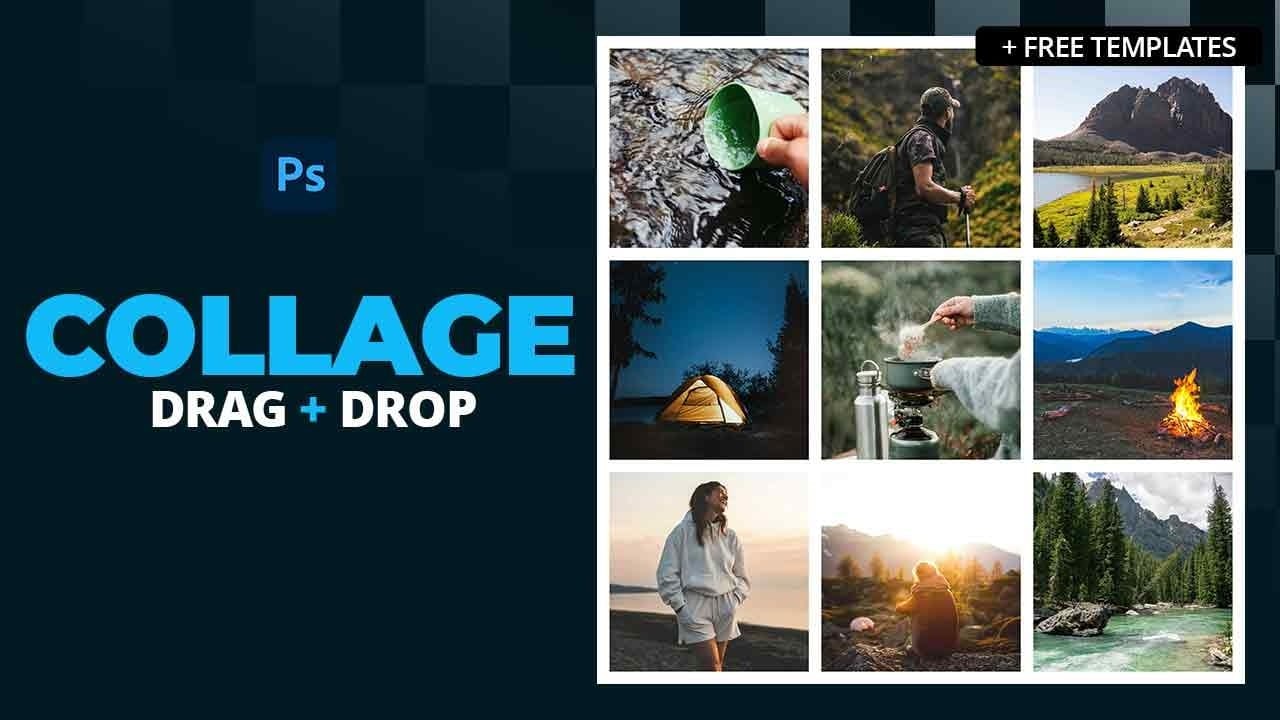
Photo collages offer a versatile way to combine multiple images into a cohesive visual story or artistic display. Whether for personal projects, digital scrapbooks, or social media content, effectively arranging diverse photographs is key to a compelling outcome. This tutorial demonstrates a straightforward method for creating structured photo collages in Photoshop, leveraging powerful features like guides and frames to achieve precise layouts with minimal effort. Watch the Video Structurin
Learn Photoshop by Combining Tools and Techniques
Achieving truly impressive image manipulations in Photoshop goes beyond mastering individual tools; it requires skillfully combining them. Many users learn techniques in isolation, but the real power of Photoshop emerges when these diverse methods are blended to create a cohesive final result. This tutorial demonstrates how to transform an ordinary photo into a dynamic composite. It guides you through integrating various tools and techniques, showing how to approach complex edits by layering di
3 Creative ways to combine photos in Photoshop
Transforming ordinary photographs into extraordinary visual narratives is a hallmark of creative design. Combining images effectively allows for the creation of unique composites and engaging collages, opening a world of artistic possibilities. This process lets designers express complex ideas or simply enhance visual appeal by integrating diverse elements. Discover how to merge multiple photos seamlessly within Photoshop, creating dynamic and imaginative compositions. The techniques covered de
Create a Nice Polaroid Photo Montage in Photoshop
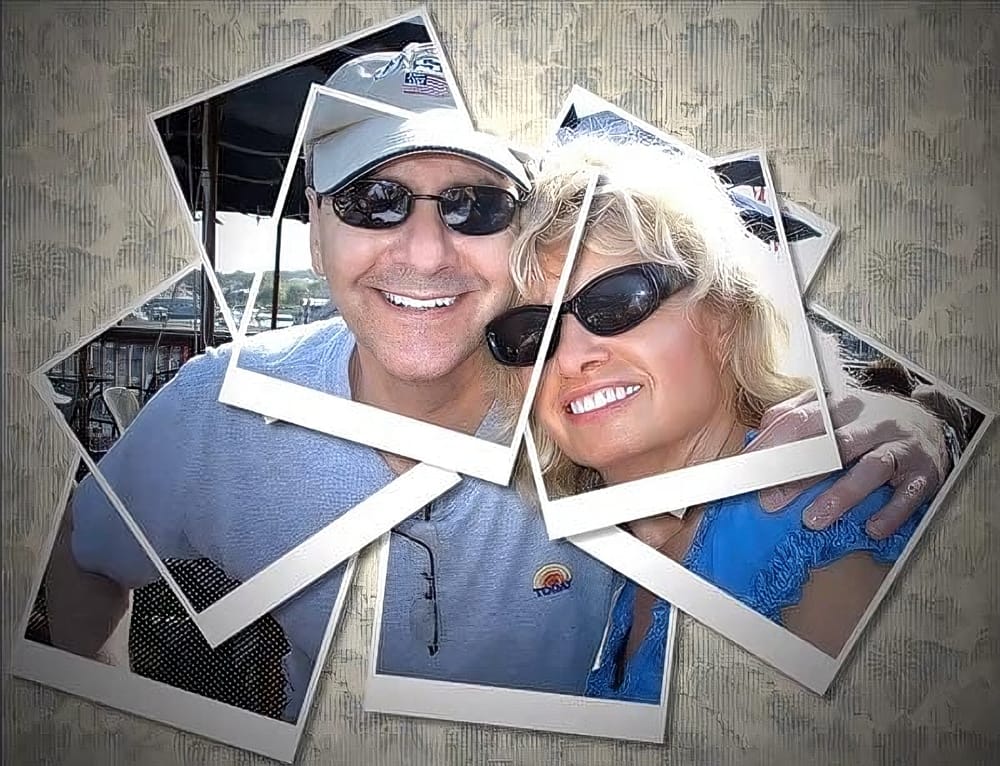
Creating a sense of nostalgia with photo effects remains a popular trend. The Polaroid look, with its distinctive frame and vintage vibe, can transform ordinary photos into something special. By arranging multiple Polaroid-style images from a single source, you can create a unique collage effect. This tutorial demonstrates how to craft a Polaroid photo montage using Photoshop. The process involves duplicating and arranging Polaroid frames, adding shadows for depth, and applying creative lightin
How to Create a Grungy Pop Art Collage with Halftone Effects in Photoshop
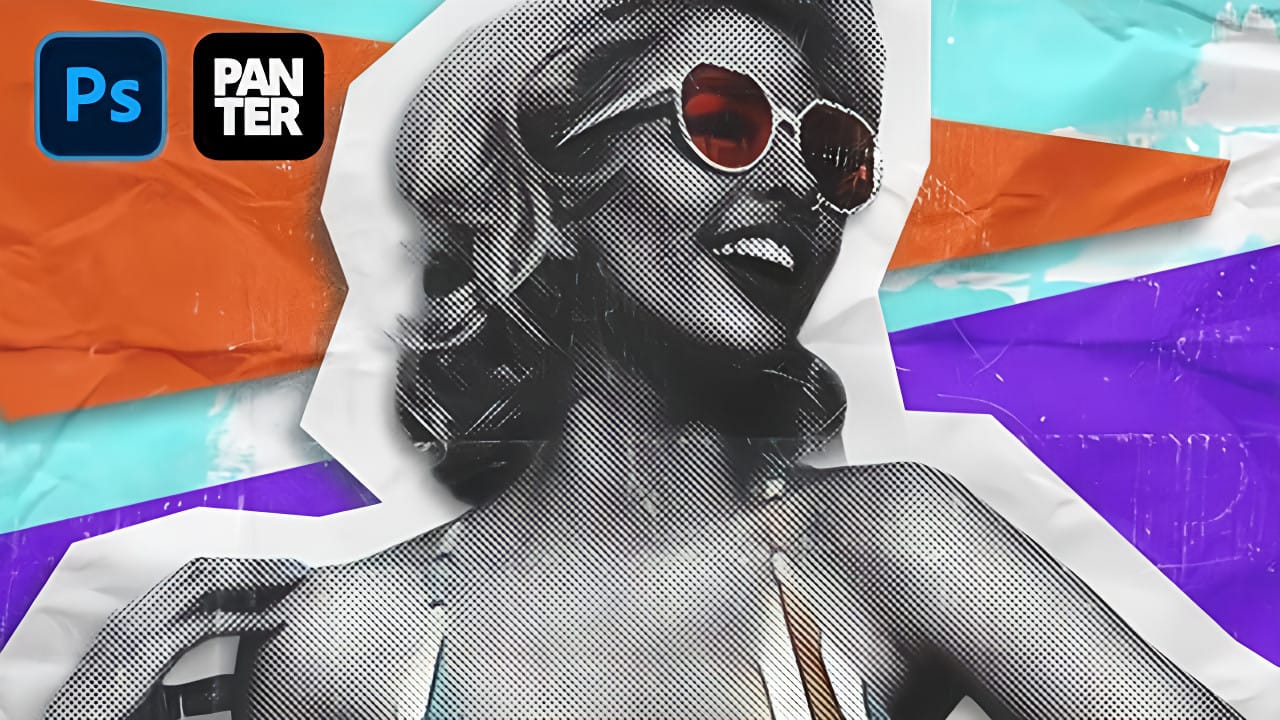
Pop art collages capture the bold, experimental spirit of 1960s graphic design through layered compositions and striking visual contrasts. This aesthetic combines commercial printing techniques with artistic rebellion, creating designs that feel both nostalgic and contemporary. This tutorial demonstrates how to build a complete pop art collage from a portrait photograph, incorporating halftone patterns, geometric shapes, and textural elements that define the genre's distinctive look. Watch th
How to Access Adobe's Free Stock Photos in Photoshop and Create Photo Collages
Adobe now includes thousands of free stock photos directly in Photoshop, making it easier than ever to find professional images for your projects. These royalty-free images work perfectly for creating dynamic photo collages without leaving the application. This tutorial covers three different methods to access these free stock images and demonstrates how to build a complete travel-themed collage from scratch. Watch the Video Essential Tips for Using Free Stock Photos in Photoshop * Create

Get tutorials & freebies delivered to you.

Subscribe to the Photoshop Roadmap newsletter, a weekly roundup of new tutorials, insights and quality downloads, trusted by 6500+ readers.

You might also like

How to Create a Steel Engraving Effect from Photos in Photoshop

Steel engravings were a traditional printmaking technique that created intricate illustrations with fine lines and rich tonal variation. This effect transforms ordinary photographs into artwork that mimics the detailed crosshatching and precise lines characteristic of vintage engravings found in old books and currency. The technique combines strategic filter combinations with...

How to Customize Your Photoshop Workspace for Better Workflow

A cluttered workspace can overwhelm new users and slow down experienced editors. The default interface includes dozens of panels and tools, many of which you may rarely use, while the ones you need most remain scattered across the screen. This tutorial shows you how to reorganize panels, position toolbars, and...

Creating a Fantasy Photo Composite with Grapes as Balloons in Photoshop

Transform ordinary photographs into whimsical fantasy scenes using creative vision and modern compositing tools. This detailed walkthrough demonstrates how to build a surreal image of a young girl floating through the sky, held aloft by grapes reimagined as colorful balloons. The project combines just two main photos—a portrait and...

How to Use Photoshop's Auto Distraction Removal Tool

Removing unwanted elements from photos used to require hours of careful work with clone stamps and healing brushes. The new General Distractions feature in Photoshop's Remove Tool changes this completely by automatically detecting and eliminating distractions across 26 different categories with a single click. This AI-powered upgrade can...

How to Apply Gradients to Any Object Using Hue/Saturation and Layer Masks

Changing colors and adding gradients to clothing or objects in photos requires precise selection techniques to avoid affecting surrounding elements like skin tones. This method combines hue/saturation adjustment layers with layer masks to create stunning gradient effects while maintaining full control over which parts of your image are affected....

How to Use Layer Filtering to Organize Complex Projects in Photoshop

When working with dozens of layers in complex composites or designs, finding specific elements becomes a time-consuming challenge. The layer filtering system in the Layers panel offers powerful tools to instantly isolate different types of content, making organization and editing far more efficient. These filtering options help you quickly group...

You’ve successfully subscribed to Photoshop Roadmap
Welcome back! You’ve successfully signed in.
Great! You’ve successfully signed up.
Success! Your email is updated.
Your link has expired
Success! Check your email for magic link to sign-in.