How to Create Better Shadows Than Drop Shadow in Photoshop

How to Create Better Shadows Than Drop Shadow in Photoshop

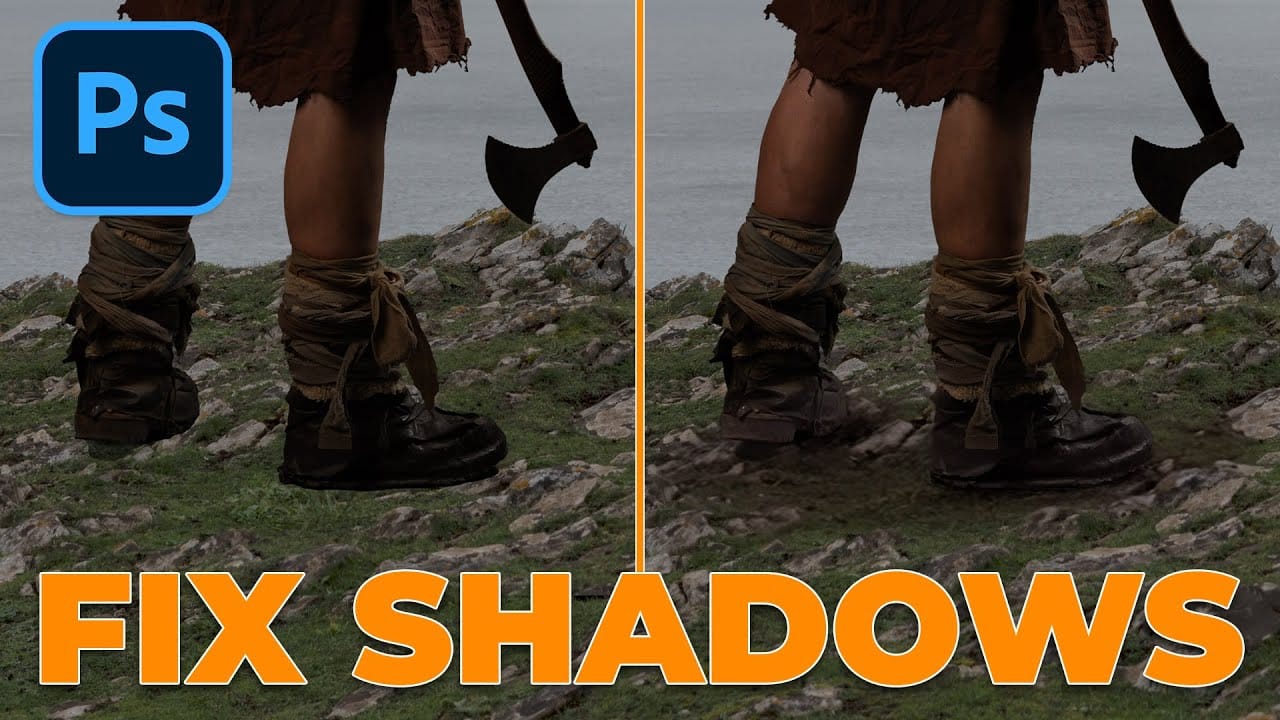
The basic drop shadow effect often looks flat and artificial compared to how shadows actually behave in real environments. Professional designers know that convincing shadows require understanding light direction, surface interaction, and atmospheric perspective.

This technique demonstrates how to create custom shadows that respond naturally to your composition's lighting conditions, giving objects realistic weight and depth that standard layer styles simply cannot achieve.

Watch the Video

Video by PiXimperfect. Any links or downloads mentioned by the creator are available only on YouTube

Practical Tips

Follow these key principles to create shadows that enhance rather than distract from your design:

  • Analyze the existing light sources in your image before adding any shadow effects
  • Use separate layers for contact shadows and cast shadows to maintain full control
  • Adjust shadow opacity and blur based on distance from the object casting the shadow
  • Match the shadow's perspective to the surface it falls on rather than using uniform angles
  • Consider environmental factors like surface texture and ambient light when refining shadow appearance

Explore more advanced shadow and lighting techniques to enhance your compositions:
How To Add Realistic Shadows in Photoshop
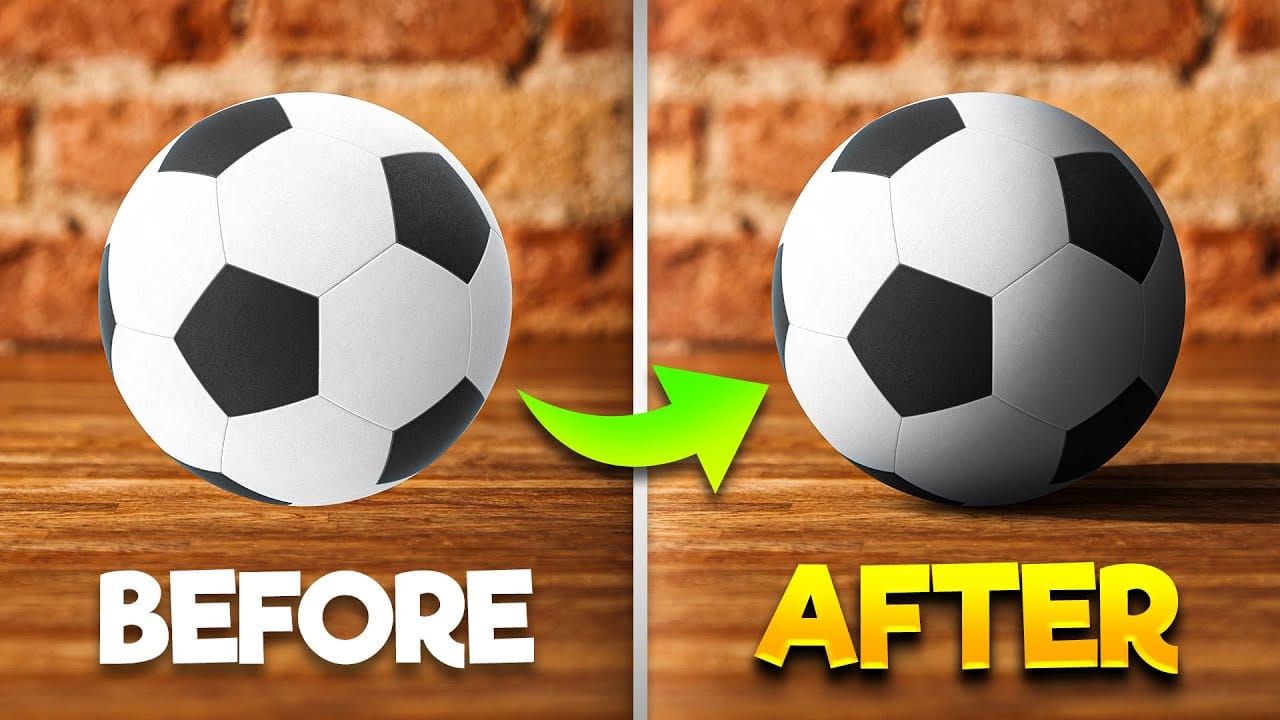
In this video, you will learn how to add realistic shadows in Photoshop, a skill that can significantly enhance your digital artwork. The tutorial is presented by BennyProductions, who breaks down the process into easy-to-follow steps. You will discover techniques for creating projected shadows for various objects, including a ball, a car, and glasses. By following along, you'll gain insight into how shadows can add depth and dimension to your images, making them look more lifelike. Whether yo
Using Photoshop's Harmonize Feature to Create Realistic Shadows for Human Composites
Photoshop's new Harmonize feature excels at compositing objects but struggles with human subjects. This clever workaround uses Harmonize specifically for creating realistic contact and cast shadows when compositing people into new backgrounds. The technique involves adding a fake light source to improve shadow generation, then isolating only the shadow elements for the final composite. Watch the Tutorial Key Tips for Shadow Compositing with Harmonize * Add a fake light source by duplicati
How to Add Realistic Light and Shadow Effects to Portraits in Photoshop
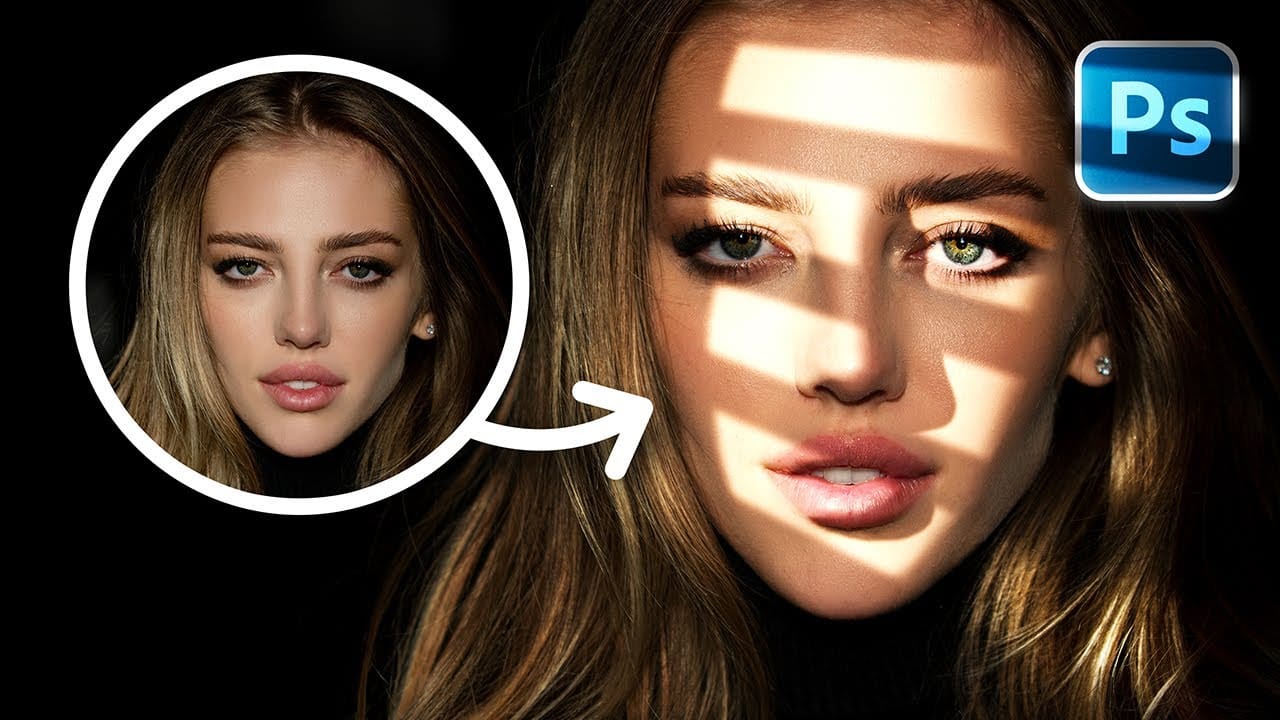
The difference between a flat portrait and one with captivating depth often comes down to how light and shadow play across the subject's features. Professional photographers spend thousands on studio lighting equipment, but digital artists can achieve dramatic lighting effects using only Photoshop tools. This technique transforms ordinary portraits into striking images with realistic light streaks and corresponding shadows. The method involves creating custom light sources that cast believable
Instantly Recover details in photos with Photoshop
In this tutorial, Colin Smith reveals an effective technique for recovering hidden details in photos using Photoshop. The focus is on a method known as reverse dodge and burn, which allows you to selectively enhance shadow and highlight areas to bring out fine details. Colin demonstrates how to paint over shadows and highlights in a realistic manner, blending the adjustments seamlessly into the image. This approach helps to restore lost details and improve the overall dynamic range of your phot
How to Create Overlapping Shadow Text Effect in Photoshop
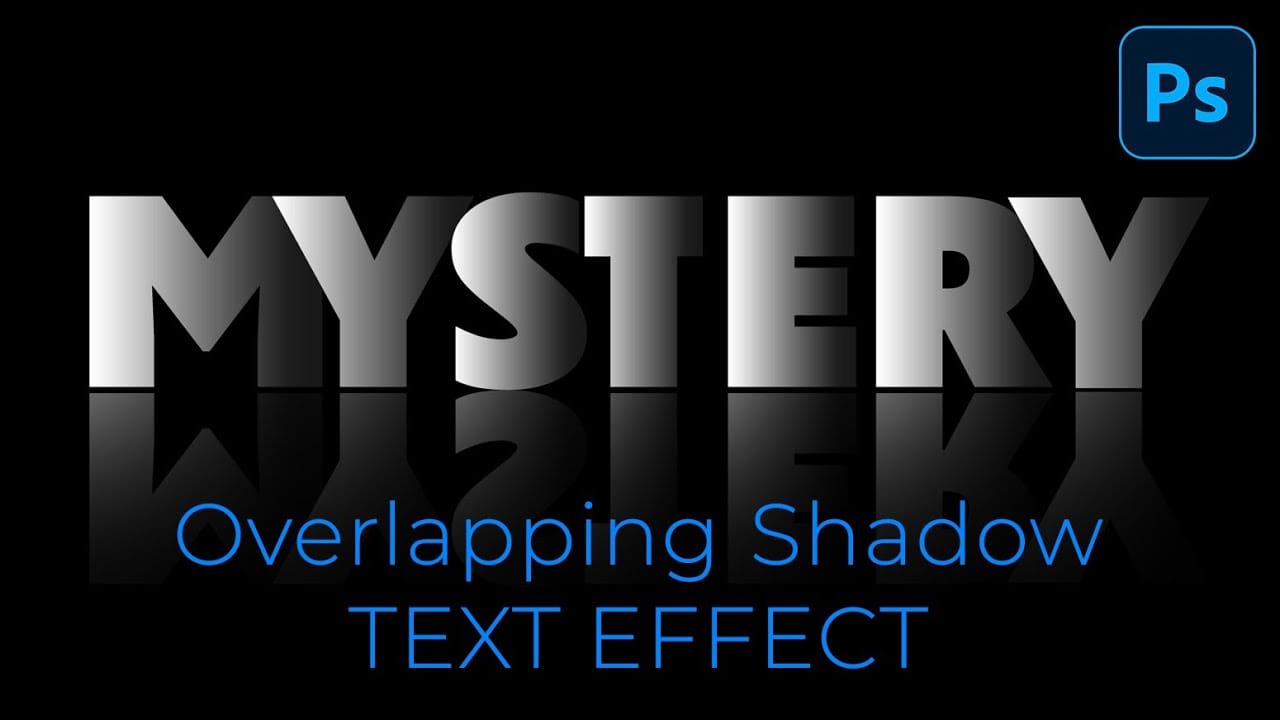
Dramatic text effects transform ordinary typography into striking visual statements that command attention. The overlapping shadow technique creates depth and dimension by layering individual characters with gradient overlays and reflections. This effect works particularly well for movie titles, album covers, and promotional graphics where bold, cinematic impact matters most. Watch the Tutorial Understanding Character-Based Text Effects Traditional text effects apply styling to entire word
Turn day to night in 2 minutes with Photoshop
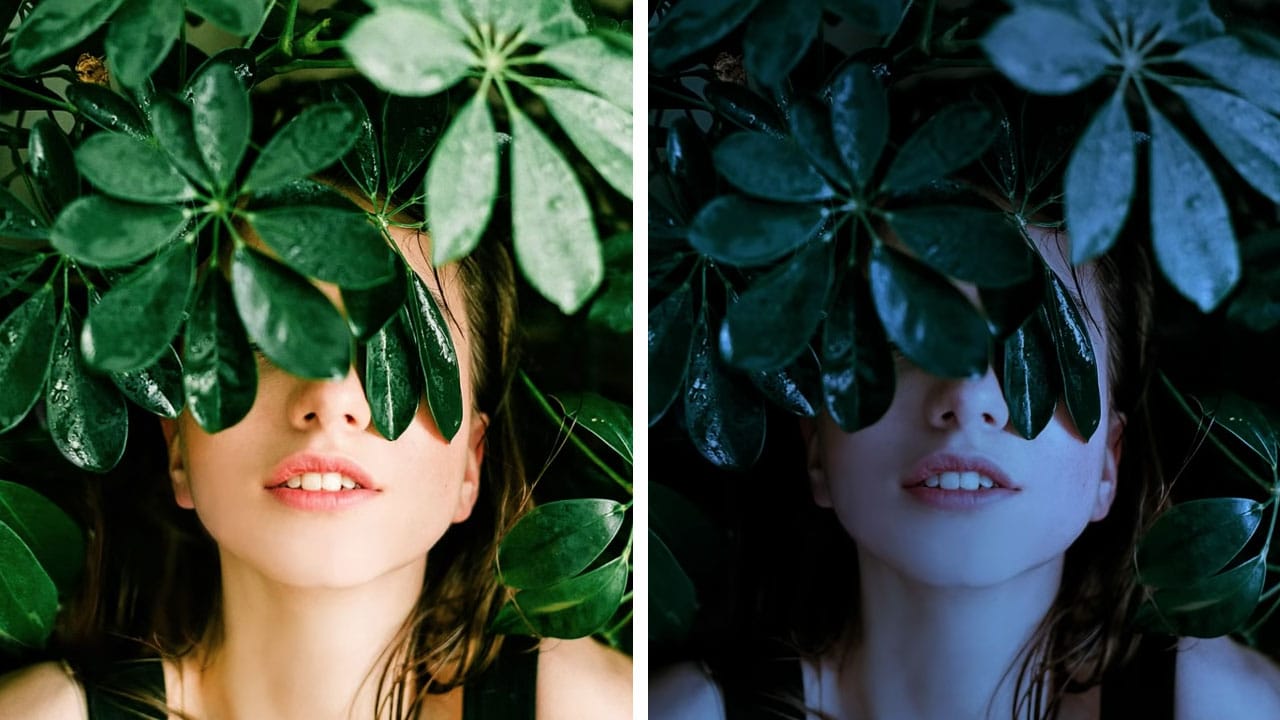
In this Photoshop tutorial, the author PiXimperfect shares a simple and effective technique to transform a daytime image into a moonlit night scene. The process only takes about 2 minutes and involves using a few adjustment layers in Photoshop. The author guides viewers through the steps, explaining how to create the desired night-time effect. By adjusting the levels, curves, and color balance, the daytime lighting is replaced with a soft, moonlit glow. The tutorial is straightforward and easy
Add Text Behind a Subject with Realistic Shadows in Photoshop
Creating realistic text-behind-object effects in Photoshop demands sophisticated techniques beyond simple masking. This tutorial explores advanced methods for extracting subjects and positioning text naturally, focusing on accurate lighting, shadow dynamics, and environmental details that enhance visual credibility and compositional depth. Watch the Tutorial Practical Tips for Text-Behind-Object Effects * Analyze light direction first — Study where highlights and shadows fall on the origin
Shadow Marks: 15 Free Dry Brushstrokes Photoshop Brushes
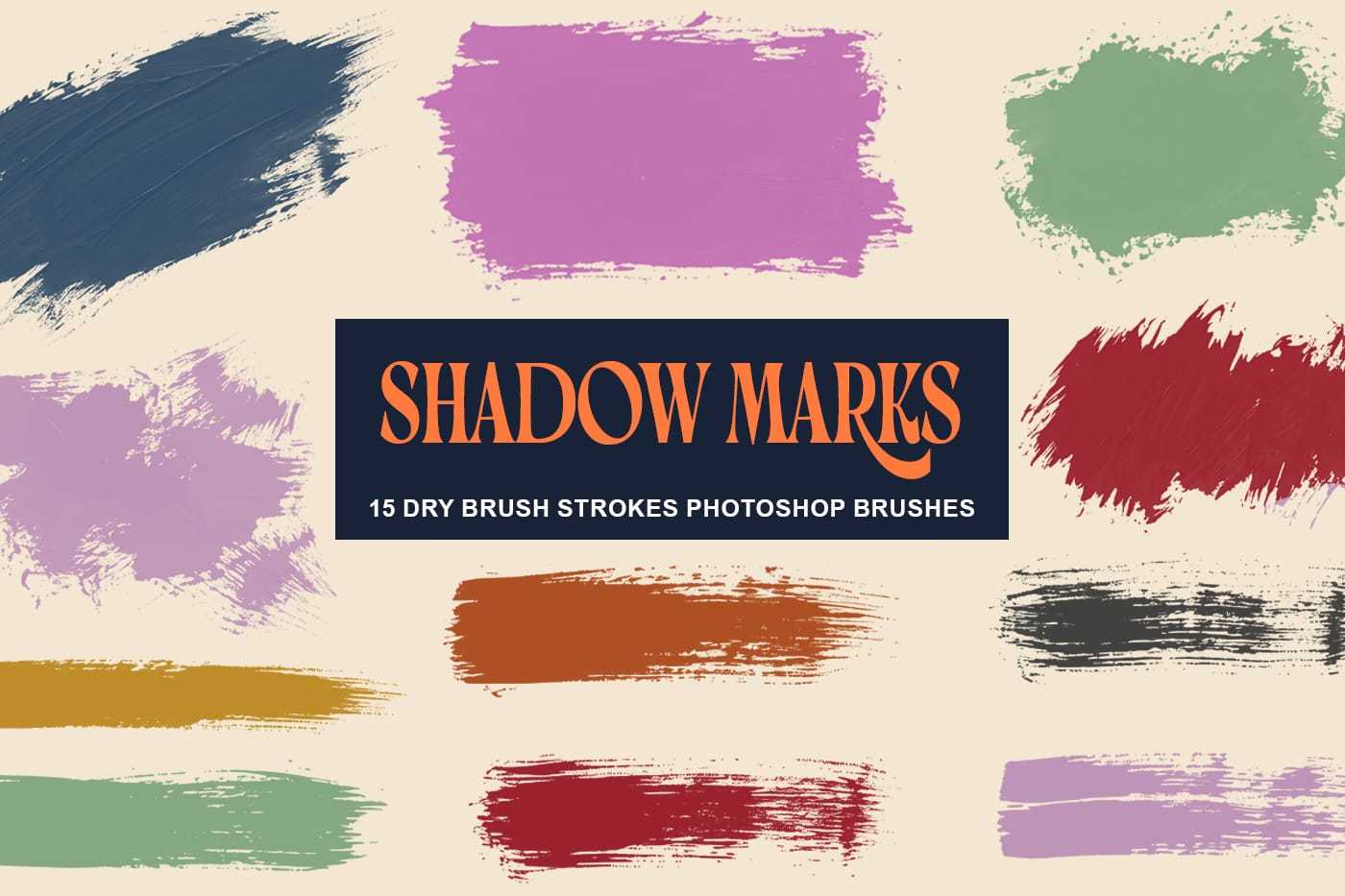
Shadow Marks is a set of 15 high-resolution dry brushstroke Photoshop brushes designed to bring bold texture, movement, and contrast to modern digital artwork. Each brush was created from AI-generated texture sources and carefully refined to deliver organic ink and paint effects that feel natural, expressive, and easy to use inside real design workflows. This brush set is built for designers who want to add rough paint strokes, imperfect edges, and realistic dry brush textures without spending
Create waterdrops in Photoshop
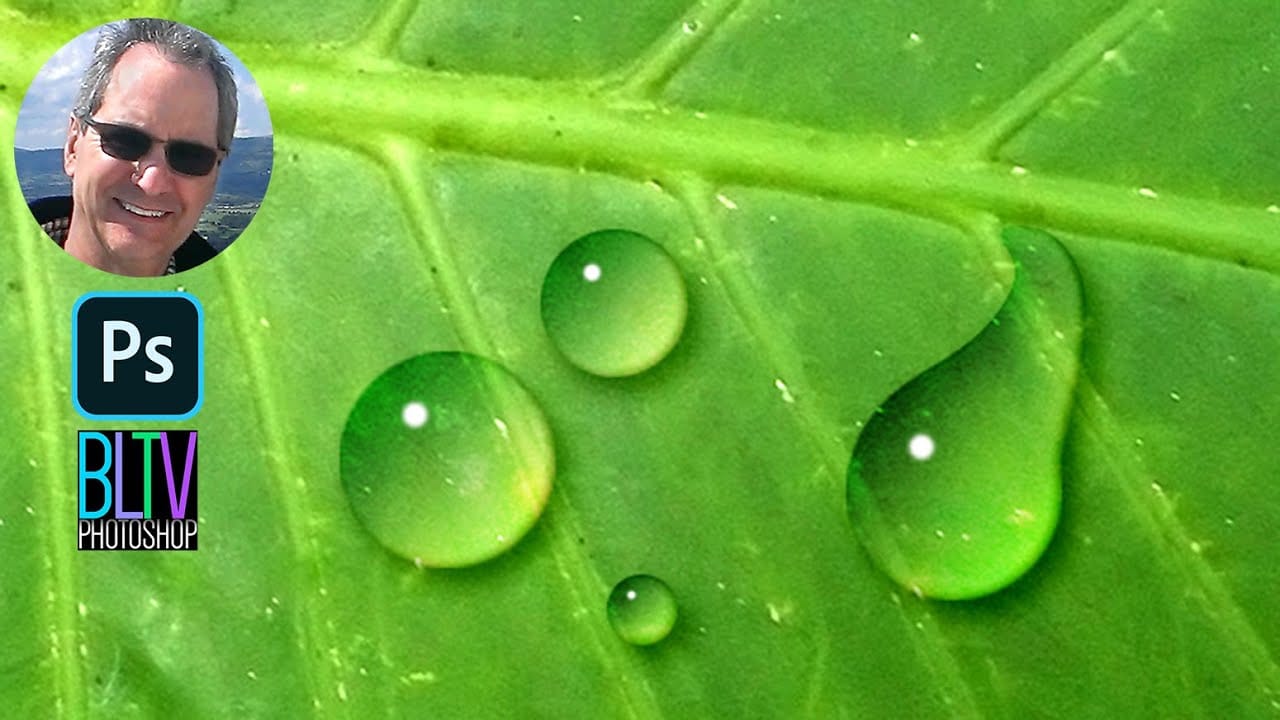
A simple gradient applied from the upper left corner to the lower right corner forms the foundation of convincing digital water drops. This technique transforms a basic circular selection into droplets that appear to hold actual depth and weight on any surface. The effect relies on precise layer style combinations and strategic highlight placement rather than complex filters or specialized brushes. Watch the Video The Science Behind Digital Water Drop Effects Water drops appear three-dimens

Get tutorials & freebies delivered to you.

Subscribe to the Photoshop Roadmap newsletter, a weekly roundup of new tutorials, insights and quality downloads, trusted by 6500+ readers.

You might also like

How to Create a Steel Engraving Effect from Photos in Photoshop

Steel engravings were a traditional printmaking technique that created intricate illustrations with fine lines and rich tonal variation. This effect transforms ordinary photographs into artwork that mimics the detailed crosshatching and precise lines characteristic of vintage engravings found in old books and currency. The technique combines strategic filter combinations with...

How to Customize Your Photoshop Workspace for Better Workflow

A cluttered workspace can overwhelm new users and slow down experienced editors. The default interface includes dozens of panels and tools, many of which you may rarely use, while the ones you need most remain scattered across the screen. This tutorial shows you how to reorganize panels, position toolbars, and...

Creating a Fantasy Photo Composite with Grapes as Balloons in Photoshop

Transform ordinary photographs into whimsical fantasy scenes using creative vision and modern compositing tools. This detailed walkthrough demonstrates how to build a surreal image of a young girl floating through the sky, held aloft by grapes reimagined as colorful balloons. The project combines just two main photos—a portrait and...

How to Use Photoshop's Auto Distraction Removal Tool

Removing unwanted elements from photos used to require hours of careful work with clone stamps and healing brushes. The new General Distractions feature in Photoshop's Remove Tool changes this completely by automatically detecting and eliminating distractions across 26 different categories with a single click. This AI-powered upgrade can...

How to Apply Gradients to Any Object Using Hue/Saturation and Layer Masks

Changing colors and adding gradients to clothing or objects in photos requires precise selection techniques to avoid affecting surrounding elements like skin tones. This method combines hue/saturation adjustment layers with layer masks to create stunning gradient effects while maintaining full control over which parts of your image are affected....

How to Use Layer Filtering to Organize Complex Projects in Photoshop

When working with dozens of layers in complex composites or designs, finding specific elements becomes a time-consuming challenge. The layer filtering system in the Layers panel offers powerful tools to instantly isolate different types of content, making organization and editing far more efficient. These filtering options help you quickly group...

You’ve successfully subscribed to Photoshop Roadmap
Welcome back! You’ve successfully signed in.
Great! You’ve successfully signed up.
Success! Your email is updated.
Your link has expired
Success! Check your email for magic link to sign-in.