Static photos transform into dynamic action scenes when the background appears to race past your subject. This speed effect simulates the motion blur captured in high-speed photography, where the camera follows a moving subject while the background streaks by.
The technique combines subject isolation, generative fill for clean backgrounds, and path blur filters to create realistic motion trails that follow natural perspective lines.
Watch the Video
Practical Tips
Master these essential techniques for creating professional motion blur effects:
- Convert background layers to smart objects before applying blur filters to maintain non-destructive editing capabilities
- Use generative fill to remove subjects cleanly from backgrounds rather than manual cloning or healing
- Expand selections by 30 pixels when isolating subjects to ensure complete removal from background layers
- Create multiple blur paths for complex subjects like cars to follow natural perspective and road curves
- Adjust endpoint speeds in path blur to create realistic acceleration and deceleration effects
Related Articles and Tutorials
Explore more motion blur techniques and dynamic photo effects:
How to Create a Speed Motion Effect in Photoshop
Static cars can appear to race down highways with the right motion blur techniques. This effect transforms ordinary photos into dynamic scenes that capture the sensation of speed and movement.
The process combines path blur, spin blur, and custom smoke effects to create realistic motion that follows perspective lines and adds atmospheric details.
Watch the Tutorial
Essential Tips for Motion Effects
* Convert layers to smart objects before applying blur filters to maintain non-destructive
Create Motion Blur Text Effect in Photoshop with Path Blur
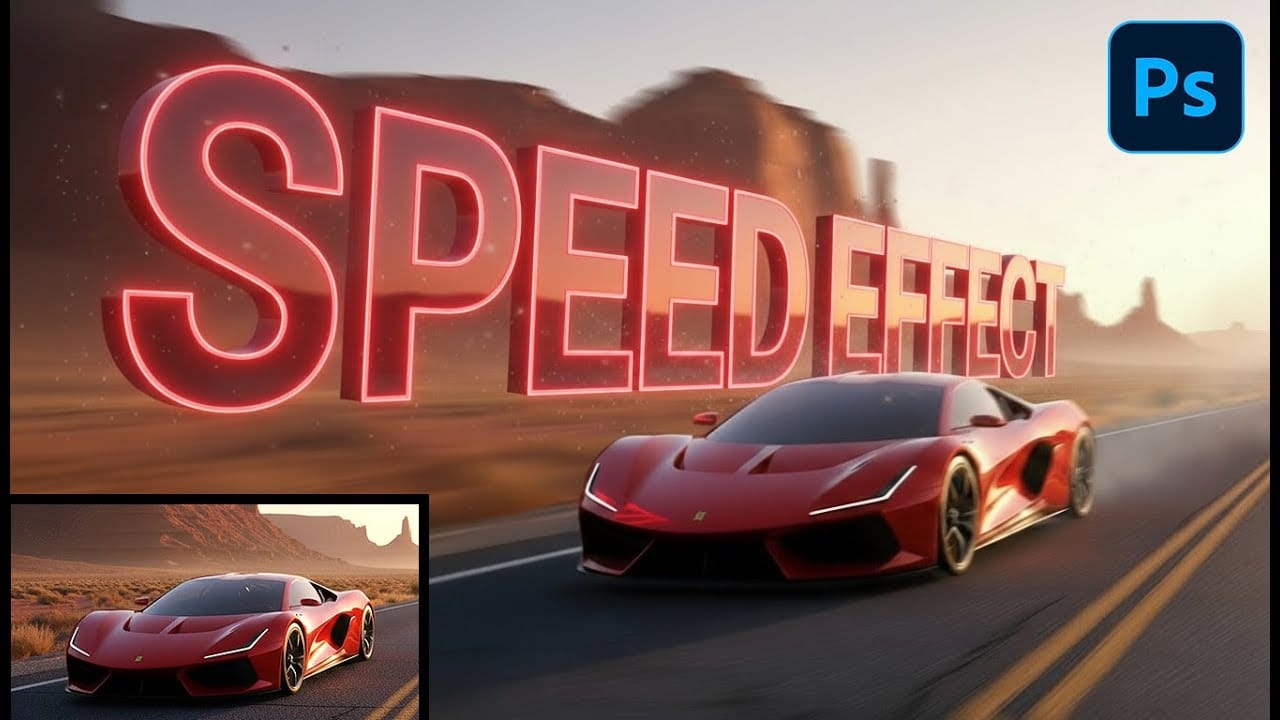
Motion blur transforms static typography into dynamic visual elements that appear to race across the screen. This effect creates the illusion of speed and movement, perfect for sports graphics, action posters, and modern designs.
The technique combines Photoshop's Path Blur filter with strategic layering and color gradients to produce professional-looking motion trails.
Watch the Tutorial
Essential Tips for Motion Blur Text Effects
* Convert text to smart objects before applying transform
Create a Fire Burning Effect in Photoshop
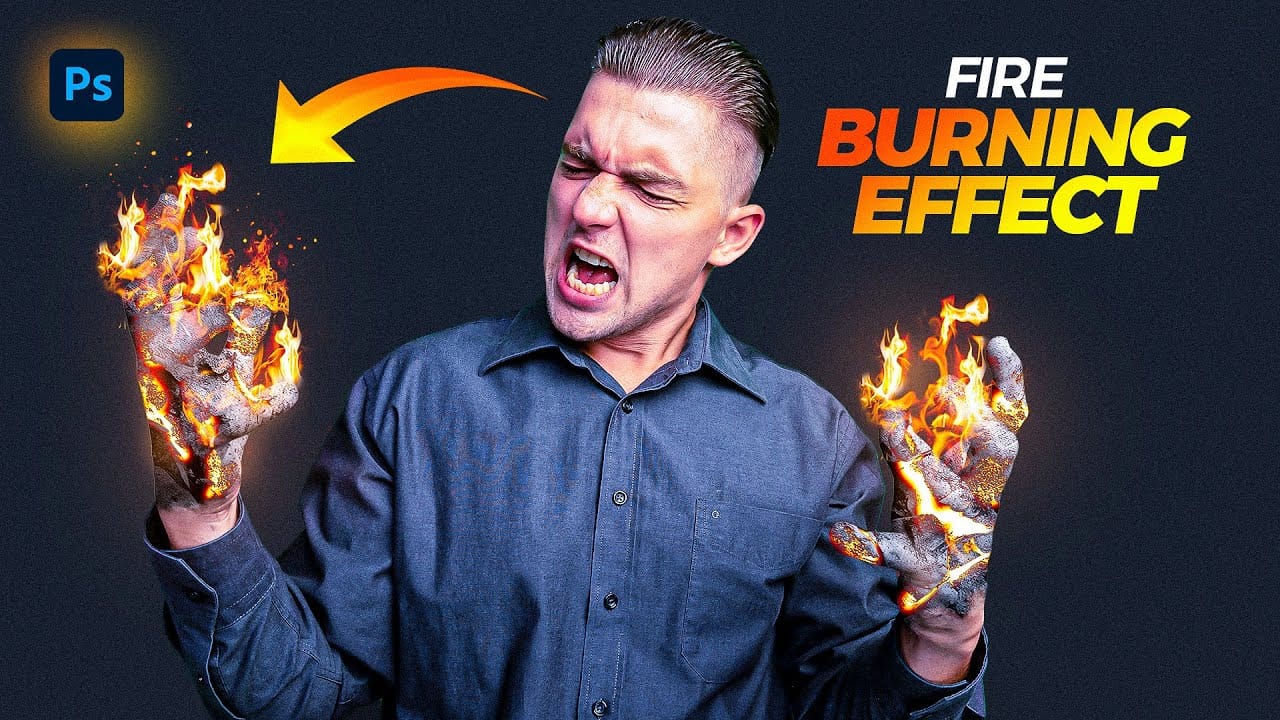
Creating a fire-burning effect in Photoshop is a fascinating process that can enhance your images dramatically. Start by setting up a new file with dimensions of 1920 x 1080 pixels. Import the necessary images, which can be found in the provided link. Duplicate your main layer using Ctrl + J, then convert it to black and white through the Image Adjustments menu by selecting Hue/Saturation and removing all saturation.
Next, apply an inverted mask to the black and white layer. Use the brush tool
Generate a Perspective Motion effect with Photoshop
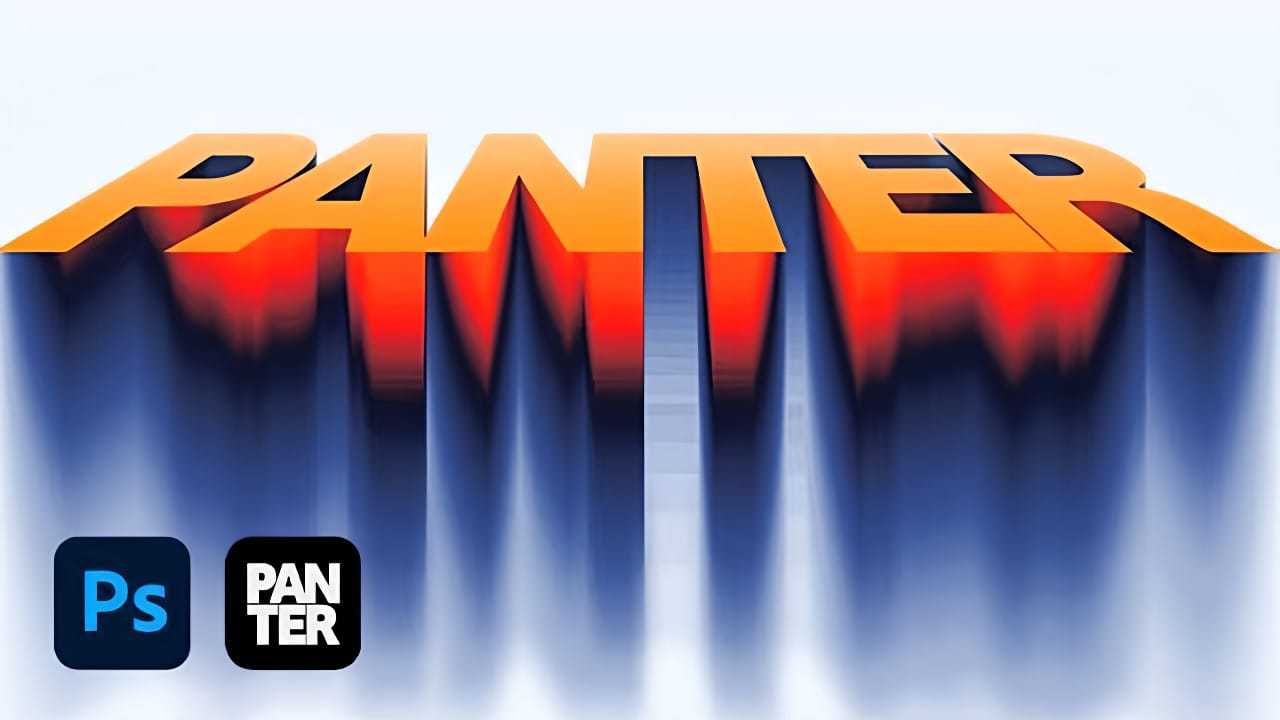
In this detailed tutorial, PiXimperfect demonstrates how to create a dynamic perspective motion effect in Photoshop. The lesson focuses on adding motion blur that aligns with the perspective of an object, making it appear as if it's moving rapidly through space. Using multiple paths to capture the perspective, you'll learn how to apply blur effects along these lines to simulate realistic motion.
The tutorial covers advanced techniques with Path Blur to not only create motion but also enhance th
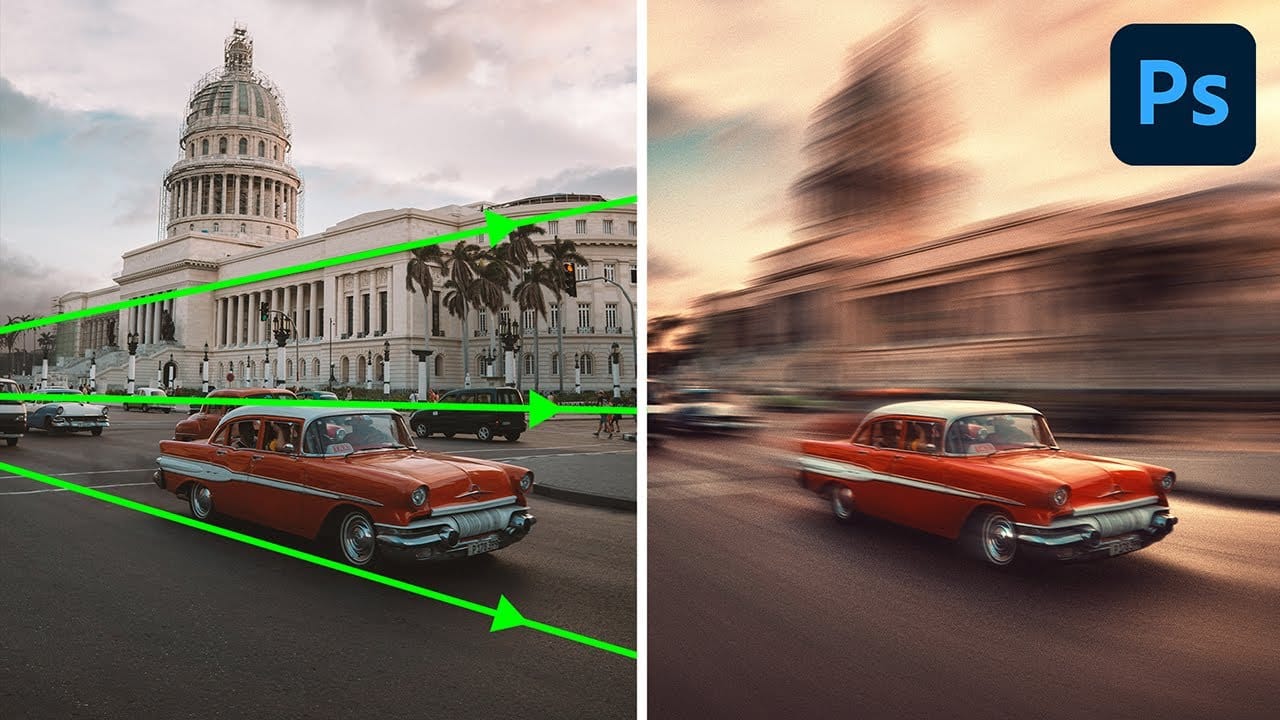
How to Create Glow Motion Effects with Gradient Maps in Photoshop
Motion blur combined with colorful gradients creates striking visual effects that transform ordinary photos into dynamic, cinematic images. This technique uses gradient maps to automatically color light and dark values, producing flowing color transitions that follow the movement of your subject.
The process involves subject isolation, strategic gradient placement, path blur for realistic motion, and gradient mapping to achieve vibrant color flows reminiscent of long exposure photography.
Wat
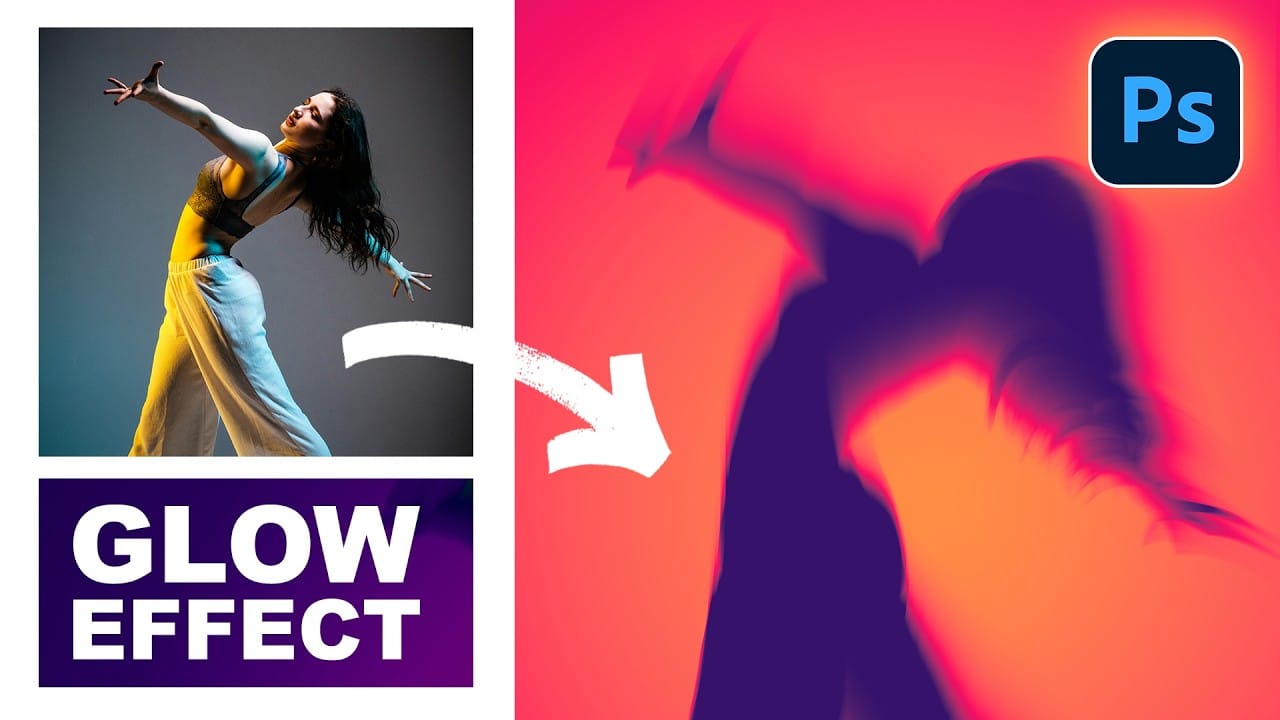
Powerful mental wave photo effect
This tutorial by Fabio Sasso will show you how to create an impressive mental wave explosion effect in Photoshop.
The step by step instructions guides you through the process of integrating a person into a road scene, enhancing realism through adjustments like shadow creation and lighting effects. It focuses on layer blending techniques, including Soft Light, Multiply, and Color Dodge, to achieve depth and illumination in cloud formations.
The tutorial also covers the integration of additional
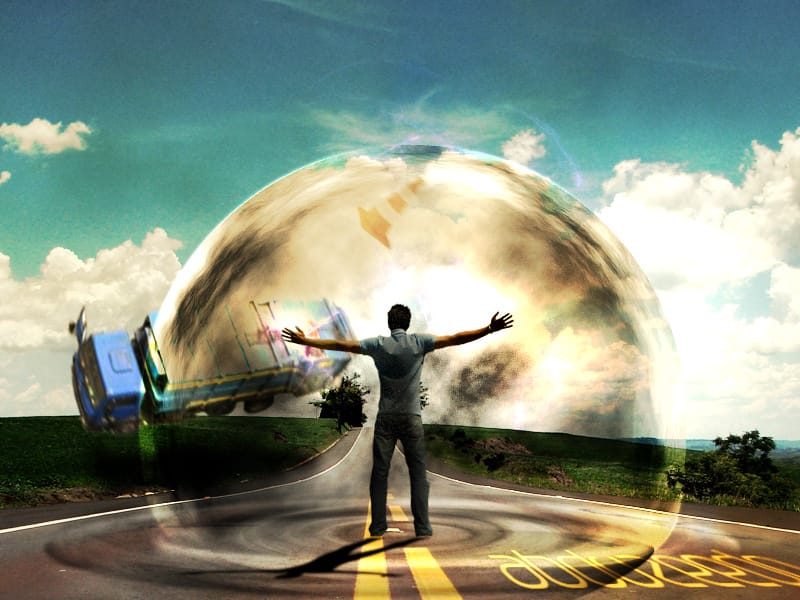
Create a Car Illustration Effect From a Photo in Photoshop
The Glowing Edges filter transforms car photography into line art with surprising precision. Marty from Blue Lightning TV demonstrates how this often-overlooked Photoshop filter creates clean pencil-like outlines when combined with specific edge width and smoothness settings. Instead of relying on complex selection methods or manual tracing, the technique leverages filter combinations and strategic layer blending to achieve professional illustration results.
This approach combines traditional a
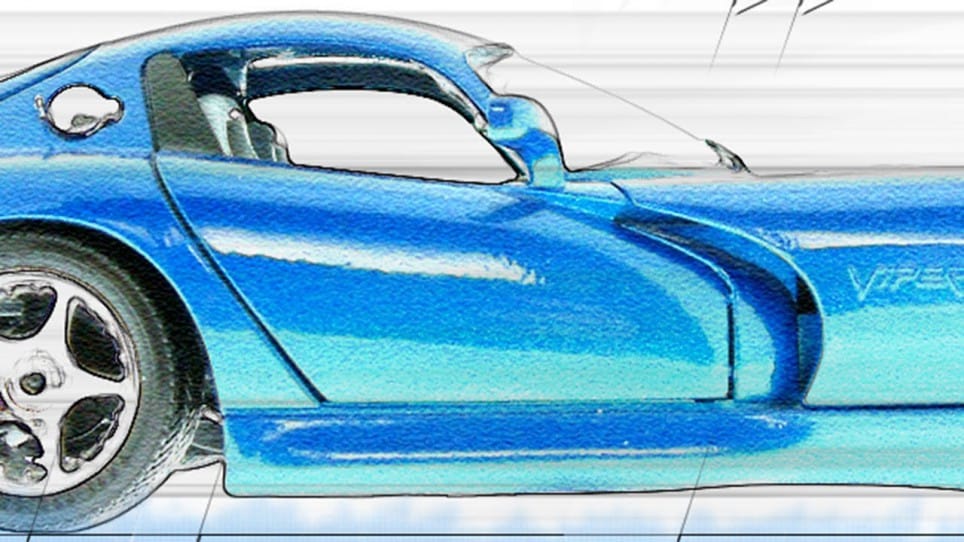
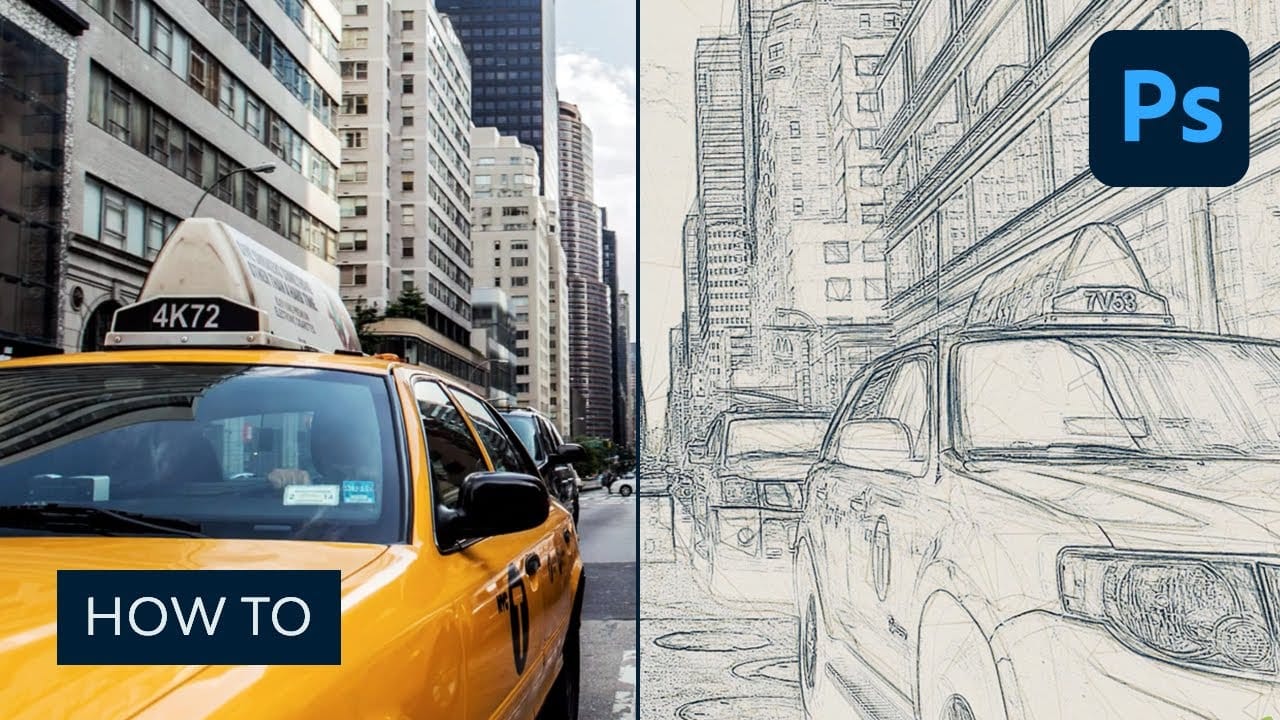
How to Create a Sketch Effect in Adobe Photoshop
Transform any photograph into a professional-looking pencil sketch using layered effects and blending modes. This comprehensive technique combines multiple sketch layers, edge detection, and subtle shading to create realistic hand-drawn artwork from digital photos.
The process builds depth through base sketches at different scales, rough edge effects, and careful opacity adjustments that mimic traditional drawing
Watch tutorial
How to Create Wavy Motion Blur Text Effects in Photoshop
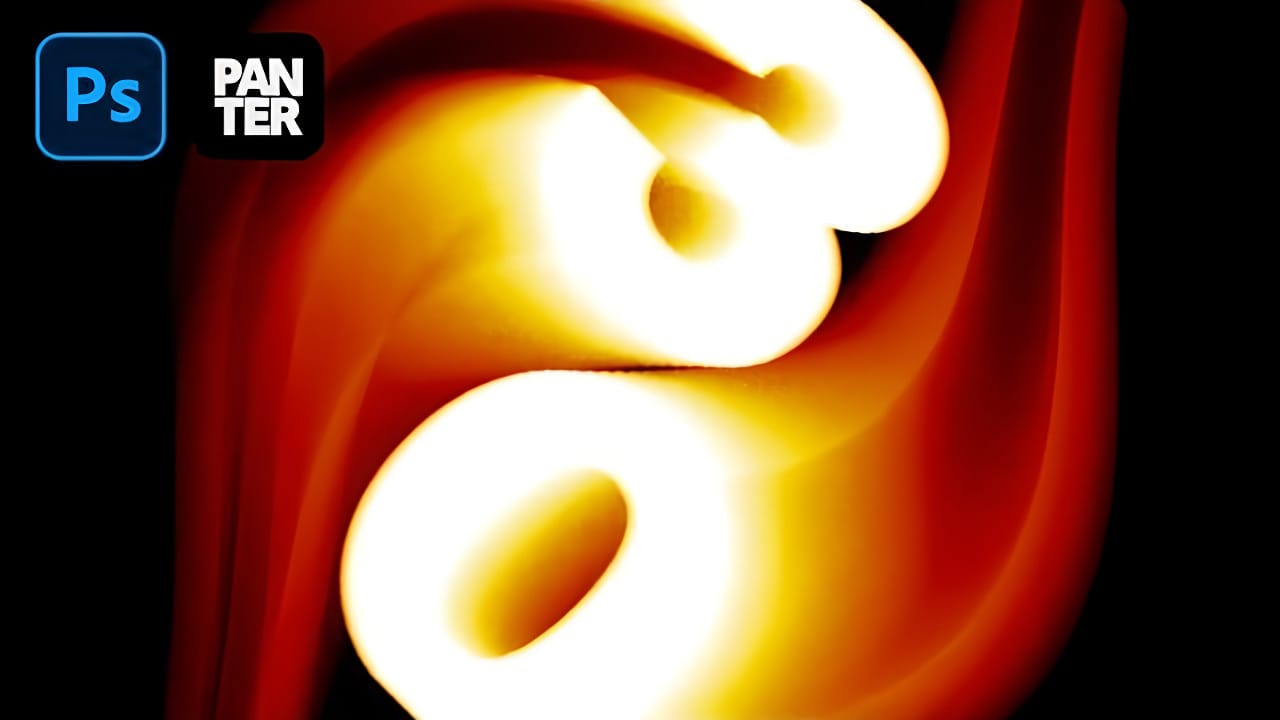
Smoke-like text effects create the illusion of letters dissolving into ethereal trails, perfect for mystical designs, horror themes, and abstract typography. The wavy motion blur technique transforms static text into dynamic visual elements that appear to drift and flow across the canvas.
This effect combines Photoshop's Path Blur filter with gradient mapping to create convincing smoke trails that bend and curve naturally from your text.
Watch the Tutorial
Practical Tips for Motion Blur Tex