Portrait photographers often encounter models with chipped nail polish or bare nails that detract from an otherwise polished look. Adding realistic nail color in post-processing can elevate your images without requiring a makeup touch-up session.
This technique combines solid color adjustment layers with channel-based highlight extraction to create convincing nail polish effects. The key is preserving the natural highlights and reflections that make nail polish appear glossy and three-dimensional.
Watch the Video
Practical Tips
Follow these essential steps to achieve realistic nail polish coloring results:
- Use solid color adjustment layers instead of regular fill layers to make color changes quick and reversible
- Work with the blue channel when extracting highlights, as it provides the best contrast between skin tones and nail reflections
- Apply levels adjustments to your duplicated channel to increase contrast before creating selections
- Create clipping masks to restrict highlight effects only to the areas where you've applied color
- Add slight gaussian blur to layer masks for softer, more natural-looking edges around the nail polish
Related Articles and Tutorials
Explore more color manipulation and portrait enhancement techniques with these tutorials:
How to colorize photos in Photoshop
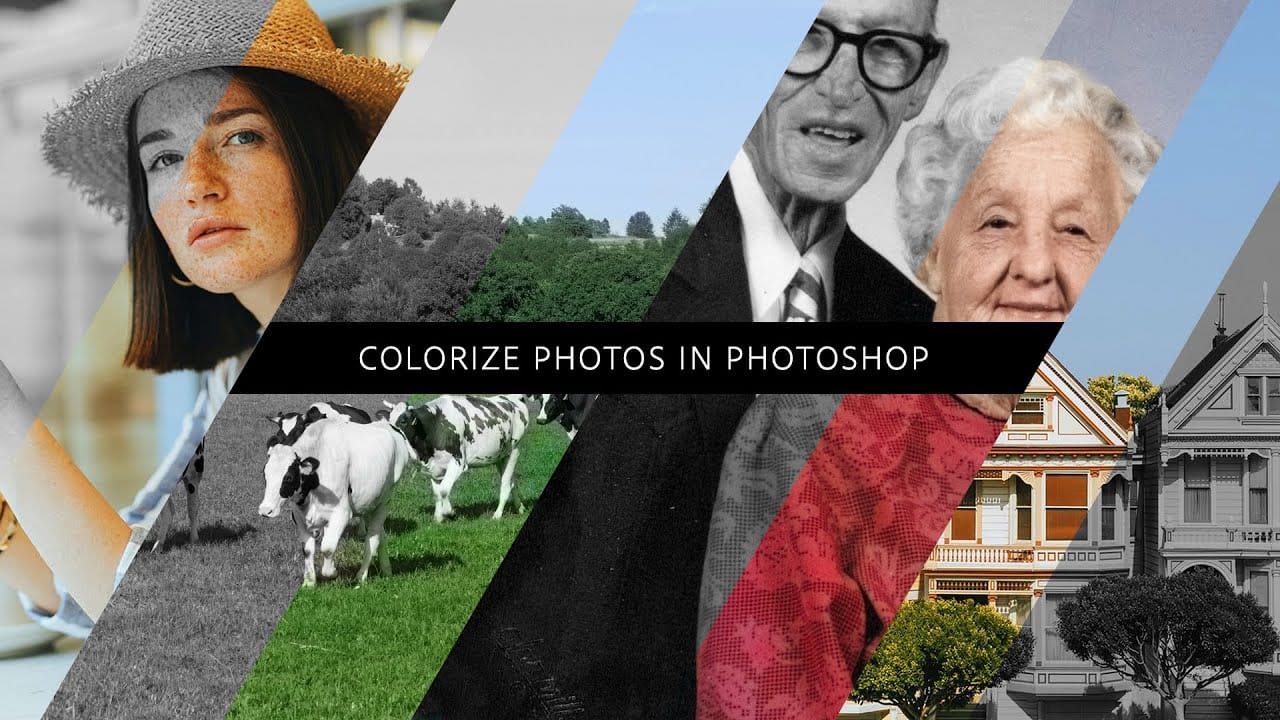
In this episode, Adobe Evangelist Paul Trani demonstrates how to instantly colorize photos in Photoshop using the new Neural Filters. This feature allows you to bring new life to black-and-white images, from landscapes to your old family photos, with just a few clicks.
Paul walks you through the process of accessing and applying the Neural Filters to your photos. You'll learn how these advanced filters use artificial intelligence to analyze your image and apply realistic colorization based on t
How to make colors pop in Photoshop
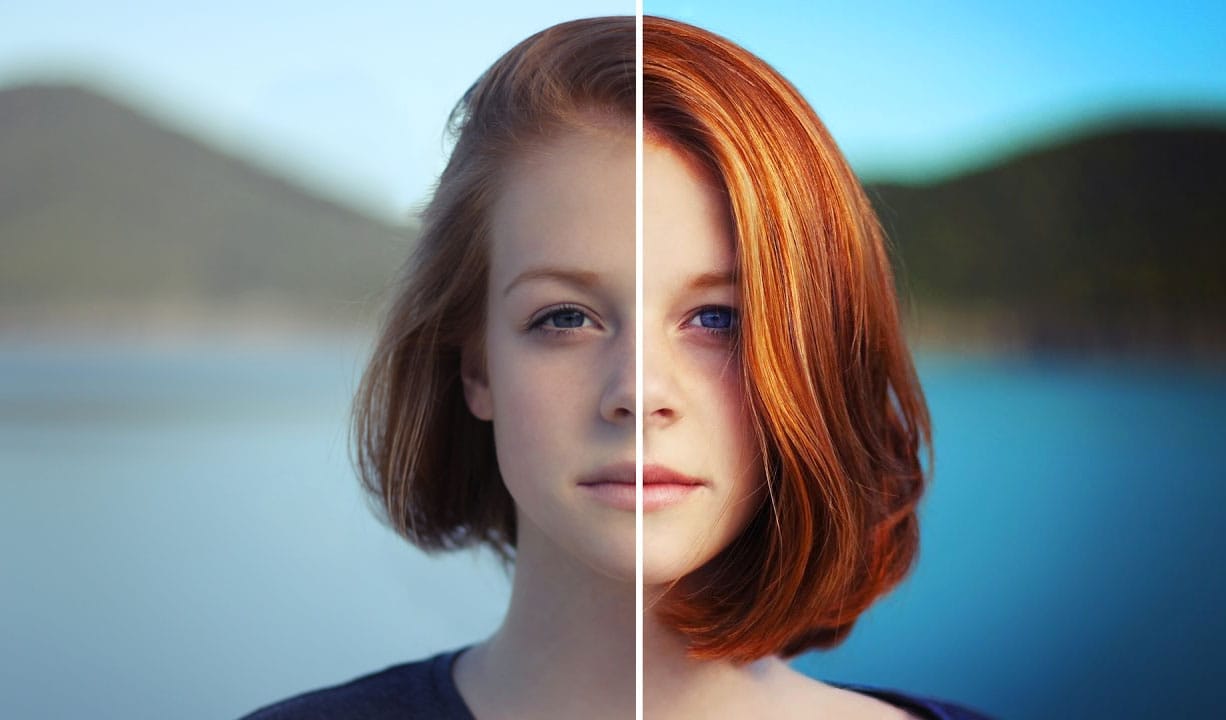
Selective color enhancement transforms dull photographs into vibrant, dramatic images by targeting specific areas like hair, skin, eyes, and clothing. This non-destructive approach uses precise selections and adjustment layers to boost colors naturally.
The technique creates professional results by treating each element separately, allowing you to enhance blue sweaters, brighten eyes, warm skin tones, and intensify hair colors without affecting the entire image.
Watch the Tutorial
Practical
How to Change Black into Any Color in Photoshop
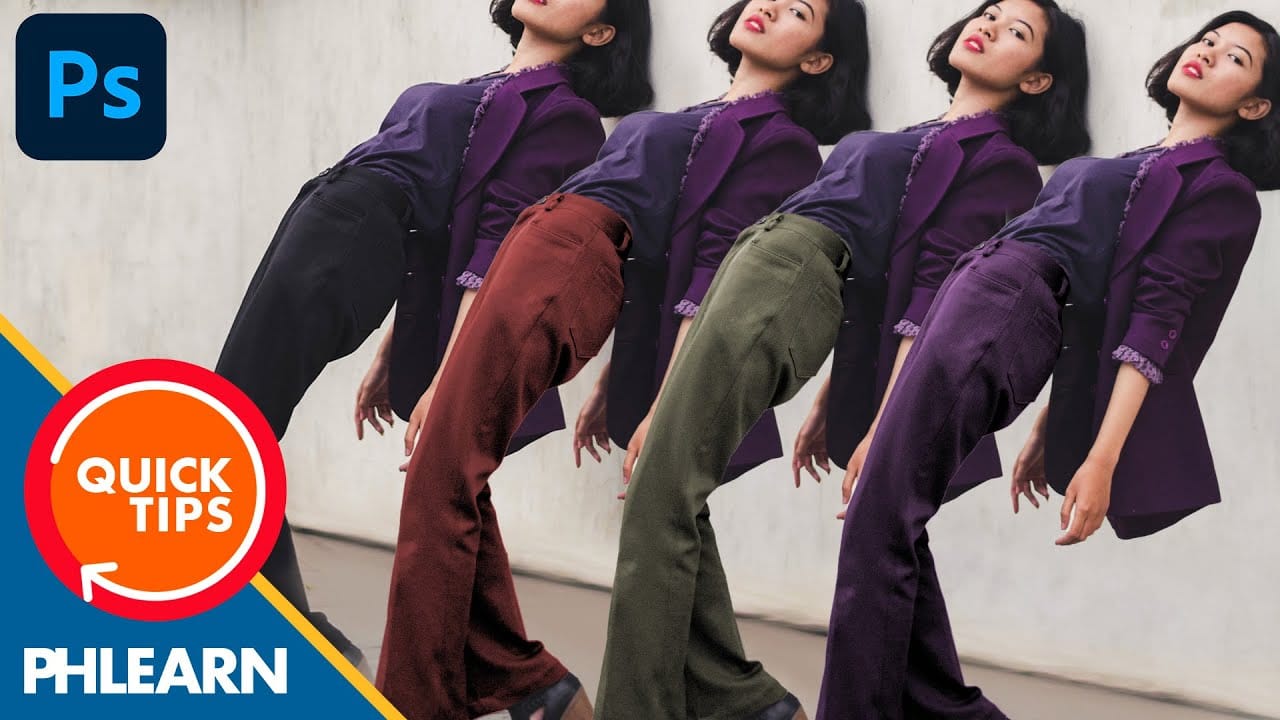
In this tutorial, Aaron Nace demonstrates how to transform black elements in your images into any color using Photoshop. This technique involves utilizing Levels and Hue/Saturation Adjustment Layers to achieve the desired color changes.
Aaron guides you through the process of adjusting these settings to effectively modify black areas in your photos. This method is particularly useful for fashion and product photo retouching, allowing you to customize colors for creative or branding purposes.
T
How to Change Hair Color in Photoshop
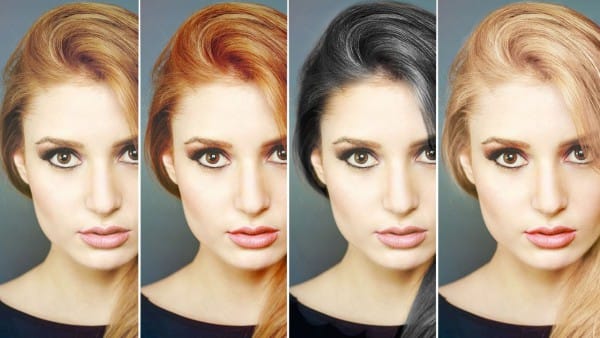
There are many reasons why you may want to change hair color in Photoshop. Perhaps your subject has recently dyed their hair and it doesn't look natural. Perhaps you want to see what you would look like with dark hair.
Changing Hair color in Photoshop is much easier than doing it in real life and by the time this tutorial is over you will be on your way to color city!
It is much easier to make hair dark than light. If you are starting out with a blonde and want to make her a brunette, not too
Six easy ways to select colors in Photoshop
In this episode of "3, 2, 1… Photoshop!", longtime Adobe evangelist Julieanne Kost shares essential tips and tricks for selecting colors in Photoshop. Julieanne introduces six easy methods to choose colors effectively, whether you're working on a detailed project or just need a quick color pick.
You'll learn how to use the eyedropper tool for precise color selection, manipulate foreground and background colors, and utilize the heads-up-display (HUD) color picker for a more interactive experienc

How to copy color effect from other images in Photoshop
The PiXimperfect tutorial offers a simple yet effective technique to add a burst of vibrant color to your Photoshop projects. By leveraging blend modes and a touch of creativity, you can seamlessly incorporate color from one image into another, elevating your visual compositions.
The author guides viewers through the process step-by-step, making it accessible for both beginners and seasoned Photoshop users. With a keen eye for detail, the tutorial demonstrates how to carefully select and blend
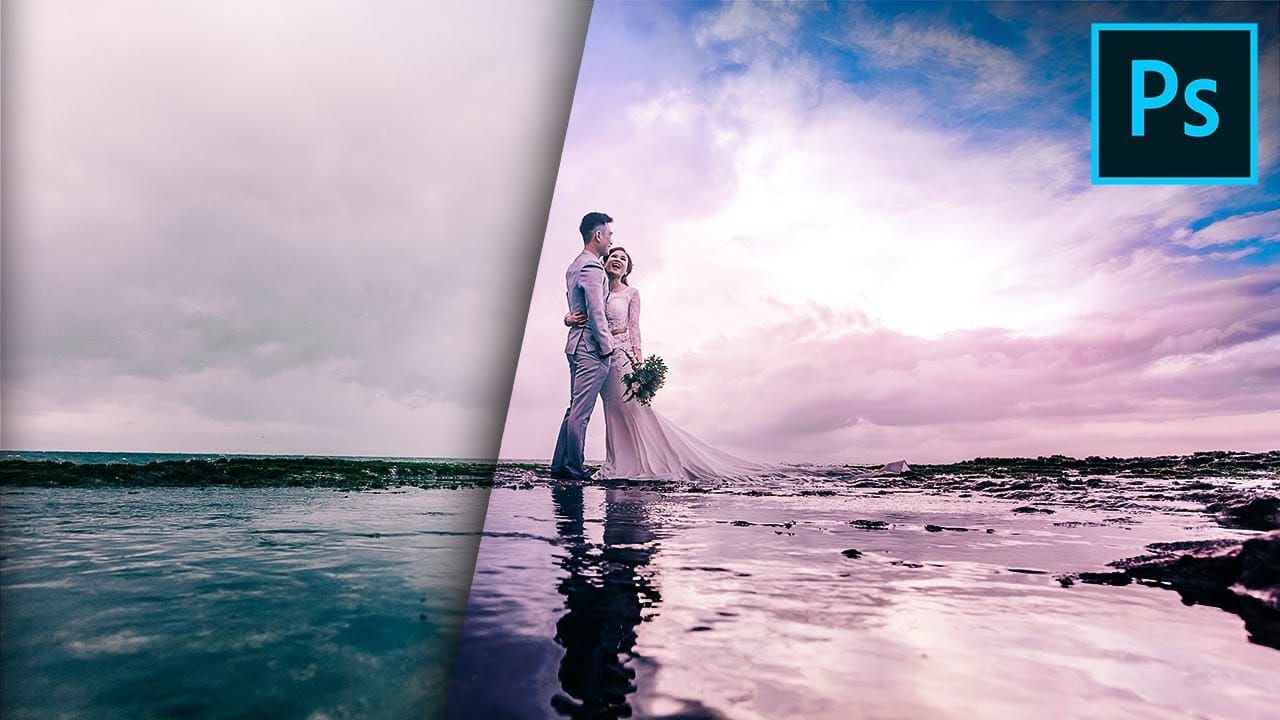
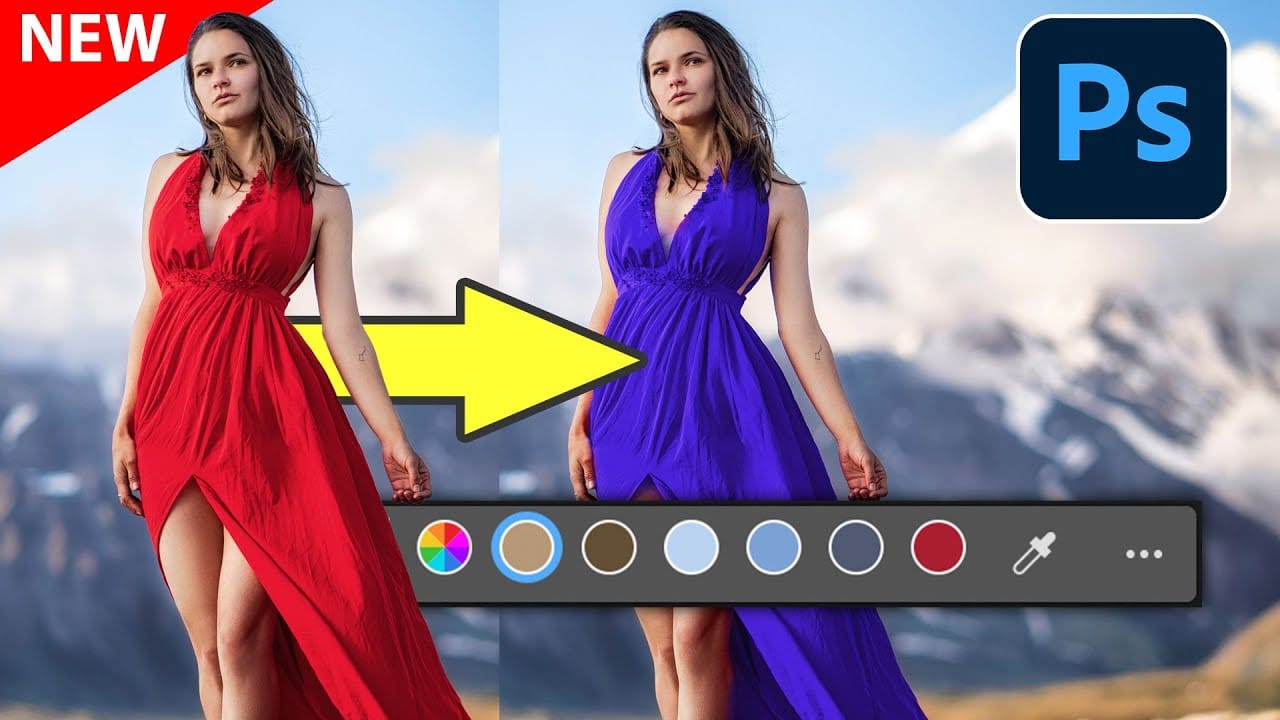
New Photoshop Feature for Changing Colors
Working on the color palette of an image is a fundamental task in photo editing, enabling designers and photographers to evoke different moods, correct imbalances, or simply reimagine visual elements. While Photoshop has long offered robust tools for color manipulation, achieving precise and natural-looking changes often required a multi-step workflow and a deep understanding of complex adjustments.
This video introduces a groundbreaking new feature in Photoshop's beta version, designed to stre
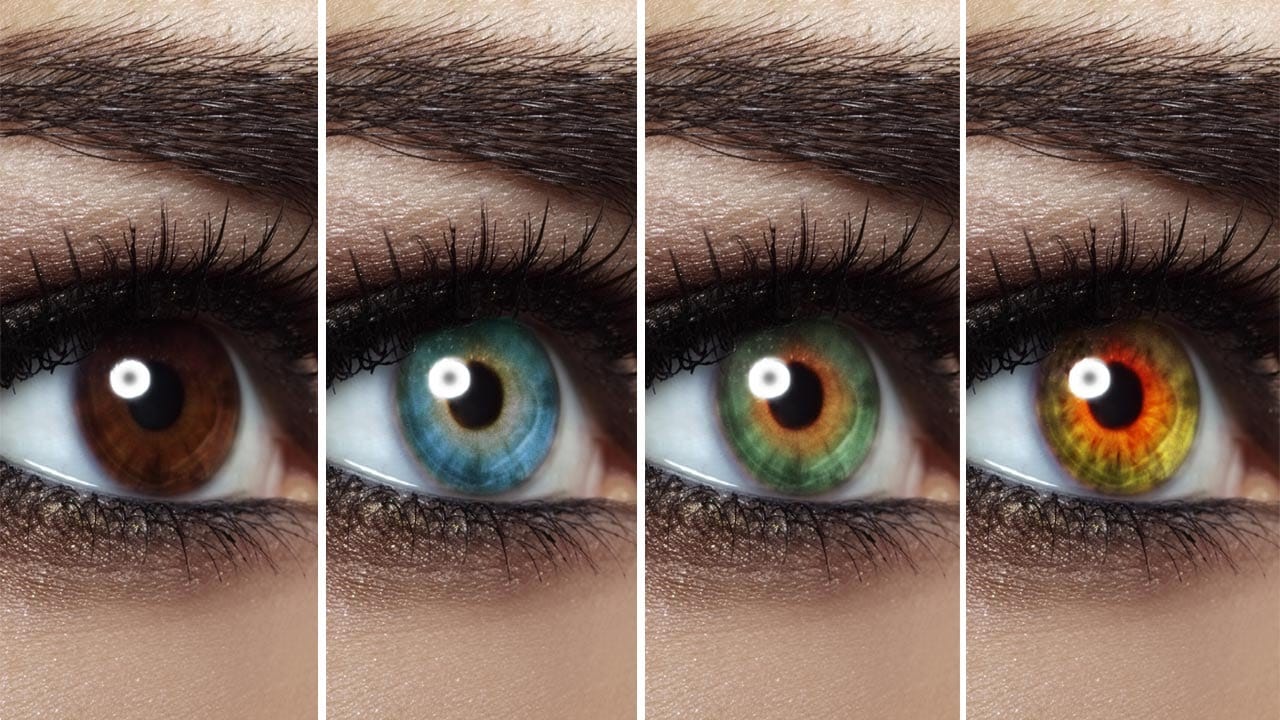
Change Eye Color in Photoshop
In this tutorial by Aaron Nace from Phlearn, discover how to transform eye colors effortlessly using Photoshop.
Aaron demonstrates techniques to precisely select and adjust eye colors using adjustment layers and masks. Learn to create realistic eye color changes by refining selections and applying hue adjustments. This tutorial is essential for photographers and digital artists looking to enhance portraits with eye-catching eye color variations, showcasing the versatility and creative possibili
Create a colorful wallpaper in Photoshop
In this Photoshop tutorial by Andrei Oprinca, you'll learn how to create an abstract wallpaper with colorful elements and effects. Oprinca starts by creating a new document with a light gray gradient background, converting it into a smart object, and adding noise.
He then extracts a model's hair using the pen tool and refines the edges with the refine edge tool. Various shapes are added using the brush tool, lasso tool, and gradient tool, along with adjustment layers to alter the color tone. Le