How to Change Background Using AI in Photoshop

How to Change Background Using AI in Photoshop

Modern background replacement in Photoshop combines automated selection tools with AI-generated content to streamline what was once a complex manual process. The new Remove Background and Generate Background features work together to cut out subjects and create realistic new environments in minutes.

This workflow demonstrates both complete background replacement and selective editing techniques that preserve original elements while generating new surroundings. The approach works particularly well for portrait and product photography where you need clean, professional results quickly.

Watch the Video

Video by PHLEARN. Any links or downloads mentioned by the creator are available only on YouTube

Practical Tips

These essential techniques will help you achieve more realistic background replacements:

  • Use the Remove Background tool from the contextual taskbar for instant subject selection with automatic layer masking
  • Preserve original floor elements by selecting them with the Rectangular Marquee tool and filling the mask with white
  • Write descriptive prompts for Generate Background like "busy city street" or "rooftop big city skyscraper" for better AI results
  • Duplicate your layer before applying effects so you can compare different background options side by side
  • Try the new Upscale feature after generating backgrounds to enhance detail and improve realism in AI-created elements

Explore more advanced background editing and AI integration techniques with these tutorials:
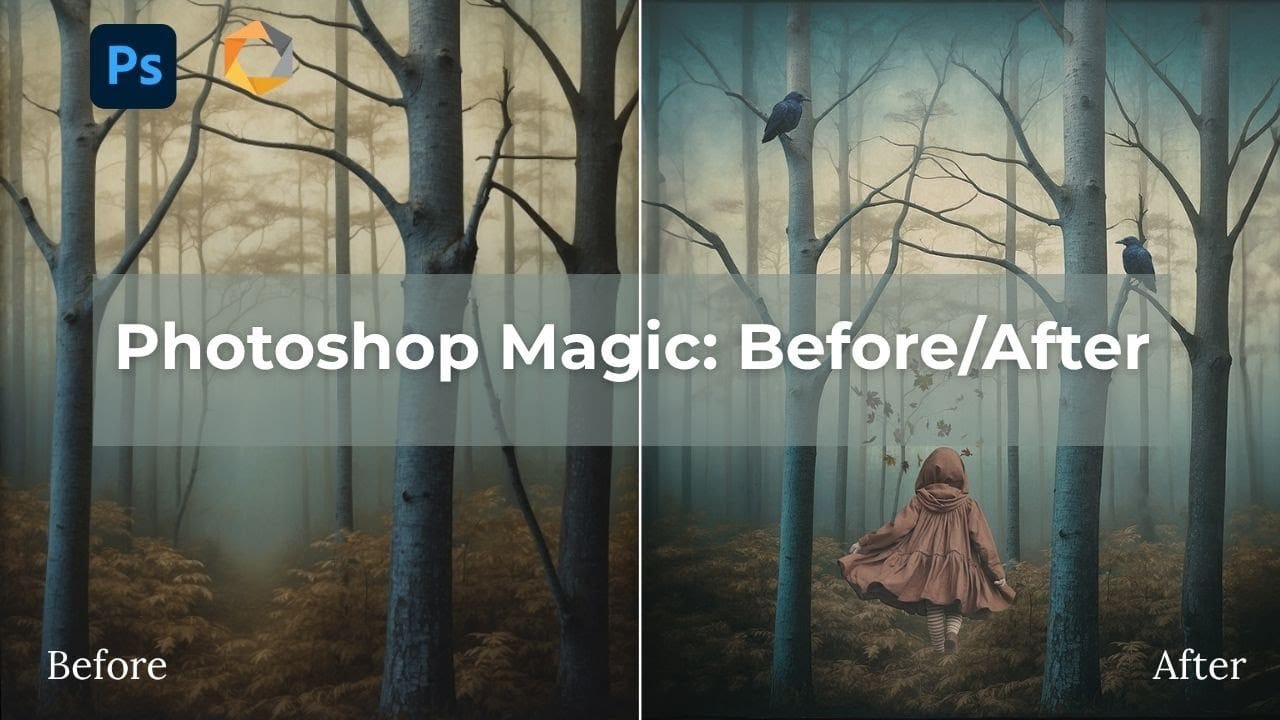
Creating AI-Enhanced Autumn Fantasy Images in Photoshop
Fantasy imagery comes alive when artificial intelligence meets traditional photo manipulation techniques. AI-generated backgrounds provide the perfect foundation for creating moody, atmospheric scenes that would be difficult or impossible to capture with a camera alone. This approach combines the creative potential of AI image generation with Photoshop's precise editing tools to craft compelling visual narratives. The result is a seamless blend of imagination and technical skill that transforms
Cutting Out Complex AI Images Using Channel Masking in Photoshop
AI-generated images often contain intricate details that challenge standard background removal tools. When automatic selection methods fail to capture complex edges and fine details, manual techniques become essential. This technique demonstrates how to use channel masking to create precise selections that preserve every detail of your AI artwork. Watch the Tutorial Essential Tips for Channel Masking * Select the channel with the highest contrast between your subject and background before
10 Ways AI Completely Transformed My Photoshop Techniques
Repetitive tasks like making complex selections, removing unwanted objects, and cleaning up blemishes can consume hours of an editor's time. While traditional Photoshop methods offer precise control, they are often slow and require significant technical skill for what should be simple fixes. This guide demonstrates how to integrate modern AI features into your daily workflow. You will learn practical techniques for everything from one-click selections and generative fills to automated retouchin
New Photoshop AI Features – Smarter, Faster, and More Efficient Tools!
Editing detailed selections, adjusting colors, and removing backgrounds in Photoshop can be tedious, especially when working with complex edges like hair or challenging objects. Manual work often stalls creative flow and makes it tough to achieve clean, professional results on tight deadlines. This article introduces essential, time-saving features in the latest Photoshop update—including advanced AI-powered selection, color, and removal tools. Learn how these updates streamline everyday editin
Discover Hidden Photoshop AI Tools to Transform Your Photos
Transform ordinary photographs into captivating works of art using advanced Generative AI features in Photoshop. This guide reveals a powerful, often overlooked technique to unlock incredible artistic potential from your images. Discover how to apply stunning styles, from delicate watercolors to bold Art Deco and futuristic visions, by mastering a subtle yet impactful control within Photoshop's AI capabilities. Watch the Video Understanding Generative AI's Creative Control Generative AI to
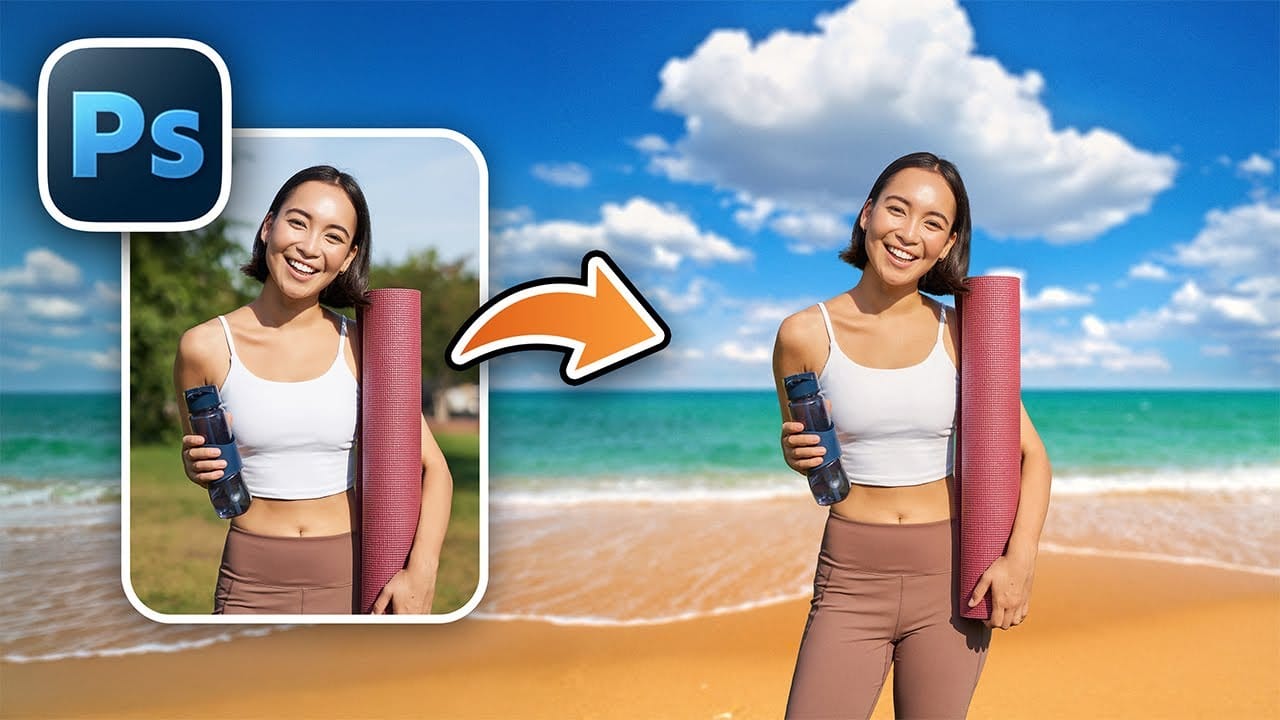
How to Change Backgrounds and Match Lighting in Photoshop
Creating seamless background replacements requires more than just cutting out your subject. The real challenge lies in making the new composition look natural through proper lighting, color matching, and depth of field consistency. Modern Photoshop tools have simplified this process significantly, allowing you to achieve professional results with automated background removal and smart masking techniques that handle even complex details like hair. Watch the Video Practical Tips These essent
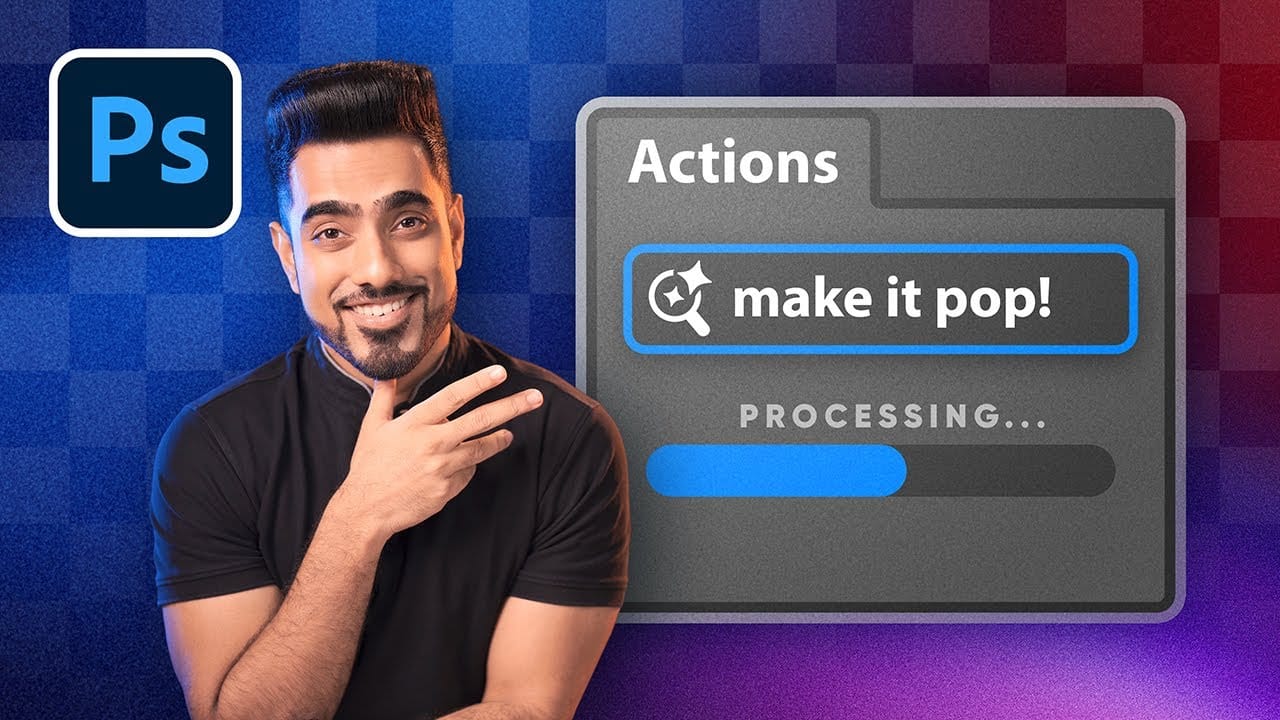
How to Use Photoshop's New AI-Powered Actions Panel
Photoshop's actions just became significantly smarter with AI integration. The new Actions panel understands natural language searches, automatically suggests relevant effects based on your image content, and provides live previews before you commit to changes. This revolutionary update transforms how designers work with automated processes. Instead of browsing through countless preset names, you can simply type "make it pop" or "remove haze" and watch AI deliver exactly what you need. Watch
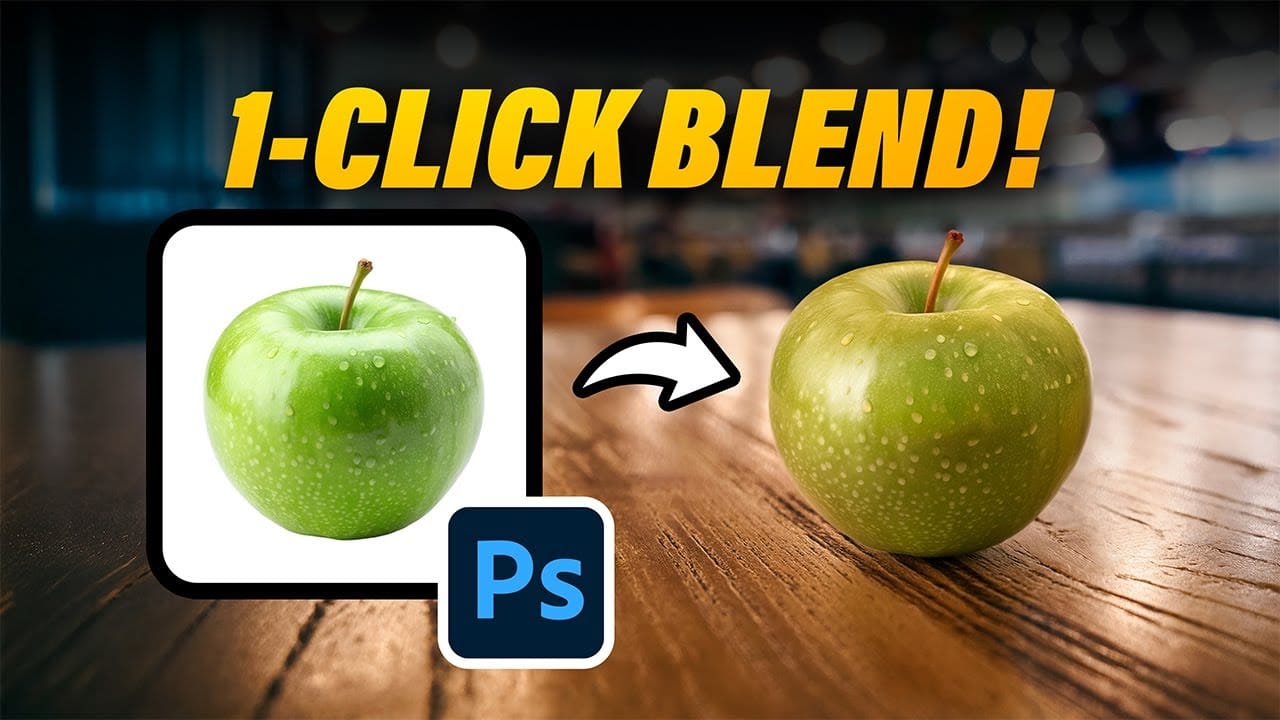
How to Use Photoshop's New Harmonize Feature to Blend Images Automatically
Photoshop's latest AI feature promises to solve one of compositing's biggest challenges: making cut-out objects look naturally integrated into new backgrounds. The new Harmonize tool automatically matches lighting, creates shadows, and adds reflections with a single click. This breakthrough technology eliminates hours of manual work that traditionally required advanced knowledge of color theory, lighting principles, and complex adjustment layers. While still in beta, Harmonize represents a sign
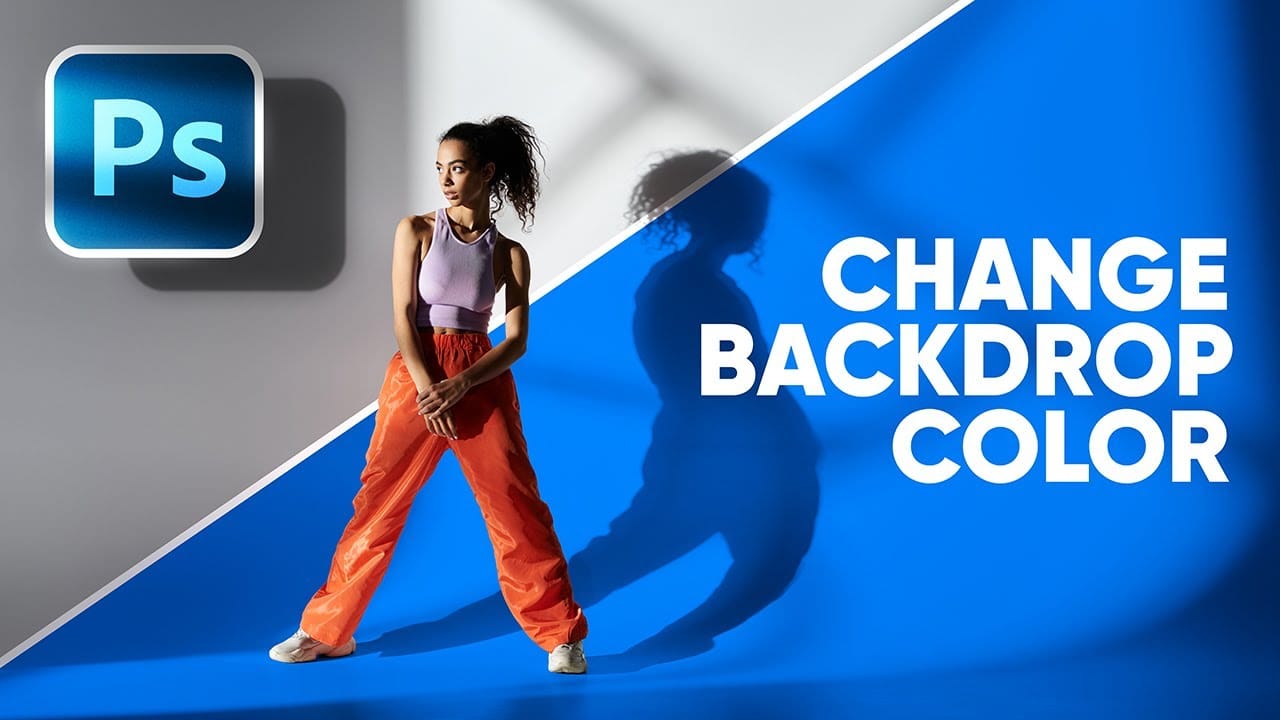
2-Min Photoshop: Right Way to Change Backdrop Color
Changing the background color of an image is a common task in photo editing, whether for creative purposes, branding, or simply to improve visual appeal. However, the approach to achieving a seamless background change often depends on the original backdrop's characteristics, presenting unique challenges for different scenarios. This tutorial explores two distinct and effective methods for altering background colors in Photoshop, tailored to specific starting conditions: one for white or light g

Get tutorials & freebies delivered to you.

Subscribe to the Photoshop Roadmap newsletter, a weekly roundup of new tutorials, insights and quality downloads, trusted by 6500+ readers.

You might also like

Create Refracted Glass Effect in Photoshop

Refracted glass effects simulate the visual distortion that occurs when light passes through textured glass surfaces. This technique creates realistic wavy, rippled appearances that can transform ordinary images into dynamic compositions. The process involves building custom displacement maps using gradients and wave filters, then applying them through the Glass filter...

How to Create Realistic Sticker Effects in Photoshop

Creating convincing sticker effects requires more than just adding basic shadows and highlights. The key lies in building up multiple texture layers, proper lighting effects, and subtle surface details that make digital text appear physically attached to a surface. This technique transforms flat vector text into dimensional stickers complete with...

How to Use the 3D Object Rotation Tool in Photoshop Beta

Adobe's new Rotate Object feature transforms flat 2D images into interactive 3D models that can be repositioned from any angle. This AI-powered tool automatically creates cutouts, maintains original textures, and generates missing details when objects are rotated beyond their original perspective. The feature opens new possibilities for product...

How to Create Stretched Perspective Text Effects in Photoshop

Stretched perspective text creates dramatic visual depth by transforming flat typography into architectural-style elements that appear to recede into space. This trendy effect, popular in poster design, gives text a building-like appearance with multiple vanishing points. The technique involves manually cutting, duplicating, and connecting text segments using selection tools and...

How to Add Selective Contrast and Clarity Using Camera Raw Filter

Many photos lack the visual impact they could have simply because contrast and clarity are applied uniformly across the entire image. The key to professional-looking results lies in selectively enhancing specific areas that deserve attention while leaving others untouched. This approach uses the Camera Raw filter's histogram controls...

35 Artistic Photoshop Effects Tutorials and Actions That Actually Look Good

Creating illustration effects from a photo has never been easier. AI tools can generate a sketch, a painting, or a cartoon version in seconds, and the first result can look surprisingly good. The problem is control. Even with conversational AI models (like ChatGPT or Gemini Nano Banana) that let you...

You’ve successfully subscribed to Photoshop Roadmap
Welcome back! You’ve successfully signed in.
Great! You’ve successfully signed up.
Success! Your email is updated.
Your link has expired
Success! Check your email for magic link to sign-in.