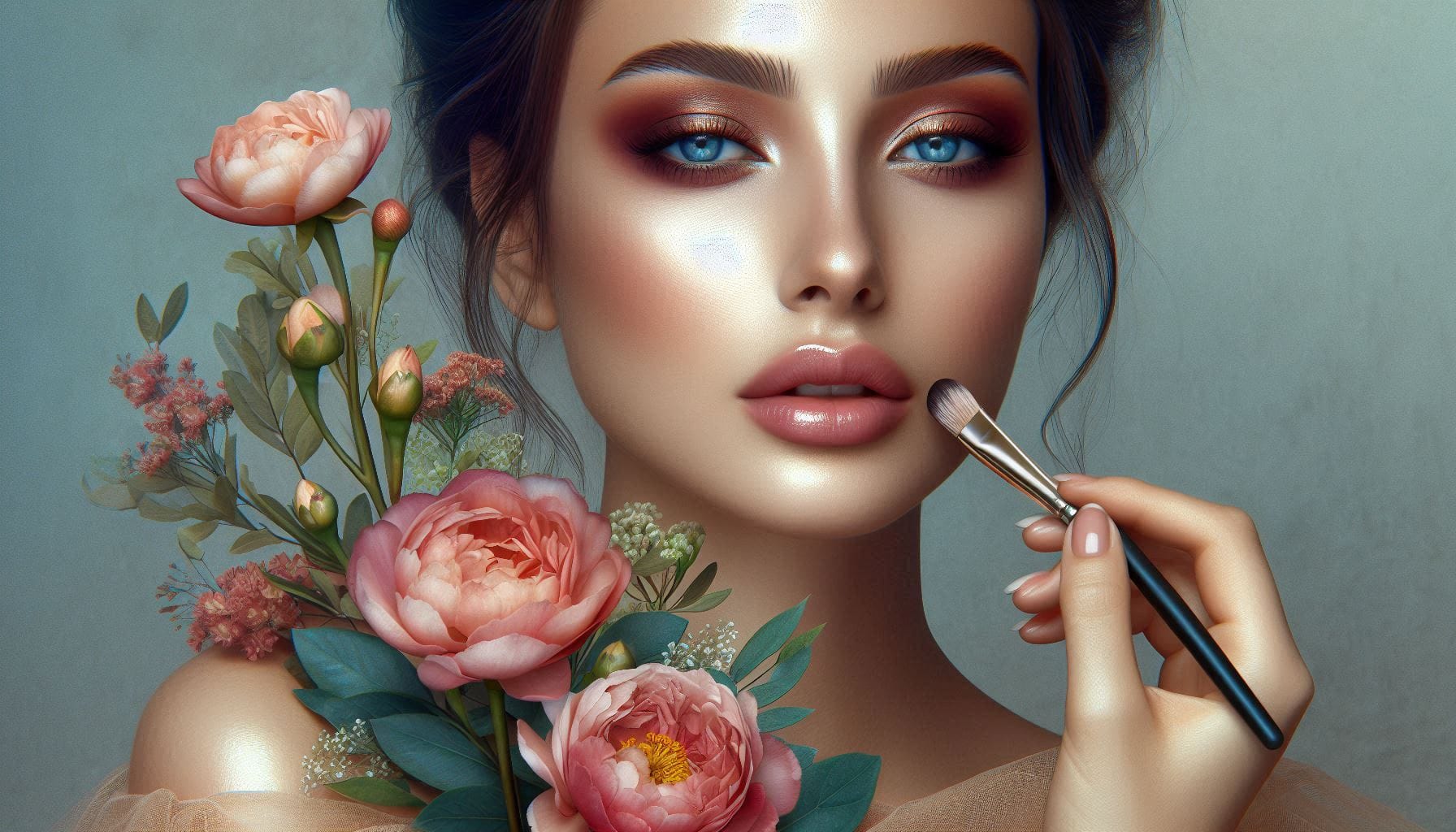
Modern versions of Photoshop offer powerful AI-driven tools that can automatically detect and modify facial features with remarkable precision. The Face-Aware Liquify tool uses intelligent sliders to adjust eye size, nose dimensions, and mouth shape, while Neural Filters can alter facial expressions like happiness and surprise using cloud-based processing.
These techniques provide photographers and digital artists with sophisticated alternatives to manual retouching, though they raise important questions about ethical image manipulation and the need for client consent.
Watch the Video
Practical Tips
Keep these essential guidelines in mind when adjusting facial features:
- Always duplicate your background layer before applying any facial adjustments to preserve the original image
- Link the left and right eyes in Face-Aware Liquify to ensure symmetrical changes when adjusting eye size
- Keep all facial modifications subtle and natural-looking rather than extreme or obvious
- Always get explicit permission from your subject before making any facial alterations to avoid damaging relationships
- Remember that Neural Filters require an active internet connection since processing happens in the cloud
Related Articles and Tutorials
Explore more facial editing techniques and creative portrait modifications with these tutorials.
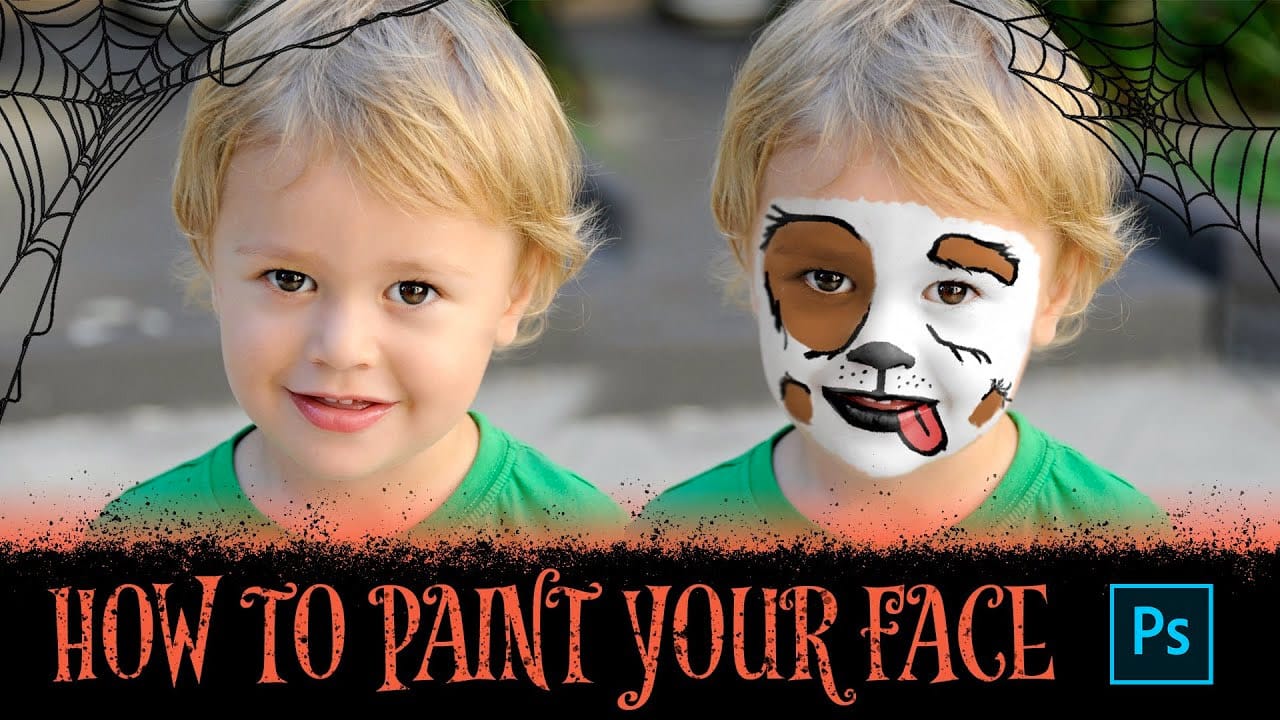
How to Paint Your Face in Photoshop
This exciting tutorial by PHLEARN dives into the world of digital face paint. Learn how to utilize a custom face paint brush (potentially included in the video) and Adjustment Layers to create vibrant and realistic designs, perfect for both adorable Halloween looks or spooky transformations.
The video will guide you through the process, allowing you to unleash your creativity and design unique face paint effects for any project.
Watch tutorial
How to Paint Graphics onto a Face in Photoshop
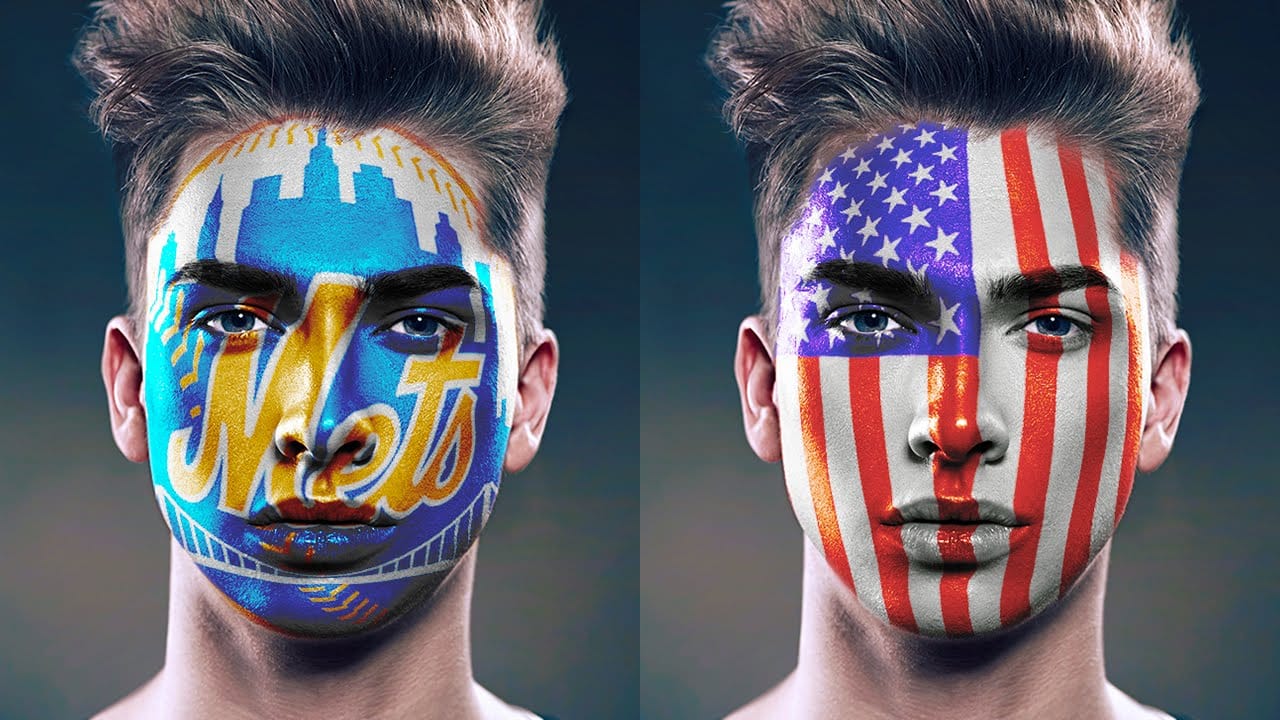
Achieving realistic digital face paint in Photoshop can transform portraits, bringing creative visions to life for various purposes. This technique is particularly effective for applying elements like flags, sports team logos, or intricate designs directly onto a subject's face, making it appear as if the graphic is truly painted on.
This video tutorial guides you through the process of seamlessly applying graphics to a face using Photoshop's powerful features. You will learn how to prepare you
How to edit eyes in Photoshop
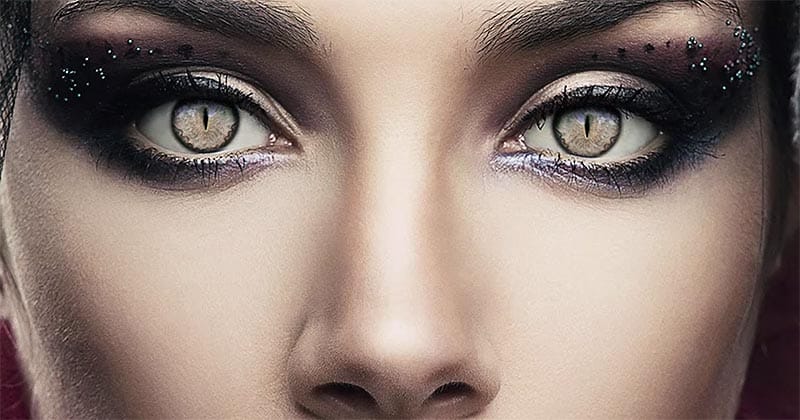
In this Photoshop tutorial by PSD Box, viewers learn how to creatively alter and enhance eye appearance in portraits.
The tutorial begins by introducing a photo of a woman and a cat's eye, demonstrating how to replace the woman's eyes with those of the cat using adjustment layers. Key adjustments include Hue/Saturation and Curves layers to modify eye color, contrast, and overall look. Techniques like layer masking ensure smooth integration of the cat's eyes onto the woman's face, while addition
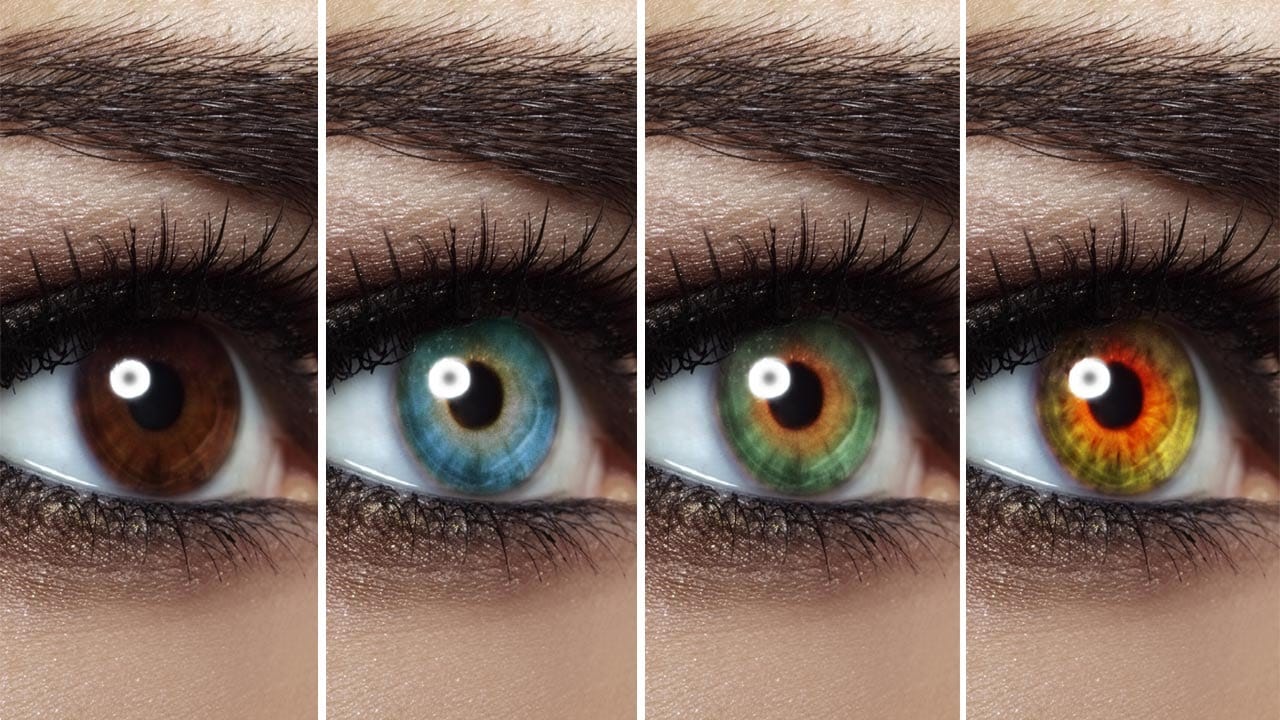
Change Eye Color in Photoshop
In this tutorial by Aaron Nace from Phlearn, discover how to transform eye colors effortlessly using Photoshop.
Aaron demonstrates techniques to precisely select and adjust eye colors using adjustment layers and masks. Learn to create realistic eye color changes by refining selections and applying hue adjustments. This tutorial is essential for photographers and digital artists looking to enhance portraits with eye-catching eye color variations, showcasing the versatility and creative possibili
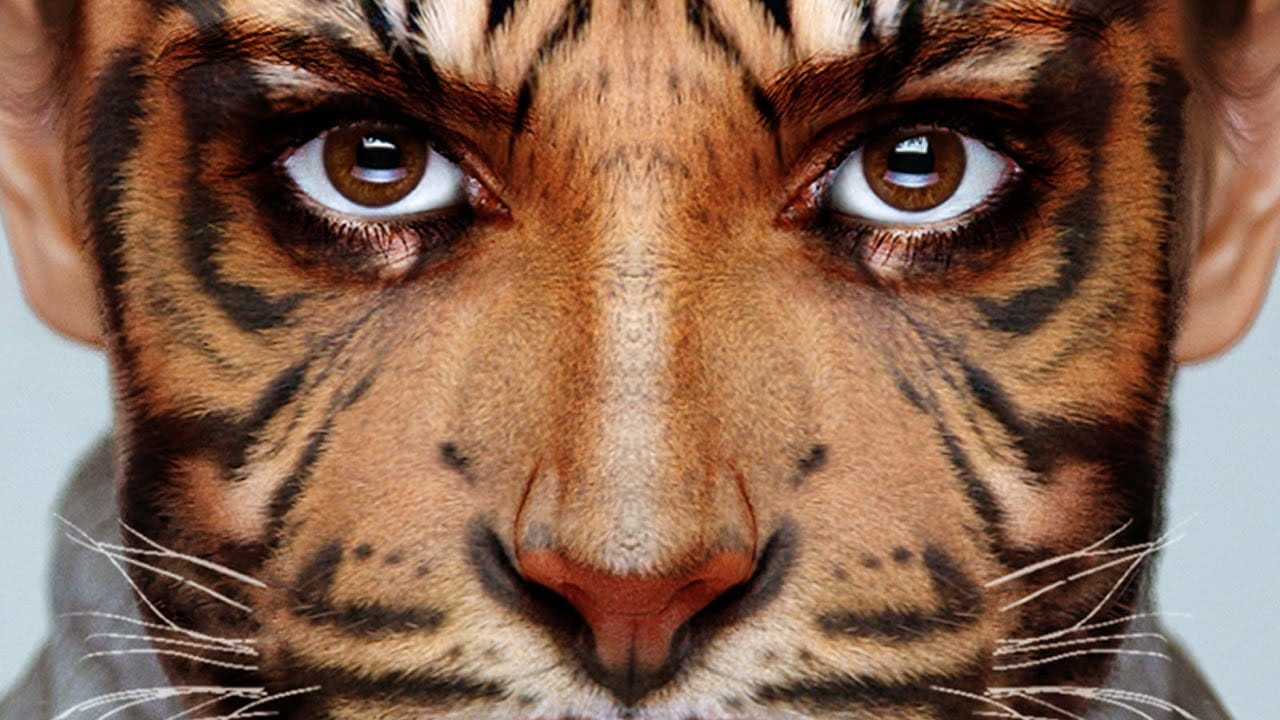
Transform your face into an animal
Digital face morphing transforms ordinary portraits into wild animal hybrids using advanced Photoshop techniques. This creative process combines human features with animal textures to create striking fantasy portraits.
The tutorial demonstrates how to seamlessly blend tiger features onto a human face using displacement mapping, layer masking, and warping tools for realistic results.
Watch the Tutorial
Essential Tips for Face Morphing
These key techniques will help you achieve professional-
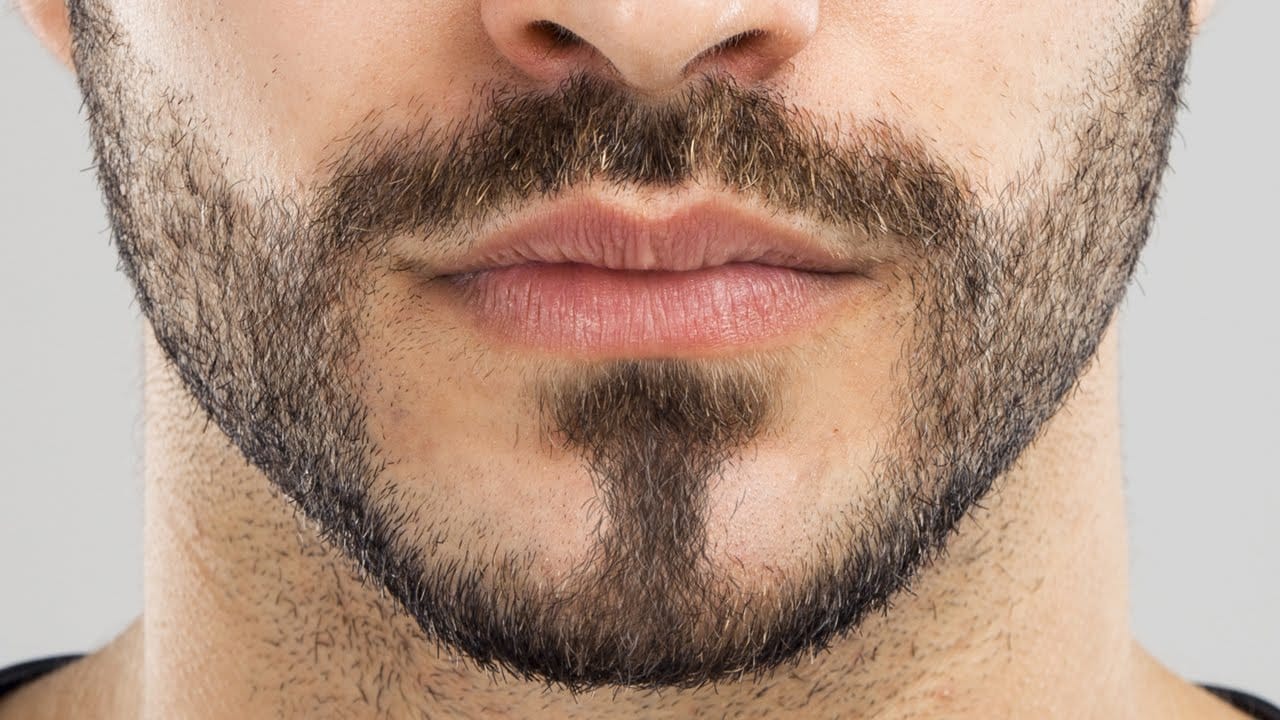
How to Create Facial Hair in Photoshop
Men's facial hair rarely grows evenly, leaving patchy spots that stand out in portraits. From sparse beard areas to missing mustache sections, these gaps can detract from an otherwise polished look.
This tutorial demonstrates how to create custom brushes that paint realistic facial hair, complete with natural color variation and highlights that match existing growth patterns.
Watch the Tutorial
Essential Tips for Creating Facial Hair
Master these key techniques to paint convincing facial h
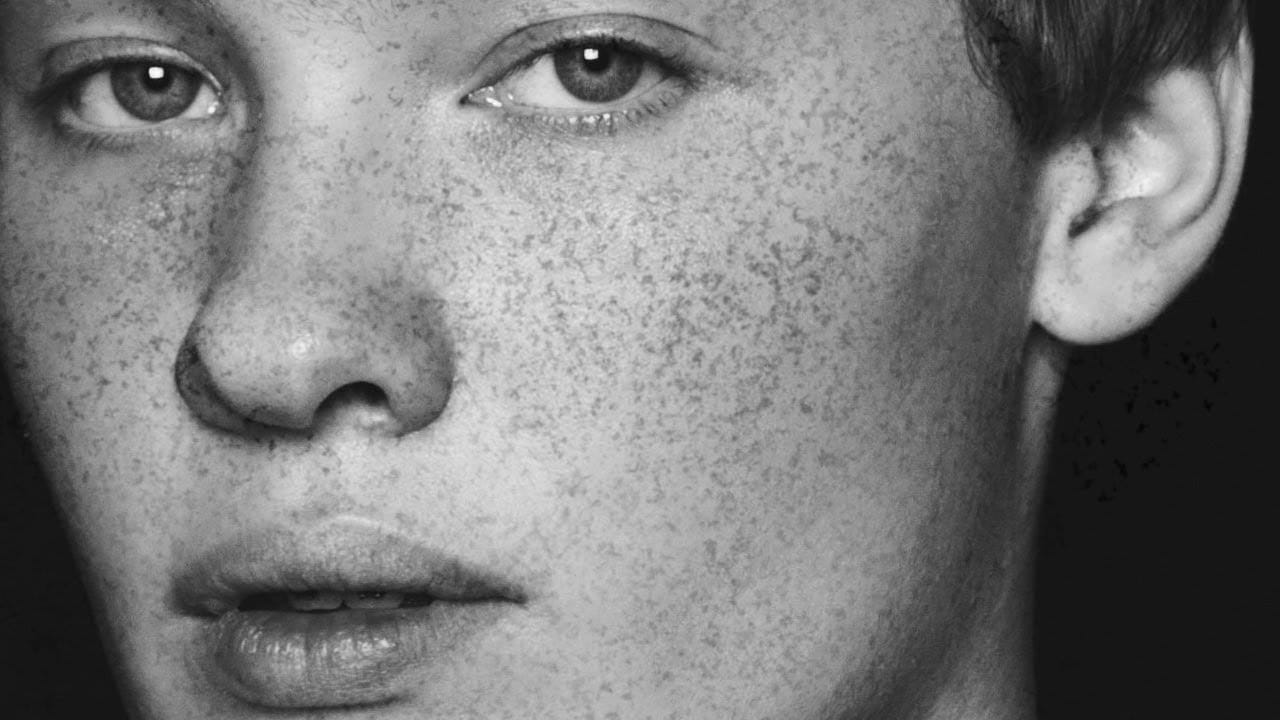
Add freckles to a face in Photoshop
In this tutorial by Aaron Nace from Phlearn, learn how to add realistic freckles to a face in Photoshop by creating a custom brush.
The process begins with using a photo of granite to create an organic freckle texture. You'll select the desired color range, create a black-and-white template, and define a brush preset. Adjust brush settings like shape dynamics and spacing for the best results. Apply the freckles on multiple layers for depth, using a layer mask to fade freckles in unwanted areas.
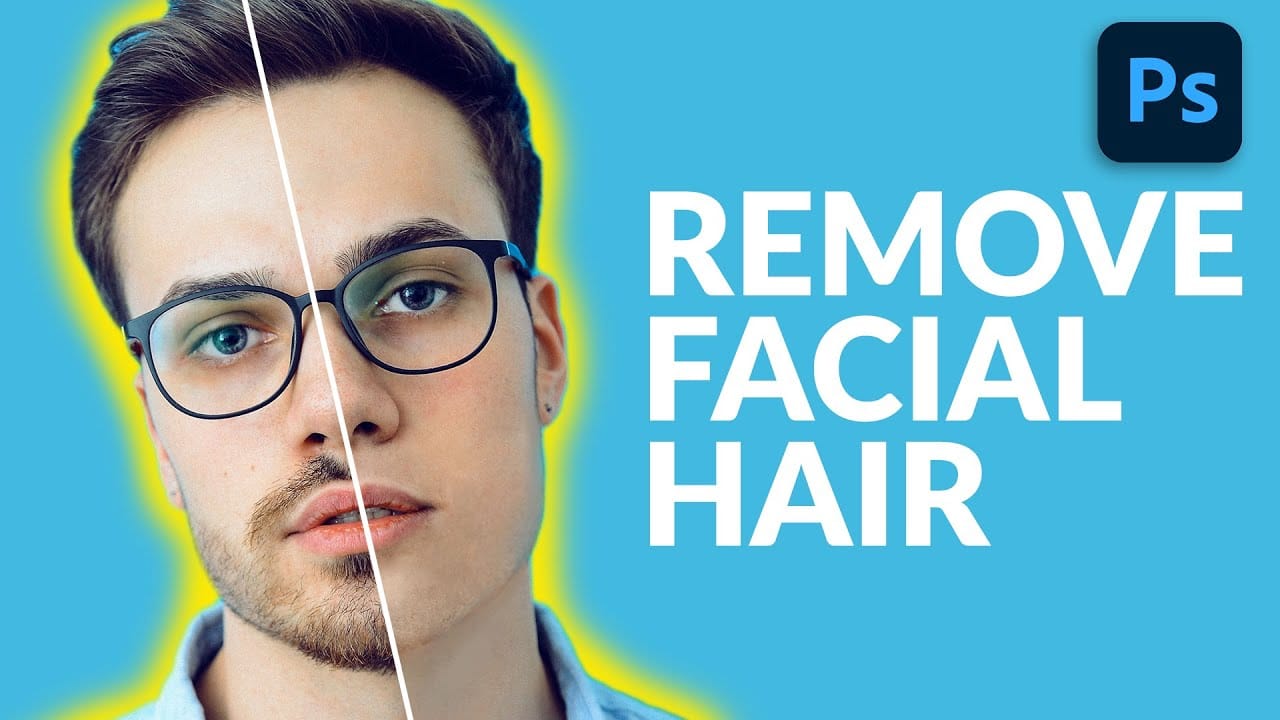
How to Remove Facial Hair in Photoshop
In today's tutorial, we will guide you through the process of effectively removing facial hair in Photoshop! Whether your subject has a prominent, full-on beard or merely a subtle 5 o'clock shadow, this lesson will equip you with the skills to paint away unwanted facial hair using the Brush Tool.
Additionally, you will learn how to recreate realistic skin texture by utilizing a second reference image, ensuring a natural look. We will also cover how to blend everything seamlessly together, emplo
Learn how to change eye, hair and lips color in Photoshop
For those of us who aren't professional photographers, or lack the proper equipment, portrait photography is a feat that will inevitably end in an intensive, and sometimes clueless, retouching session.
Luckily Photoshop has some incredible tools to make this process easier. But if you aren't an intermediate or advanced user, you will need some help.
The following tutorials will explain the basics of hair, eye and lips retouching process for beginners.
How to Change Hair Color in Photoshop
T