Adding faces to Mount Rushmore creates striking digital art that combines portrait photography with AI-powered stone carving effects. This technique uses generative AI to transform any portrait into a realistic granite sculpture that matches the lighting, texture, and monumental style of the famous presidential memorial.
The process combines traditional selection methods with advanced AI prompting to achieve seamless integration between your subject and the mountain backdrop.
Watch the Video
Video by Photoshop Arthouse. Any links or downloads mentioned by the creator are available only on YouTube
Practical Tips
These essential techniques will help you achieve realistic Mount Rushmore face integration:
- Use Select Subject for initial face isolation, then refine with Alt+drag to remove unwanted clothing areas
- Press Q to toggle Quick Mask mode to visualize and check your selection accuracy before cutting
- Select the entire image before using Generative Fill to give AI maximum context for stone texture matching
- Choose the appropriate AI model for sculpture work - different models excel at different transformation types
- Fine-tune brightness and contrast with masked adjustment layers to match the existing carved heads perfectly
Related Articles and Tutorials
Explore more advanced face manipulation and AI transformation techniques:
15 Fantastic Photoshop Portrait Effects You’ll Want to Slap on Every Selfie Right Now
Sure, the title says you’ll want to slap these effects on every selfie (that was me trying to grab your attention 😅) — but let’s be honest: these aren’t one-tap filters. Every tutorial here is built on real Photoshop craftsmanship — lighting, masking, blending, and a good dose of creative
 Enrique Flouret
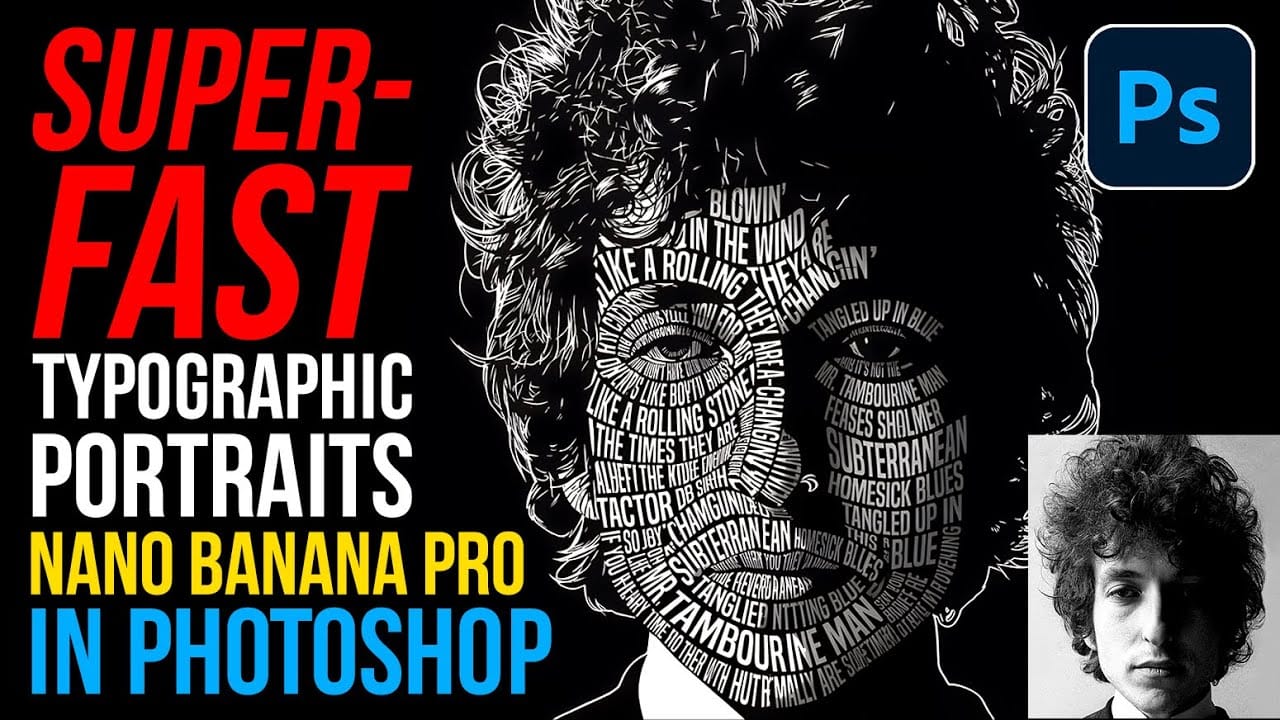
How to Create Typographic Portraits Using AI in Photoshop with Gemini 3
Typographic portraits transform ordinary photos into striking vector-style graphics where flowing text wraps naturally around facial contours and features. This AI-powered technique uses two strategic prompts to first create a high-contrast version of your portrait, then fills it with customizable text that follows the curves and shadows of the face.
The process works with any portrait photo, whether color or black and white, and takes just minutes to complete using the advanced capabilities of
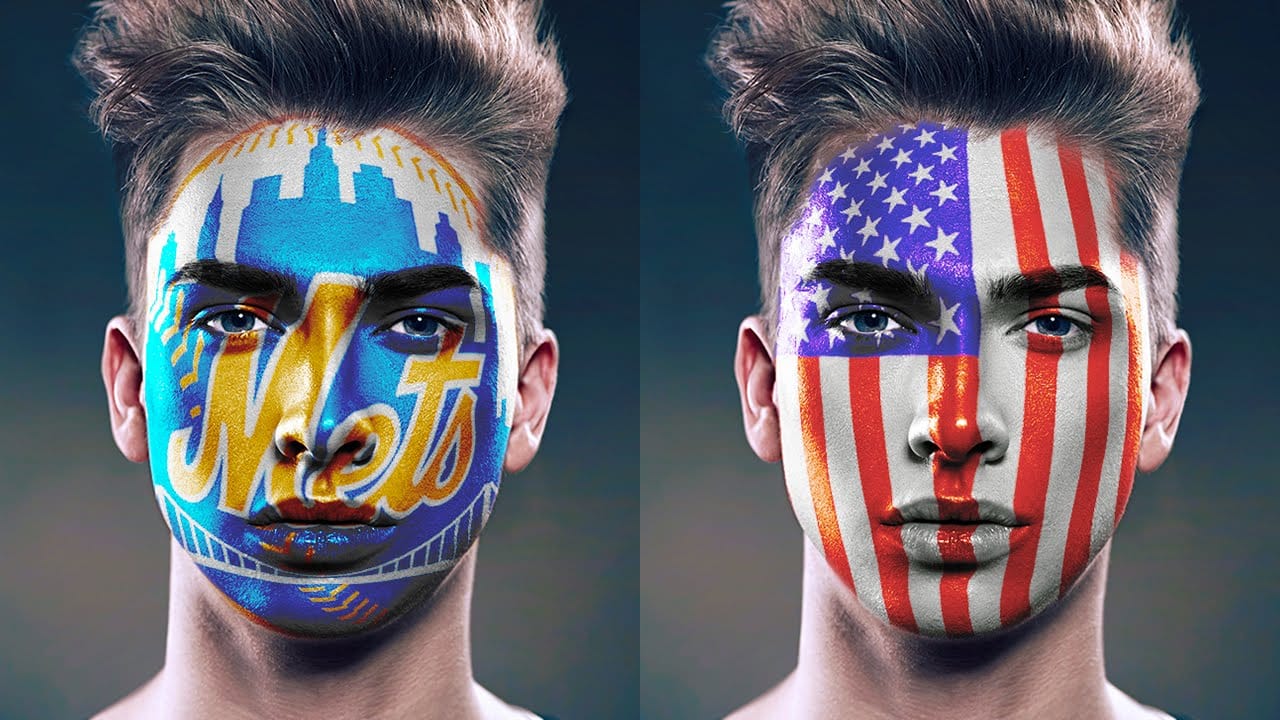
How to Paint Graphics onto a Face in Photoshop
Achieving realistic digital face paint in Photoshop can transform portraits, bringing creative visions to life for various purposes. This technique is particularly effective for applying elements like flags, sports team logos, or intricate designs directly onto a subject's face, making it appear as if the graphic is truly painted on.
This video tutorial guides you through the process of seamlessly applying graphics to a face using Photoshop's powerful features. You will learn how to prepare you
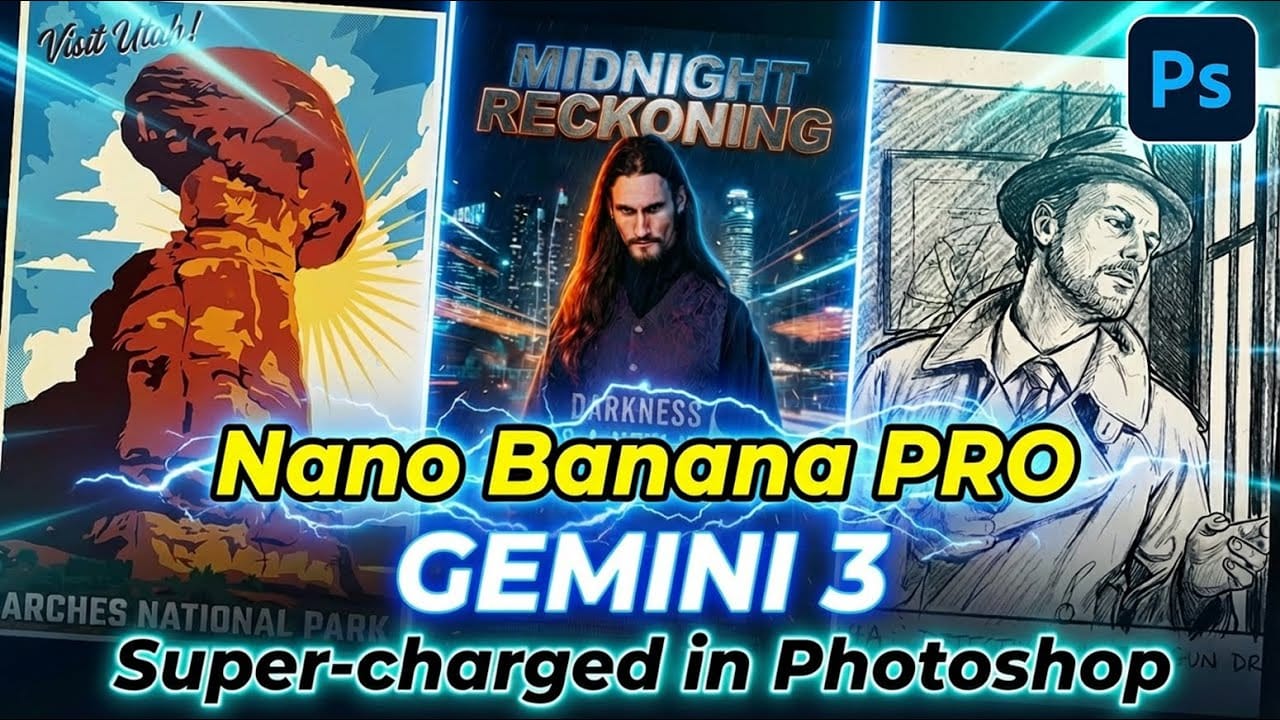
How to Use Gemini 3.0 Nano Banana Pro for Advanced AI Image Transformations in Photoshop
Gemini 3.0 Nano Banana Pro delivers 4K resolution transformations and contextual intelligence that surpasses previous AI models in Photoshop. This advanced system can create movie posters, redesign interiors, sharpen blurry photos, and even translate foreign text while maintaining original design elements.
The model costs 10 generative credits per image but handles complex tasks like night-to-day conversions and multi-frame storyboard creation with remarkable accuracy.
Watch the Video
Pract
How to Use Gemini 2.5 Nano Banana AI in Photoshop 2026
Photoshop 2026 introduces Gemini 2.5 Nano Banana, a powerful AI model that transforms how you edit images. This advanced tool maintains scene coherence while allowing dramatic changes to poses, backgrounds, and camera angles.
The technology understands context and lighting, creating realistic results that feel naturally integrated into your original photos.
Watch the Video
Key Tips for Using Nano Banana
* Make loose selections around your target area — the model needs context to understan
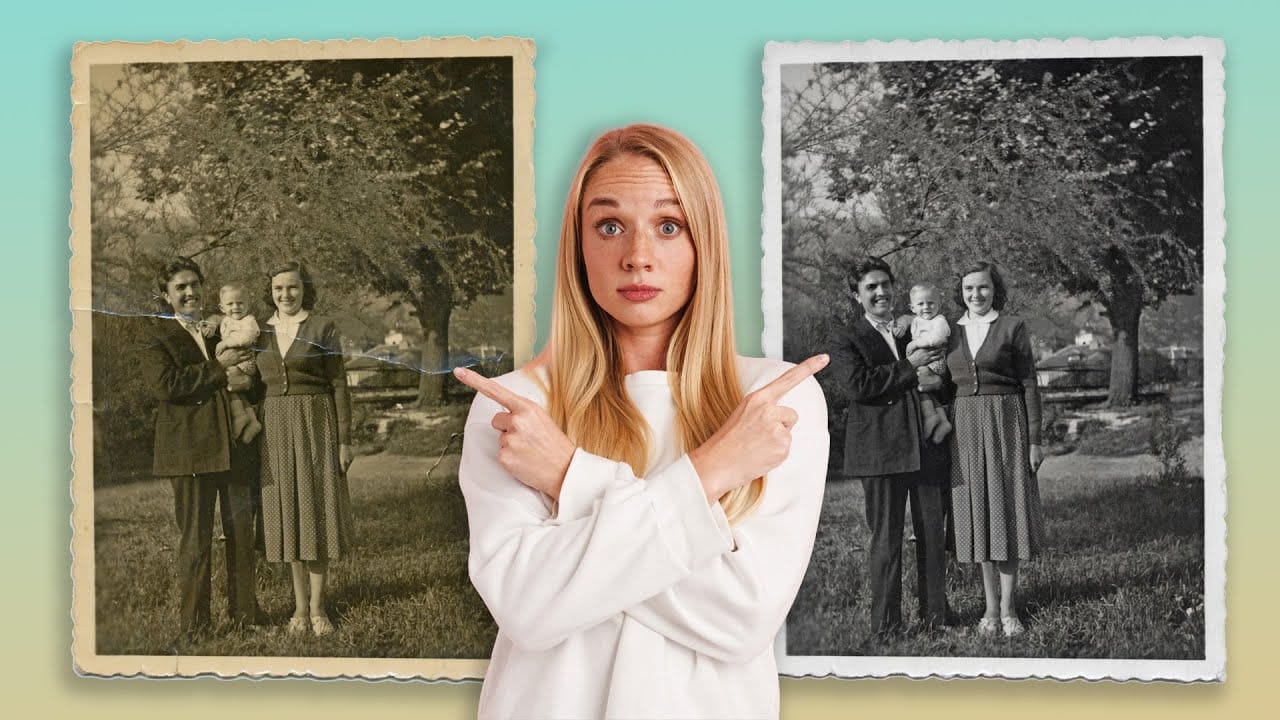
Using Gemini 3 Nano Banana Pro for AI Photo Restoration in Photoshop
Old photographs tell stories, but damage from age, fading, and color casts can make them difficult to appreciate. While traditional photo restoration requires advanced skills and hours of manual work, new AI models are changing the game. The key is finding one that repairs damage without changing how people actually look.
Photoshop's latest generative models include partner options that excel at specific tasks. For photo restoration, one model stands out for preserving facial features while eff
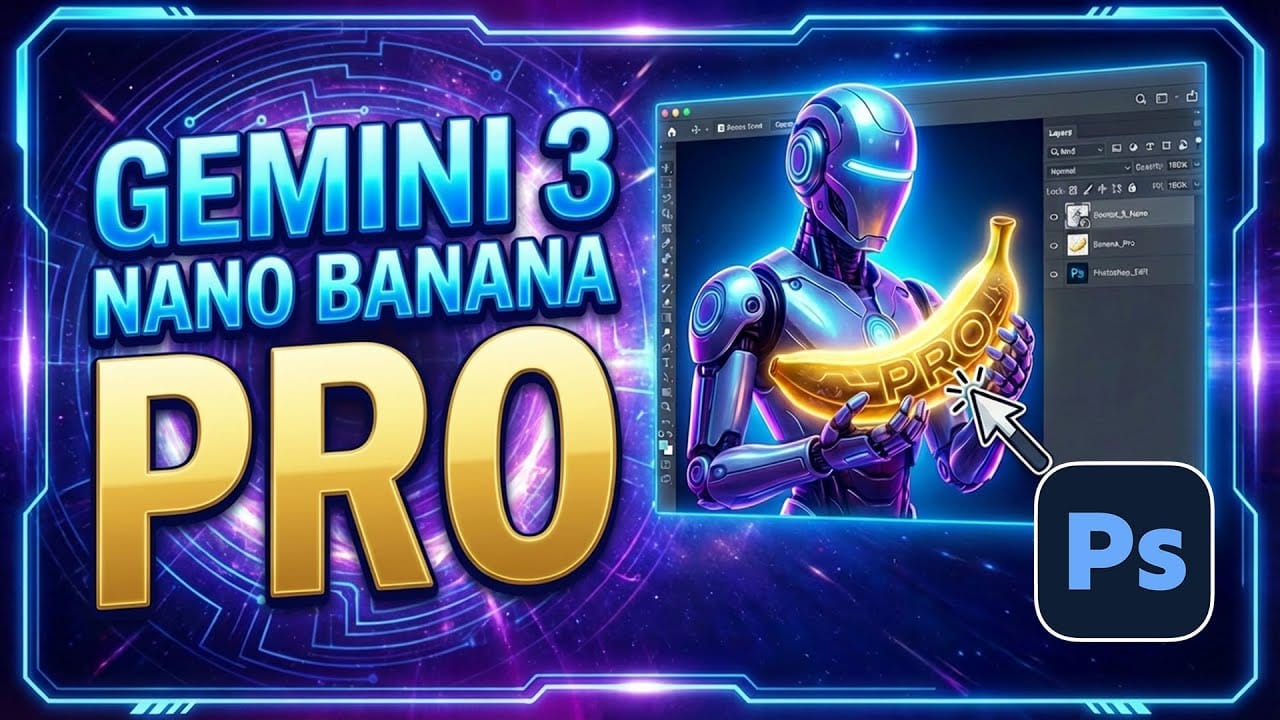
How to Use Gemini 3 Nano Banana Pro in Photoshop for Advanced AI Editing
Google's Gemini 3 Nano Banana Pro brings powerful AI capabilities to Photoshop with features like focus shifting, text recognition, and 4K resolution support. Adobe integrated this advanced model immediately upon release.
The tool excels at maintaining context while transforming images, creating storyboards, and generating realistic text replacements with proper fonts and reflections.
Watch the Video
Essential Tips for Gemini 3 Nano Banana Pro
* Put text prompts in quotation marks when wo
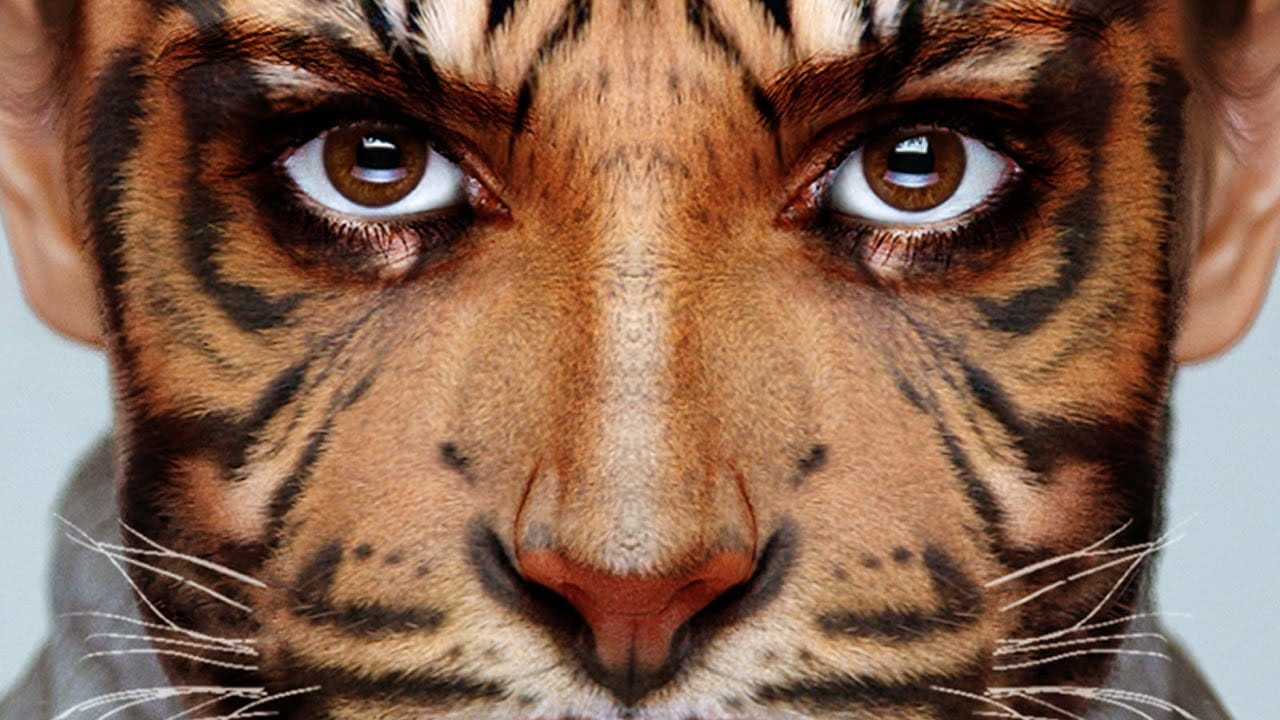
Transform your face into an animal
Digital face morphing transforms ordinary portraits into wild animal hybrids using advanced Photoshop techniques. This creative process combines human features with animal textures to create striking fantasy portraits.
The tutorial demonstrates how to seamlessly blend tiger features onto a human face using displacement mapping, layer masking, and warping tools for realistic results.
Watch the Tutorial
Essential Tips for Face Morphing
These key techniques will help you achieve professional-
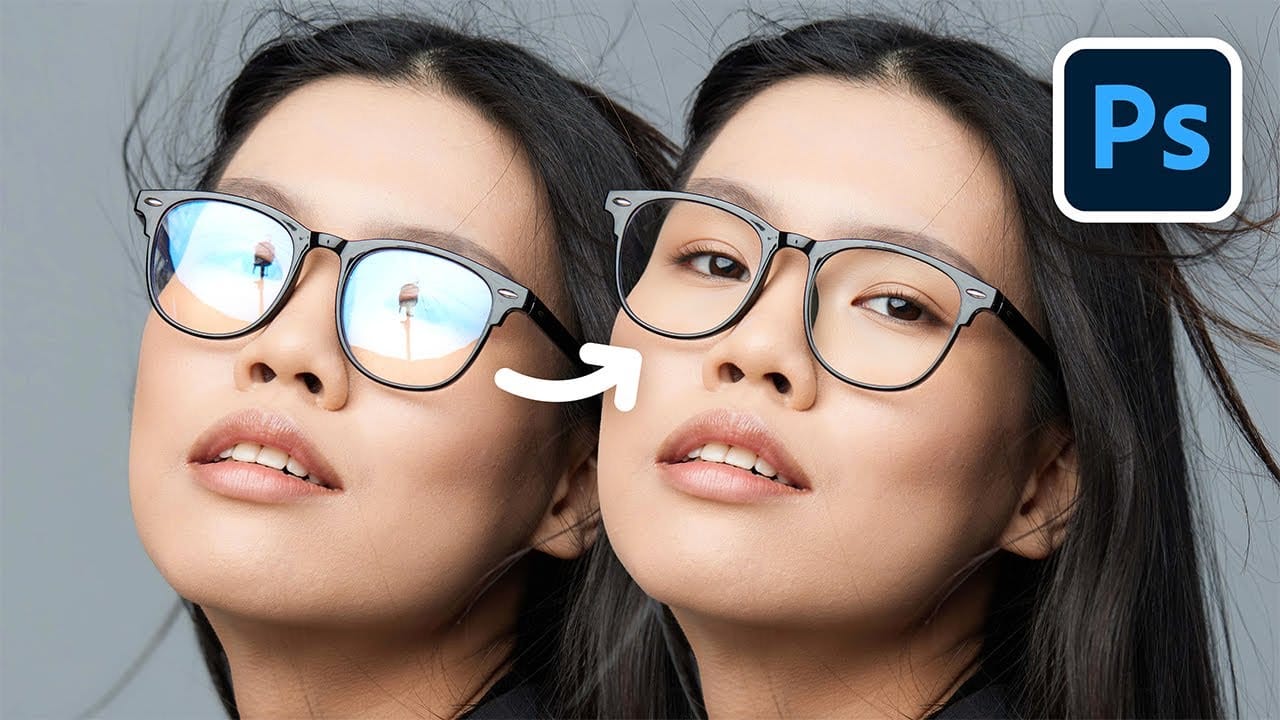
How to Remove Reflections and Glare from Glasses in Photoshop Using AI
Eyeglass glare can ruin an otherwise perfect portrait, obscuring the subject's eyes with bright reflections. Photoshop's AI tools now offer powerful solutions for removing even the most stubborn reflections while preserving natural eye details.
This tutorial demonstrates proven techniques using multiple AI models and strategic masking to tackle any glare situation professionally.
Watch the Tutorial
Essential Tips for Removing Glare with AI
* Use the Rectangular Marquee Tool for selections
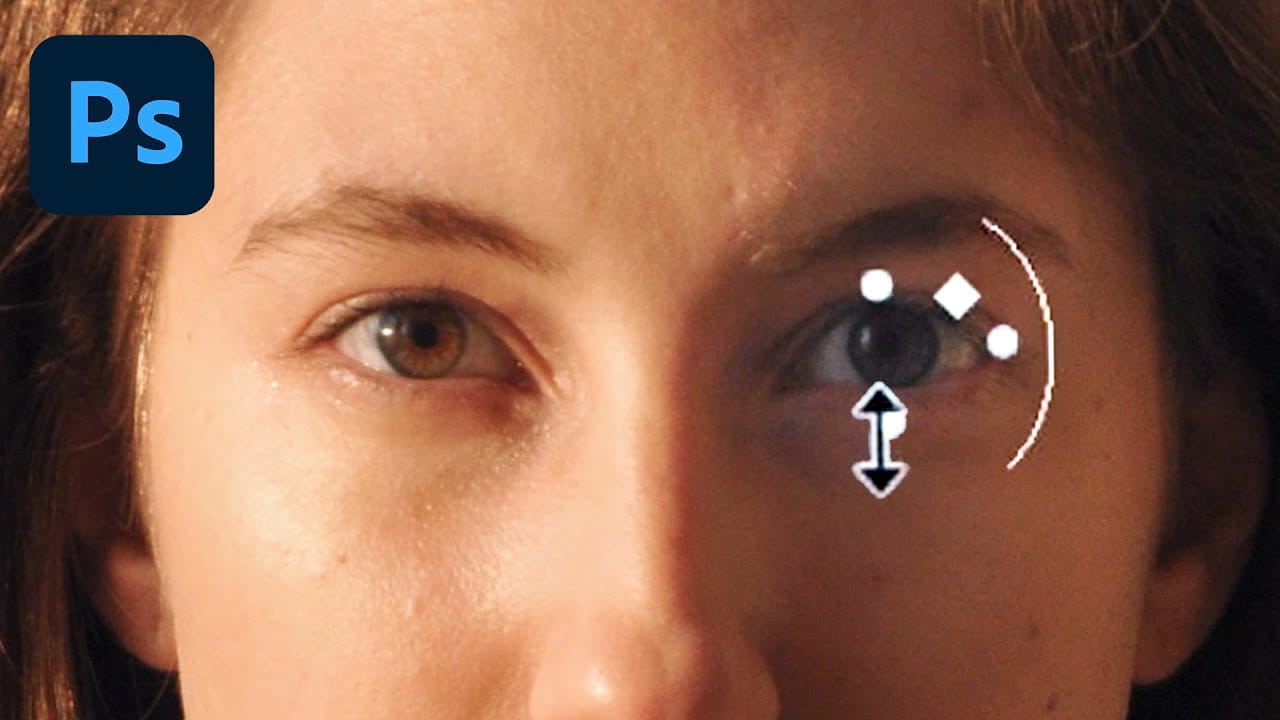
How to Adjust and Change Facial Features in Photoshop
Modern versions of Photoshop offer powerful AI-driven tools that can automatically detect and modify facial features with remarkable precision. The Face-Aware Liquify tool uses intelligent sliders to adjust eye size, nose dimensions, and mouth shape, while Neural Filters can alter facial expressions like happiness and surprise using cloud-based processing.
These techniques provide photographers and digital artists with sophisticated alternatives to manual retouching, though they raise important
How to Add Objects to Photos Using Photoshop's Generative Fill
Photoshop's Generative Fill transforms photo editing by letting you add realistic objects using simple text descriptions. This AI-powered feature creates seamless additions that match your image's lighting, perspective, and style.
The process requires just a basic selection and a descriptive prompt to generate professional-looking results in seconds.
Watch the Tutorial
Essential Tips for Generative Fill Success
* Make your selection slightly larger than the object you want to generate — t