Create a vintage movie effect from a photo

Create a vintage movie effect from a photo

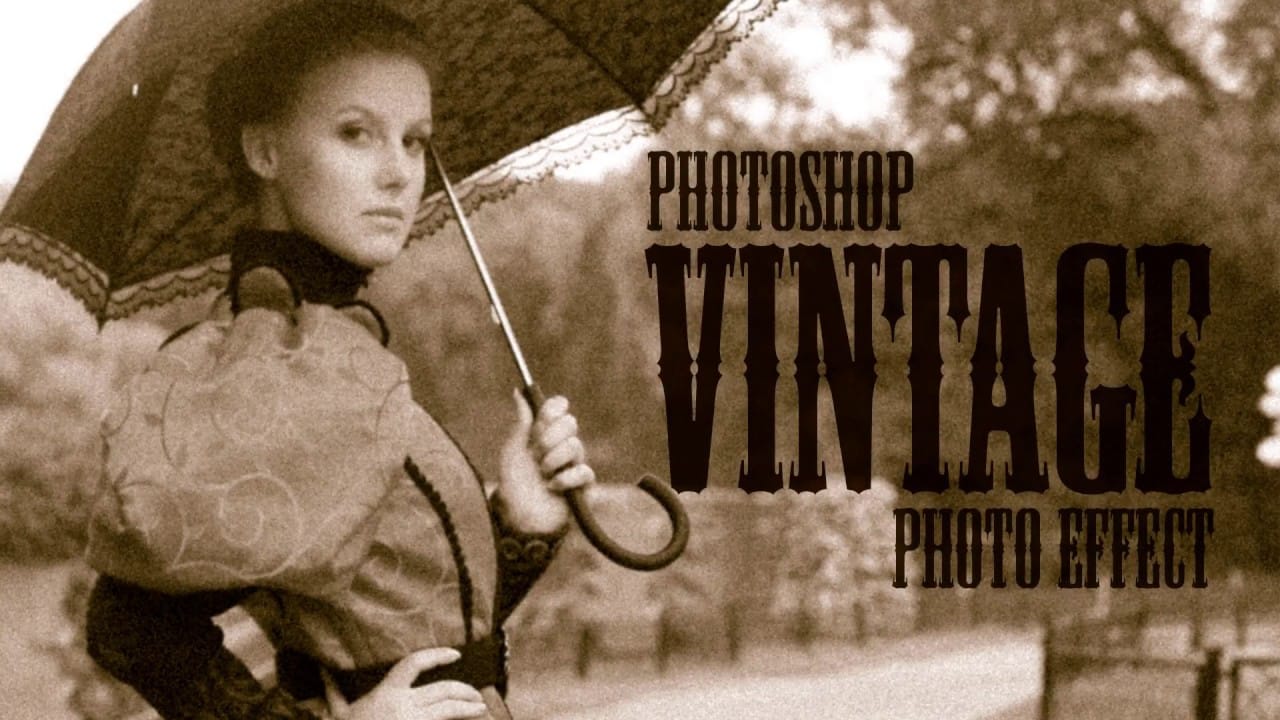
Transforming modern digital photographs into nostalgic, vintage-style images is a popular creative pursuit in photo editing. This technique allows you to evoke the aesthetic of bygone eras, adding character and a unique artistic flair to your contemporary shots.

In this tutorial, you will learn how to apply the distinctive look of an 8mm movie still frame to any color photograph using Adobe Photoshop. The process involves subtle adjustments to color, blur, and the integration of a specialized texture to achieve an authentic vintage feel.

Watch the Video

Video by Blue Lightning. Any links or downloads mentioned by the creator are available only on YouTube

The Charm of Vintage Aesthetics in Digital Art

The appeal of vintage photography lies in its ability to transport viewers to a different time, often evoking feelings of nostalgia and romanticism. Modern digital tools, like Photoshop, make it possible to replicate these classic looks without needing specialized analog equipment. This artistic choice is particularly effective for creating narrative-driven images or adding a timeless quality to personal photographs.

Achieving a convincing vintage effect often involves understanding the characteristics of old film. Key elements include:

  • Reduced color saturation
  • Subtle blurring or softness
  • Presence of grain, scratches, or other film imperfections

By carefully manipulating these factors, digital artists can mimic the imperfections and unique charm that define photographs from earlier eras, such as those originating from 8mm film.

Practical Tips for Vintage Photo Effects

  • Unlock the background layer to allow for flexible positioning and editing of your image.
  • Use Place Embedded to import your photo, automatically converting it to a Smart Object for non-destructive adjustments.
  • Apply a subtle Gaussian Blur (1-3 pixels) to soften the image, replicating the less sharp quality of vintage film.
  • Adjust the Hue/Saturation layer to reduce color saturation, typically between minus 50 to minus 80, based on your photo's original vibrancy.
  • Utilize a film scratch texture with the Multiply Blend Mode to realistically simulate wear and tear on old film.

Explore more resources to enhance your skills in creating vintage and antique photo effects in Photoshop.
Create a realistic old vintage photo effect in Photoshop
Photographs are timeless. In fact, it’s often our old, weathered and faded photographs that we treasure the most. Snapshots from a bygone era fill our hearts with nostalgia and romantic notions of how much simpler life must have been. While today’s digital cameras continue to amaze us with their technology, there’s still something magical and irreplaceable about old, vintage photographs. And not only do we love to look at them, but we also love to recreate the look of them in programs like Phot
Create an Old Photo Effect in Photoshop
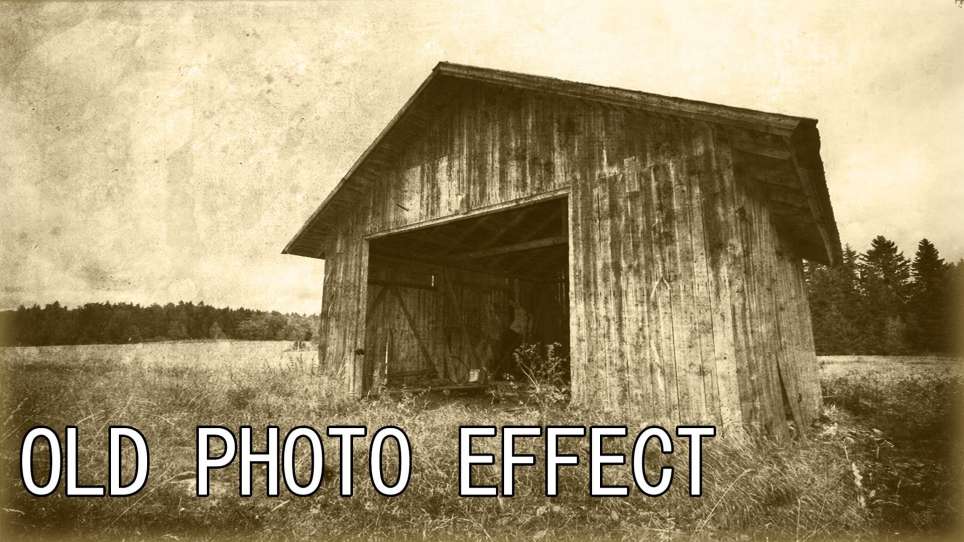
The author, Photoshop Pro Help, provides a tutorial on how to create an old photo effect in Photoshop. They explain that if you have ever admired the style of vintage photos and wanted to give your modern photos a similar look, this tutorial will show you how to apply an old photo style with a torn and damaged brown vintage effect. This can transform your photos to look as if they were taken straight from a history book. The tutorial guides the user through the process of achieving this retro a
How to Create a Vintage, Film Noir Movie Title in Photoshop
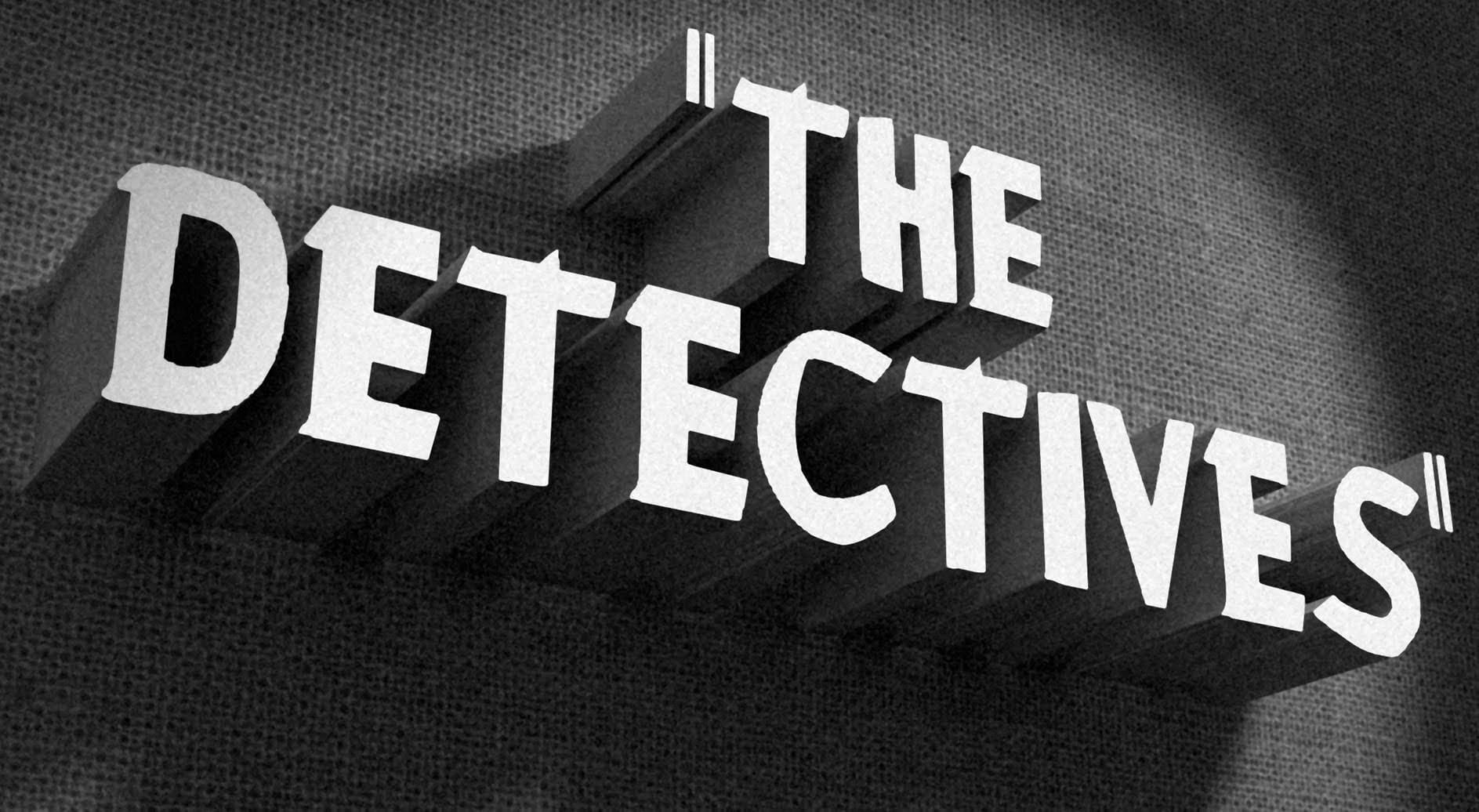
In this Photoshop tutorial by BlueLightning TV, you'll learn how to design and create a film noir movie opening title card, reminiscent of crime dramas from the 1940s and 1950s. The tutorial guides you through the process step-by-step, demonstrating techniques to achieve the classic film noir aesthetic using typography, textures, and atmospheric effects in Photoshop. Whether you're a fan of vintage cinema or looking to create a nostalgic title card for a project, this tutorial provides the ski
Create an antique golden frame in Photoshop
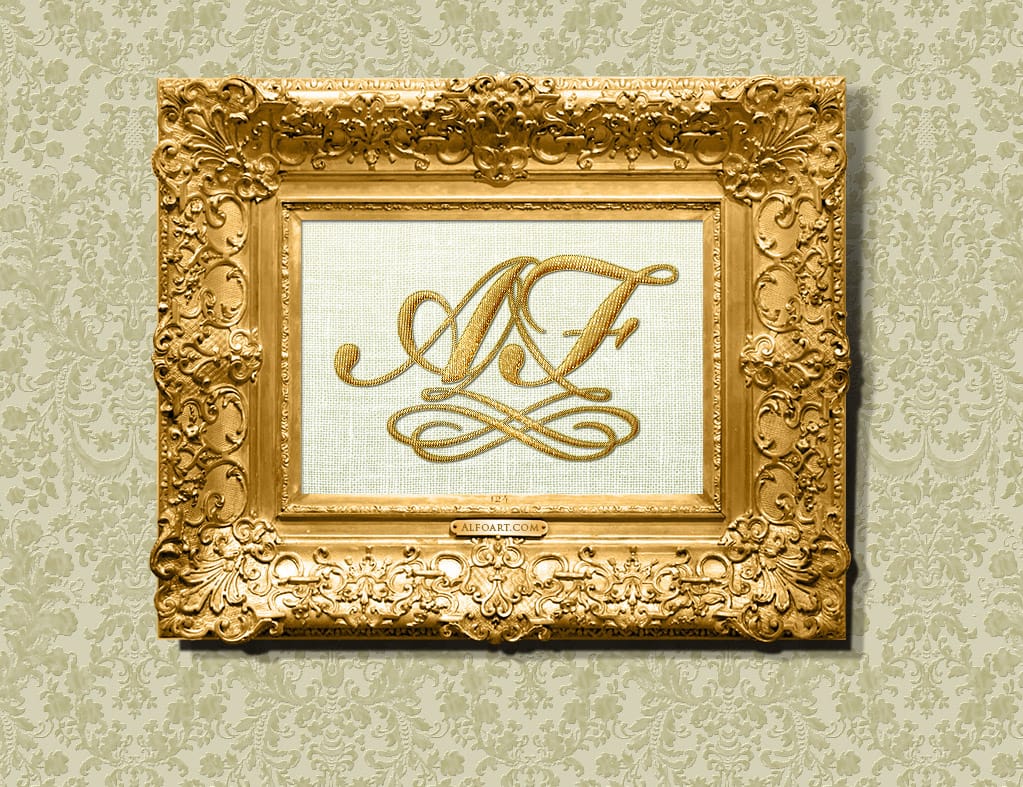
In this tutorial from Alfoart you will learn how to create a beautiful and classy antique golden frame, using patterns, in Photoshop Alexandra Fomichieva from Alfo Art shares a Photoshop tutorial on how to create an image of a monogram sewn with golden thread on a linen cloth. The tutorial guides the user through framing the monogram with a golden wooden frame and placing it on a wall covered with a damask ornate wallpaper. The author provides step-by-step instructions, making it easy for user

Get tutorials & freebies delivered to you.

Subscribe to the Photoshop Roadmap newsletter, a weekly roundup of new tutorials, insights and quality downloads, trusted by 6500+ readers.

You might also like

How to Expand Photos Beyond Their Edges Using AI Generative Expand in Photoshop

Sometimes your best photos need more breathing room or a different aspect ratio. Generative Expand in Photoshop lets you extend your canvas beyond the original image boundaries, using AI to intelligently fill in missing areas with content that matches your scene. This technique works for changing portrait photos to landscape...

How to Create Digital Scrapbook Carousels in Photoshop

Digital scrapbook pages capture memories beautifully, but a single page limits your storytelling. Creating a carousel format lets you design multiple connected panels that work together as one cohesive piece while giving viewers more content to explore. This technique uses frames, custom shapes, and smart export settings to build templates...

How to Use Auto Align Layers in Photoshop for Perfect Layer Alignment

When working with multiple layers that need perfect alignment, manual positioning often falls short. Slight camera movement, different crops, or rotated images can make precise alignment seem impossible through visual adjustment alone. Auto Align Layers automatically handles rotation, scaling, and positioning to create perfect layer alignment, even when images have...

How to Use Nano Banana Pro in Adobe Firefly for Advanced AI Image Generation

Adobe Firefly now includes Gemini 3 with Nano Banana Pro, offering sharper 2K image generation with improved text clarity and precision blending. This advanced AI model works seamlessly within Firefly's generative workspace, enabling powerful workflows like multi-image composition and virtual try-on effects. The integration provides access to sophisticated...

Create Colorful Retro Text Compositions in Photoshop

Retro design trends continue to captivate audiences with their bold colors and geometric shapes. This tutorial demonstrates how to build a complete vintage-inspired composition using text, geometric elements, and vibrant color schemes that capture the essence of classic graphic design. You'll learn to combine typography with custom shapes,...

Photoshop's New Color and Temperature Tool for Advanced Color Grading

Photoshop's latest update introduces temperature and tint controls directly into the adjustment layer panel, bringing white balance tools from Camera Raw into the main editing workspace. This addition transforms color grading workflows by enabling precise local adjustments with custom brushes and blend modes. The new Color and Vibrance...

You’ve successfully subscribed to Photoshop Roadmap
Welcome back! You’ve successfully signed in.
Great! You’ve successfully signed up.
Success! Your email is updated.
Your link has expired
Success! Check your email for magic link to sign-in.