Create a stunning superhero emblem in Photoshop

Create a stunning superhero emblem in Photoshop

This tutorial explores the foundational steps for designing a custom superhero emblem in Adobe Photoshop. It focuses on establishing the core visual elements that give an emblem its distinct character and impact.

Viewers will learn how to prepare their workspace, create a distinctive carbon fiber background, and construct the basic template for their unique emblem, setting the stage for further design in Part 2.

Watch the Tutorial: Building Your Emblem Base

Video by Blue Lightning. Any links or downloads mentioned by the creator are available only on YouTube

The Art of Emblem Design: Form and Function

Emblems serve as powerful visual shorthand, condensing complex ideas or identities into a single, memorable graphic. In the realm of superhero design, an emblem is more than just a logo; it's a symbol of character, power, and narrative. The initial phase of emblem creation, as demonstrated in this tutorial, prioritizes establishing a strong foundational shape and structure.

This early focus on form ensures that the emblem possesses inherent balance and visual strength, even before the application of colors, textures, or lighting effects. A well-constructed base provides the necessary framework for subsequent detailing, allowing designers to layer complexity without compromising the emblem's core legibility and impact.

Key considerations at this stage include: defining the overall silhouette, ensuring symmetrical precision, and establishing clean lines that will carry through the final design. These fundamental choices dictate how the emblem will resonate visually and functionally.

Practical Tips for Emblem Template Creation

  • Initialize your Photoshop document with specific dimensions and resolution for optimal clarity and detail in your emblem.
  • Utilize guidelines and the Snap feature to precisely align elements and maintain symmetry in your design's template.
  • Employ the Pen Tool with Shift to draw accurate 45-degree and horizontal paths, ensuring clean, geometric shapes for your emblem's foundation.
  • Merge duplicated shapes (Ctrl or Cmd + E) to create composite forms, streamlining your layer management for complex emblem designs.
  • Use layer masks with selection tools (Rectangular Marquee Tool, Pencil Tool) to precisely define and refine the boundaries of your emblem's text or core shape.

More Tutorials about Logo and Emblem Design

Explore additional resources to deepen your understanding of logo creation and graphic design techniques in Photoshop.
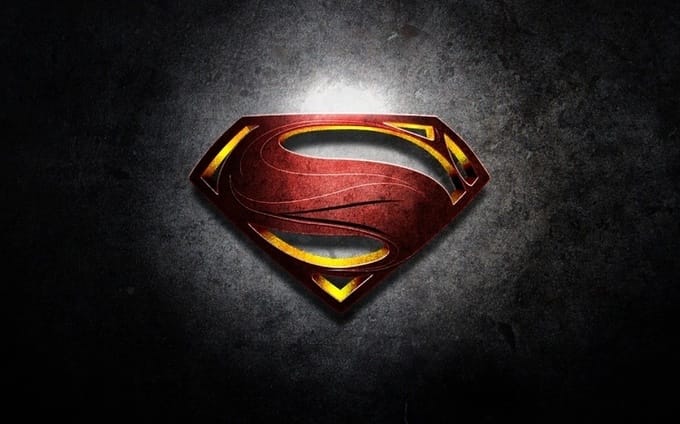
Create the Man of Steel Symbol in Illustrator and Photoshop
This tutorial by Abduzeedo guides you through the process of creating the iconic Superman, Man of Steel logo using Adobe Illustrator and Photoshop. You will learn to combine vector design techniques with photo manipulation, making the final result both striking and professional. Throughout the tutorial, you will use various stock photos for textures and reference the original movie poster to achieve an authentic look. The estimated time to complete this project ranges from 3 to 5 hours, dependi
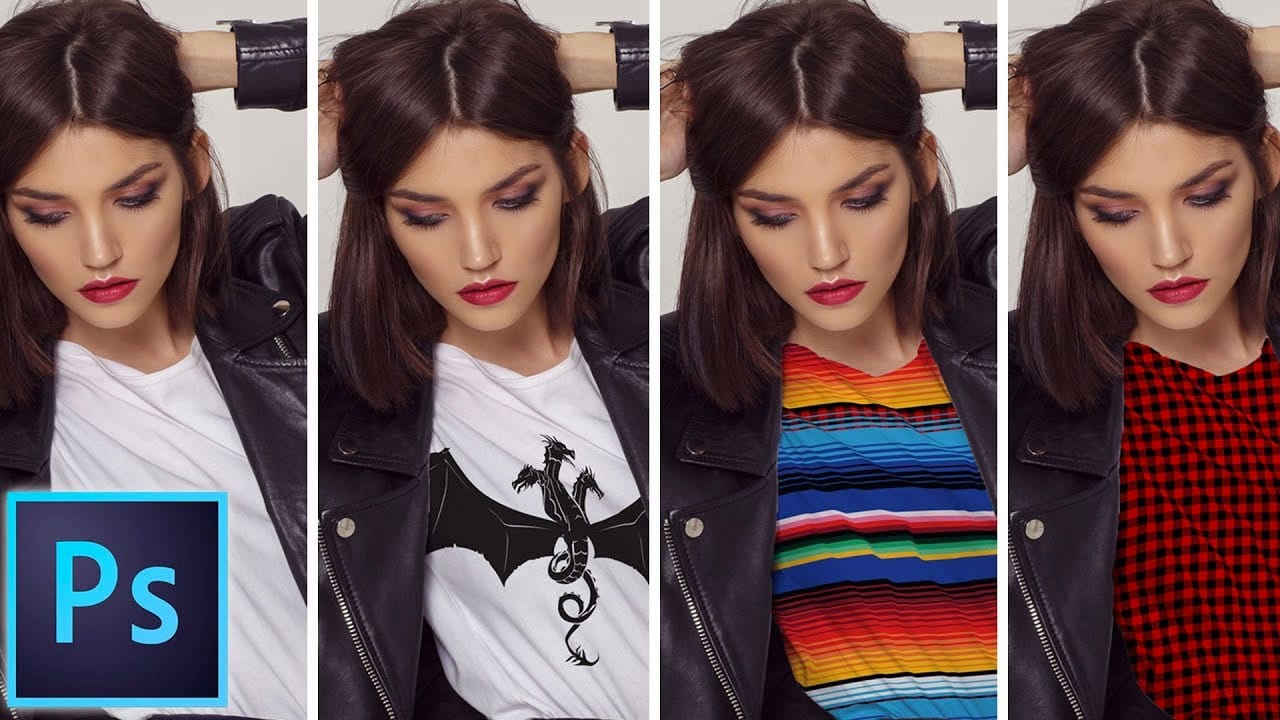
How to add a logo or pattern to a shirt in Photoshop
In his Photoshop tutorial, author Colin Smith guides viewers through the process of adding a logo, graphic, pattern, or texture onto clothing. This technique allows for quick and easy customization of apparel, enabling users to swap out designs in a matter of seconds. Smith's step-by-step instructions demonstrate how to seamlessly incorporate the desired visual element onto a shirt or other garment. By leveraging the power of Photoshop's layers and blending modes, users can achieve a profession
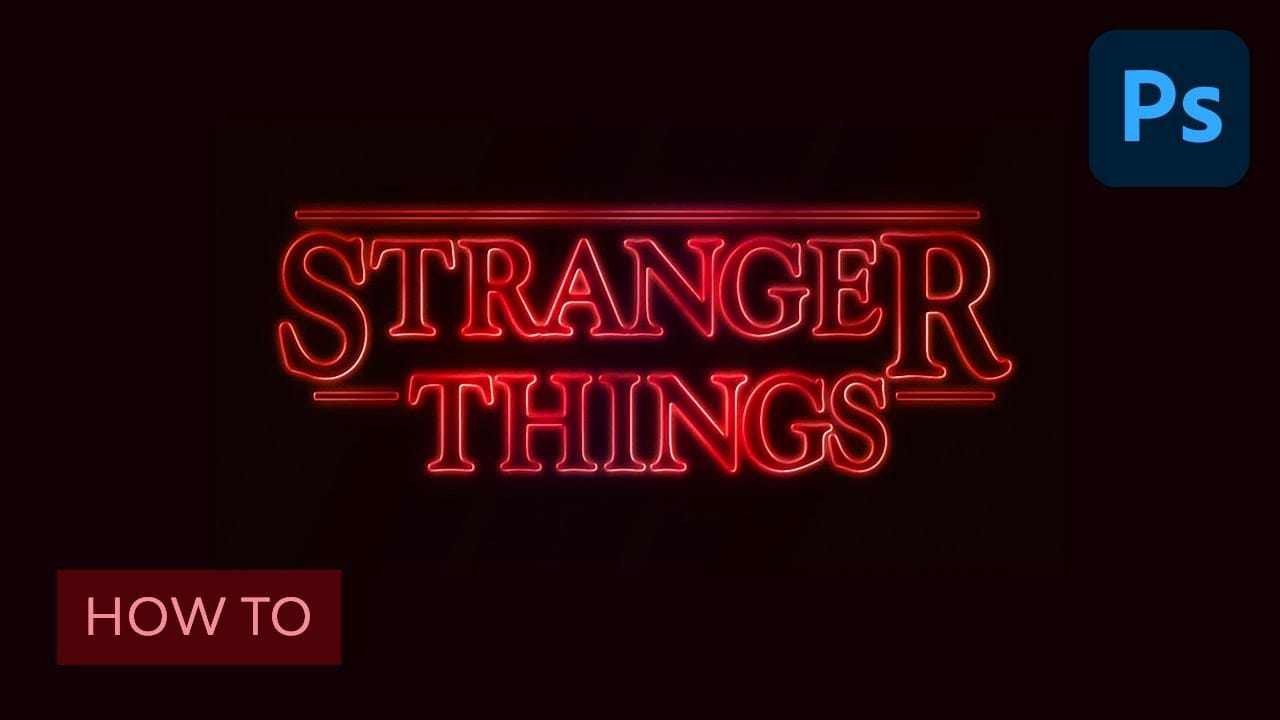
Learn how to create the Stranger Things tv show logo in Photoshop
Netflix’s Stranger Things is a hit. So is the 80’s culture revival. Horror movies from that time were scary and fun at the same time and that’s something this show was able to capture with success. But for those who aren’t designers, there was something that helped to set that ambiance: the awesome 80’s styled logo. If you think you saw it before, but don’t remember where, just go to your bookshelf and grab some of your old Stephen King books. And if you still have them, then check your Choose
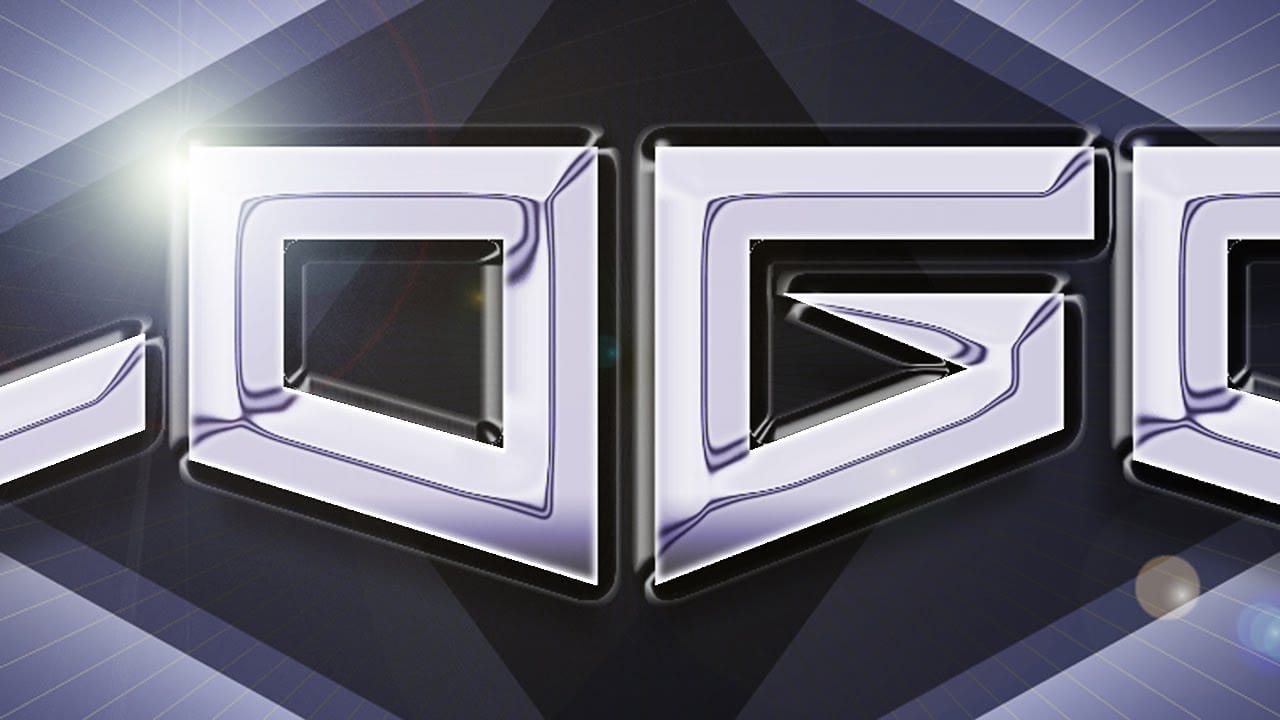
Create a sleek chrome logo in Photoshop
In this Photoshop CC tutorial by Marty Geller from Blue Lightning TV, you'll learn how to design and create stunning logos, emblems, and monograms. The tutorial guides you through the process of creating a sleek, chrome logo from scratch, covering techniques for adding metallic textures, reflections, and depth. By following this step-by-step guide, you'll be able to produce professional-looking chrome designs that stand out with their polished and sophisticated appearance. Watch tutorial

Get tutorials & freebies delivered to you.

Subscribe to the Photoshop Roadmap newsletter, a weekly roundup of new tutorials, insights and quality downloads, trusted by 6500+ readers.

You might also like

How to Wrap Designs Around Complex Objects Using Displacement Maps in Photoshop

Professional mockups require more than simply placing a design onto an object. Complex surfaces like crushed aluminum cans demand advanced techniques to achieve realistic wrapping that follows every contour and deformation. This process combines displacement mapping, smart objects, and blending modes to create reusable templates that automatically conform any design...

How to Fix Three Confusing Default Settings in Photoshop

Sometimes Photoshop's default settings can make beginners think their software or hardware is broken. Images that fly around uncontrollably when panning, scroll bars appearing on full-size images, and zoom tools that seem to have a mind of their own are all caused by simple preference settings that can...

How to Create Better Shadows Than Drop Shadow in Photoshop

The basic drop shadow effect often looks flat and artificial compared to how shadows actually behave in real environments. Professional designers know that convincing shadows require understanding light direction, surface interaction, and atmospheric perspective. This technique demonstrates how to create custom shadows that respond naturally to your composition's...

How to Customize Your Photoshop Toolbar and Find Hidden Tools

A cluttered toolbar can slow down your workflow when you can't find the tools you need. Meanwhile, dozens of useful tools remain hidden in groups or completely out of sight. Learning to customize your toolbar lets you organize tools according to your actual workflow, remove tools you never...

How to Change Backgrounds and Match Lighting in Photoshop

Creating seamless background replacements requires more than just cutting out your subject. The real challenge lies in making the new composition look natural through proper lighting, color matching, and depth of field consistency. Modern Photoshop tools have simplified this process significantly, allowing you to achieve professional results with automated background...

How to Create a Colorful Aura Effect for Portraits in Photoshop

Portrait photography becomes truly captivating when enhanced with atmospheric effects that draw the viewer's eye. The colorful aura effect transforms ordinary portraits into striking visual statements by surrounding the subject with ethereal, glowing light that feels both magical and professional. This technique works best with portraits shot against...

You’ve successfully subscribed to Photoshop Roadmap
Welcome back! You’ve successfully signed in.
Great! You’ve successfully signed up.
Success! Your email is updated.
Your link has expired
Success! Check your email for magic link to sign-in.