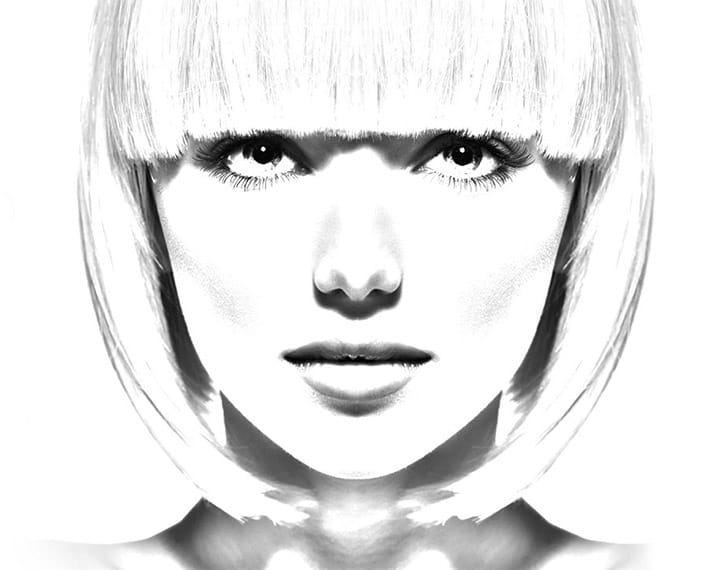
Turn any photograph into a realistic pencil drawing with this comprehensive Photoshop technique. This method creates a reusable template that transforms photos into detailed sketches with multiple texture layers and smart object functionality.
The tutorial builds a complete PSD file you can use repeatedly on different images with just a few clicks.
Watch the Tutorial
Tips for Better Pencil Sketch Effects
These techniques will help you create more realistic and professional-looking sketch effects:
- Use the Blend If sliders to preserve highlight areas and create natural-looking transparency in bright regions
- Split the blend sliders by holding Alt while dragging to create smooth transitions instead of harsh edges
- Apply pattern overlays to groups rather than individual layers to maintain the blend mode effects
- Layer multiple sketch patterns with different scales to build texture depth and variation
- Keep detail layers at low opacity (around 20%) to enhance the effect without overpowering the sketch texture
Related Tutorials about Photo Sketch Effects
Explore more techniques for creating artistic photo transformations in Photoshop.
Photo to sketch effect in Photoshop
In this tutorial, Jesus Ramirez from the PTC Photoshop Training Channel demonstrates how to transform photos into pencil sketch drawings. Ramirez guides viewers through the process step-by-step, providing clear instructions and helpful tips along the way.
The tutorial begins by explaining the necessary tools and settings within Photoshop. Ramirez then walks users through the image conversion process, showing how to adjust layers, filters, and blending modes to achieve the desired pencil sketch
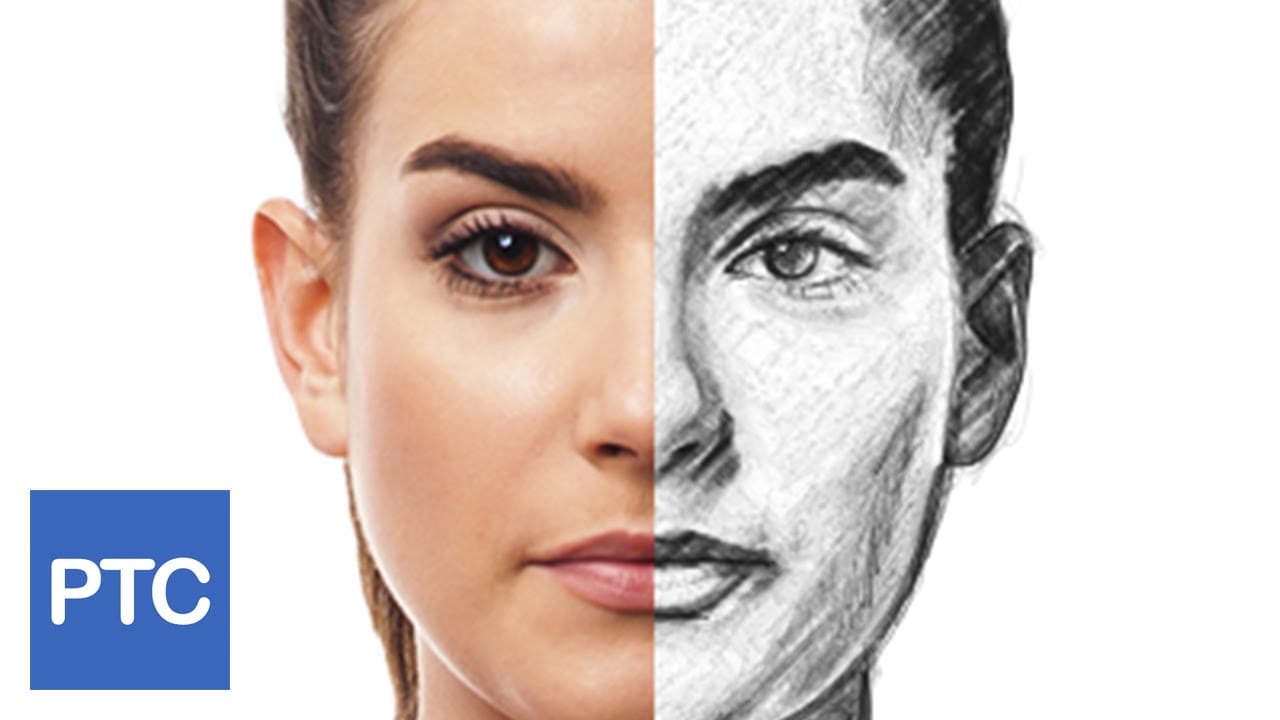
Turn a Photo into a Pencil Sketch Drawing in Photoshop
In this Photoshop tutorial by Tony from Psych Studio, learn to transform photos into realistic pencil sketches using advanced techniques.
The instructor avoids basic filters, focusing on duplicating layers, desaturating images, and applying precise blending modes like Gaussian blur to mimic authentic pencil strokes. This approach ensures sketches maintain a natural, hand-drawn quality rather than a digital filter appearance. Ideal for designers seeking to integrate a hand-drawn look into digita
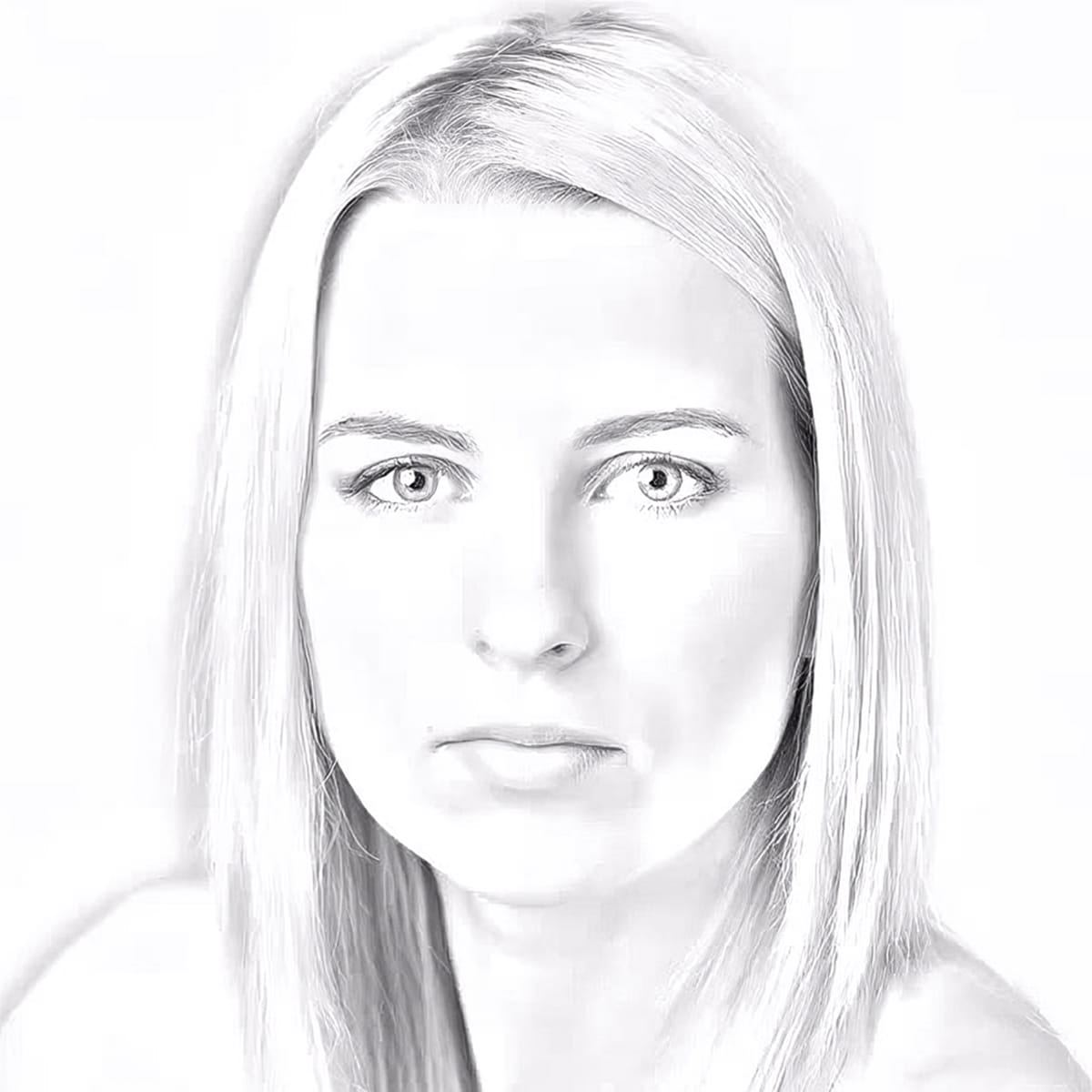
Add a Painterly Effect to a Portrait in Photoshop
Transforming a simple photograph into a breathtaking pencil sketch is a skill that sits at the intersection of art and technology. For designers seeking to push the boundaries of their creativity, mastering this technique can open up new avenues for artistic expression. Adobe Photoshop, with its vast array of tools and features, provides the perfect platform to achieve this intricate effect. In today's post, we delve into the sophisticated process of turning a photo into a pencil sketch, offerin
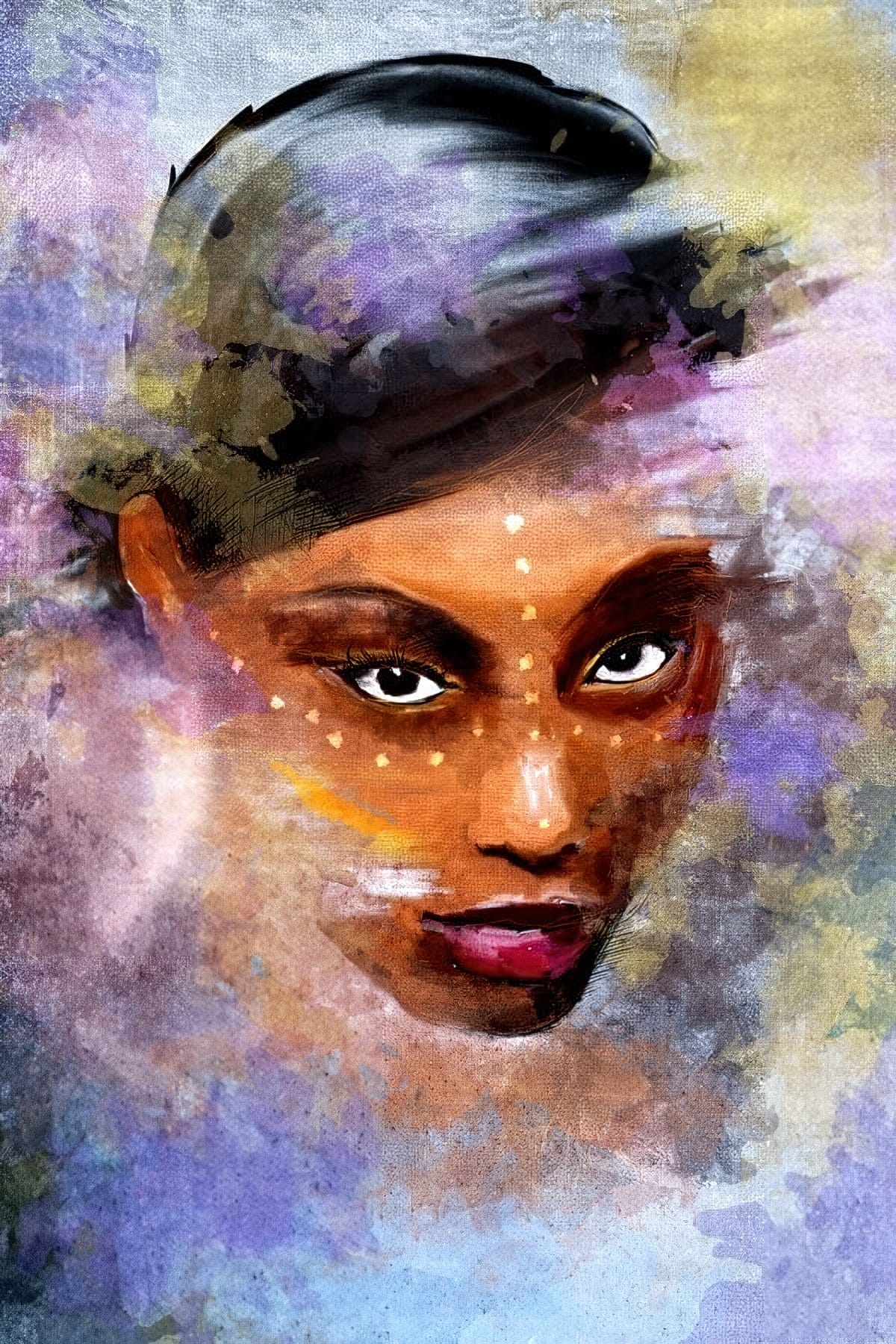
Turn your photo into a pencil sketch in Photoshop
In the world of Photoshop, some effects are timeless classics. Turning a portrait photo into a sketch is one of them. With just a few simple clicks, any portrait can be turned into a beautiful drawing, and any photographer can feel like an accomplished graphic artist.
In this tutorial, Steve Patterson from Photoshop Essentials guides you step by step as you learn how to easily convert any portrait into a black and white pencil sketch with Photoshop. But it doesn't end there. Steve also shows yo