Concept Development and Mood Boarding with Firefly Boards for Fashion Design

Concept Development and Mood Boarding with Firefly Boards for Fashion Design

Fashion design concept development traditionally requires gathering inspiration from multiple sources, creating mood boards, and iterating through ideas before presenting to clients. Firefly Boards streamlines this entire workflow into a single workspace where you can source inspiration, generate new variations through AI remixing, and organize final concepts into professional presentations.

The platform combines reference gathering, AI generation, and client presentation tools, allowing designers to move from initial inspiration to polished mood boards without switching between applications.

Watch the Video

Video by Adobe. Any links or downloads mentioned by the creator are available only on YouTube

Practical Tips

These strategies will help you build effective concept boards and generate compelling design variations.

  • Start with inspiration from the Adobe Stock Library, then use the remix feature on multiple selected images to generate new concept variations
  • Use composition reference settings when working with your own sketches to maintain the structure while exploring different visual styles
  • Create themed artboards with dark backgrounds to organize concepts by style direction before client presentations
  • Remove backgrounds from generated elements to maintain visual consistency across your mood board layouts
  • Export high-resolution versions directly to Photoshop for further refinement and illustration development

Explore these guides to expand your creative workflow and master additional techniques.

Complete Guide to Adobe Firefly Interface and Creative Modules
Adobe Firefly brings generative AI directly to your creative workflow through a comprehensive web interface. The platform combines multiple AI-powered modules for image generation, video creation, and design tasks, all built on commercially safe, licensed content. Understanding the interface and available tools helps you integrate these capabilities into existing projects or explore entirely new creative directions. Watch the Video Practical Tips These strategies will help you make the mos
Three Ways to Start Creative Projects with Adobe Firefly
The blank page is one of creativity's biggest challenges. That moment when you have an idea but struggle to translate it into something visual can block entire projects before they begin. Adobe Firefly offers three distinct approaches to bridge this gap: Text to Image for clear concepts, reference images for brand consistency, and Firefly Boards for team collaboration. Each method targets different creative situations and helps move ideas from concept to execution. Watch the Video Practical
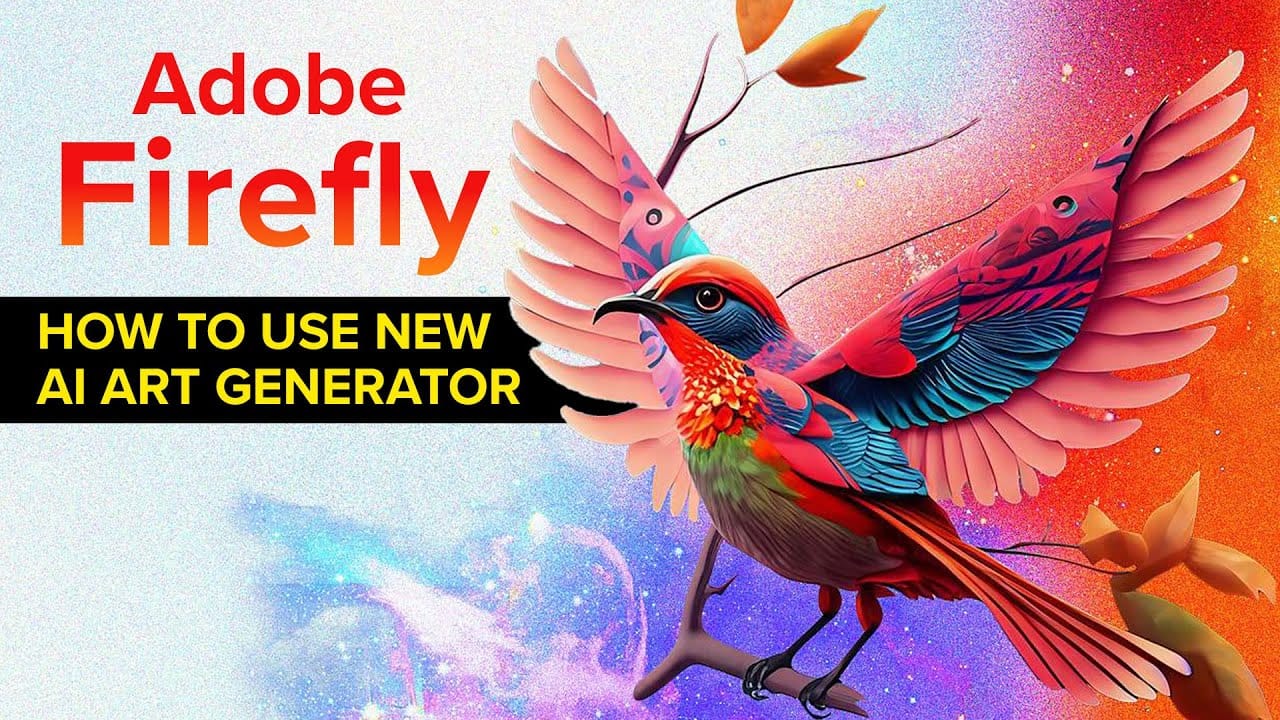
Firefly, Adobe's new AI art generator will change the way we create art forever.
Experience a groundbreaking transformation in the world of art with Adobe's latest AI art generator, Firefly. Using advanced algorithms, Firefly can create unique, lifelike images that were previously impossible to generate. This innovative technology offers artists a world of possibilities for creative expression and fresh design concepts. In this post, we'll explore the power of Firefly and how it's set to change the game for artists worldwide. Join us as we delve into the world of AI art gen
Complete Visual Storytelling Workflow Using Adobe Firefly Boards and Video Editor
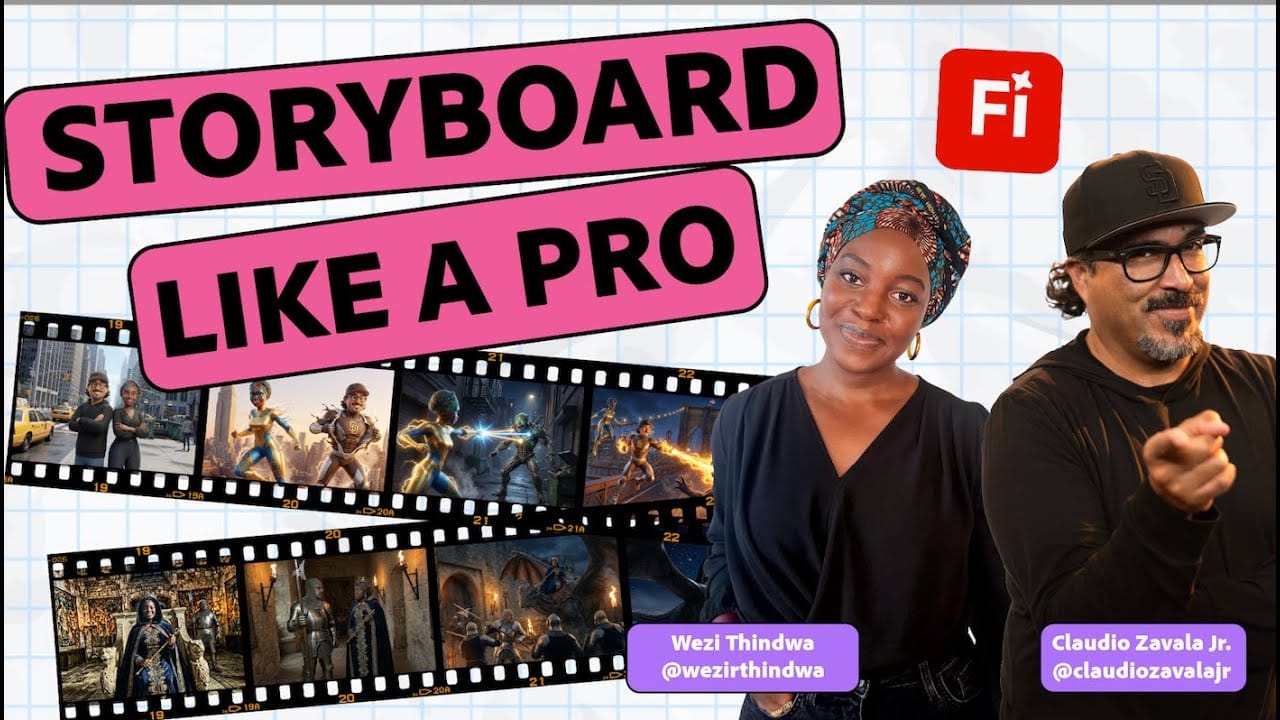
Visual storytelling transforms abstract ideas into compelling narratives through a structured workflow from initial concept to finished video. Adobe Firefly Boards provides an integrated workspace where you can generate story concepts, create detailed storyboards, and produce animated video sequences without switching between multiple applications. This comprehensive approach demonstrates how generative AI can support every stage of the creative process, from overcoming creative blocks to deliv
Style Transfer Creation Using Firefly Boards
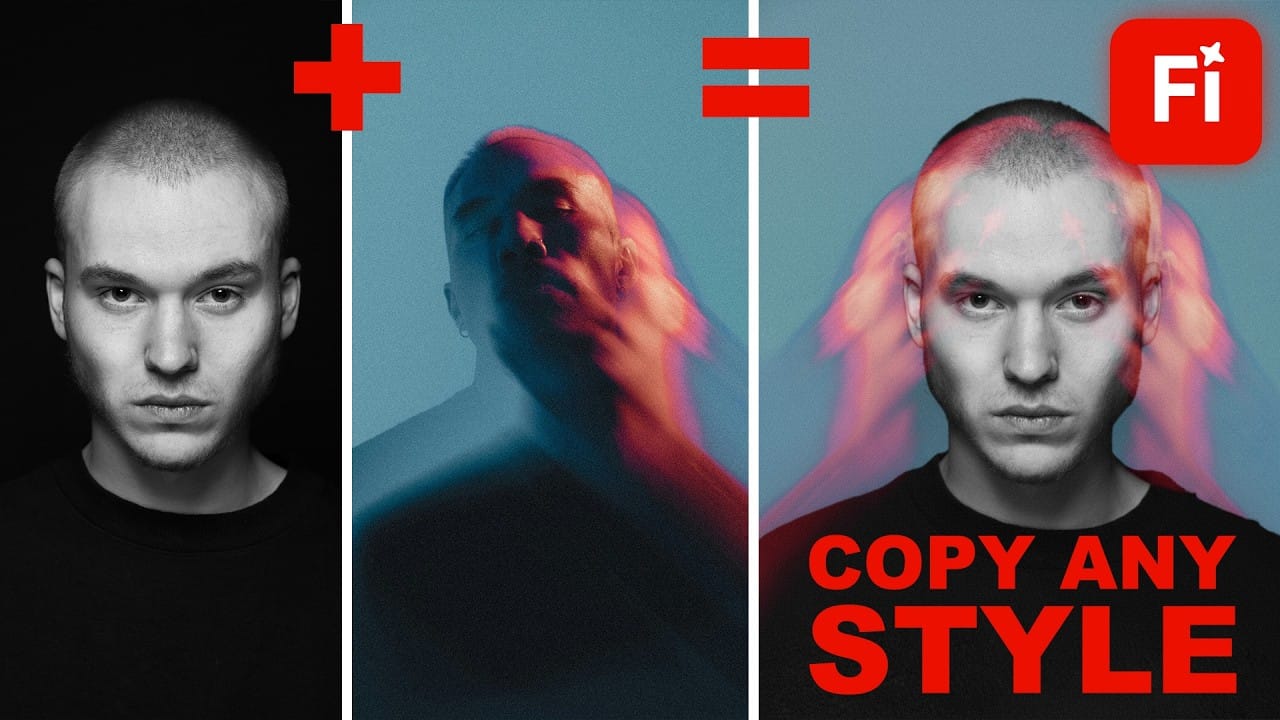
Firefly Boards offers a unified workspace where you can transfer photographic styles from reference images to your own photos, then transform those styled images into animated videos. This workflow combines multiple AI models in one interface, allowing you to access advanced image generation and video creation tools without switching between different applications. The process uses simple drag-and-drop functionality and text prompts to merge visual styles, then applies motion effects to create
Text to Image with Adobe Firefly: Complete Workflow Guide
Text to Image generation transforms simple descriptions into high-quality visuals through AI-powered tools. This workflow combines creative prompting with precise controls to produce everything from initial concepts to production-ready assets. The process requires both technical understanding and creative decision-making. Success comes from iterative refinement, strategic prompt construction, and knowing how to guide the AI model toward your specific vision. Watch the Video Practical Tips
Unfolding Paradoxes: How Adobe Firefly Transforms Abstract Concepts Into Visual Realities
AI image generation has revolutionized how artists and designers explore creative concepts. These tools, like Adobe Firefly, are built with one primary objective: to serve the user's vision. Their extensive training prepares them to interpret precise prompts, guided by established techniques like keyword specificity, compositional references, and style definitions. The process is a collaboration where the user outlines a vision, and the AI diligently shapes it, often with extraordinary fidelity.
Mineral Splendor: A Macro Journey Through Crystals, Stones, and Craftsmanship Created with Adobe Firefly
In visual art, the fusion of natural beauty and human craftsmanship has long been a profound source of inspiration. Whether it is the intricate designs of a finely cut gemstone or the raw allure of an unpolished mineral, the interplay of light, texture, and color evokes an undeniable fascination. In recent years, the advent of AI-driven tools like Adobe Firefly has opened new creative frontiers, allowing artists to explore these natural wonders in ways that were once unimaginable. AI Image Gen
Turn Anything into Realistic 3D with Photoshop and Firefly
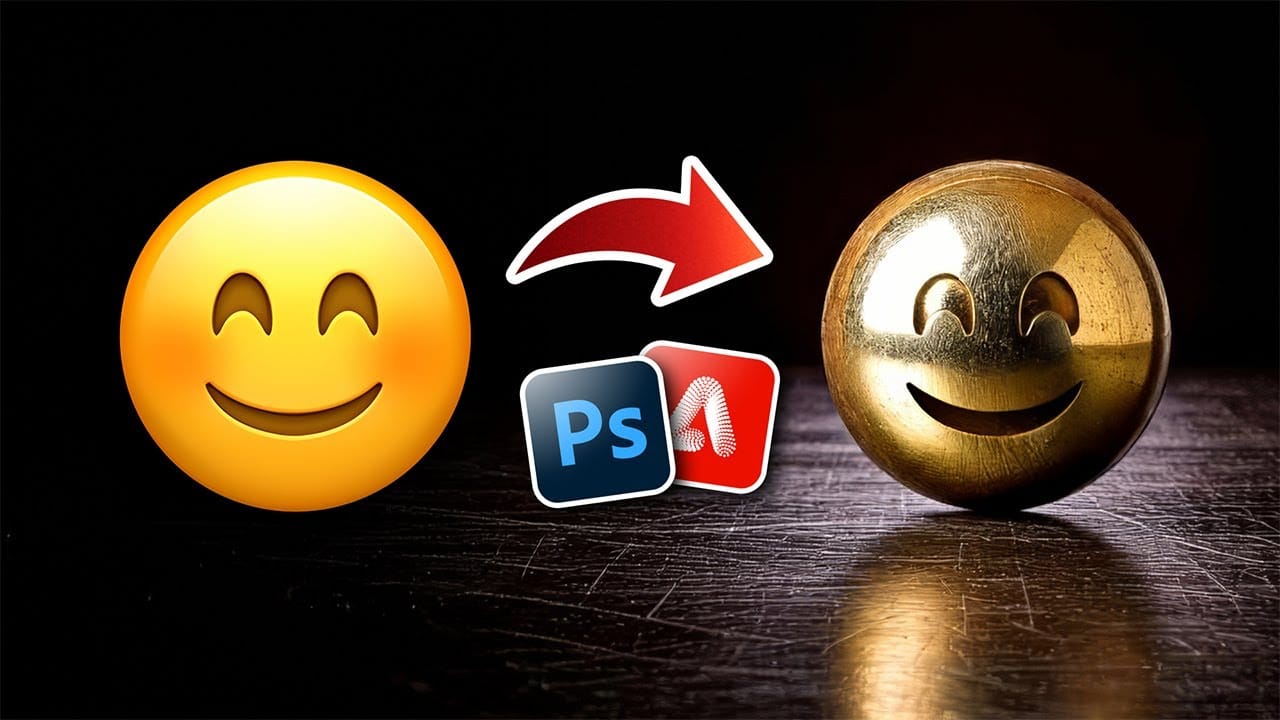
Achieving realistic 3D effects from simple 2D shapes can significantly enhance your designs. This process becomes remarkably accessible with the integration of generative AI tools like Adobe Firefly into Photoshop. This tutorial demonstrates a streamlined workflow, enabling you to transform ordinary graphics into striking, dimensional visuals. You gain control over surface textures, reflections, and dramatic lighting, pushing creative boundaries with ease. Watch the Video Bridging 2D and 3D
How to Use Nano Banana Pro in Adobe Firefly for Advanced AI Image Generation
Adobe Firefly now includes Gemini 3 with Nano Banana Pro, offering sharper 2K image generation with improved text clarity and precision blending. This advanced AI model works seamlessly within Firefly's generative workspace, enabling powerful workflows like multi-image composition and virtual try-on effects. The integration provides access to sophisticated presets and reference image capabilities that go beyond basic Photoshop workflows, making complex generative tasks simple and intuitive. W

Get tutorials & freebies delivered to you.

Subscribe to the Photoshop Roadmap newsletter, a weekly roundup of new tutorials, insights and quality downloads, trusted by 6500+ readers.

You might also like

How to Create a Steel Engraving Effect from Photos in Photoshop

Steel engravings were a traditional printmaking technique that created intricate illustrations with fine lines and rich tonal variation. This effect transforms ordinary photographs into artwork that mimics the detailed crosshatching and precise lines characteristic of vintage engravings found in old books and currency. The technique combines strategic filter combinations with...

How to Customize Your Photoshop Workspace for Better Workflow

A cluttered workspace can overwhelm new users and slow down experienced editors. The default interface includes dozens of panels and tools, many of which you may rarely use, while the ones you need most remain scattered across the screen. This tutorial shows you how to reorganize panels, position toolbars, and...

Creating a Fantasy Photo Composite with Grapes as Balloons in Photoshop

Transform ordinary photographs into whimsical fantasy scenes using creative vision and modern compositing tools. This detailed walkthrough demonstrates how to build a surreal image of a young girl floating through the sky, held aloft by grapes reimagined as colorful balloons. The project combines just two main photos—a portrait and...

How to Use Photoshop's Auto Distraction Removal Tool

Removing unwanted elements from photos used to require hours of careful work with clone stamps and healing brushes. The new General Distractions feature in Photoshop's Remove Tool changes this completely by automatically detecting and eliminating distractions across 26 different categories with a single click. This AI-powered upgrade can...

How to Apply Gradients to Any Object Using Hue/Saturation and Layer Masks

Changing colors and adding gradients to clothing or objects in photos requires precise selection techniques to avoid affecting surrounding elements like skin tones. This method combines hue/saturation adjustment layers with layer masks to create stunning gradient effects while maintaining full control over which parts of your image are affected....

How to Use Layer Filtering to Organize Complex Projects in Photoshop

When working with dozens of layers in complex composites or designs, finding specific elements becomes a time-consuming challenge. The layer filtering system in the Layers panel offers powerful tools to instantly isolate different types of content, making organization and editing far more efficient. These filtering options help you quickly group...

You’ve successfully subscribed to Photoshop Roadmap
Welcome back! You’ve successfully signed in.
Great! You’ve successfully signed up.
Success! Your email is updated.
Your link has expired
Success! Check your email for magic link to sign-in.