Digital face morphing transforms ordinary portraits into wild animal hybrids using advanced Photoshop techniques. This creative process combines human features with animal textures to create striking fantasy portraits.
The tutorial demonstrates how to seamlessly blend tiger features onto a human face using displacement mapping, layer masking, and warping tools for realistic results.
Watch the Tutorial
Essential Tips for Face Morphing
These key techniques will help you achieve professional-looking animal transformations:
- Use high-resolution photos with subjects looking straight into the camera for better feature alignment
- Create displacement maps by duplicating and blurring the human face layer to wrap animal textures naturally
- Save face selections as channels early in the process for easy reuse throughout the project
- Apply the Warp tool to align animal pupils with human eyes before adjusting other facial features
- Reveal human eyes and mouth through layer masks to maintain recognizable facial characteristics
More Tutorials About Creative Photo Manipulation
Explore additional techniques for transforming photos into imaginative artwork.
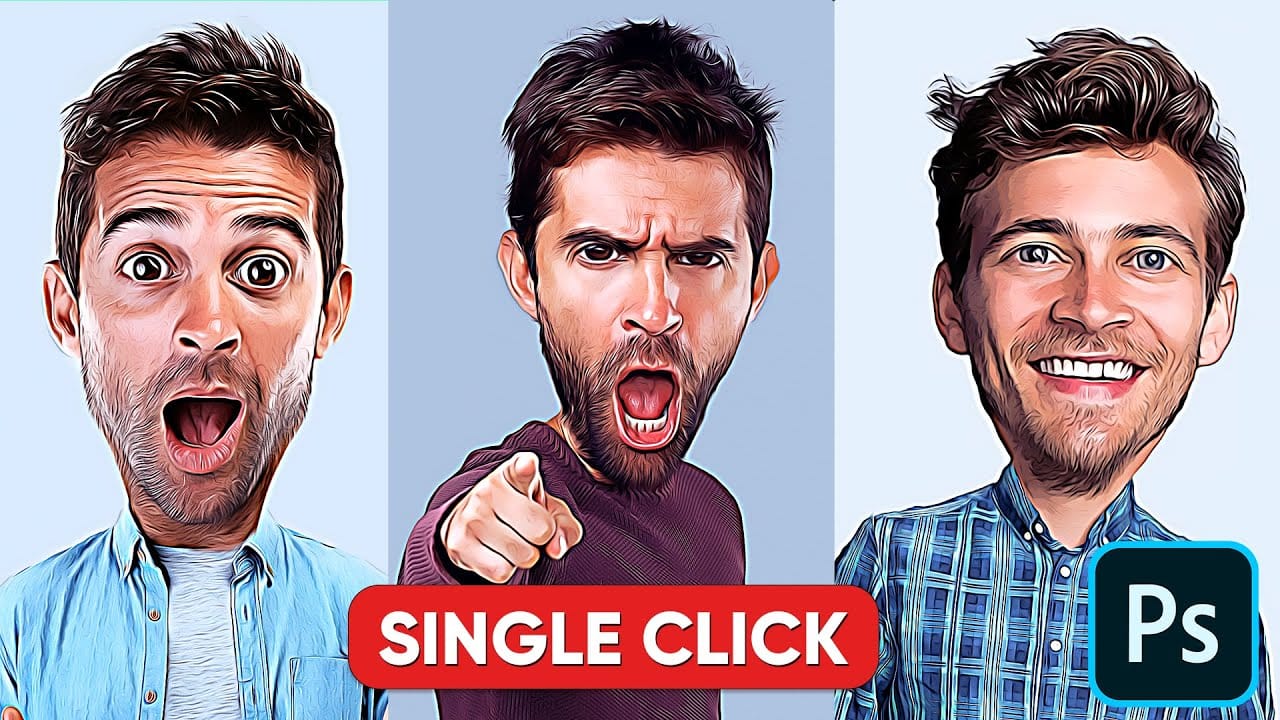
How to put an animal head on a human body in Photoshop
This fun tutorial by Nemanja Sekulic will teach you how to transform a human into an animal. Learn how to seamlessly swap a human head for your favorite animal using powerful tools like layer masks, warping techniques, and adjustment layers. The video will guide you through aligning features, creating realistic fur textures, and achieving a cohesive final image.
Tap into your playful side and let your imagination run wild by transforming loved ones into whimsical, fantastical beings!
Watch tut
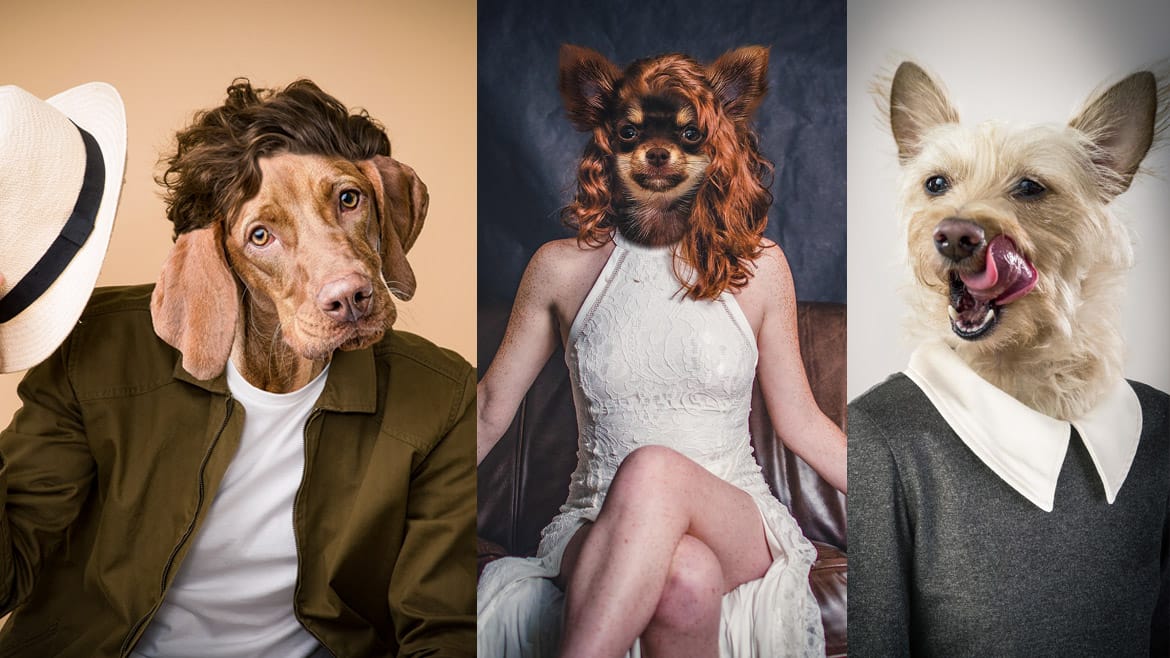
Turn a Wildlife Photo Into a Creative Piece of Fine Art
This video provides a comprehensive guide on transforming wildlife photos into creative works of art using Adobe Photoshop. If you're looking to enhance your wildlife photography but feel stuck, this tutorial is perfect for you.
It walks through the process of editing a wildlife photo, showcasing techniques that can significantly elevate the visual impact of your images. The tutorial begins with duplicating the original photo and creating a smart object. It demonstrates how to select the subjec
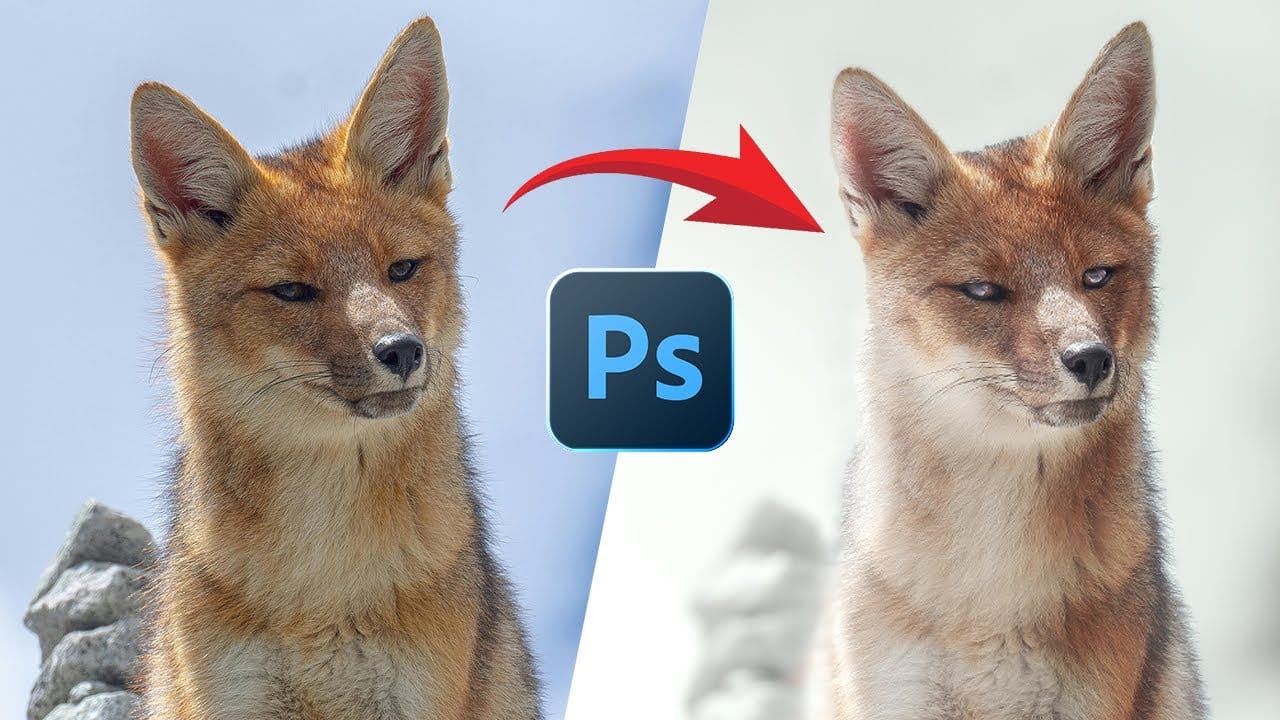
How to Retouch a Dog Portrait in Photoshop
Glynn Dewis shares his expertise in retouching dog portraits using Adobe Photoshop. In this video, Dewis guides viewers through the process of enhancing the image of Joey, a Border Collie.
The video provides a step-by-step approach to retouching the dog's portrait. Viewers will learn how to effectively retouch a dog portrait in Photoshop, with Dewis demonstrating the necessary techniques.
Dewis, the author of the video, offers a comprehensive tutorial on improving the appearance of the dog's i
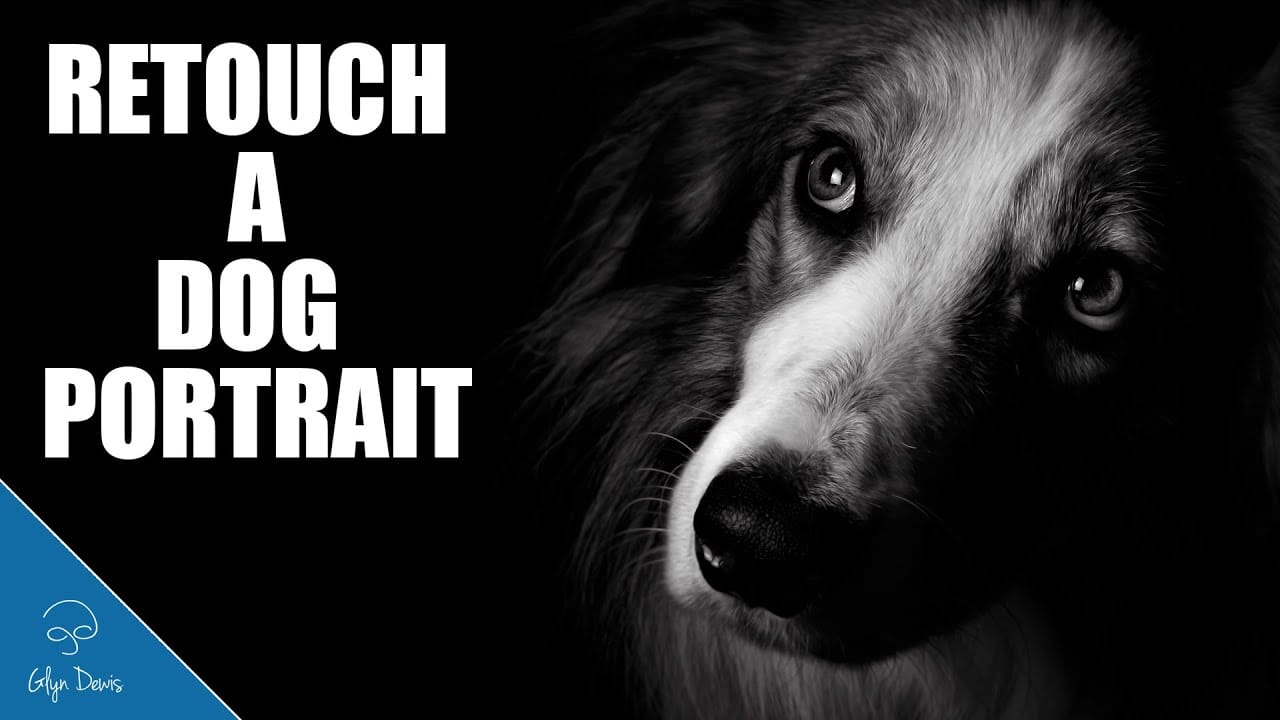
How to turn a photo into a cartoon in Photoshop
Welcome to this new Photo to Cartoon Effect "cartoonize yourself" Photoshop Tutorial. Through this tutorial, and with the power of smart objects you will learn how to cartoonize photos in photoshop and convert almost any photo into a caricature cartoon effect using some filters and smart objects in photoshop.
After finishing this tutorial, you will be able to drag your picture into the PSD file and turn any photo to cartoon effect with a couple clicks. watch the tutorial and cartoonize yourself