Create impressionist paintings from your photos in Photoshop

Create impressionist paintings from your photos in Photoshop

One intriguing technique in digital art involves leveraging a master's work as a direct reference for color and tone. This tutorial demonstrates how to use a Claude Monet painting to guide the color matching of your own photographs, achieving a cohesive impressionist style.

The process also emphasizes a non-destructive workflow by converting images to Smart Objects, allowing for flexible adjustments and easy photo replacement without redoing effects. Additionally, it highlights efficient content removal using Photoshop’s Remove Tool, streamlining the preparation of your source image before applying artistic filters.

Watch the Video

Video by Blue Lightning. Any links or downloads mentioned by the creator are available only on YouTube

Exploring Impressionism and Pointillism Through Digital Filters

Impressionism, an art movement of the 19th century, focused on capturing the fleeting impression of light and atmosphere rather than precise detail. Artists like Claude Monet used visible brushstrokes and vibrant colors to convey the subjective experience of a scene. Pointillism, a later offshoot, took this further by applying small, distinct dots of pure color, relying on the viewer's eye to optically blend them into a coherent image.

Translating these traditional painting techniques into digital art involves emulating their characteristic visual qualities. Photoshop filters are designed to mimic the textures and color applications of physical mediums. For instance, the Pointillize filter simulates the dotted appearance of Pointillist works, while the Palette Knife filter can replicate the broad, textured strokes often seen in Impressionist paintings.

The digital workflow allows for precise control over these effects, enabling artists to blend the spontaneity of traditional art with the flexibility of software. By combining multiple filters and adjustment layers, one can achieve a nuanced artistic interpretation that respects the original movements while leveraging modern tools.

Practical Tips for Creating Pointillist Photo Effects

  • Optimize Image Size: Before applying effects, resize your photo to 150 pixels per inch, ensuring the lower dimension is 750 pixels, to prepare it for optimal filter application.
  • Refine Your Composition: Utilize the Remove Tool (Photoshop CC 2023+) or Spot Healing/Healing brush to seamlessly eliminate unwanted elements from your photo, enhancing the overall composition.
  • Harmonize Colors: Employ Image > Adjustments > Match Color and select a reference painting, such as the provided Monet image, to unify the color palette and stylistic tone of your photograph.
  • Enable Non-Destructive Editing: Convert your image to a Smart Object prior to applying filters; this preserves the original image data and allows for re-editing or replacing the photo without redoing all steps.
  • Layer Artistic Filters: Apply the Pointillize filter (Cell Size: 3, Opacity: 50%) on one layer and the Palette Knife filter (Stroke Size: 8, Stroke Detail: 3, Softness: 10) on another, then blend them to achieve a rich, multi-layered artistic effect.

More Tutorials about Artistic Photo Effects

Explore additional resources to further enhance your photo manipulation skills and create diverse artistic styles.
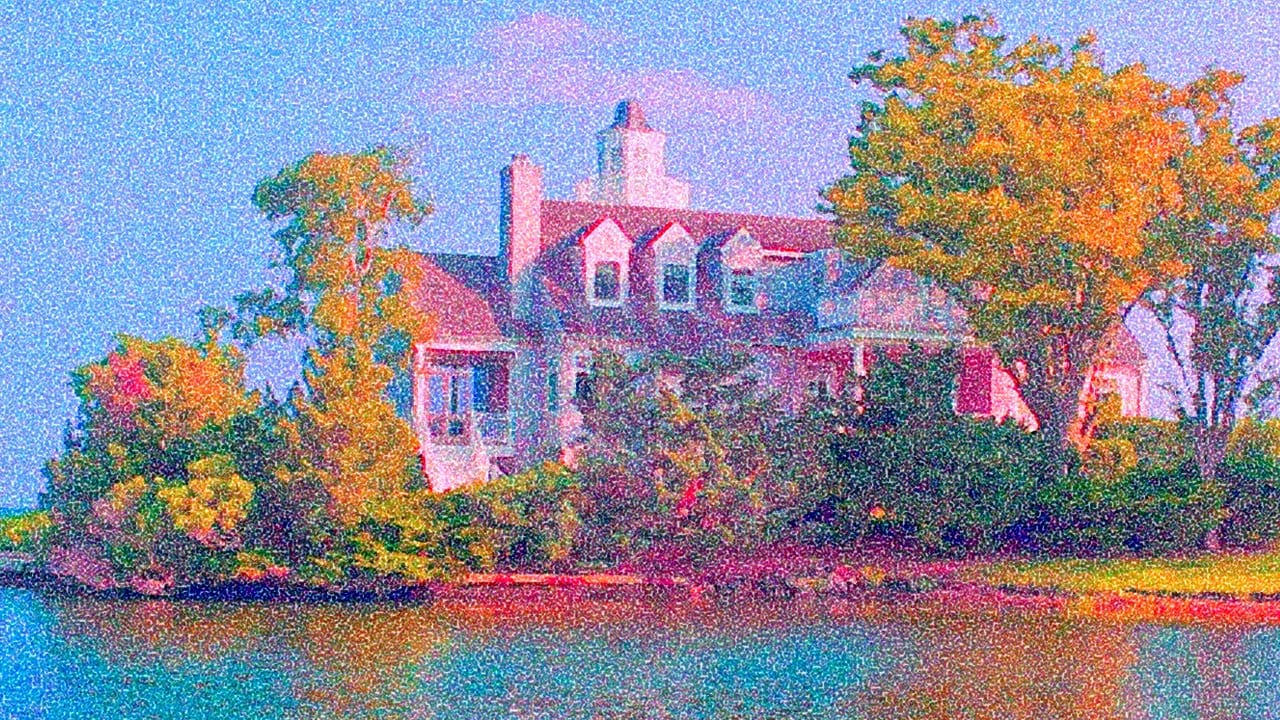
Create an Action to Transform your Photos into Impressionist Paintings
Marty Geller from Blue Lightning TV shares a Photoshop tutorial that teaches you how to create an action to transform your photos into impressionist paintings. This action allows you to instantly apply the look of beautiful, impressionist paintings to your images. The tutorial guides you through the step-by-step process of creating the action. You'll learn how to use various Photoshop tools and techniques to achieve the desired impressionist effect. The author provides detailed instructions and
How to Apply an Impressionist Oil Painting Effect to a Photo
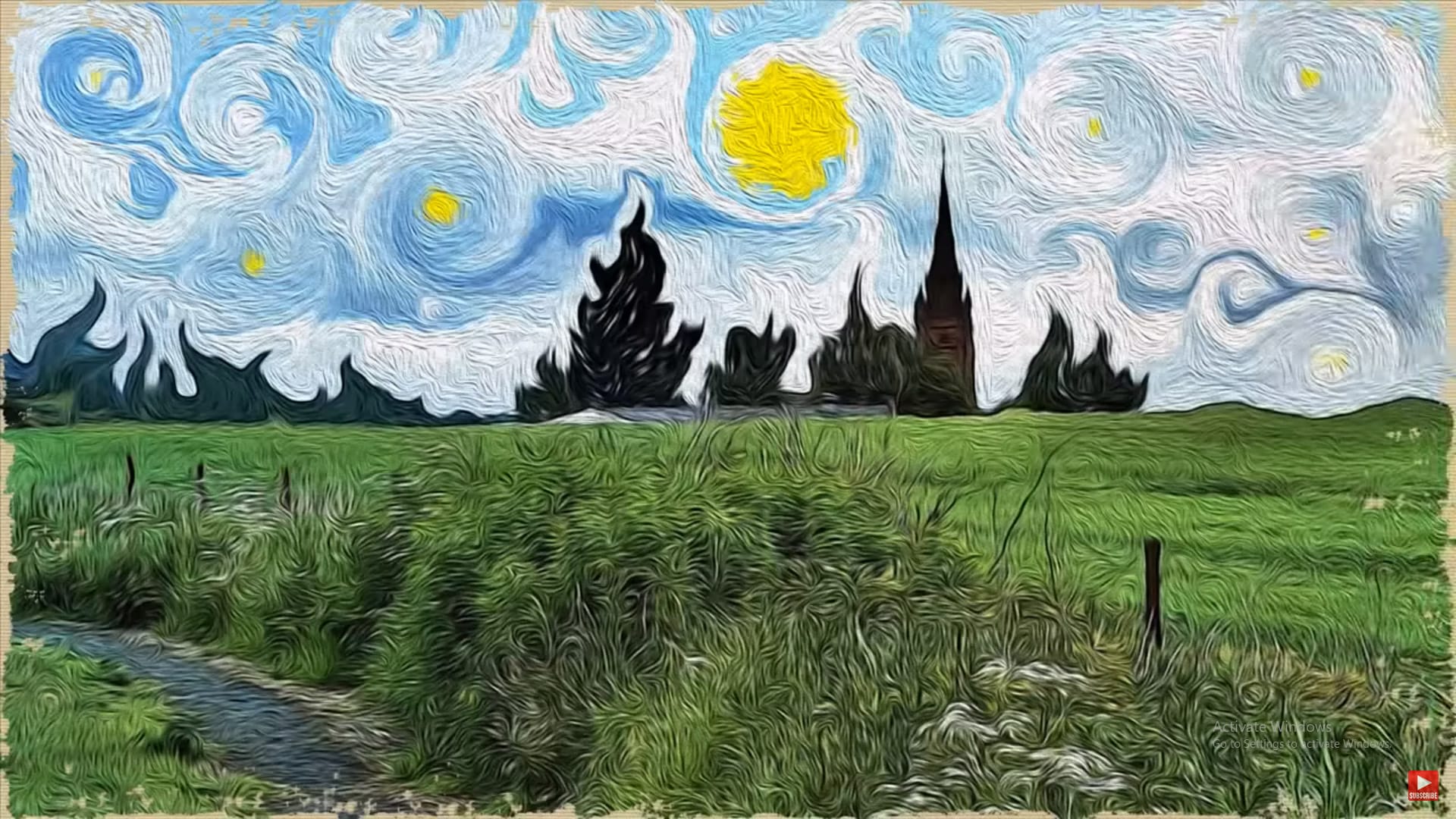
Marty Geller from Blue Lightning TV will demonstrate how to transform a regular photo into a painting reminiscent of Vincent van Gogh’s iconic “Starry Night” using Photoshop. This tutorial is tailored for Photoshop CS6 users with the oil paint filter, but CS5 users can follow along by downloading Adobe’s Pixel Bender plug-in. Marty provides a step-by-step guide, starting with a 1920 by 1080 pixels document, to recreate the swirling, dynamic brushstrokes characteristic of Van Gogh’s style. The t
Create a Magritte Style Surrealist Painting in Photoshop
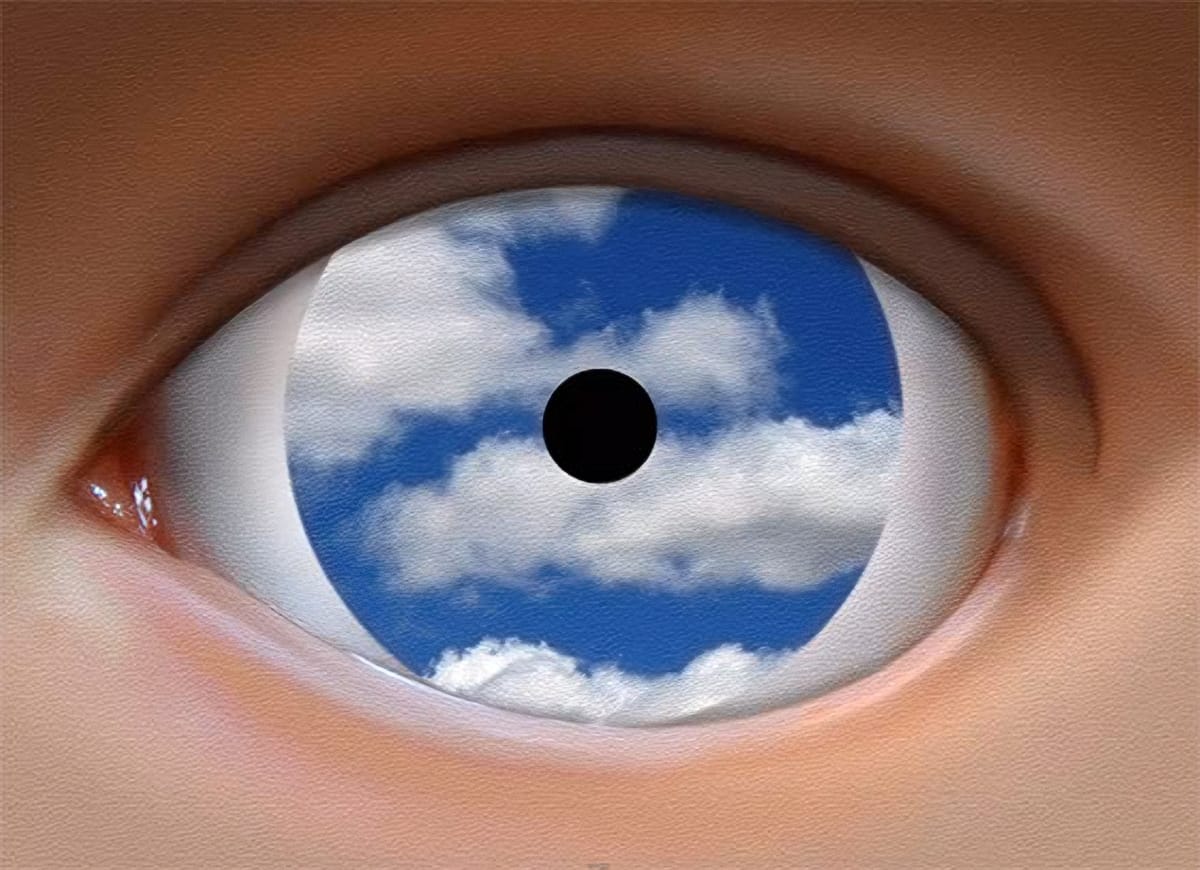
In this Blue Lightning TV tutorial, Marty demonstrates how to recreate René Magritte’s surrealist masterpiece “The False Mirror” using Photoshop. This iconic painting, known for its thought-provoking imagery of an eye with clouds within the iris, is meticulously reproduced using a combination of photo manipulation techniques. Marty begins by setting up the document with dimensions of 600 by 1200 pixels at a resolution of 72 pixels per inch. The tutorial involves blending a photo of an eye with a
How to make a stylish pop art portrait from a photo in Photoshop
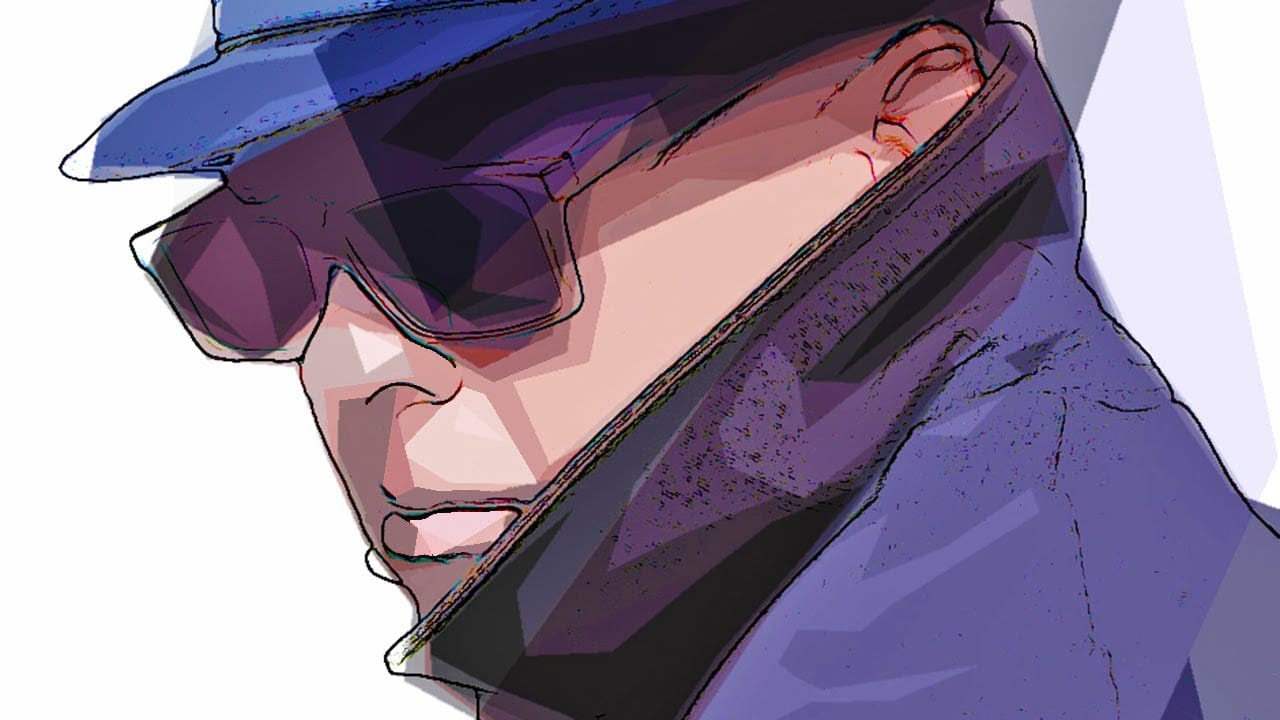
In this Photoshop tutorial by Marty Geller from Blue Lightning Tv, you will learn how to create a stylish, pop art portrait from a photo and how to replace it with another without having to redo the effects. Basically, the author not only will show you how to create an interesting artistic effect, but also how to create a template for any photo you insert in the layered file. Watch tutorial

Get tutorials & freebies delivered to you.

Subscribe to the Photoshop Roadmap newsletter, a weekly roundup of new tutorials, insights and quality downloads, trusted by 6500+ readers.

You might also like

How to Create Realistic Lighting Effects and Dust Particles in Photoshop

Creating convincing lighting effects requires more than just adding a bright spot to your image. The key to realism lies in ensuring your subject already has highlights that match the direction of your artificial light source, making the effect appear natural and believable. This technique combines a simple soft brush...

How to Set Up Mouse Scroll Zoom in Photoshop for Faster Navigation

Constantly reaching for the magnify tool or right-clicking to access zoom options disrupts your creative flow and slows down detailed work. Most users don't realize that Photoshop includes powerful scroll wheel zoom features that aren't enabled by default. These simple preference settings transform navigation into smooth,...

How to Fix Layer Panel Thumbnails Showing the Full Canvas in Photoshop

When working with complex layered files, layer thumbnails that display the entire canvas instead of just the layer content make it difficult to identify specific layers at a glance. This common issue occurs when the layers panel is set to show the "entire document" rather than focusing on...

Game Boy Pixel Effect Tutorial in Photoshop

The distinctive monochrome pixelated aesthetic of the original Game Boy has become an iconic visual style that evokes powerful nostalgia for classic handheld gaming. This technique transforms ordinary photographs into high-contrast, pixelated artwork that mimics the characteristic black and white display of Nintendo's legendary portable console. The process...

How to Cut Out Trees Using Blend If in Photoshop

Trees with complex branching patterns challenge traditional selection tools, often leaving messy edges and incomplete cutouts. The Blend If feature offers a powerful alternative for extracting trees from contrasting backgrounds by targeting specific color channels rather than attempting pixel-by-pixel selection. This technique works particularly well when trees are photographed against...

Should You Use Photoshop's New AI Credit System or Stick to Traditional Tools

Adobe's credit-based AI system is creating a dilemma for photographers and digital artists. With 250 monthly credits that can disappear after just a few generative fill operations, many are questioning whether these new tools are worth the investment or if traditional skills remain more valuable. This perspective from...

You’ve successfully subscribed to Photoshop Roadmap
Welcome back! You’ve successfully signed in.
Great! You’ve successfully signed up.
Success! Your email is updated.
Your link has expired
Success! Check your email for magic link to sign-in.