Learn How to Create a Watercolor Photo Effect in Photoshop

Learn How to Create a Watercolor Photo Effect in Photoshop

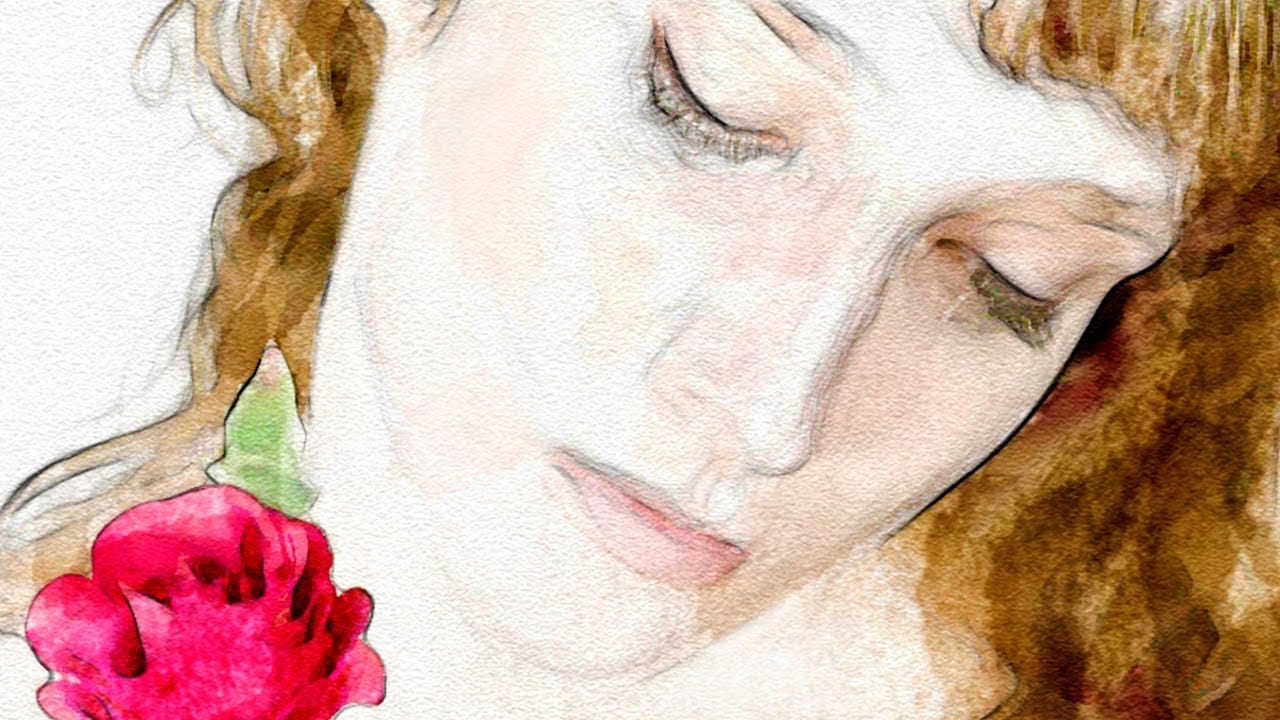
Transforming a photograph into a convincing watercolor painting opens up a world of creative possibilities. This artistic effect adds depth and emotion, turning ordinary images into unique pieces of art. The result captures the delicate washes and textures of traditional watercolor, bringing a hand-painted feel to your digital art.

This tutorial guides you through creating a hand-painted effect in Photoshop, going beyond basic filters. By using a combination of smart blurs, glowing edges, and custom brush strokes, you can achieve a nuanced, painterly look that's uniquely your own. Learn to mimic the subtle gradations and textures of watercolor, giving you full creative control over the final image.

Watch the Video Tutorial

Video by Blue Lightning. Any links or downloads mentioned by the creator are available only on YouTube

The Allure of Digital Watercolor Effects

Watercolor painting is renowned for its fluid, ethereal quality. The way colors blend and bleed into one another creates a unique sense of depth and texture. Digitally replicating this effect offers artists and designers the best of both worlds: the organic beauty of watercolor with the precision and flexibility of digital tools. While traditional watercolor relies on the unpredictable nature of water and pigment, digital watercolor techniques allow for precise control over every brushstroke and color blend.

The key to a convincing digital watercolor effect lies in understanding the nuances of the medium. It's not just about applying a simple filter; it's about mimicking the way watercolor interacts with paper, the way different pigments layer and blend, and the subtle variations in tone and texture. By paying attention to these details, you can create digital artwork that captures the essence of traditional watercolor.

When creating digital watercolor effects, keep in mind these qualities:

  • Blending: Soft color transitions are essential.
  • Texture: Paper grain and brushstrokes add depth.
  • Light: Subtle gradations create form and volume.

Practical Tips for Digital Watercolor Effects

  • Make a smart blur copy of the base layer to soften details while retaining key shapes.
  • Apply glowing edges and invert the layer to create fine pencil-like lines, simulating the outlines in a watercolor painting.
  • Use a dry brush with low opacity to add random strokes, building up texture gradually.
  • Incorporate wet media brushes and vary brush sizes to emulate the natural variations in watercolor washes.
  • Increase the vibrance to enhance the colors, making the image look more vivid and painterly.

Explore these hand-picked articles and tutorials to deepen your knowledge and skills in creating authentic and stunning watercolor effects in Photoshop.
Photoshop Watercolor Photo Effect Tutorial
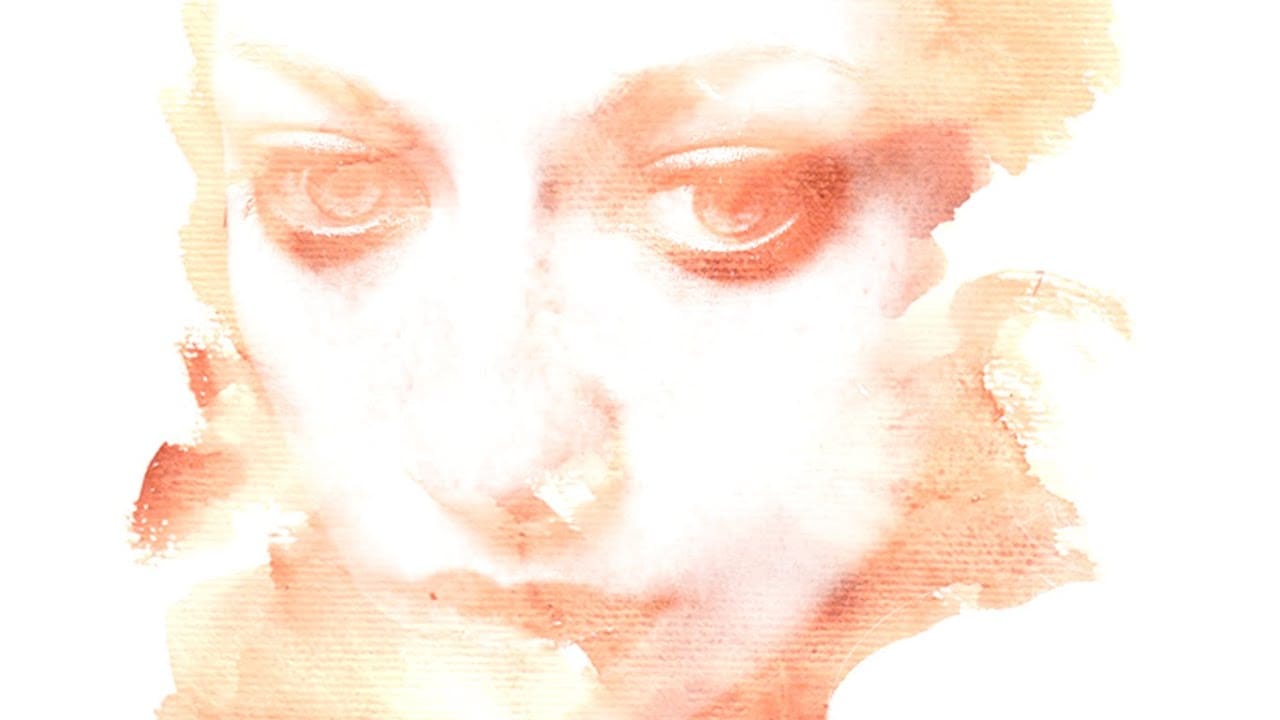
In this comprehensive tutorial by Arunz Creations, you'll discover how to transform a portrait into a beautiful watercolor painting using Photoshop. The process begins by organizing your layers into a group and temporarily hiding it. Next, you'll select specific colors from the portrait using the Color Range tool to create a precise selection. After applying the selection as a mask on the group and inverting it, you'll create a new empty layer beneath the group and fill it with white to serve a
How To Make a Watercolor Photo Manipulation In Photoshop
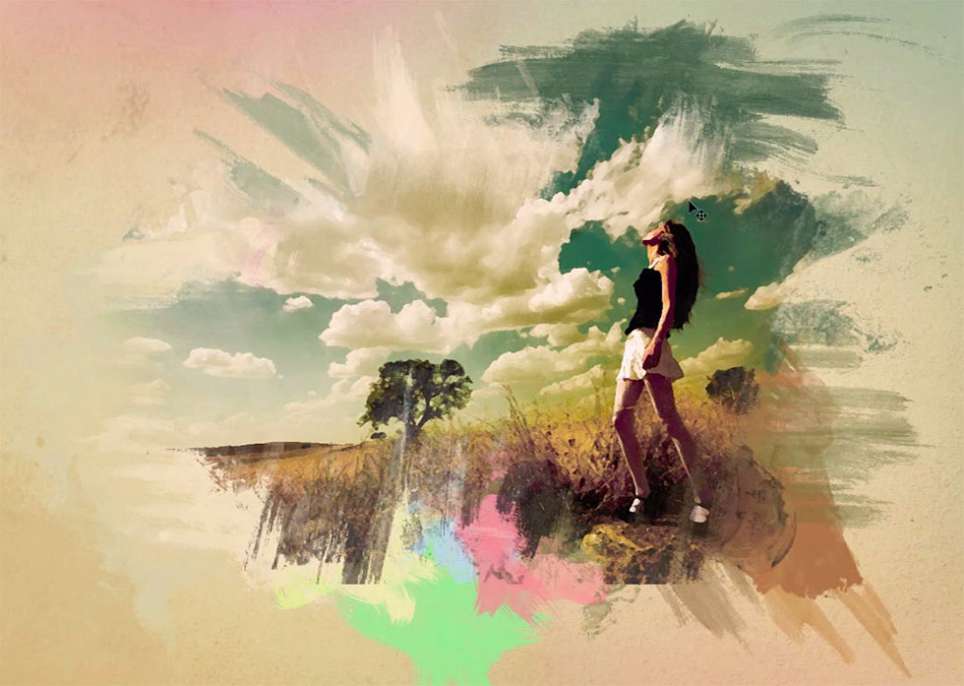
This tutorial by Maarten Rietdijk provides a step-by-step guide on how to combine watercolor brushstrokes and photos in Photoshop. The author explains the process in a clear and concise manner, making it accessible to both beginners and experienced Photoshop users. The tutorial begins by teaching the reader how to create a set of custom watercolor brushes. These brushes are then used to add a unique, artistic touch to the photograph. The author emphasizes the importance of experimenting with di
Add a beautiful watercolor effect to your photos in Photoshop
In this Photoshop tutorial by Marty Geller from Blue Lightning TV you will learn how to create a beautiful, nuanced, watercolor portrait of someone from a photograph. Forget about Photoshop default ugly watercolor filters. Unlike other watercolor effects, the methods shown here allow you to create unique, personal touches because you brush in your own strokes. Watch tutorial
Artistic Watercolor Effects Photoshop Tutorials
Many users find themselves frustrated with the Watercolor Photoshop Plugin that comes with the default installation. Often, simply applying the plugin doesn't yield the most satisfying results. This is a common experience among photographers and artists alike. This collection of watercolor effects Photoshop tutorials is designed to help you overcome that challenge. With step-by-step guidance, these tutorials provide effective techniques that lead to stunning watercolor paintings derived from yo

Get tutorials & freebies delivered to you.

Subscribe to the Photoshop Roadmap newsletter, a weekly roundup of new tutorials, insights and quality downloads, trusted by 6500+ readers.

You might also like

How to Remove Blemishes in Photoshop: Camera Raw vs. Generative AI

Photoshop now offers two distinct approaches to removing skin blemishes automatically. The Camera Raw Filter includes a dedicated Blemishes option that analyzes and cleans skin with a single checkbox, while Generative AI fills a face selection with clean, texture-consistent results using a simple text prompt. Each method has clear...

Common Photoshop Compositing Mistakes and How to Fix Them

Most compositing errors come down to a handful of repeatable problems: mismatched lighting direction, inconsistent white points, misaligned perspective, and atmosphere applied in the wrong layer order. Catching these issues early — ideally before you shoot — saves significant time in post. Watch the Video Practical Tips These corrections apply to nearly...

How to Use the Vectorscope in Camera Raw to Correct Skin Tones

The Vectorscope in Camera Raw gives you a precise, visual way to evaluate and correct skin tones based on hue and saturation data. Because all natural skin tones share a common hue range regardless of ethnicity, the built-in skin tone indicator line serves as a reliable target for getting...

Camera Raw August 2026: AI Blemish Removal, Generative Expand, and More

The August 2026 Camera Raw update adds an AI-powered blemish removal tool that handles skin imperfections automatically, treating blemishes and moles separately so editors stay in control. Alongside that, an improved Generative Expand in the crop tool and a few smaller additions round out a practical update worth knowing....

Wrap Text Around a Subject in 3D Using Photoshop's Warp Tool

Making text appear to wrap around a person or object adds genuine depth to a composition — the kind that's hard to fake with a simple drop shadow. This technique uses two warped text layers, a subject cutout, and a soft shadow to simulate the illusion of cylindrical text...

9 Photoshop Tools That Still Outperform AI for Precision and Control

AI generates images from descriptions, but it cannot hand you the brush. When a project demands exact colors, editable text, precise retouching, or seamless mockups, Photoshop's native tools remain the more reliable choice — not because AI is weak, but because these workflows require control that generative tools simply...

You’ve successfully subscribed to Photoshop Roadmap
Welcome back! You’ve successfully signed in.
Great! You’ve successfully signed up.
Success! Your email is updated.
Your link has expired
Success! Check your email for magic link to sign-in.