Quick and Simple Worn Out Psychedelic Poster in Photoshop

Quick and Simple Worn Out Psychedelic Poster in Photoshop

Adobe Photoshop offers a lot of ways to apply color effects to your images. But maybe the Gradient Map adjustment layer is the most flexible and easy to use of them all. With this tool you can apply one of the many great sample gradients provided by Adobe in the standard Photoshop installation. you can create all kinds of color or artistic effects with just one click. And believe me, many, many of them are really outstanding.

In this tutorial we are going to create a psychedelic poster with just an image, a gradient map and a texture.

👁️
This is an older tutorial, and some external links or data sources mentioned may no longer be accessible. However, the content covers a unique topic and remains valuable despite any broken connections. We’ve kept the post intact for its educational and informative value.

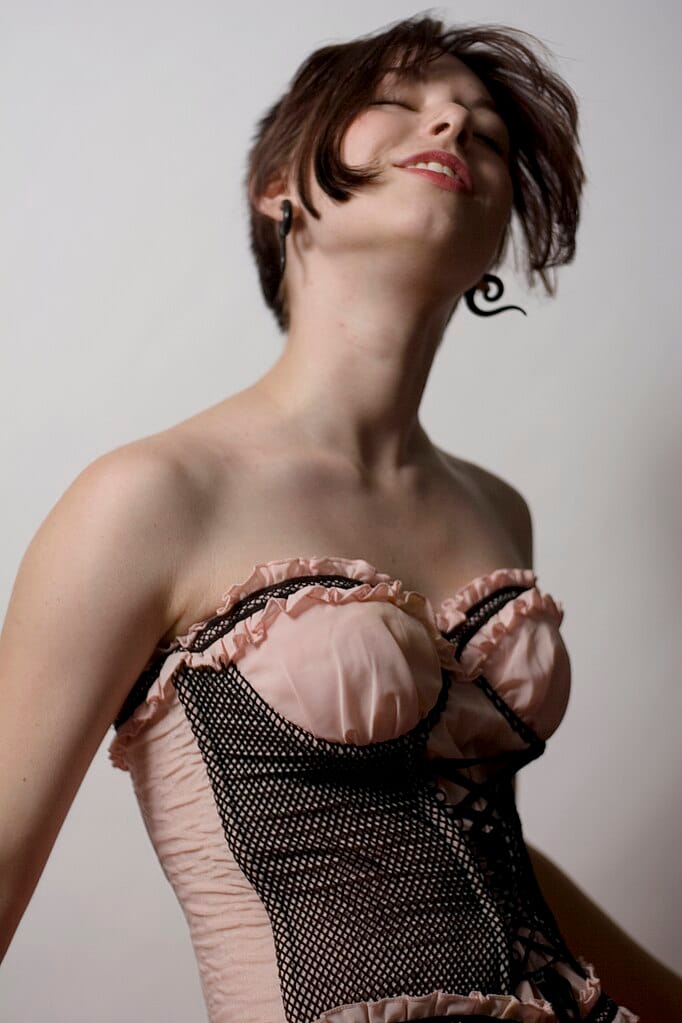
Download the base image. Author: Benjamin Portland. check the usage rights here.
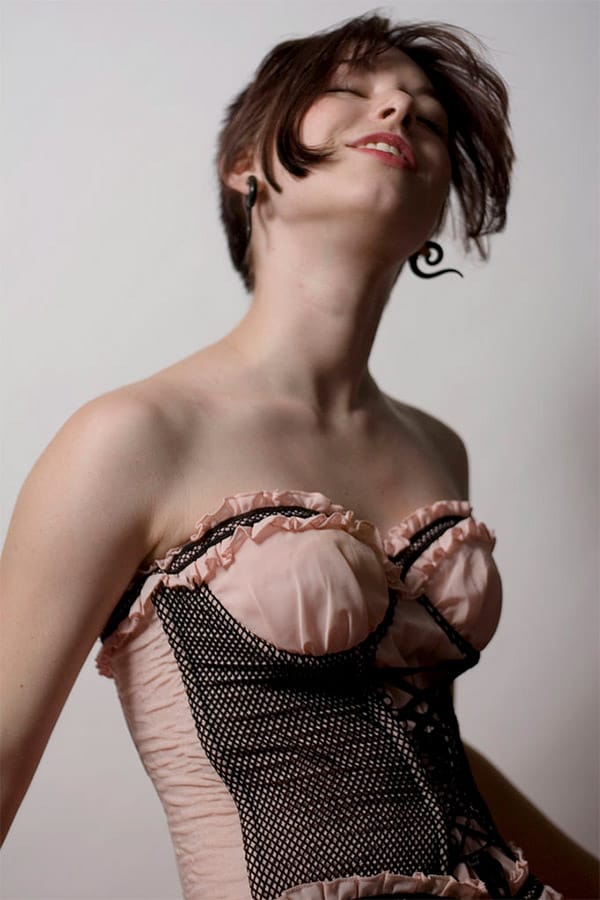
Final Image

Now, go to the layers palette and click on the ADJUSTMENT LAYERS icon. Select GRADIENT MAP from the list.
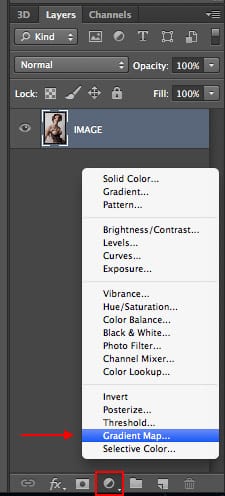
Final Image

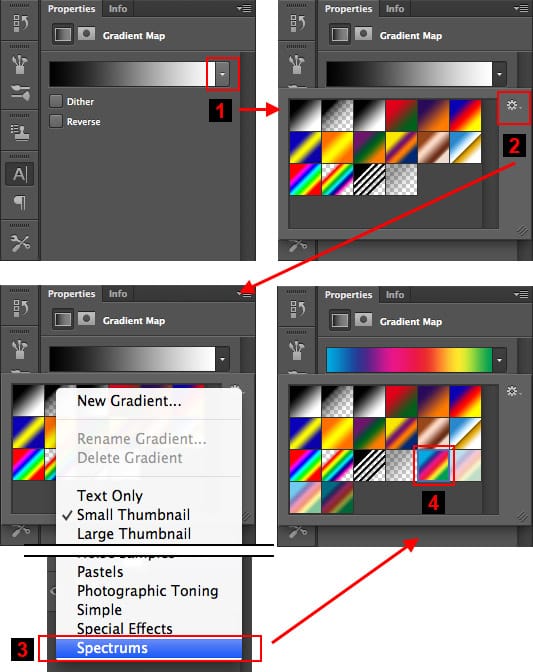
A new adjustment layer will be created using the default gradient map. Now, go to the Adjustment layers palette and 1) Click on the gradients pulldown menu 2) Click on the gradients palette options icon 3) Select Spectrums from the bottom of the pulldown menu. Click on Append when requested. 4) Select the color spectrum gradient marked in the image below.
Final Image

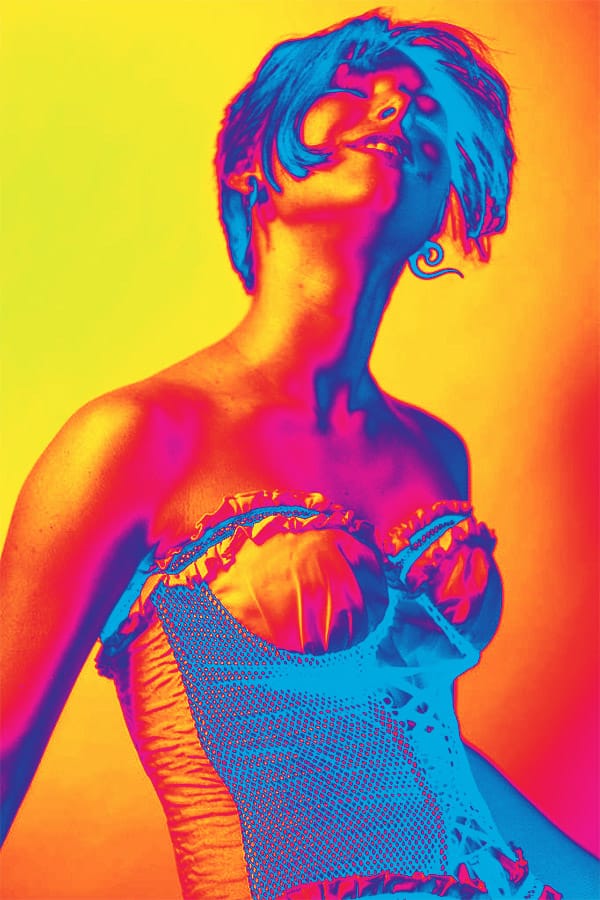
The gradient will be applied to the image giving it a psychedelic style
Final Image

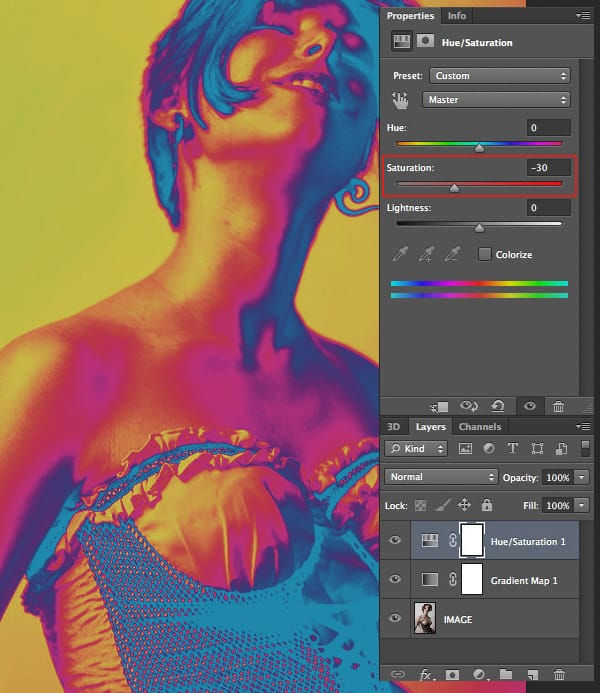
This is all you need to give a psychedelic look to your image. Let’s now wear it out a bit. Go to the Adjustment Layers icon and choose Hue/Saturation adjustment layer. Then, go to the Hue/Saturation palette and move the Saturation control a bit to the left. -30 is fine. Ugly, isn’t it? Don’t worry. Let’s move on.
Final Image

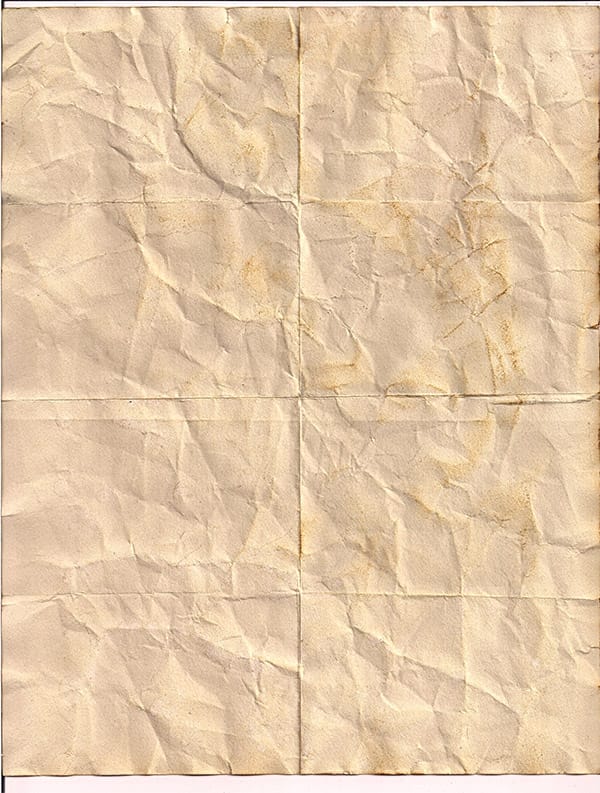
Now let’s add a creased grunge paper texture to the image. Download this paper texture by Spiketheswede from Deviant Art. Read the usage rights before using it in any project.
Final Image

Open the image you just downloaded. Do not paste it into the project file yet. Keep it in a separate file.

You will notice that it is a bit large (1700 x 2246px). So, let’s resize it to 1000 x 1321px using IMAGE > IMAGE SIZE… menu command.

Now that it has been resized, copy the image and paste it into our project. Move the texture until the creases are somewhat symmetrical.

Then set the layer blending mode to Overlay and the opacity to 50%.
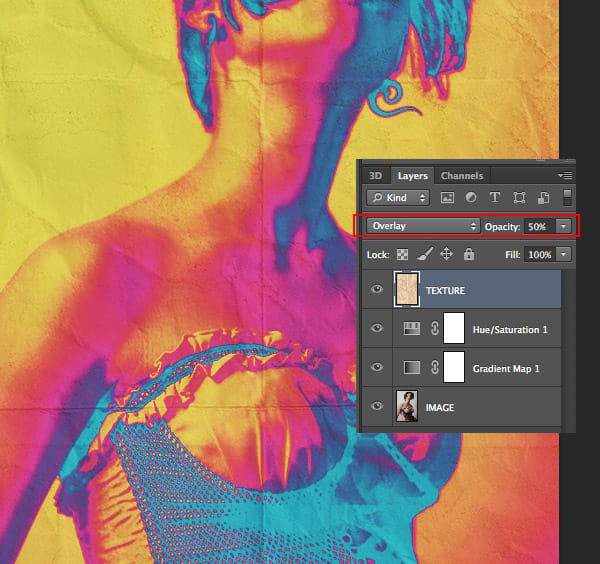
Final Image

Since the texture was a bit light, the colors lost visual impact. Let’s add the final touch creating a new LEVELS adjustment layer right above the texture. Set the black point to something like 25. This will give a better contrast to the image.
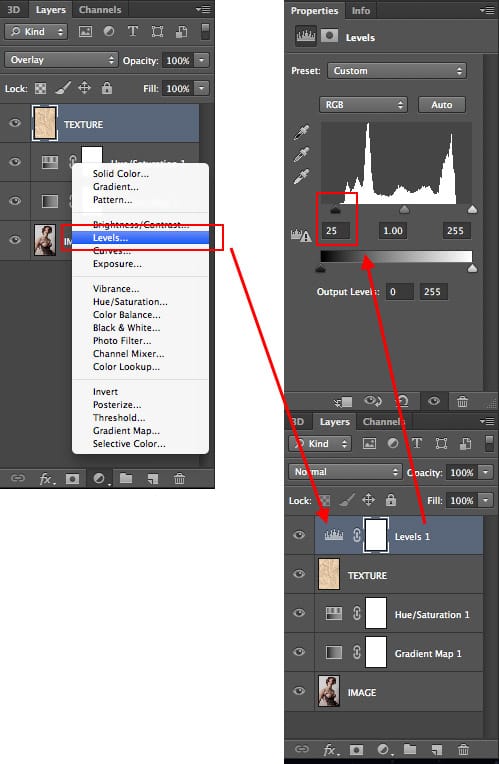
Final Image

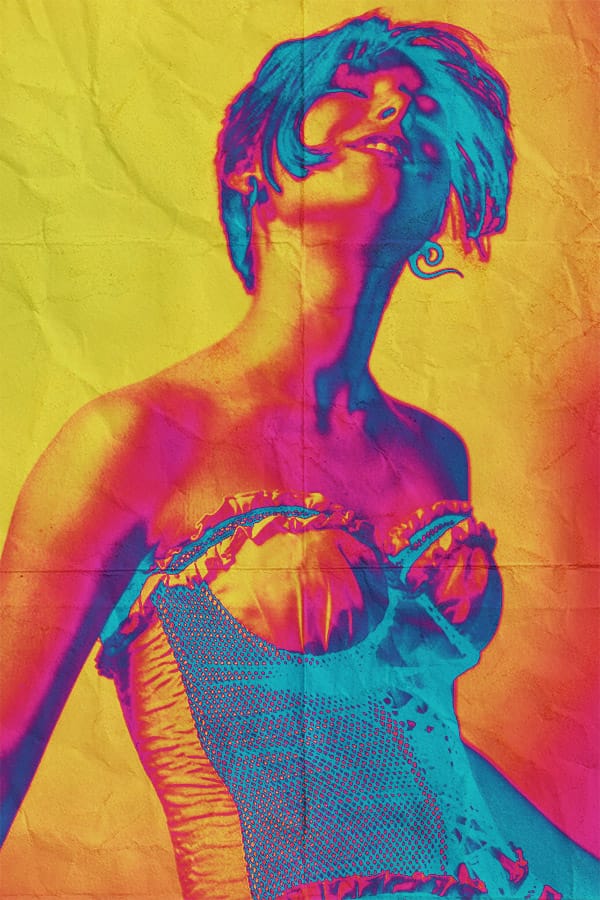
This is the final result:

Final Image

The main color effect was based only in the gradient map layer. The rest of the layers were used to fine tune the result. Since we used Adjustment Layers you can keep on tweaking the image to get different effects.

Get tutorials & freebies delivered to you.

Subscribe to the Photoshop Roadmap newsletter, a weekly roundup of new tutorials, insights and quality downloads, trusted by 6500+ readers.

You might also like

10 Photoshop Tricks You Probably Forgot Exist

There’s a funny pattern with Photoshop. The longer you use it, the more you rely on the same small set of tools… while some of the most powerful techniques quietly fade into the background. Not because they stopped working — but because they’re just a bit hidden, or not...

Add Floral Patterns to Black Dresses Using Brushes in Photoshop

Transform plain black clothing into vibrant, patterned garments using custom brushes and strategic layer blending. This non-destructive technique combines precise selections with clipping masks to paint realistic floral designs directly onto fabric while preserving the original photograph. The method works particularly well on black materials because the hard light blend...

How to Replace Objects Using Reference Images in Photoshop Generative Fill

Reference images transform Generative Fill from a text-based tool into a precise visual command system. Instead of describing what you want, you show the AI exactly which object to create, leading to more accurate and predictable results. This technique works by combining traditional selection tools with the new reference image...

How to Use Blend If Sliders for Pixel-Perfect Transparency in Photoshop

Blend If sliders control transparency based on brightness levels, making complex selections unnecessary. Understanding how these two simple sliders work with RGB channels opens up precise compositing possibilities that would otherwise require multiple masks and selections. The technique works by targeting specific brightness ranges from 0 to 255, allowing you...

How to Create a Double Exposure Effect in Photoshop Using Screen Blend Mode

Double exposure effects transform ordinary portraits into striking artistic compositions by blending two images seamlessly. This technique works best with high-contrast images—silhouettes against bright backgrounds paired with nature scenes or textures. The key to successful double exposures lies in the contrast between light and dark areas. When you combine...

You’ve successfully subscribed to Photoshop Roadmap
Welcome back! You’ve successfully signed in.
Great! You’ve successfully signed up.
Success! Your email is updated.
Your link has expired
Success! Check your email for magic link to sign-in.