Transforming a photograph into a realistic pencil sketch creates an artistic effect that mimics traditional hand-drawn artwork. This technique uses adjustment layers and blending modes to simulate the appearance of graphite on paper.
The process involves desaturating the image, duplicating layers, and applying specific filters to achieve the characteristic lines and shading of a pencil drawing.
Watch the Video
Video by ThePsychStudios. Any links or downloads mentioned by the creator are available only on YouTube
Practical Tips
These key techniques will help you achieve a more realistic sketch effect:
- Start with a high-contrast photo that has clear details and good lighting for better sketch lines
- Use the Color Dodge blending mode on the inverted layer to create the pencil drawing effect
- Apply Gaussian Blur gradually to control the intensity of the sketch lines
- Adjust layer opacity to fine-tune the balance between sketch details and original photo elements
- Work with portraits or subjects that have distinct edges for the most convincing results
Related Articles and Tutorials
Explore more photo enhancement and artistic effect tutorials:
Create a 1-Click Photo to Pencil Drawing Sketch Effect in Photoshop – Photoshop Roadmap
Turn any photograph into a realistic pencil drawing with this comprehensive Photoshop technique. This method creates a reusable template that transforms photos into detailed sketches with multiple texture layers and smart object functionality. The tutorial builds a complete PSD file you can use repeatedly on different images with just a
 Pixivu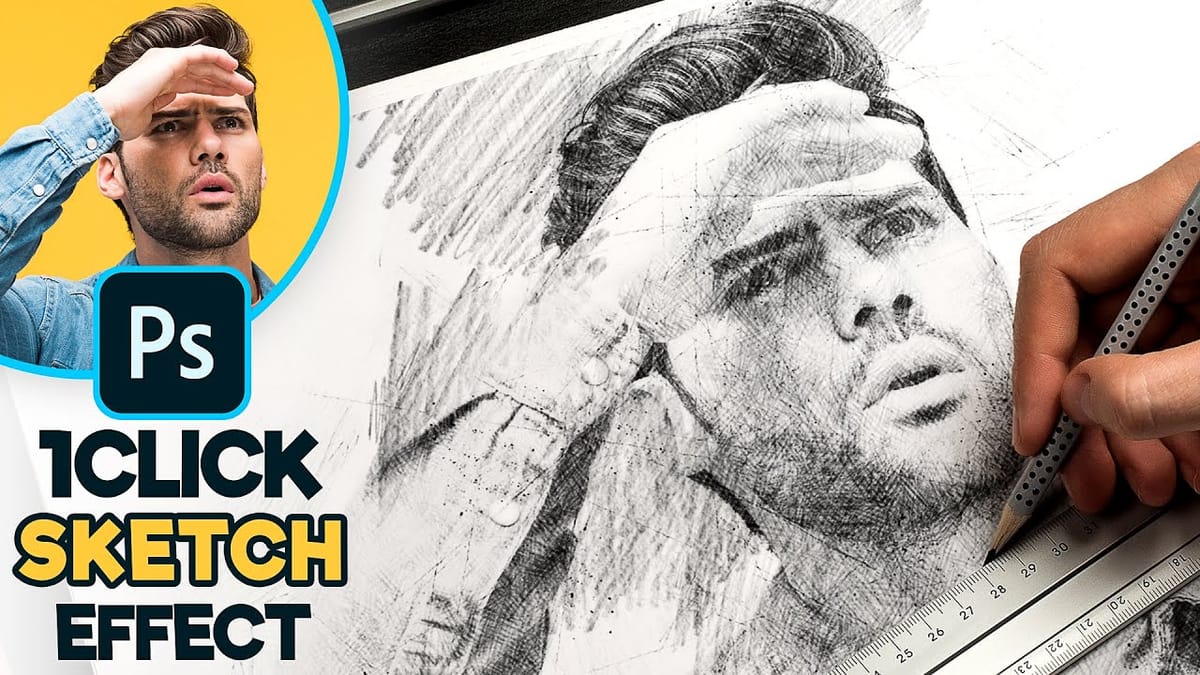
3D Pop Up Sketch Drawing Effect
In this Photoshop tutorial by Let’s Photoshop, you’ll discover how to transform a photo into an impressive 3D pop-up sketch drawing. This effect makes the subject appear as if it’s emerging from the sketching paper, adding a fantastic, surreal touch to your images. Using straightforward techniques in Adobe Photoshop, you’ll
 Let’s Photoshop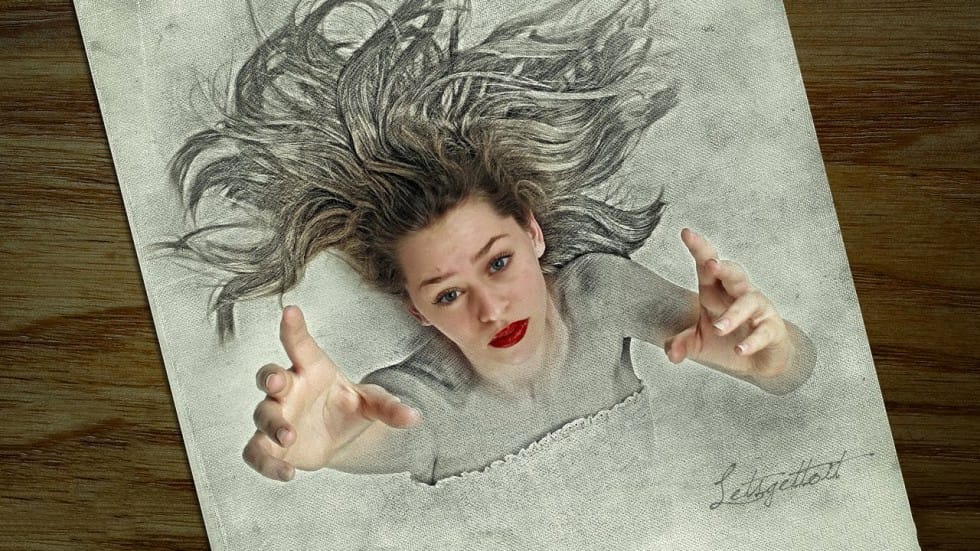
Turn your photo into a pencil sketch in Photoshop – Photoshop Roadmap
Transform ordinary photographs into stunning pencil sketch artwork that captures the essence of hand-drawn illustrations. This comprehensive technique demonstrates four distinct variations: classic black and white sketches and three creative colorization methods using original photo colors, single color tints, and gradient effects. The non-destructive workflow preserves your original image while
 Photoshop Essentials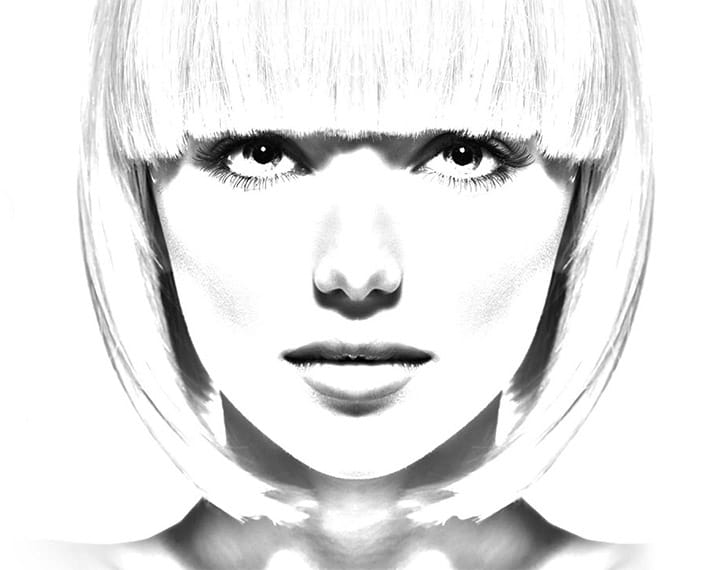
Photo to sketch effect in Photoshop
Photoshop tutorial showing how to transform photos into pencil drawings. More
 PTC Photoshop Training Channel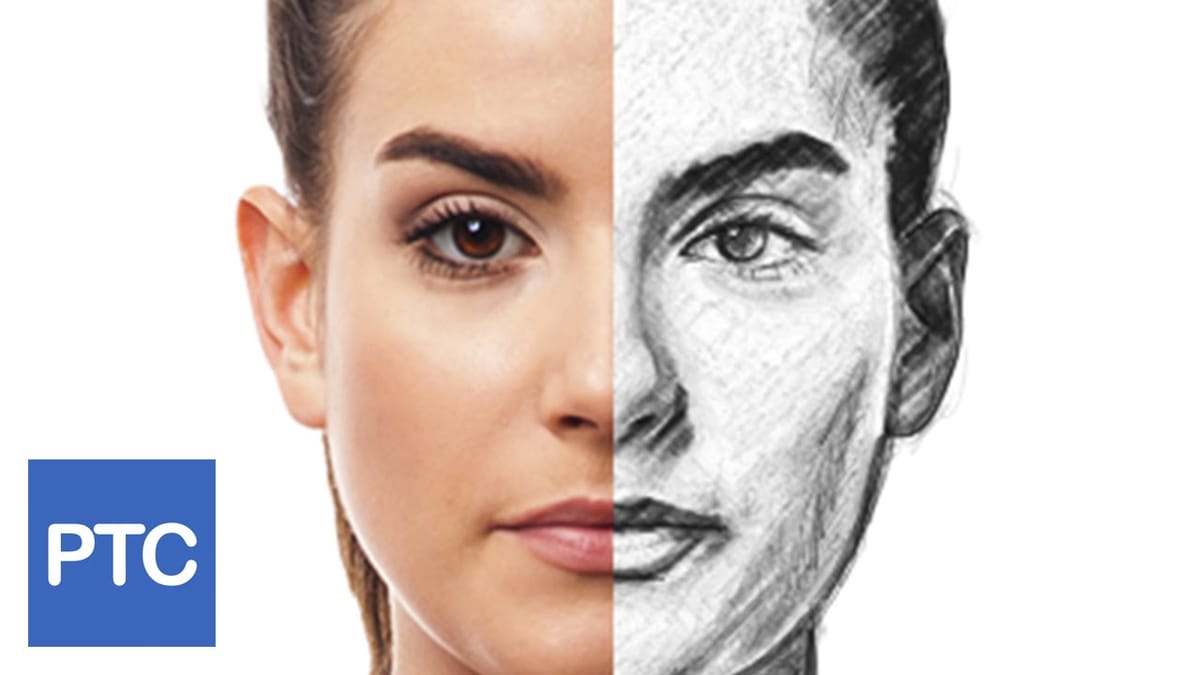
How to create incredible self portrait sketches – Photoshop Roadmap
This tutorial by Sébastien Del Grosso on 500px Blog guides you through creating self-portrait sketches that blend photography with drawing for a unique artistic effect. Using a Canon 7D and natural light, Sébastien captures his self-portraits, then prints them with a 90% white opacity layer. He sketches over these prints
 500px
500px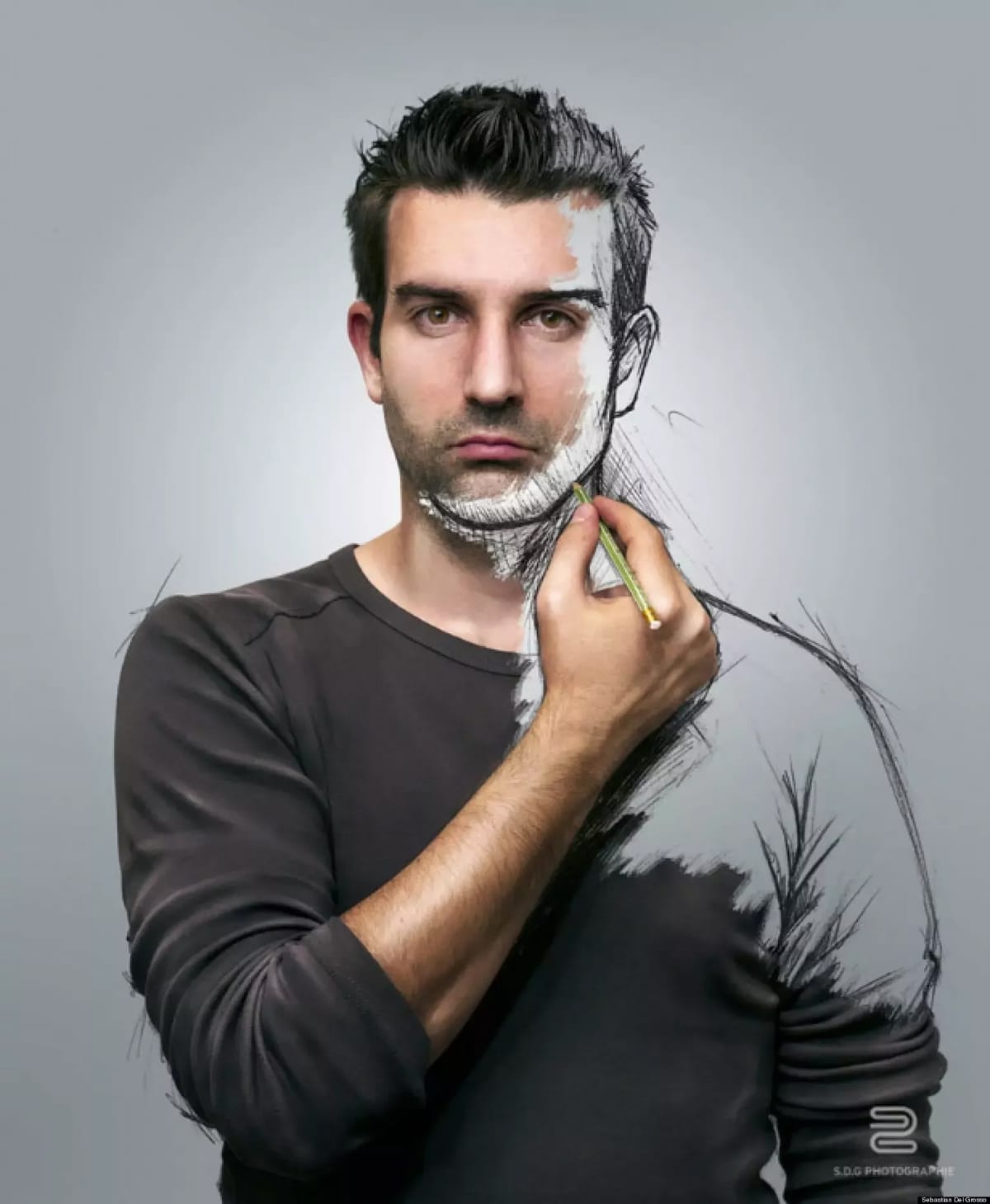
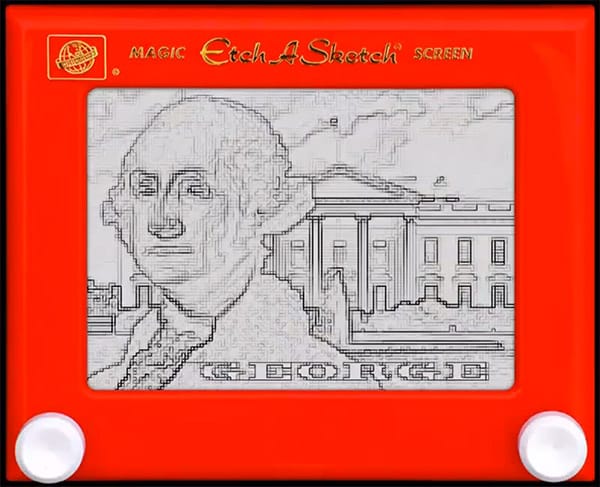
How to Create an Etch a Sketch Drawing Effect in Photoshop
In this tutorial by Marty Geller from Blue Lightning TV you will learn how to create your own lineographic drawing like the ones made on the famous 1960, Etch A Sketch toy. More
 Blue Lightning TV