How to Create an Etch a Sketch Drawing Effect in Photoshop

How to Create an Etch a Sketch Drawing Effect in Photoshop

The charm of the classic Etch A Sketch toy lies in its distinctive line art. Discover how to transform photos and text into this iconic style, creating a nostalgic visual effect directly within Photoshop. This tutorial guides you through the process, allowing you to produce unique artwork that captures the essence of the beloved drawing toy.

A key technique involves combining the Mosaic and Find Edges filters, which are applied to mimic the unique aesthetic of Etch A Sketch lines. Furthermore, the tutorial demonstrates how to carefully manage layer masks and blend modes, ensuring your composite image seamlessly adopts the classic, connected line appearance.

Watch the Video

Video by Blue Lightning. Any links or downloads mentioned by the creator are available only on YouTube

The Art of Mimicking Simple Line Art

The Etch A Sketch, first introduced in 1960, challenged users to create intricate drawings using only a continuous line. Operated by two control knobs, one for horizontal movement and one for vertical, the device's mechanism allows for unique, often angular, illustrations where every segment is inherently connected. This limitation forces a distinct artistic style, characterized by its unbroken, monochrome lines on a gray background.

Recreating this effect digitally involves simulating these core characteristics. Rather than drawing freehand, the process focuses on transforming existing images and text into this constrained line art. Digital filters and specific blending modes become tools to approximate the rigid, singular line weight and the pixilated appearance that results from the toy's internal stylus.

The challenge lies in making diverse elements, like photographic faces, architectural backgrounds, and custom text, appear as if they were drawn on the same continuous canvas. This often requires:

  • Uniform line application across different source types.
  • Methods to ensure all "drawn" elements are visually connected.
  • Techniques that flatten color information into a stark, two-tone rendering.

Understanding these principles allows for a more authentic digital recreation of this nostalgic toy's output.

Practical Tips for Etch A Sketch Effects

  • Adjust image details in dark areas using Image > Adjustments > Shadows/Highlights to ensure clarity before processing.
  • Utilize the Quick Mask mode and Pen Tool for precise selections, ensuring clean cutouts of subjects from their backgrounds.
  • Copy layer masks by Alt/Option-dragging them between layers, efficiently applying the screen's shape to multiple elements.
  • Apply the Filter > Pixelate > Mosaic and Filter > Stylize > Find Edges filters sequentially to achieve the distinct line drawing effect.
  • Merge all artwork layers and change the blend mode to Multiply, then manually connect lines with a 1-pixel Pencil Tool to mimic the continuous Etch A Sketch drawing.

Explore additional methods and artistic approaches for transforming images into various sketch styles.
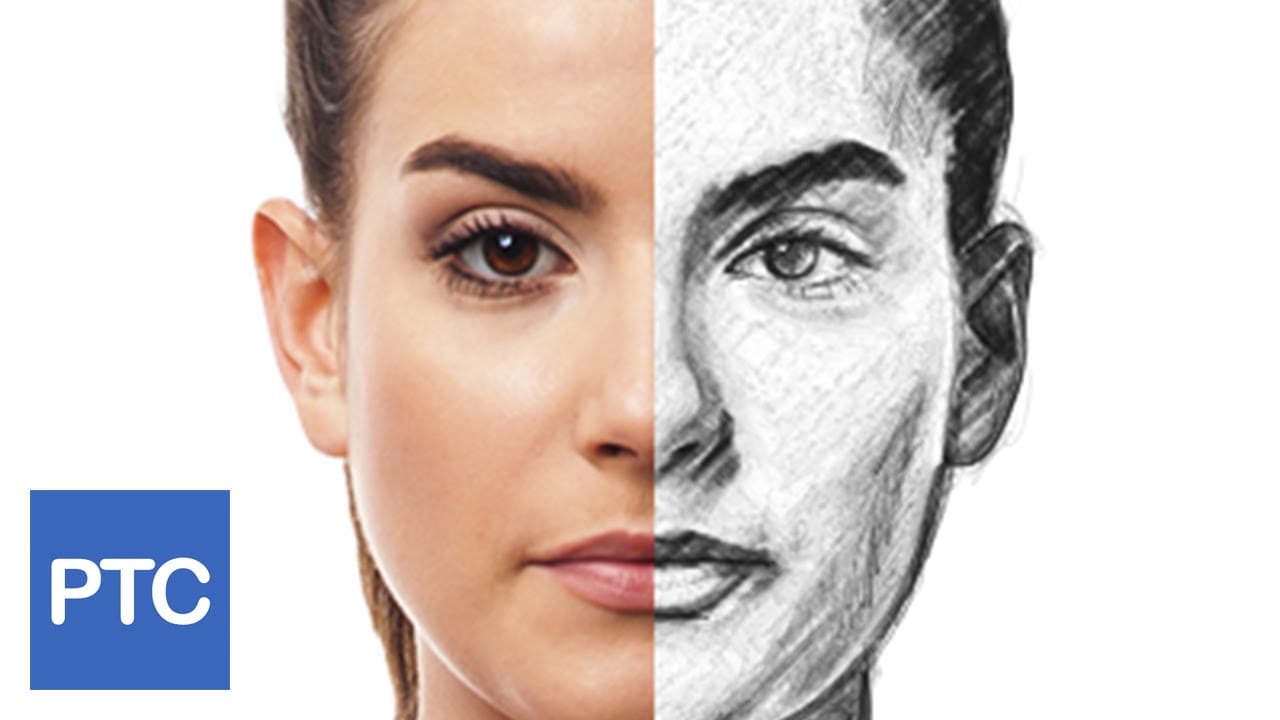
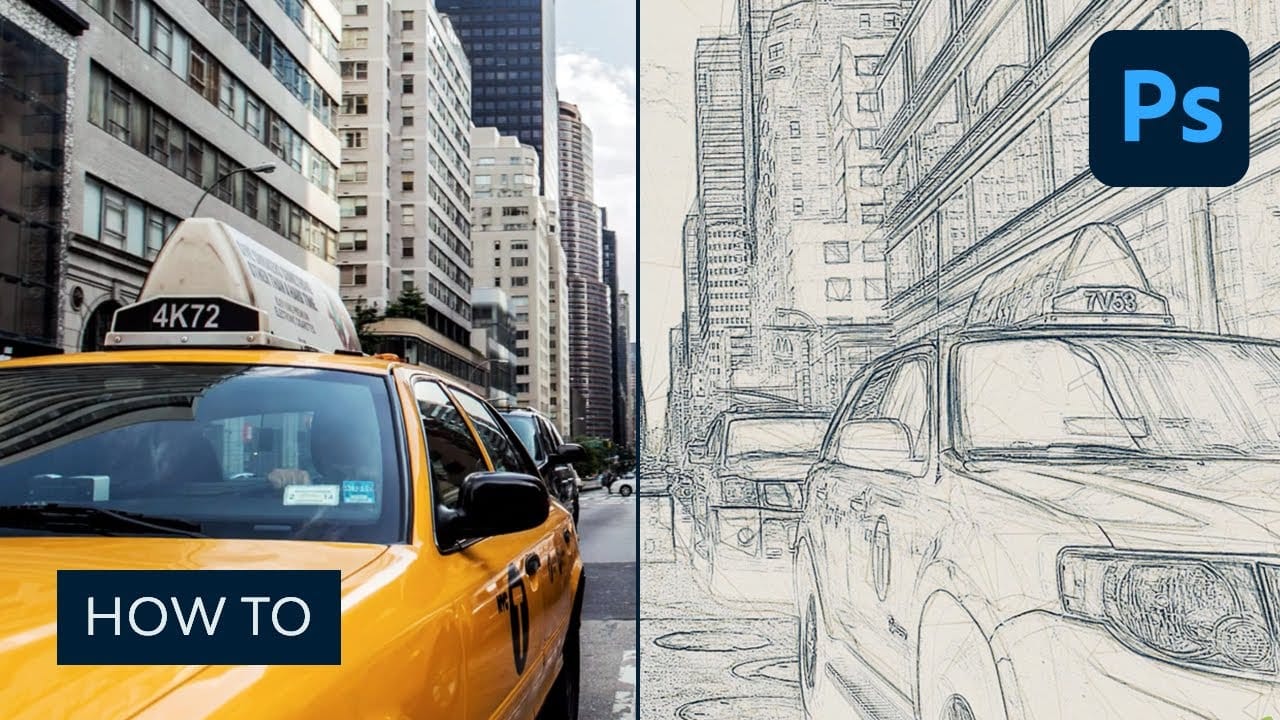
Photo to sketch effect in Photoshop
In this tutorial, Jesus Ramirez from the PTC Photoshop Training Channel demonstrates how to transform photos into pencil sketch drawings. Ramirez guides viewers through the process step-by-step, providing clear instructions and helpful tips along the way. The tutorial begins by explaining the necessary tools and settings within Photoshop. Ramirez then walks users through the image conversion process, showing how to adjust layers, filters, and blending modes to achieve the desired pencil sketch
How to Create a Sketch Effect in Adobe Photoshop
In this comprehensive tutorial, you will discover how to create a captivating Photoshop sketch effect that transforms your photos into stunning, advanced sketches. This effect is particularly useful for artists, designers, and photographers looking to add a unique artistic flair to their work. Whether you want to create eye-catching illustrations for social media, enhance your portfolio, or simply explore your creative side, this sketch effect can elevate your images and make them stand out. De
Turn a Photo into a Pencil Sketch Drawing in Photoshop
In this Photoshop tutorial by Tony from Psych Studio, learn to transform photos into realistic pencil sketches using advanced techniques. The instructor avoids basic filters, focusing on duplicating layers, desaturating images, and applying precise blending modes like Gaussian blur to mimic authentic pencil strokes. This approach ensures sketches maintain a natural, hand-drawn quality rather than a digital filter appearance. Ideal for designers seeking to integrate a hand-drawn look into digita
Turn your photo into a pencil sketch in Photoshop
In the world of Photoshop, some effects are timeless classics. Turning a portrait photo into a sketch is one of them. With just a few simple clicks, any portrait can be turned into a beautiful drawing, and any photographer can feel like an accomplished graphic artist. In this tutorial, Steve Patterson from Photoshop Essentials guides you step by step as you learn how to easily convert any portrait into a black and white pencil sketch with Photoshop. But it doesn’t end there. Steve also shows yo

Get tutorials & freebies delivered to you.

Subscribe to the Photoshop Roadmap newsletter, a weekly roundup of new tutorials, insights and quality downloads, trusted by 6500+ readers.

You might also like

How to Use AI Masking in Adobe Camera Raw for Professional Photo Editing

Adobe Camera Raw's AI masking tools automatically detect subjects, backgrounds, skies, and landscapes, letting you make precise adjustments to specific areas of your photos. These intelligent masks eliminate the need for manual selection work, while allowing you to combine and refine them for complete creative control. The technique...

How to Remove Objects from Photos Using AI Tools in Photoshop

Photoshop's AI-powered object removal tools can eliminate unwanted distractions from your photos with minimal effort. The Remove Tool and Generative Fill feature automated detection for common distractions like people and wires, plus manual painting options for custom removals. These tools work on separate layers, preserving your original image...

Speed Up Your Color Grading Workflow with Photoshop Actions

Color grading can transform your images, but manually adjusting curves and levels for every photo takes time. Photoshop actions offer a faster approach by applying professional color treatments with a single click. This workflow uses pre-built actions, tints, and LUTs to achieve various moods and styles instantly, letting you layer...

7 Essential Tips for Speed Painting in Digital Art

Speed painting isn't just about working faster—it's about eliminating friction from your creative process. These seven techniques help you get ideas onto canvas quickly without getting bogged down in unnecessary decisions or premature details. Whether you're exploring concepts for professional work or personal...

Professional Color Grading Techniques in Photoshop

Color grading transforms ordinary photos into compelling images with professional mood and atmosphere. These non-destructive techniques let you adjust tones, enhance specific colors, and create cinematic looks while preserving your original image data. Master these four essential color grading methods to develop a consistent editing workflow that elevates your photography....

How to Save Cut-Out Elements with Transparent Backgrounds in Photoshop

Creating seamless photo composites requires properly saving cut-out elements with transparent backgrounds. Whether you're extracting people, objects, or other elements for later use, the file format you choose determines how easily you can place these elements into new scenes. Two main approaches work best: saving as PSD files...

You’ve successfully subscribed to Photoshop Roadmap
Welcome back! You’ve successfully signed in.
Great! You’ve successfully signed up.
Success! Your email is updated.
Your link has expired
Success! Check your email for magic link to sign-in.