How to Make a Scary Dungeon Wall in Photoshop

How to Make a Scary Dungeon Wall in Photoshop

Horror and macabre art often rely on textures and effects to convey a sense of decay and dread. One of the most effective elements is the rusted chain, suggesting confinement, age, and neglect. Learning to create this effect can significantly enhance your digital art, lending an authentic and chilling feel to your projects.

This Photoshop tutorial demonstrates how to construct realistic rusted chains from scratch. By mastering these techniques, you can add a haunting touch to any visual narrative, making your work more compelling and immersive.

Watch the Video

Video by Blue Lightning. Any links or downloads mentioned by the creator are available only on YouTube

The Psychology of Rust in Art

Rust transcends mere visual texture; it evokes deep-seated psychological responses. The sight of rust often implies neglect, decay, and the passage of time. In art, this translates to a powerful tool for conveying themes of abandonment, horror, and the relentless march of entropy. The color palette, ranging from dull oranges to deep browns, adds to the somber, unsettling effect. By understanding these associations, artists can wield rust as a potent symbol.

The *tactile* quality of rust—its rough, uneven surface—further enhances its symbolic weight. This invites a sensory engagement, making the decay feel almost tangible. In digital art, replicating this texture requires careful attention to detail, from color variations to subtle distortions. The goal is to create an illusion so convincing that viewers can almost feel the corroded surface. Consider these elements when designing rusted elements:

  • Texture
  • Color
  • Form

Practical Tips for Creating Rusted Chains

  • Use Rounded Rectangles: Start with rounded rectangles to form the basic links of the chain, ensuring a consistent shape before applying effects.
  • Apply Bevel and Emboss: Enhance the three-dimensionality of the chains by using the Bevel and Emboss effect, adjusting the depth and size to create a realistic appearance.
  • Incorporate Rust Textures: Overlay rust textures using blend modes like Multiply and Darker Color to infuse the chain with authentic corrosion details.
  • Create Layer Masks: Use layer masks to seamlessly blend rust textures with the chain links, removing harsh edges and ensuring a natural integration.
  • Add Subtle Shadows: Introduce subtle shadows beneath the horizontal chain links to ground the object and enhance the overall depth of the composition.

Expand your skills and explore similar techniques with these hand-picked tutorials and articles, designed to inspire your next creative project.

Create a Colorful Graffiti on a Grungy Brick Wall in Photoshop
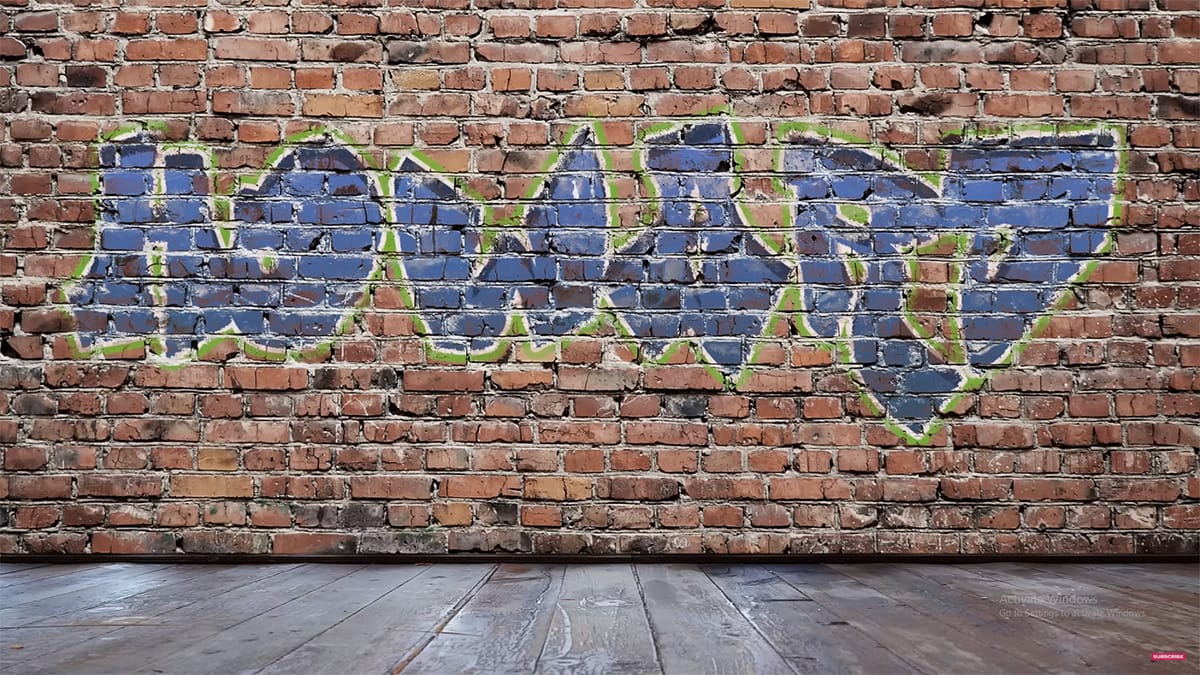
Graffiti text in Photoshop has been a popular request over the years. In this tutorial, Howard Pinsky demonstrates how to create vibrant graffiti on a grungy brick wall using Layer Styles, a displacement map, and Layer blending modes. This tutorial is designed to show just how simple it is to achieve a striking graffiti effect, making it accessible even for beginners. Follow along to bring your graffiti art to life with vivid colors and realistic textures. Watch tutorial
Create a Cute and Scary Children’s Illustration in Photoshop
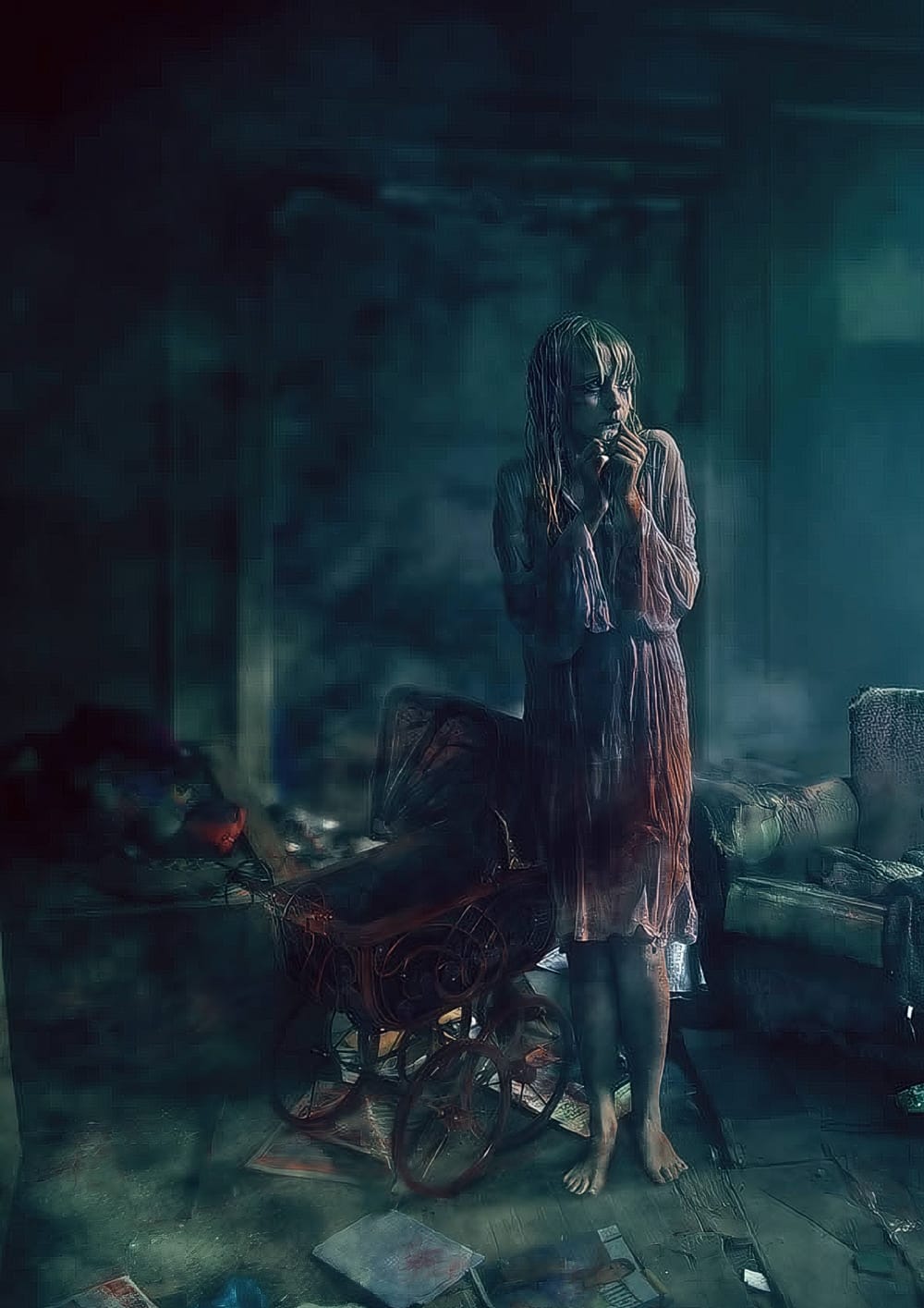
As the fall approaches in many parts of the world, many designers and illustrators might already be thinking about the upcoming Halloween holiday, especially those that are based in the U.S. In this tutorial, we will show you how to illustrate a cute and scary children’s illustration using techniques that you could easily incorporate into your own Halloween artwork. Watch tutorial
Learn how to freak people out in Photoshop
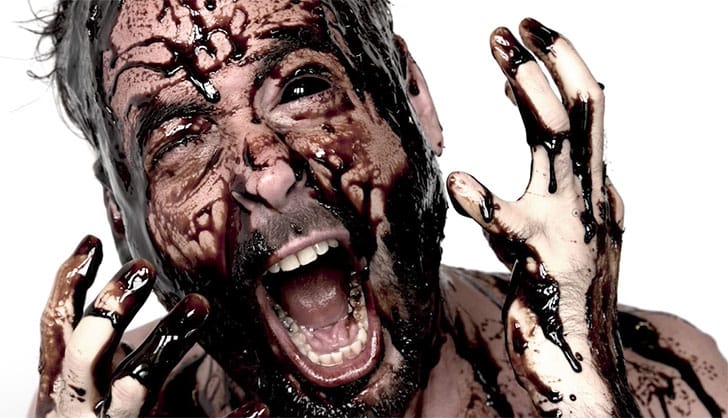
In this tutorial, follow along during a photoshoot where Aaron Nace’s head gets black liquid poured on. Aaron then takes the image into Photoshop for finishing touches to get the proper lighting to black out his own eyes. The key to making a black eye ball look believable in Photoshop is lighting. Be sure your subject is facing a large window or other lighting source that will create light reflections in their eyes. If there is no reflection in the person’s eye, the effect will look flat and li
Create a Horror Scene Photo Composition in Photoshop
In this engaging tutorial, Mario Sanchez Nevado from Tuts+ guides you through the process of creating a horror movie-themed photo composition in Photoshop. You'll learn how to choose the right photos and blend them together seamlessly to achieve a realistic and believable result. Key techniques covered include balancing light, using midtones, creating depth of field, and mastering blending methods. This tutorial is perfect for those looking to enhance their photo manipulation skills and create

Get tutorials & freebies delivered to you.

Subscribe to the Photoshop Roadmap newsletter, a weekly roundup of new tutorials, insights and quality downloads, trusted by 6500+ readers.

You might also like

7 Photoshop AI Tools You're Probably Not Using Yet

Photoshop’s AI features now go far beyond simple object removal. Some of the newer tools can completely change the way you edit photos, create composites, clean up distractions, or expand scenes — often with just a few clicks. The interesting part is that many of these features still feel surprisingly...

Transform Photos into Ink Drawings in Photoshop

Traditional ink drawings capture bold contrasts and artistic expression through pure black and white elements. This technique transforms ordinary photographs into striking ink artwork by combining specific filters with smart object workflows for complete creative control. The method uses oil paint effects, shadow adjustments, and threshold conversion to create authentic...

How to Build Monochromatic Color Palettes with Layers in Photoshop

Creating harmonious color schemes requires understanding how to layer colors strategically rather than relying on single adjustments. A monochromatic palette uses tints, tones, and shades from the same color family to create depth and visual unity. This technique demonstrates how to build rich, textured backgrounds by combining solid color fills,...

How to Use the New 3D Object Rotation Feature in Photoshop

Photoshop's new Rotate Object feature transforms flat 2D images into interactive 3D models that can be repositioned from any angle. This AI-powered tool automatically creates cutouts, maintains original textures, and generates missing details when objects are rotated beyond their original perspective. The feature opens new possibilities for product...

How to Use Depth Range Masking in Camera Raw

Adobe Camera Raw's depth range masking feature allows you to select and adjust specific depth layers in any photograph without needing special camera equipment. Unlike traditional subject and background masks that focus on shapes, depth range masking works with the spatial distance between elements in your image. This...

How to Remove Objects Using Photoshop's Updated Remove Tool Without Credits

Photoshop's updated Remove tool offers powerful AI-powered object removal without consuming any generative credits, regardless of your subscription plan. The tool features automated distraction detection that categorizes different types of visual clutter—from trash and people to urban elements and blemishes—making it easy to selectively remove unwanted...

You’ve successfully subscribed to Photoshop Roadmap
Welcome back! You’ve successfully signed in.
Great! You’ve successfully signed up.
Success! Your email is updated.
Your link has expired
Success! Check your email for magic link to sign-in.