Create a stunning superhero emblem in Photoshop

Create a stunning superhero emblem in Photoshop

This tutorial explores the foundational steps for designing a custom superhero emblem in Adobe Photoshop. It focuses on establishing the core visual elements that give an emblem its distinct character and impact.

Viewers will learn how to prepare their workspace, create a distinctive carbon fiber background, and construct the basic template for their unique emblem, setting the stage for further design in Part 2.

Watch the Tutorial: Building Your Emblem Base

Video by Blue Lightning. Any links or downloads mentioned by the creator are available only on YouTube

The Art of Emblem Design: Form and Function

Emblems serve as powerful visual shorthand, condensing complex ideas or identities into a single, memorable graphic. In the realm of superhero design, an emblem is more than just a logo; it's a symbol of character, power, and narrative. The initial phase of emblem creation, as demonstrated in this tutorial, prioritizes establishing a strong foundational shape and structure.

This early focus on form ensures that the emblem possesses inherent balance and visual strength, even before the application of colors, textures, or lighting effects. A well-constructed base provides the necessary framework for subsequent detailing, allowing designers to layer complexity without compromising the emblem's core legibility and impact.

Key considerations at this stage include: defining the overall silhouette, ensuring symmetrical precision, and establishing clean lines that will carry through the final design. These fundamental choices dictate how the emblem will resonate visually and functionally.

Practical Tips for Emblem Template Creation

  • Initialize your Photoshop document with specific dimensions and resolution for optimal clarity and detail in your emblem.
  • Utilize guidelines and the Snap feature to precisely align elements and maintain symmetry in your design's template.
  • Employ the Pen Tool with Shift to draw accurate 45-degree and horizontal paths, ensuring clean, geometric shapes for your emblem's foundation.
  • Merge duplicated shapes (Ctrl or Cmd + E) to create composite forms, streamlining your layer management for complex emblem designs.
  • Use layer masks with selection tools (Rectangular Marquee Tool, Pencil Tool) to precisely define and refine the boundaries of your emblem's text or core shape.

More Tutorials about Logo and Emblem Design

Explore additional resources to deepen your understanding of logo creation and graphic design techniques in Photoshop.
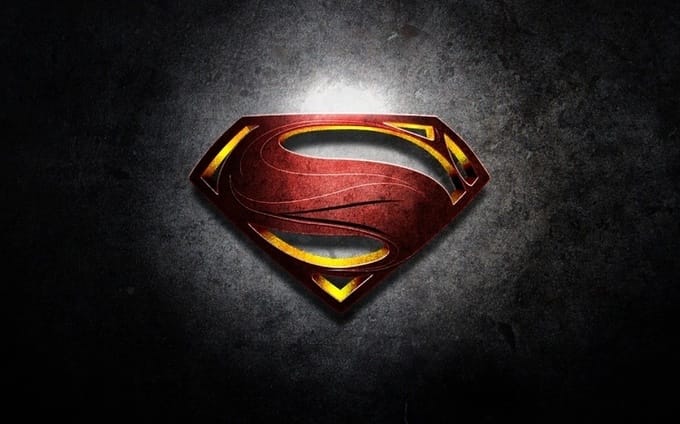
Create the Man of Steel Symbol in Illustrator and Photoshop
This tutorial by Abduzeedo guides you through the process of creating the iconic Superman, Man of Steel logo using Adobe Illustrator and Photoshop. You will learn to combine vector design techniques with photo manipulation, making the final result both striking and professional. Throughout the tutorial, you will use various stock photos for textures and reference the original movie poster to achieve an authentic look. The estimated time to complete this project ranges from 3 to 5 hours, dependi
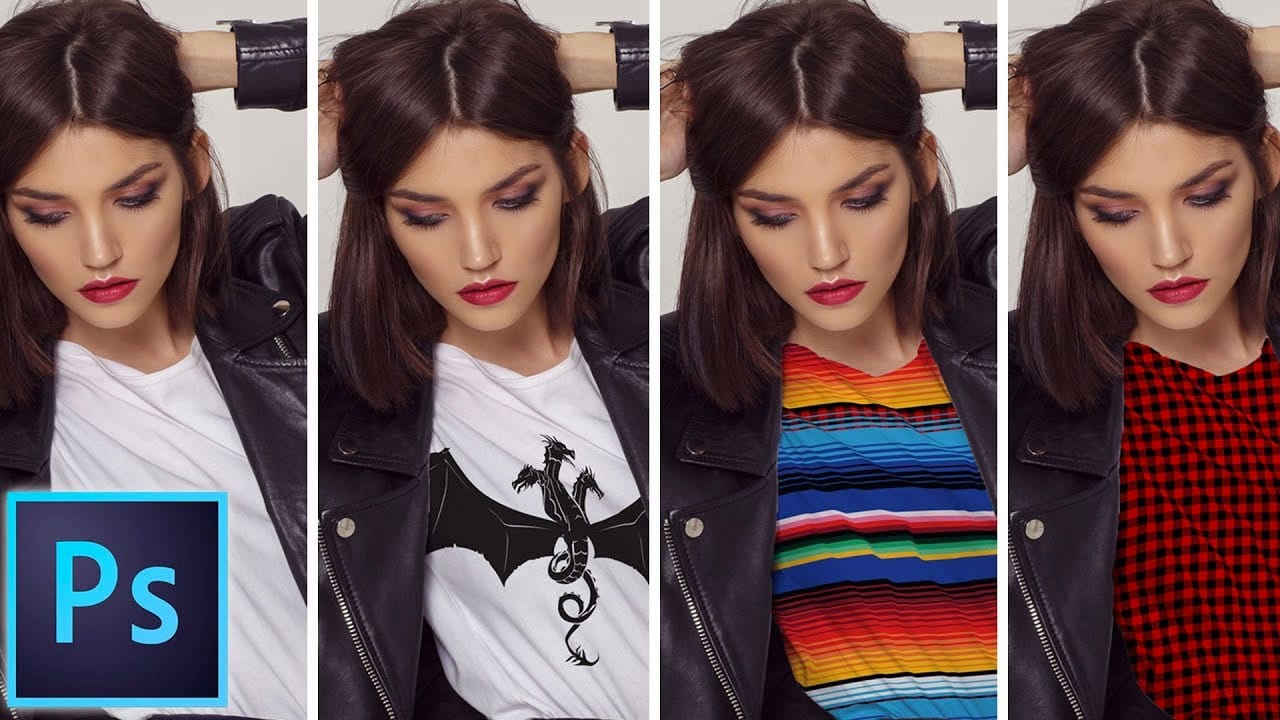
How to add a logo or pattern to a shirt in Photoshop
In his Photoshop tutorial, author Colin Smith guides viewers through the process of adding a logo, graphic, pattern, or texture onto clothing. This technique allows for quick and easy customization of apparel, enabling users to swap out designs in a matter of seconds. Smith's step-by-step instructions demonstrate how to seamlessly incorporate the desired visual element onto a shirt or other garment. By leveraging the power of Photoshop's layers and blending modes, users can achieve a profession
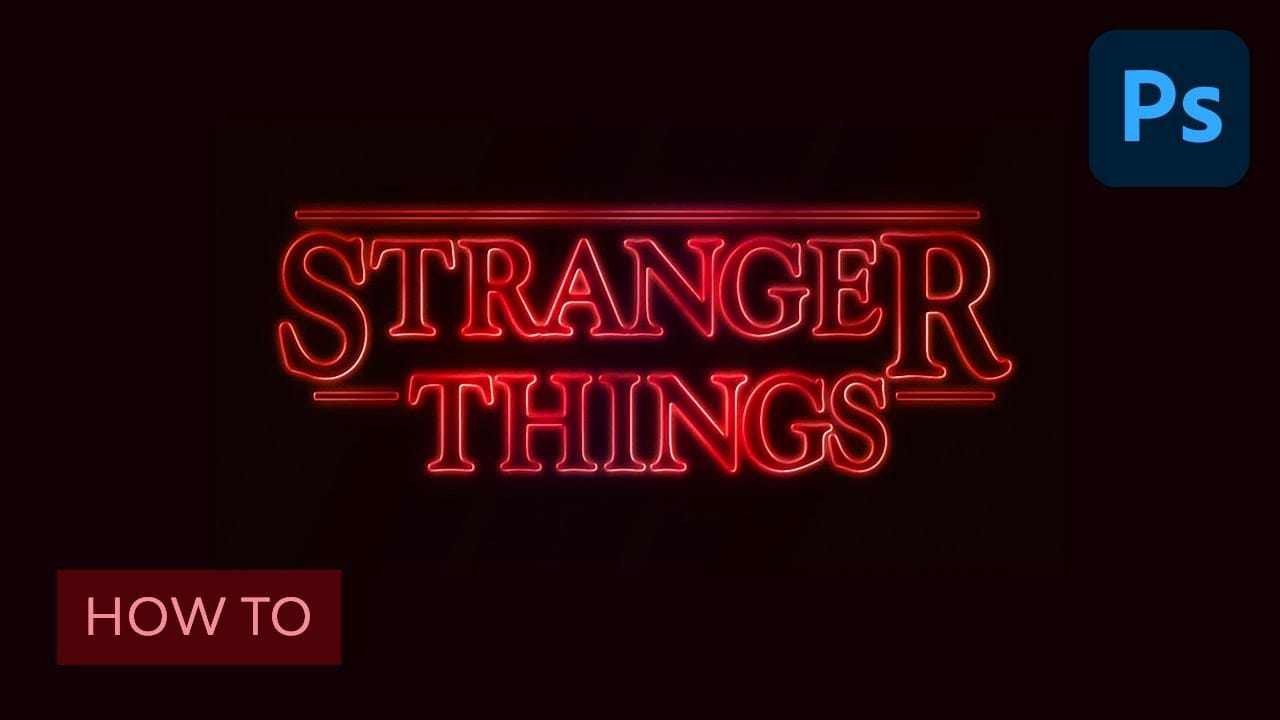
Learn how to create the Stranger Things tv show logo in Photoshop
Netflix’s Stranger Things is a hit. So is the 80’s culture revival. Horror movies from that time were scary and fun at the same time and that’s something this show was able to capture with success. But for those who aren’t designers, there was something that helped to set that ambiance: the awesome 80’s styled logo. If you think you saw it before, but don’t remember where, just go to your bookshelf and grab some of your old Stephen King books. And if you still have them, then check your Choose
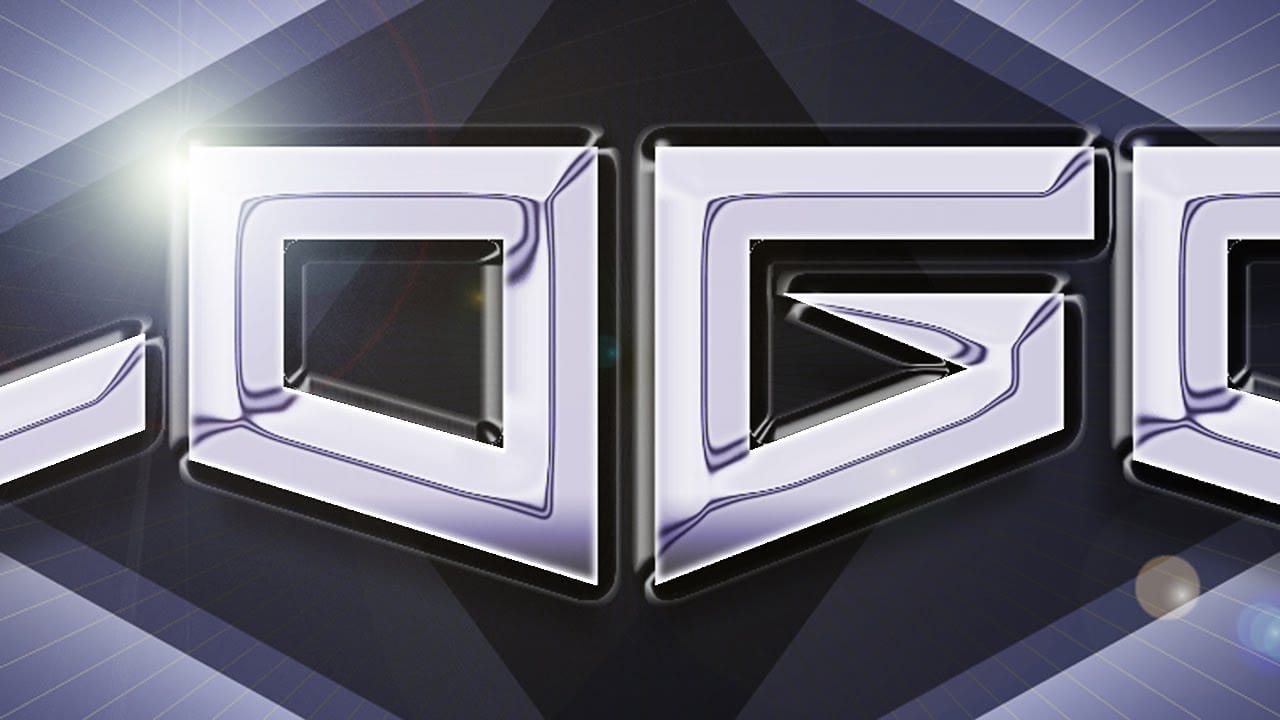
Create a sleek chrome logo in Photoshop
In this Photoshop CC tutorial by Marty Geller from Blue Lightning TV, you'll learn how to design and create stunning logos, emblems, and monograms. The tutorial guides you through the process of creating a sleek, chrome logo from scratch, covering techniques for adding metallic textures, reflections, and depth. By following this step-by-step guide, you'll be able to produce professional-looking chrome designs that stand out with their polished and sophisticated appearance. Watch tutorial

Get tutorials & freebies delivered to you.

Subscribe to the Photoshop Roadmap newsletter, a weekly roundup of new tutorials, insights and quality downloads, trusted by 6500+ readers.

You might also like

How to Create Circle Cropped Photos with Transparent Backgrounds in Photoshop

Circular cropping transforms standard photographs into clean, professional profile images perfect for websites, social media, and presentations. The frame tool method creates non-destructive crops with transparent backgrounds that export seamlessly across different platforms. This streamlined workflow eliminates the need for complex selections or masks while maintaining full control over image...

How to Use Generative Upscale to Restore and Enhance Low-Resolution Images in Photoshop

Low-resolution images often limit your creative projects, especially when you need sharp prints or high-quality displays. Photoshop's Generative Upscale feature transforms small, pixelated photos into crisp, detailed images using AI-powered enhancement. This tool offers three distinct AI models, each designed for specific image types—from landscapes and portraits...

How to Use Harmonize to Automatically Match Lighting in Photoshop Composites

Creating seamless composites traditionally requires hours of manual color correction and lighting adjustments. The new Harmonize tool changes this by automatically analyzing your background and matching your subject's lighting, shadows, and color tones with a single click. This AI-powered feature eliminates the need for complex adjustment layers and...

How to Use Adobe Photoshop in ChatGPT for Photo Editing

Adobe Photoshop is now integrated directly into ChatGPT, allowing you to edit photos using simple text descriptions. This new feature lets you enhance images, apply creative effects, and make targeted adjustments without needing a Photoshop subscription. You can describe what you want to change and fine-tune adjustments using familiar Photoshop...

How to Fix Skin Tones in Photoshop - Complete Guide

Skin tones can make or break a portrait, yet color casts and uneven lighting often leave subjects looking unnatural or flat. Whether dealing with mixed lighting conditions, camera white balance issues, or post-processing mishaps, getting skin colors right requires a systematic approach that works consistently across different scenarios. This comprehensive...

You’ve successfully subscribed to Photoshop Roadmap
Welcome back! You’ve successfully signed in.
Great! You’ve successfully signed up.
Success! Your email is updated.
Your link has expired
Success! Check your email for magic link to sign-in.