Create a stunning Film Noir photo effect in Photoshop

Create a stunning Film Noir photo effect in Photoshop

The classic film noir aesthetic, popularized by movies like Sin City, offers a dramatic and stylized visual experience. This unique style relies heavily on specific lighting and contrast techniques to evoke a sense of mystery and tension.

This video tutorial guides you through the process of transforming your images into a low-key black and white scene reminiscent of these iconic films. You will discover practical methods for enhancing contrast, creating dramatic lighting, and establishing a dark, cinematic atmosphere in Photoshop.

Watch the Film Noir Effect Tutorial

Video by Spoon Graphics. Any links or downloads mentioned by the creator are available only on YouTube

The Cinematic Impact of Neo-Noir Aesthetics

Film noir, originating in the 1940s and 50s, is characterized by its stark visual style, often featuring high contrast, deep shadows, and dramatic lighting. This aesthetic amplifies themes of moral ambiguity and psychological tension, drawing viewers into a world of suspense.

The modern evolution, neo-noir, reinterprets these elements with contemporary narratives and advanced visual effects, as seen in the striking look of the Sin City films. These movies masterfully blend traditional black and white with selective color to enhance mood and focus attention, creating a distinct visual signature.

Key visual components of this style include:

  • Strong chiaroscuro lighting
  • Silhouettes and deep shadows
  • Exaggerated perspectives

This visual language is crucial for setting the tone and immersing the audience in the story's dark, atmospheric world.

Practical Tips for Achieving a Film Noir Effect

  • Convert images to a low-key black and white format to establish the foundational dramatic look.
  • Employ techniques to significantly boost image contrast, enhancing the starkness characteristic of the genre.
  • Introduce faux lighting effects to create dramatic highlights and shadows, effectively guiding the viewer's eye.
  • Cultivate a dark and atmospheric mood to evoke the tension and mystery of a movie freeze frame.

Explore additional techniques for photo manipulation and cinematic visual styles with these related guides.
How to Create a Vintage, Film Noir Movie Title in Photoshop
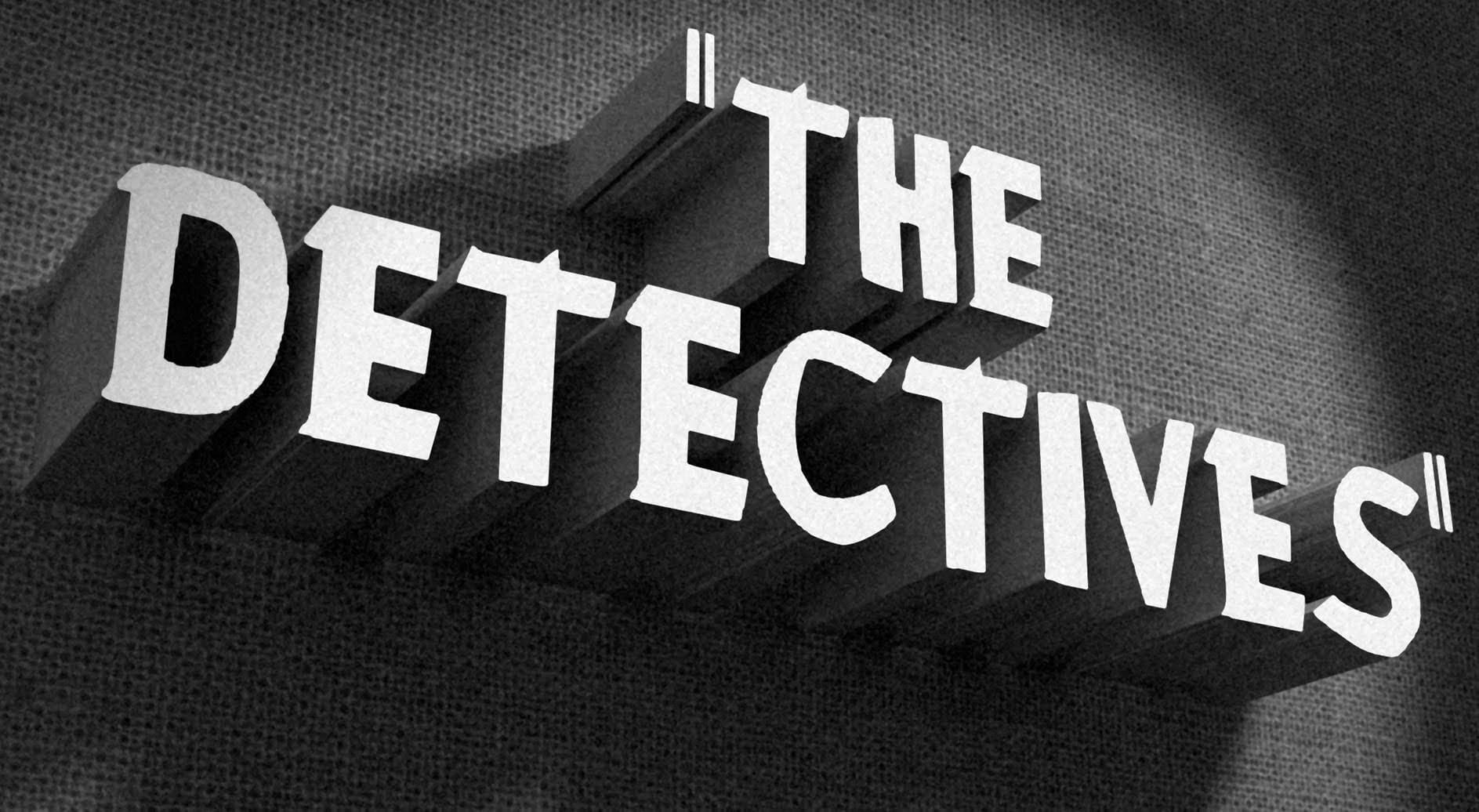
In this Photoshop tutorial by BlueLightning TV, you'll learn how to design and create a film noir movie opening title card, reminiscent of crime dramas from the 1940s and 1950s. The tutorial guides you through the process step-by-step, demonstrating techniques to achieve the classic film noir aesthetic using typography, textures, and atmospheric effects in Photoshop. Whether you're a fan of vintage cinema or looking to create a nostalgic title card for a project, this tutorial provides the ski
Post Apocalyptic Photo Effect Tutorial in Photoshop
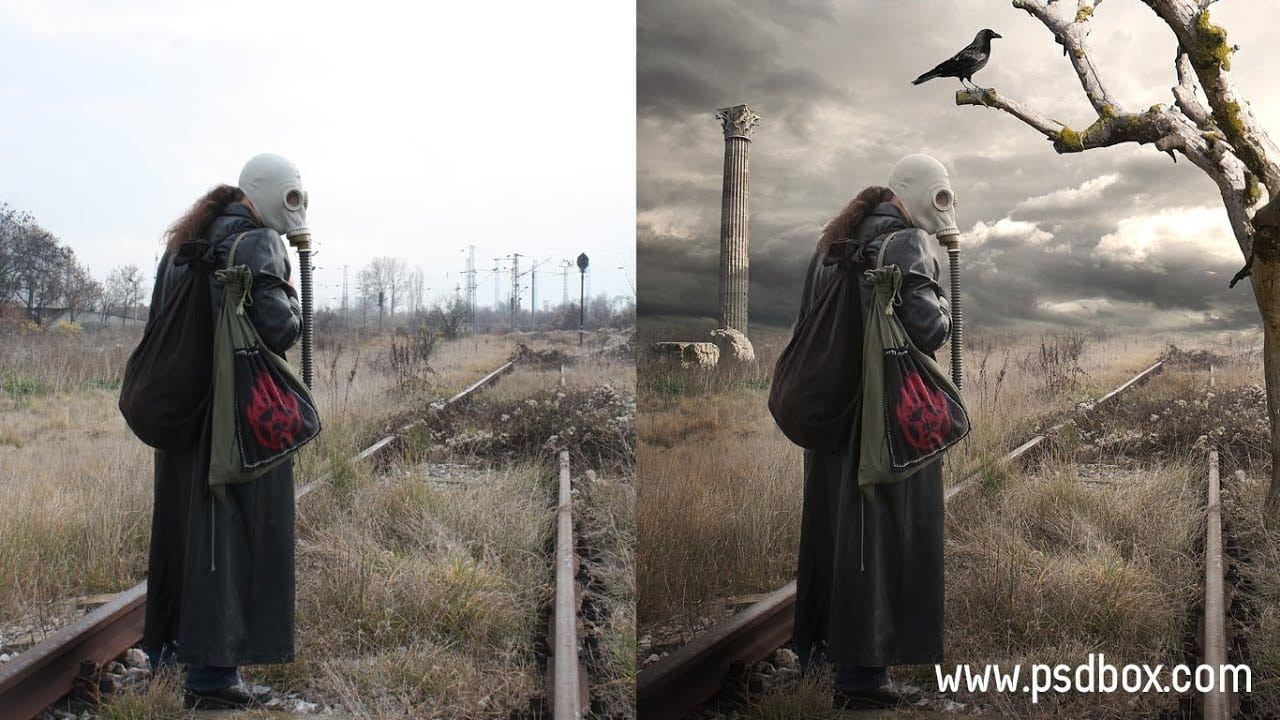
In this tutorial, you will learn how to create a striking post-apocalyptic photo effect using Photoshop. By following straightforward manipulation techniques, you will see how to transform stock images to create an atmospheric scene that captures the essence of a world after calamity. The tutorial focuses not only on the manipulation of images but also on changing the lighting to enhance the overall mood. A unique tip for masking pixel edges will also be shared, using the Contract Selection com
Blend Photos Like A Hollywood Movie Poster With Photoshop
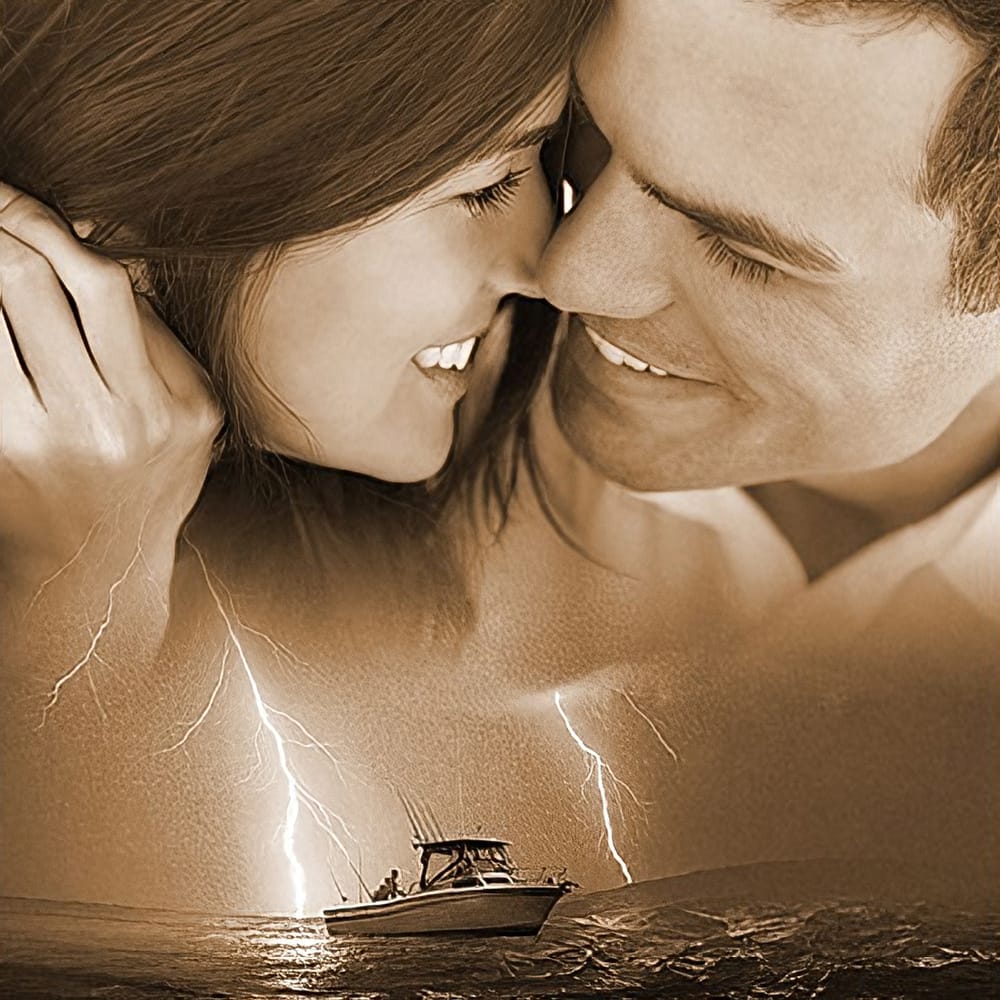
In this Photo Effects tutorial, you will discover how to mix two photos seamlessly, just like in professional movie posters. The techniques covered will guide you through the process step by step, ensuring that even beginners can achieve stunning results. You’ll start by selecting the right images to work with, focusing on how their elements will complement each other. From there, you will learn about layering and using various tools to adjust the images for a flawless integration. By the end o
Create a Film Strip Photo Collage Portrait effect in Photoshop
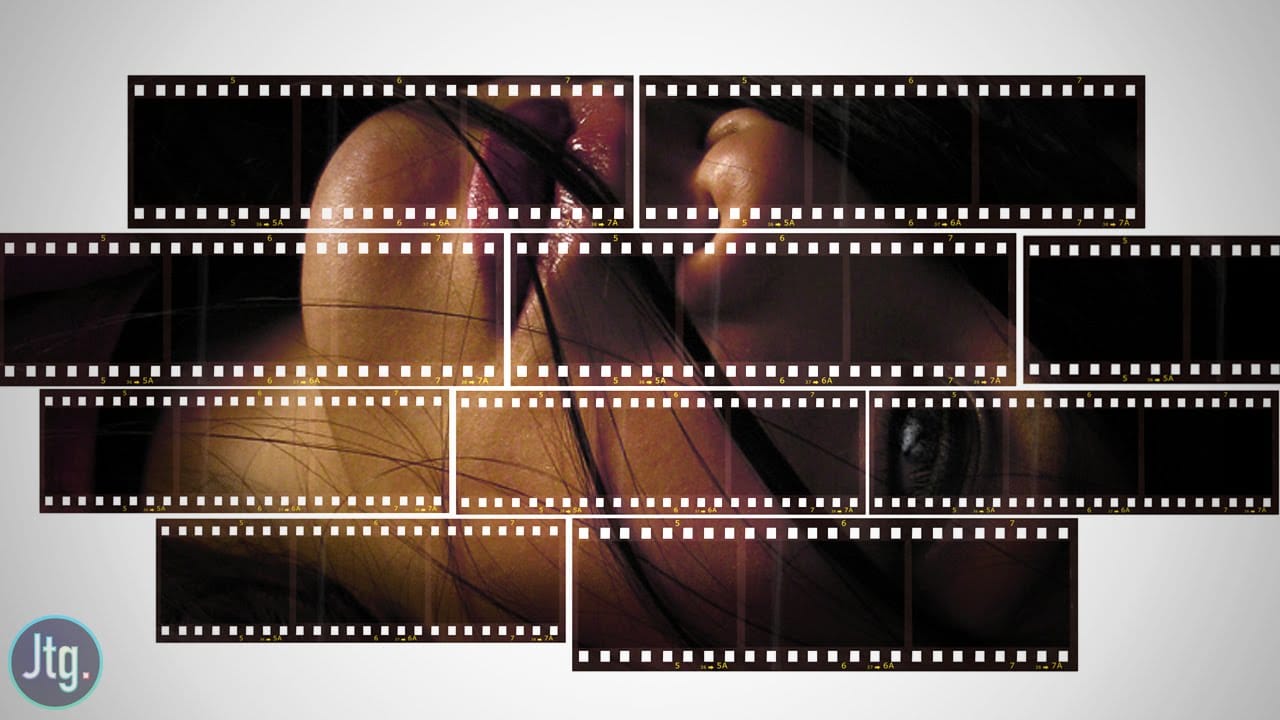
The film strip effect is a popular technique that allows you to frame your images in a unique, retro-inspired way. According to author Justin Odisho, this effect can be achieved in a few simple steps using Adobe Photoshop. The process involves creating a collage-style layout with multiple images arranged in a filmstrip-like fashion. This approach not only adds a nostalgic touch to your photographs but also enables you to showcase several related or complementary images in a visually appealing m

Get tutorials & freebies delivered to you.

Subscribe to the Photoshop Roadmap newsletter, a weekly roundup of new tutorials, insights and quality downloads, trusted by 6500+ readers.

You might also like

Professional Portrait Retouching with the B.S.T. Method in Photoshop

Professional portrait retouching requires artistic choices that automated tools can't make. The B.S.T. method breaks retouching into three focused steps: removing blemishes with precision, smoothing skin while preserving natural texture, and equalizing skin tones throughout the image. This systematic approach gives you complete control over every...

Create Motion Blur Light Effects in Photoshop

Transform ordinary portraits into dynamic, cinematic images by combining path blur effects with creative background textures. This technique creates the illusion of camera movement while maintaining focus on key elements like the subject's eyes, resulting in professional-looking motion blur effects that add energy and visual interest to static...

How to Paint Realistic Jewelry on Portraits in Photoshop

Adding painted jewelry to portraits transforms ordinary photos into fantasy portraits with ornate accessories that never existed. This digital painting technique uses careful layering, proper lighting, and realistic shadows to create convincing rings, earrings, and decorative headpieces. The method combines basic brush work with advanced blending techniques to build up...

How to Sharpen Images Using the High Pass Filter in Photoshop

The High Pass filter method remains one of the most versatile sharpening techniques in Photoshop, offering precise control over which image areas receive enhancement. This non-destructive approach works by identifying edge details and allowing you to selectively apply sharpening exactly where it's needed most. Unlike automated sharpening tools,...

How to Find Missing Actions in the New Photoshop Actions Panel

The redesigned Actions panel in Photoshop can catch users off guard when their custom actions seem to disappear. With the new tabbed interface, your previously created actions are still there—they're just located in a different tab than before. Understanding the new layout will help you quickly access...

Fast Portrait Retouching: Remove Stray Hairs, Clothing Wrinkles, and Fix Backgrounds

Every portrait photographer knows the feeling: you've captured a beautiful shot, but stray hairs, wrinkled clothing, and messy backgrounds turn editing into hours of tedious work. These common retouching challenges can drain your time and energy, especially when dealing with high-volume projects or tight deadlines. This tutorial demonstrates...

You’ve successfully subscribed to Photoshop Roadmap
Welcome back! You’ve successfully signed in.
Great! You’ve successfully signed up.
Success! Your email is updated.
Your link has expired
Success! Check your email for magic link to sign-in.