Advanced Digital Watercolor Rendering Technique in Photoshop

Advanced Digital Watercolor Rendering Technique in Photoshop

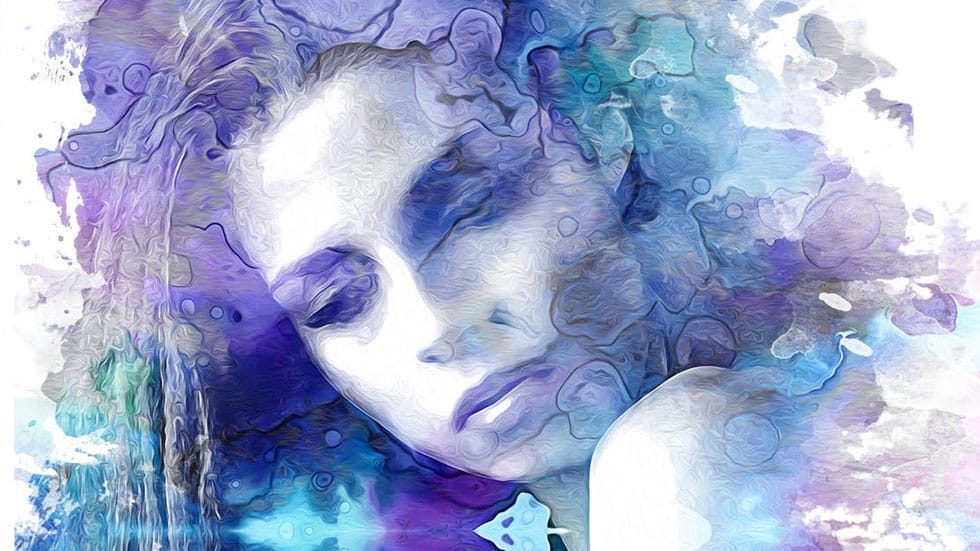
Unleash the artistic potential hidden within your photographs by transforming them into stunning watercolor paintings. This effect adds a timeless, hand-painted aesthetic to any image, offering a distinct visual appeal. Learn how to achieve a nuanced, custom watercolor look in Photoshop that goes beyond typical filters, giving you precise control over every brushstroke. The video guides you through each step, ensuring you can replicate this beautiful artistic style with ease.

Watch the Video

Video by Blue Lightning. Any links or downloads mentioned by the creator are available only on YouTube

The Art of Digital Watercolor: Blending Photography and Painting

Watercolor art holds a timeless appeal, characterized by its soft washes, delicate transparencies, and unique textures. Recreating this organic aesthetic digitally presents a fascinating challenge, moving beyond simple filters to achieve a truly painterly effect. Modern photo editing software allows artists to merge the precision of photography with the fluid, expressive qualities of watercolor, opening new avenues for creative expression.

Achieving a convincing digital watercolor often relies on emulating traditional techniques, such as layering washes and mimicking brush strokes. Incorporating elements like paper textures and using custom brushes are vital for capturing the authentic feel of the medium. The flexibility of digital tools, especially through non-destructive editing, means artists can experiment freely, refining details without committing to irreversible changes.

Unlike traditional watercolor, where every stroke is permanent, digital methods provide unparalleled control. Artists can adjust blending modes, refine edges, and even selectively reveal underlying textures. This fusion allows for a personalized artistic interpretation, transforming a static photograph into a vibrant, hand-touched piece that reflects the artist's vision.

Practical Tips for Digital Watercolor Effects

  • Always check your photo's resolution; filter settings may need adjustment if your image is higher than 72 pixels per inch.
  • Convert your image copy to a Smart Object to apply filters non-destructively, allowing for easy adjustments later.
  • Define a watercolor paper texture as a pattern and apply it using a Pattern Overlay with a Multiply blend mode for a realistic base.
  • Utilize an inverted layer mask (black) and a white brush to selectively reveal the watercolor effect, mimicking actual brushstrokes.
  • Vary your brush's opacity and switch between black and white foreground colors (using the 'X' key) to refine painted areas and reveal underlying paper texture.

More Tutorials about Watercolor Photo Effects

Explore additional resources to deepen your understanding of creating unique watercolor effects in Photoshop.
Learn How to Create a Watercolor Photo Effect in Photoshop
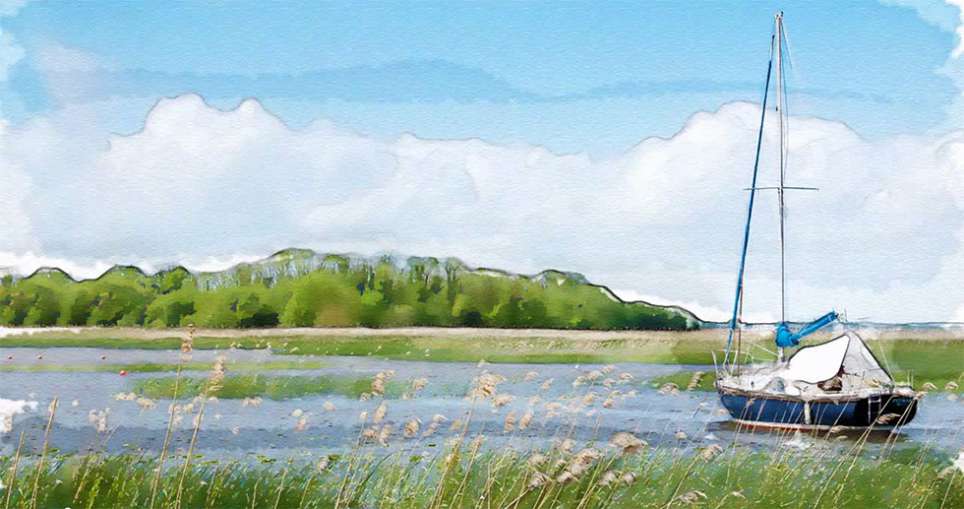
In this tutorial by Blue Lightning TV, Marty demonstrates how to transform an ordinary photograph into a stunning hand-painted watercolor painting using Photoshop. This method surpasses the built-in watercolor filter in Photoshop by allowing users to hand paint the image, offering greater nuance and control. The process begins with setting up the document at 1280 by 720 pixels with a resolution of 72 pixels per inch, then renaming the initial layer to “base” and creating a copy named “smart blur
Beautiful watercolor portrait effect in Photoshop
This video explores the artistic technique of adding watercolor textures to photographs. Learn how to seamlessly overlay a watercolor texture onto your image, creating a beautiful painterly effect. You'll discover methods for adjusting the texture's opacity and blending modes for a natural, watercolor-like finish. This tutorial is a great way to add a touch of artistic flair to your photography projects. Watch tutorial
How To Make a Watercolor Photo Manipulation In Photoshop
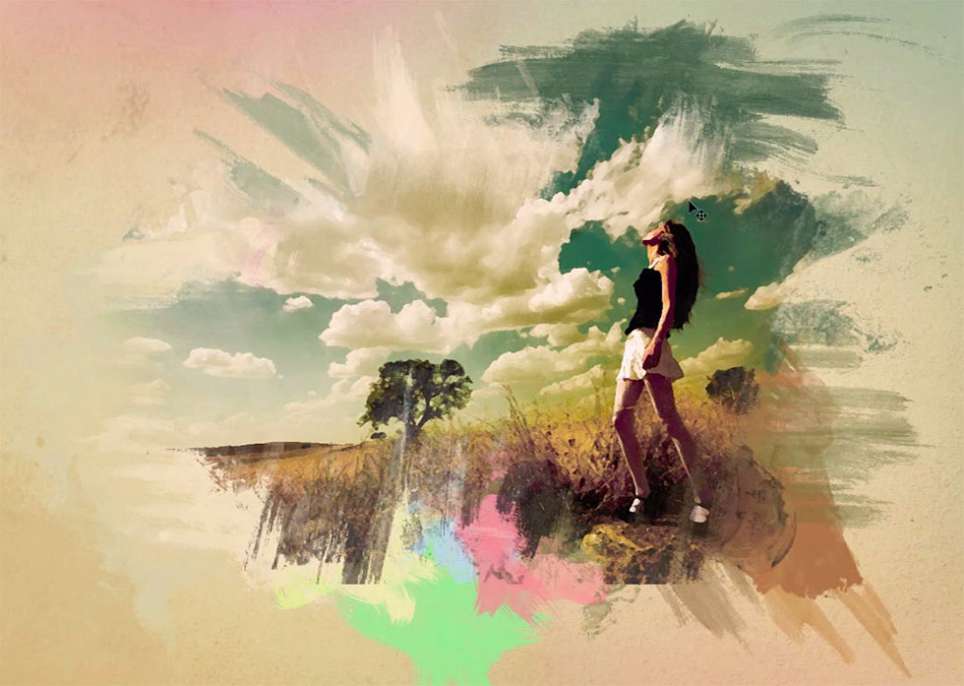
This tutorial by Maarten Rietdijk provides a step-by-step guide on how to combine watercolor brushstrokes and photos in Photoshop. The author explains the process in a clear and concise manner, making it accessible to both beginners and experienced Photoshop users. The tutorial begins by teaching the reader how to create a set of custom watercolor brushes. These brushes are then used to add a unique, artistic touch to the photograph. The author emphasizes the importance of experimenting with di
Add a beautiful watercolor effect to your photos in Photoshop
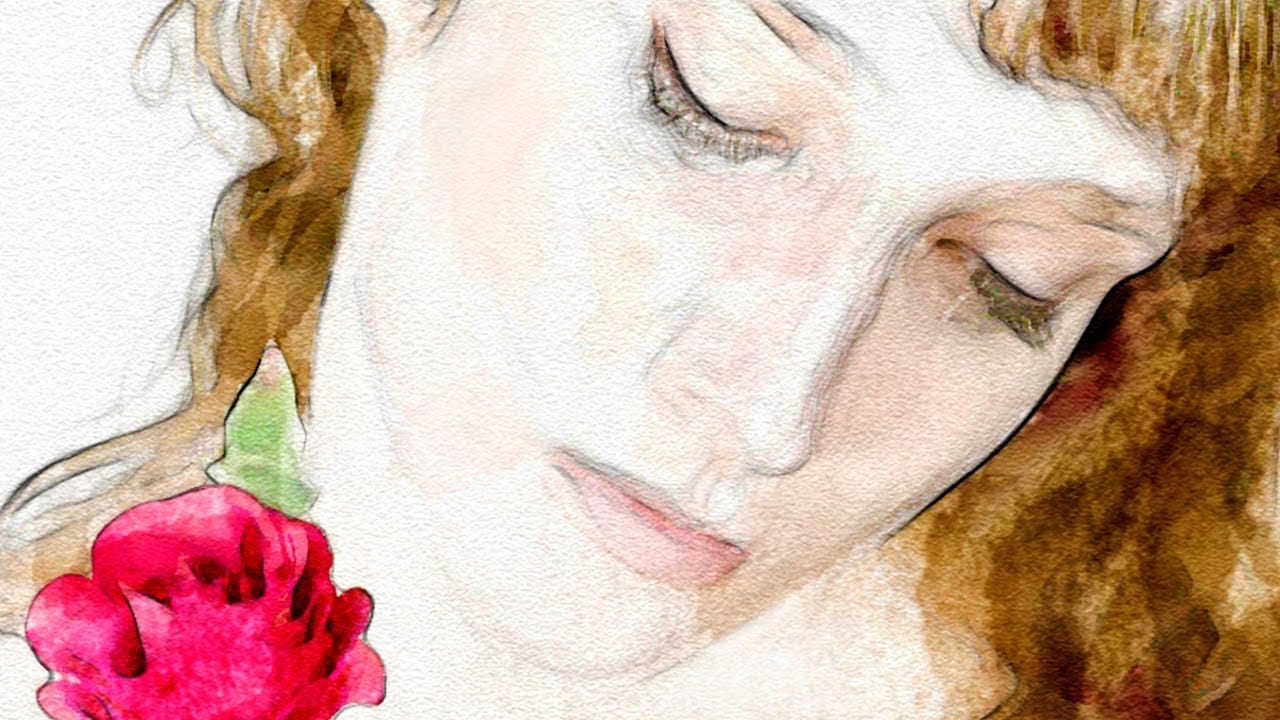
In this Photoshop tutorial by Marty Geller from Blue Lightning TV you will learn how to create a beautiful, nuanced, watercolor portrait of someone from a photograph. Forget about Photoshop default ugly watercolor filters. Unlike other watercolor effects, the methods shown here allow you to create unique, personal touches because you brush in your own strokes. Watch tutorial
Easy Watercolor Painting Effects in Photoshop
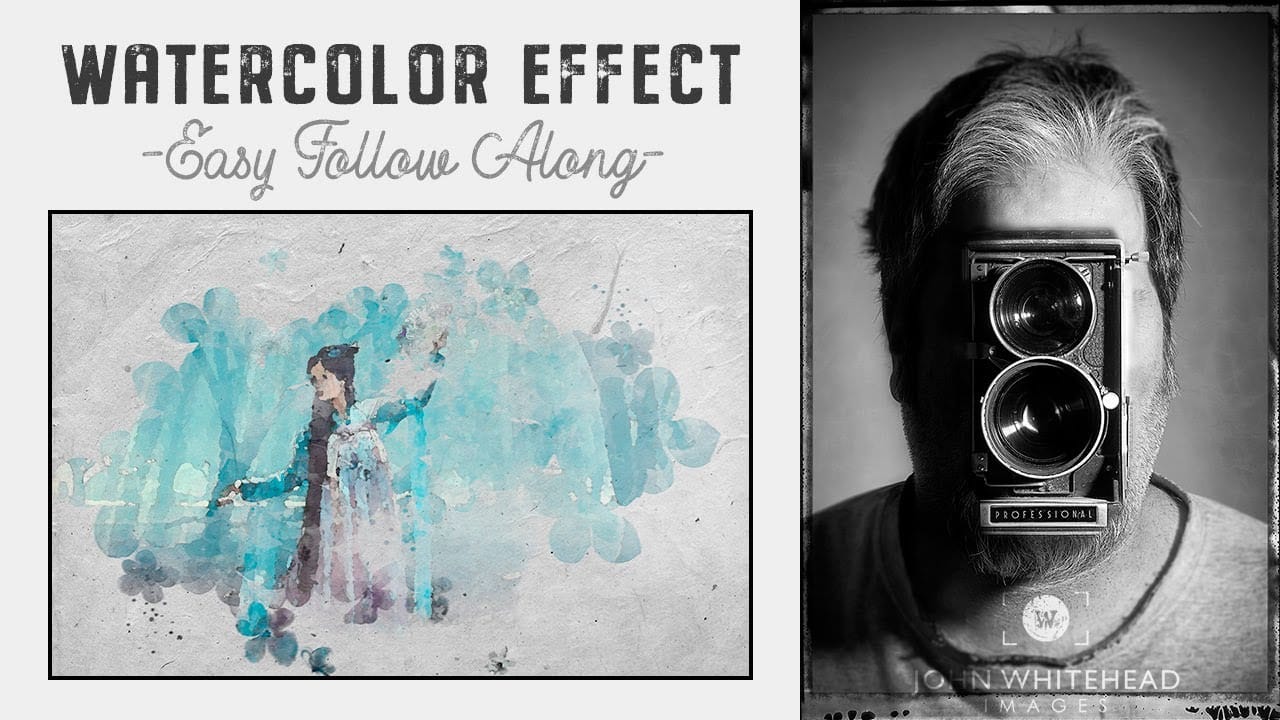
Creating watercolor painting effects in Photoshop is easy and fun with this step-by-step tutorial by John Whitehead. In this guide, you'll learn how to transform any image into a beautiful watercolor painting using Adobe Photoshop. John walks you through the entire process, from selecting the right brushes to applying the effects. If you don't already have watercolor brushes, don't worry! John also shows you how to create your own brushes from watercolor images, allowing you to customize and en

Get tutorials & freebies delivered to you.

Subscribe to the Photoshop Roadmap newsletter, a weekly roundup of new tutorials, insights and quality downloads, trusted by 6500+ readers.

You might also like

How to Remove Glasses Reflections with Firefly Image Model 5 in Photoshop

Glasses reflections can ruin otherwise perfect portraits, obscuring your subject's eyes and creating distracting bright spots. While traditional AI models can remove these reflections, they often alter facial features and frame details in the process. Photoshop's new Firefly Image Model 5 changes this by preserving facial...

How to Create Realistic Specular Highlights Using Basic Brush Techniques

Specular highlights bring objects to life by simulating how light reflects off surfaces. These bright spots of reflected light add dimension and realism to your digital artwork, making flat surfaces appear three-dimensional and convincing. This technique uses simple brush strokes combined with strategic blending modes to create professional-looking highlights that...

How to Create a Wood Engraving Effect from Photos in Photoshop

Wood engravings capture the timeless aesthetic of traditional printmaking, transforming ordinary photographs into artwork that resembles hand-carved illustrations. This technique combines the rustic charm of wood textures with the precise detail of engraved lines, creating images that feel both historical and artistic. The process uses non-destructive editing methods and smart...

When to Skip Layer Duplication in Modern Photoshop Workflows

The old advice to always duplicate layers when editing in Photoshop stems from earlier versions that lacked today's powerful tools. Modern Photoshop workflows often make layer duplication unnecessary, especially for common tasks like object removal, sky replacement, and background changes. Understanding when to skip this step saves storage...

Why Testing Your Thumbnails Across Generations Improves Video Performance

The best thumbnail designs make sense to everyone, not just your target audience. When you create thumbnails that only speak to your specific niche or generation, you limit your video's potential reach and engagement. Testing your thumbnails with people from different age groups reveals clarity issues you might...

How to Use Photoshop 2026's New Dehaze Tool for Better Background Clarity

Hazy backgrounds can make even the most stunning landscapes look flat and lifeless. Photoshop 2026's new dehaze feature transforms these atmospheric challenges into clear, vibrant scenes with precise control. The key to getting professional results lies in making targeted selections before applying the dehaze effect. This approach ensures...

You’ve successfully subscribed to Photoshop Roadmap
Welcome back! You’ve successfully signed in.
Great! You’ve successfully signed up.
Success! Your email is updated.
Your link has expired
Success! Check your email for magic link to sign-in.