8 Photoshop Cheesy Effects You Secretly Love Done the Right Way

8 Photoshop Cheesy Effects You Secretly Love Done the Right Way

Many Photoshop beginners often make the mistake of overloading their images with multiple effects. You might find yourself drawn to shiny golden text, whimsical fairy dust, and vintage colors, but it's crucial to use these effects wisely. Combining too many effects can lead to cluttered and unappealing results.

This article puts together a thoughtful collection of well-structured tutorials that guide you through creating these fun effects without overwhelming your images. Each tutorial focuses on a specific effect, ensuring that you understand how to apply it effectively.

By following these tips, you can achieve that playful aesthetic you enjoy while maintaining a polished look. Whether you want to add some flair to your graphics or enhance your photos, this resource will be invaluable for mastering cheesy effects in Photoshop.

1) Dreamy Lighting Effects

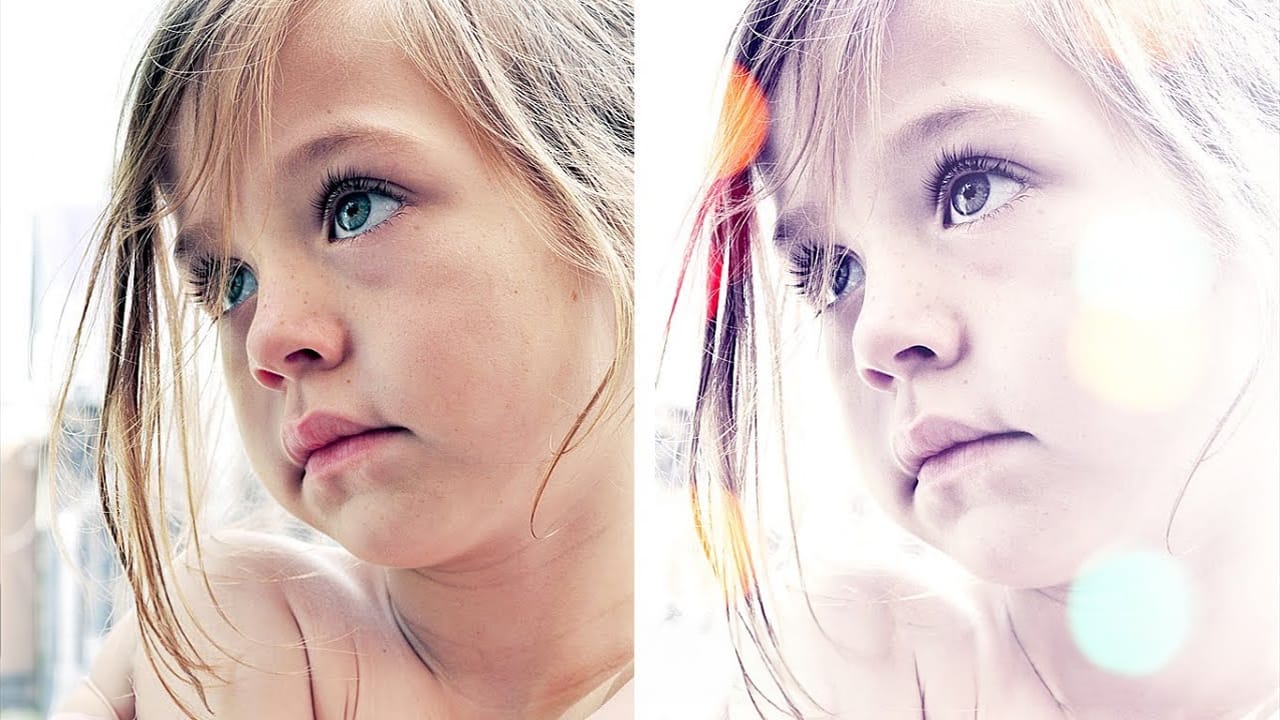
Add Quick Dreamy Effects to Portraits in Photoshop – Photoshop Roadmap
In this tutorial by Andrei Oprinca from PsdBox you are going to learn how to make some quick edits on a personal photo without doing anything complicated. The author explains very clearly how to add nice effects to your portraits without the need of years of Photoshop experience. This technique
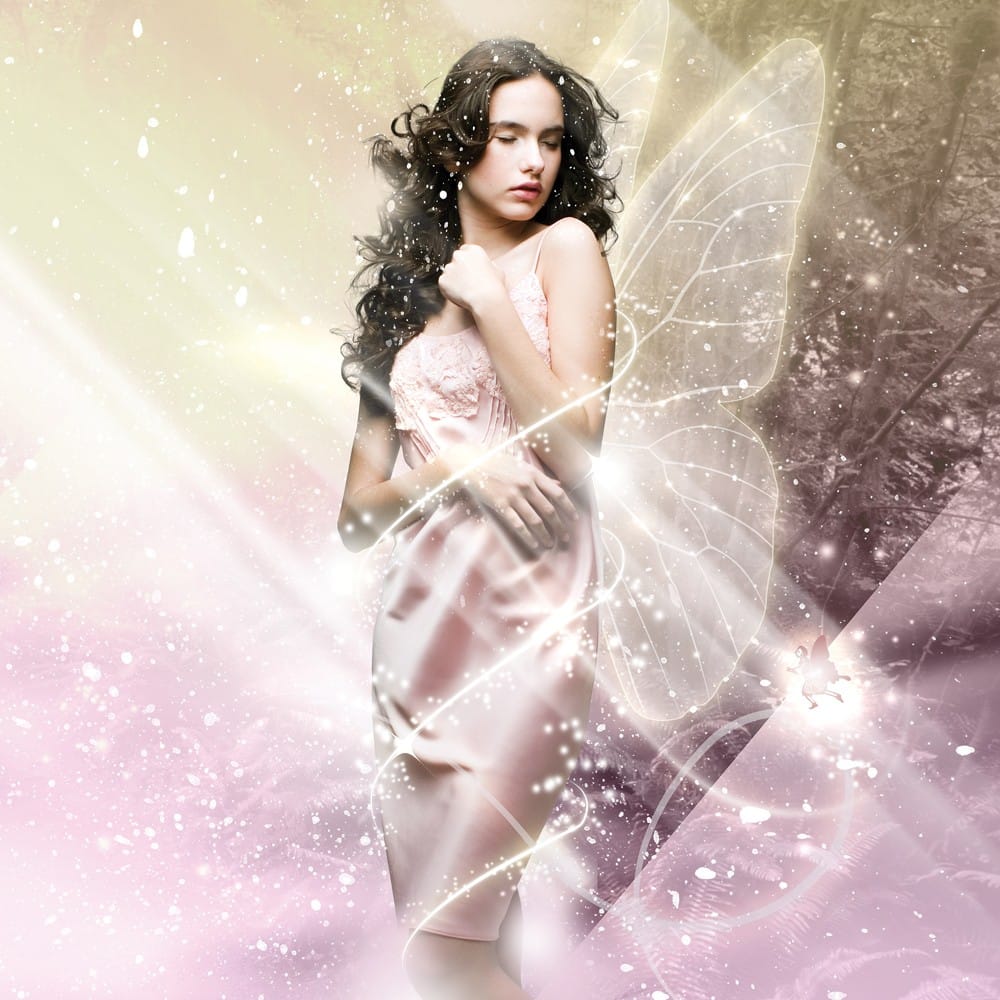
Fantasy Lighting Effects in Photoshop
In this tutorial, Murilo Maciel will show youhow to use a standard stock model, and apply layers of light and, brushes and vector shapes to generate a beautiful fantasy image. Process Preview Read this tutorial at Digital Arts Online More
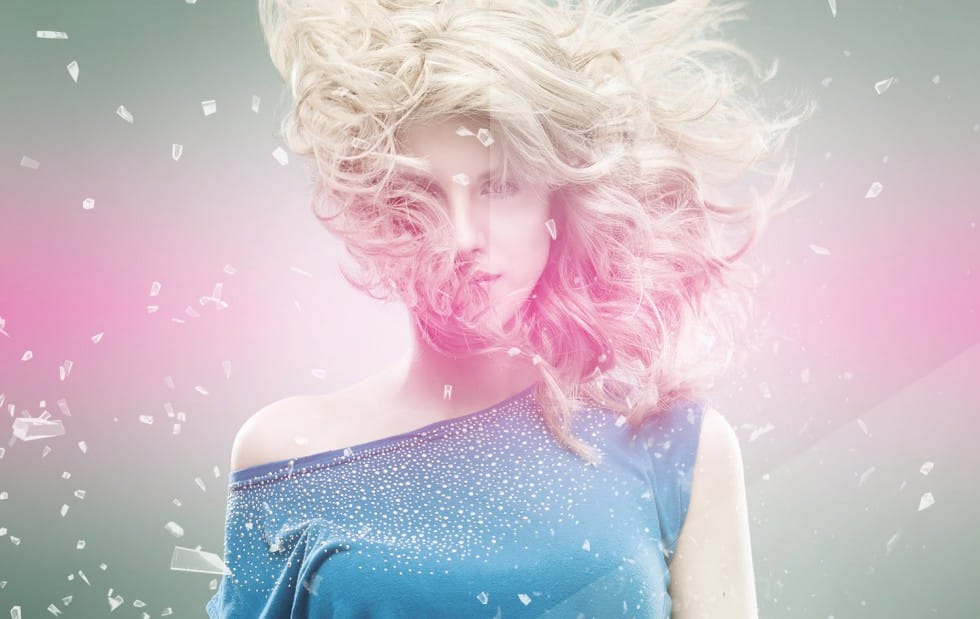
Add creative lights and colors to your image in Photoshop
In this simple tutorial you will learn how to turn your image into image full of creative lights and colours. Use some of the gradients and brushes, to turn your image into impressive piece of work. More

2) Illustration and Painterly Effects

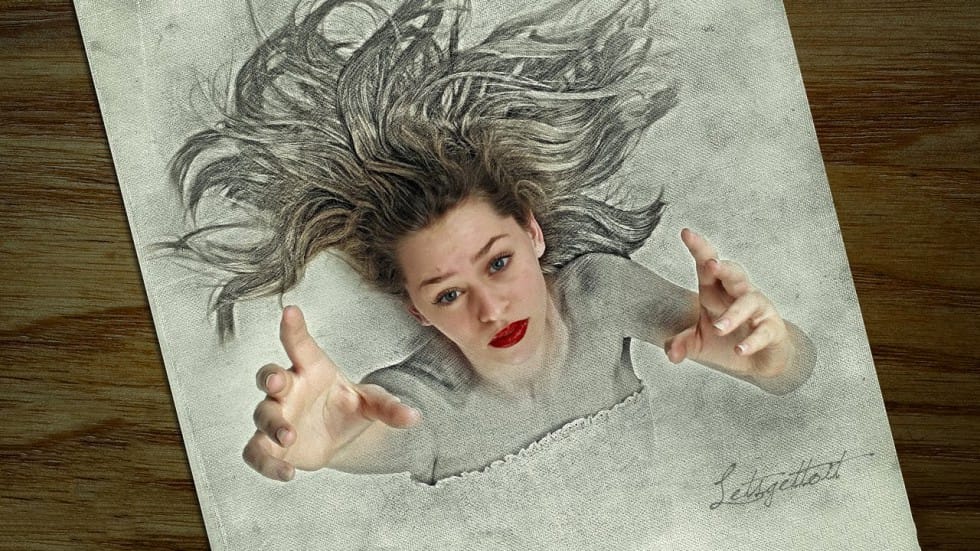
3D Pop Up Sketch Drawing Effect
In this Photoshop tutorial by Let’s Photoshop, you’ll discover how to transform a photo into an impressive 3D pop-up sketch drawing. This effect makes the subject appear as if it’s emerging from the sketching paper, adding a fantastic, surreal touch to your images. Using straightforward techniques in Adobe Photoshop, you’ll
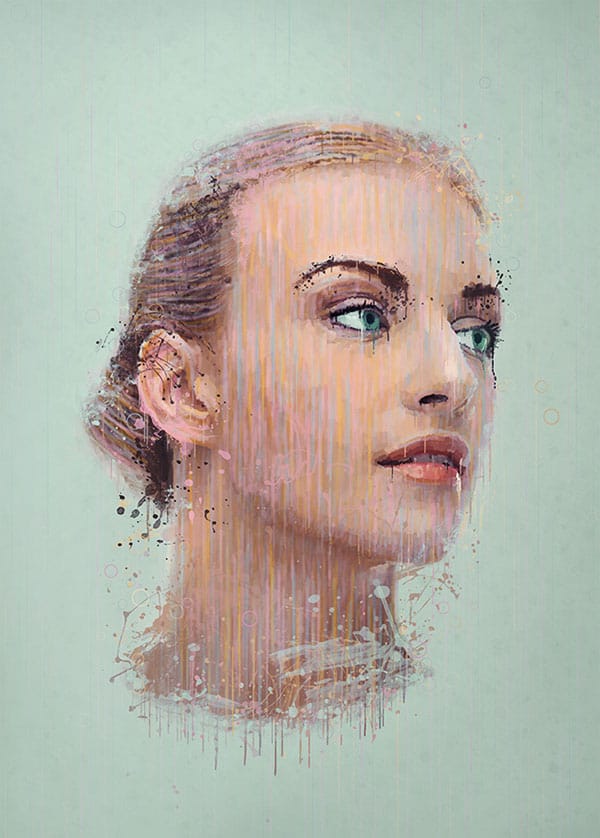
Apply a painterly splatter effect to a photo in Photoshop
In this tutorial, you will learn how to manipulate a portrait photo to create a splatter paint and drip effect in Photoshop. This tutorial will cover many techniques including overlay painting, blending, and coloring techniques. Process preview Read more at TutsPlus… More
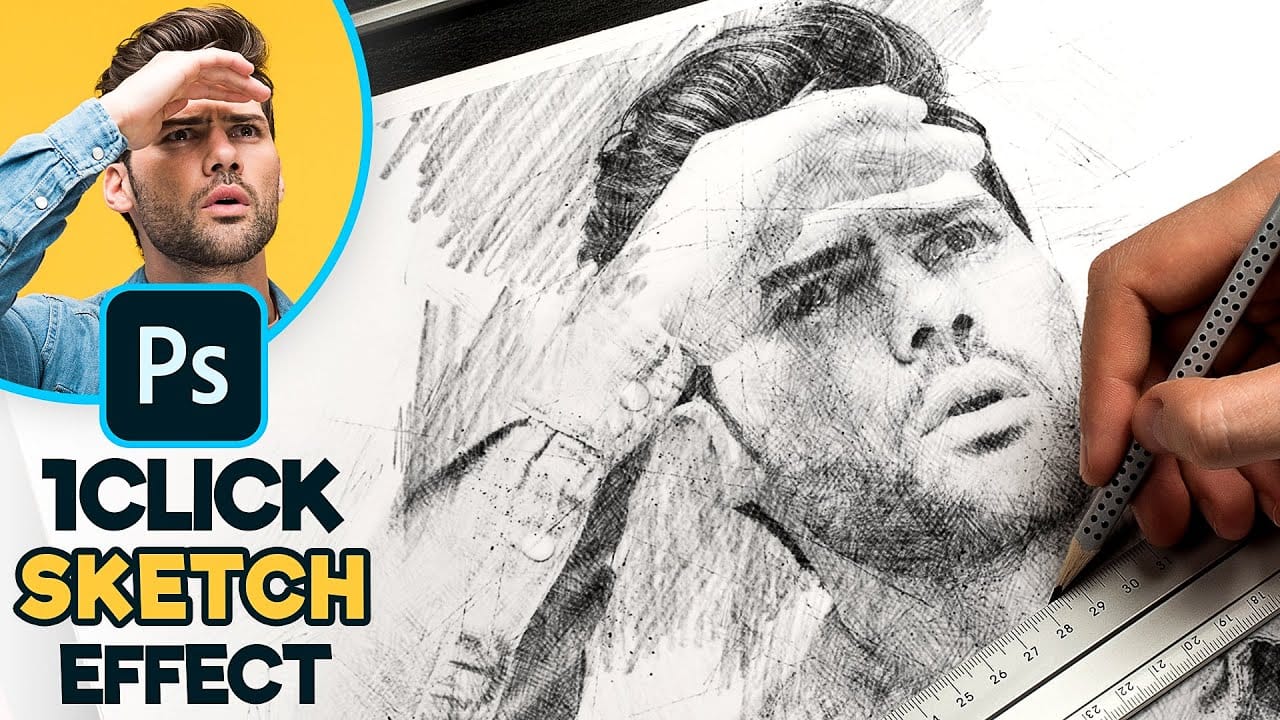
Create a 1-Click Photo to Pencil Drawing Sketch Effect in Photoshop – Photoshop Roadmap
Transform your photos with a stunning sketch effect in Photoshop using smart objects. This tutorial by Pixivu guides you through creating a reusable PSD file to apply this effect effortlessly on any image. With detailed steps on using blend modes, pattern overlays, and custom brushes, you’ll master techniques to achieve

3) Flame and Fire Effects

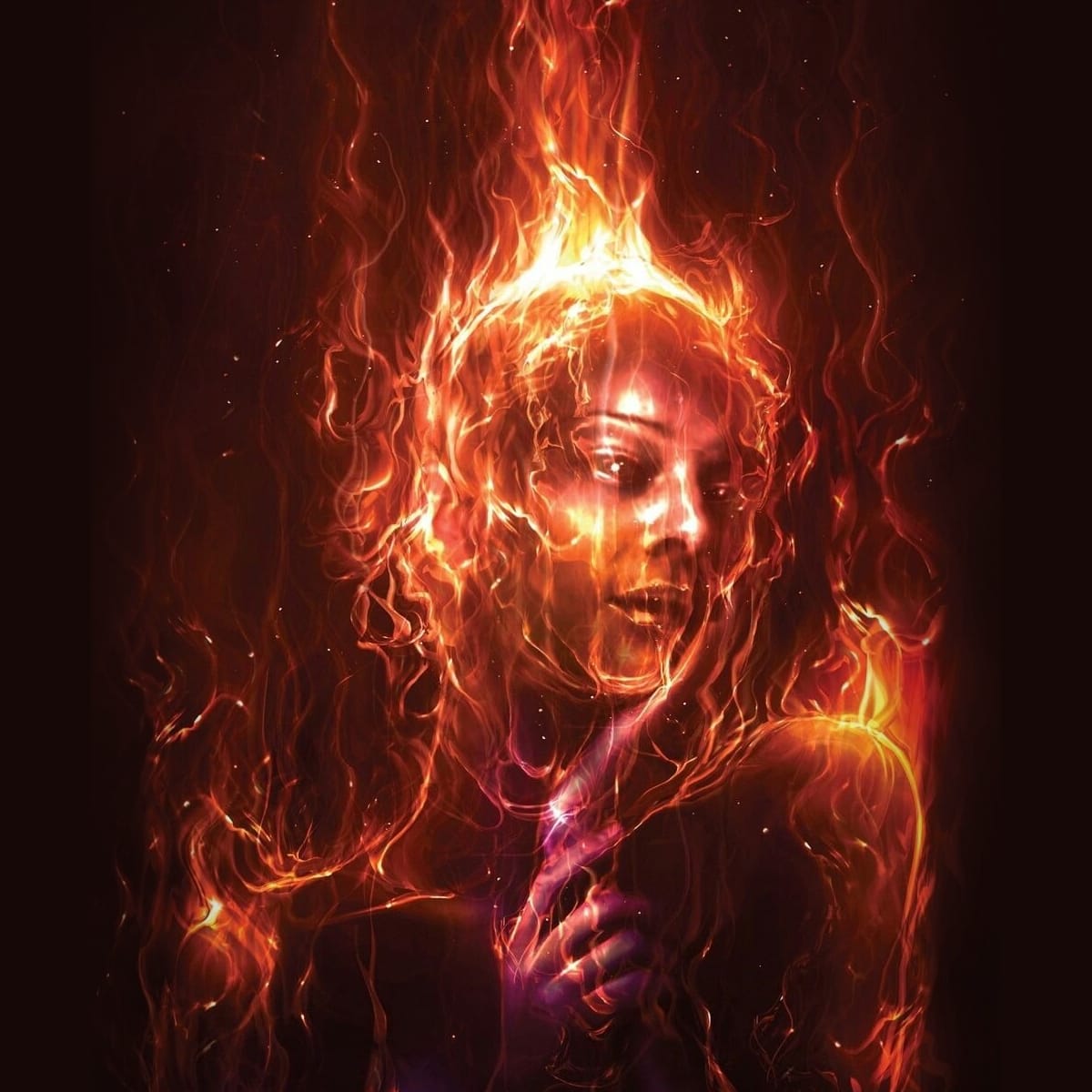
Apply a Burning Flames Effect to a Photo in Photoshop
In this tutorial by Neville D’Souza, you will learn how to take a simple model shot and transform it into a striking, dynamic piece of art that resembles a spitting, crackling beacon of fire. The tutorial guides you through the process using some of the most common tools available
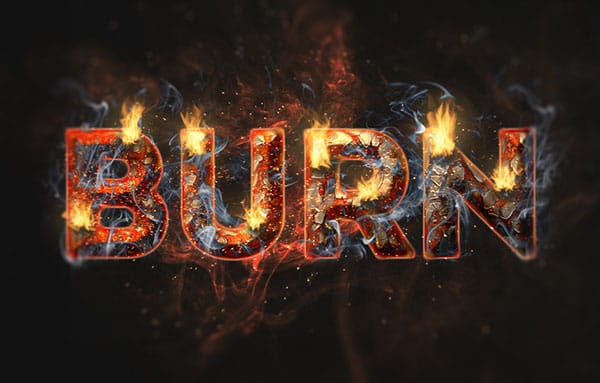
Create a Fire and Rust Text Effect in Photoshop
This tutorial by TutsPlus will show you how to style and texture a rusty text, then add some flames using the filter, along with some other smoke and sparks textures to create a vibrant flaming text effect in Adobe Photoshop CC using the new Flame Filter. Process preview Read more at TutsPlus… More

4) Photo Frames

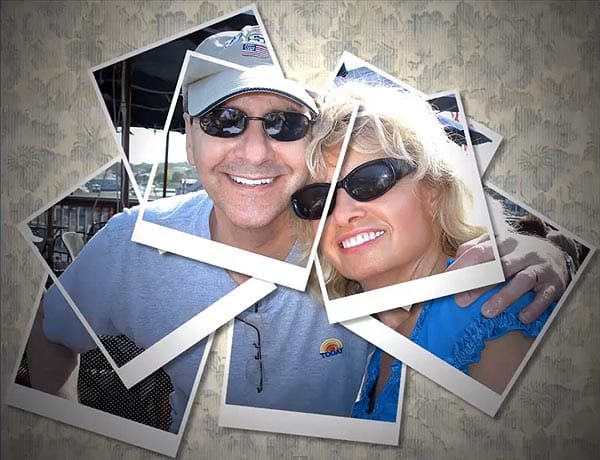
Create a Nice Polaroid Photo Montage in Photoshop
Learn how to create a nice Polaroid photo montage from a single image in a few easy steps using Adobe Photoshop
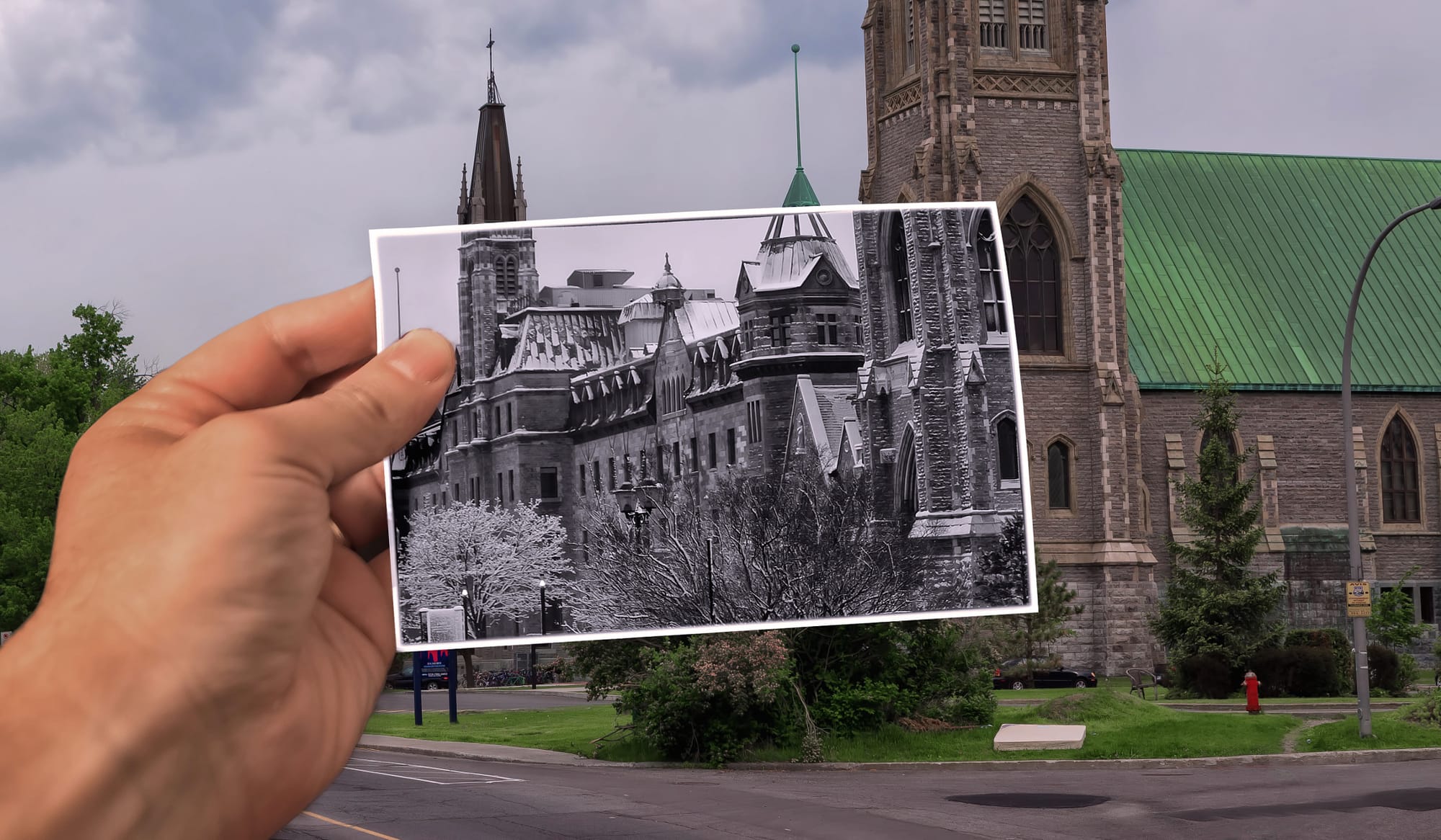
Create a Fake Past vs Present Photoshop Effect in Photoshop – Photoshop Roadmap
This tutorial from 500px ISO guides you through creating a unique photo effect that merges a past and present photo into one using Photoshop. Begin by selecting two images: one as the present-day background and another, possibly converted to black and white, representing the past. Enhance the past image with

5) Chrome and Golden Metal Effects

Grungy gold Oz movie inspired text effect in Photoshop
This text effect is inspired by Disney’s Oz the Great and Powerful movie poster text. It’s a beautifully textured, vintage looking, metallic text effect. Read more at TexTuts… More
Realistic Chrome and Glossy Plastic Text Effect
Learn how to create a realistic looking chrome and glossy plastic text effect using some advanced Layer Styles techniques in Adobe Photoshop More
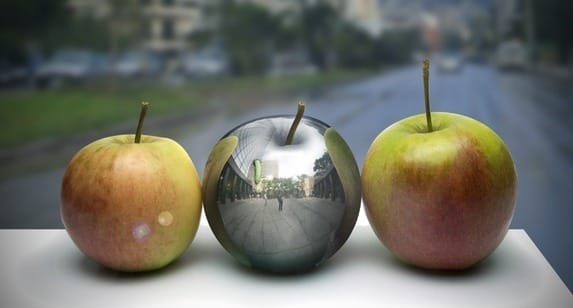
Create a Photo-Realistic Metal Apple in Photoshop
In this tutorial by Adrian Scheffe you will learn how to create a metallic apple with reflections. This tutorial will show you how to warp objects, dodge/burn, and add reflections to metal. Read more at PhotoshopTutorials.ws… More

6) Page Curls and Folded Paper

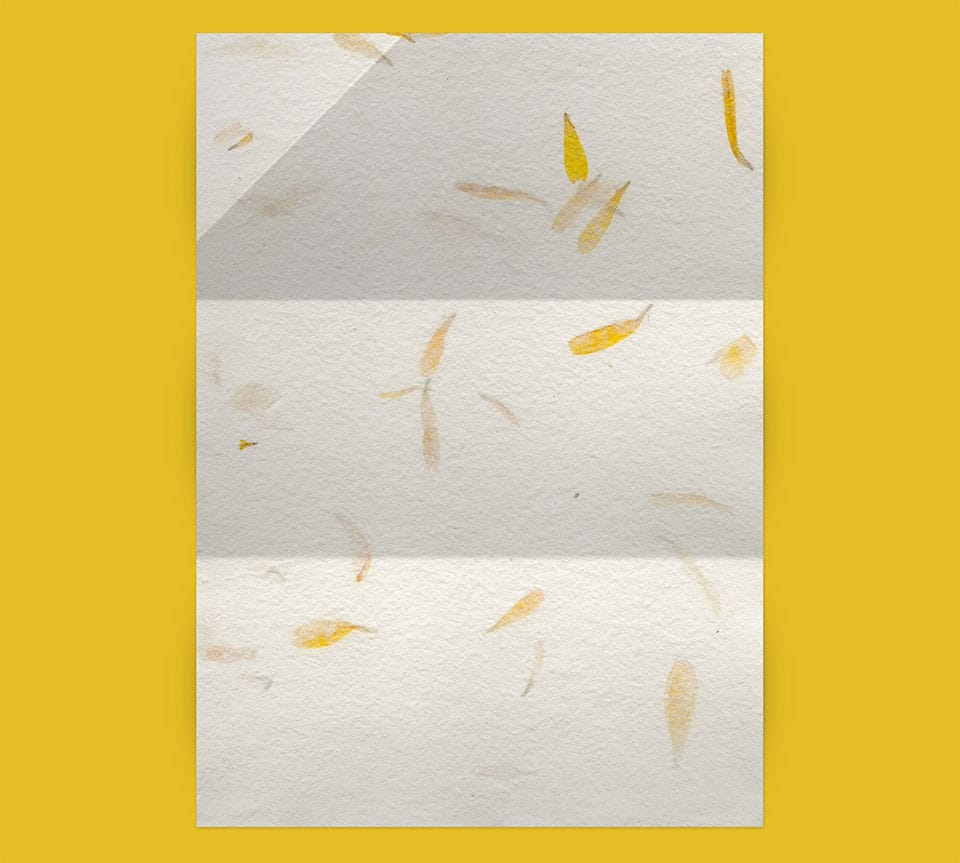
Creating Paper Folds and Creases
Learn how to create paper effects such as creases and folds using only shading techniques with gradients, brushes and selection tools. More
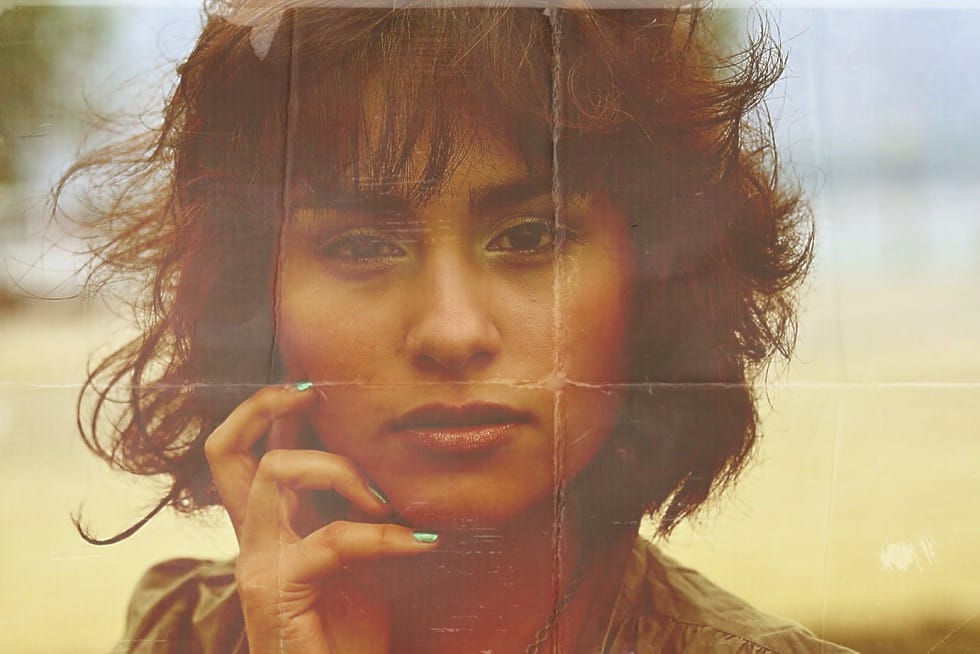
Create a vintage printed photographs with folds and creases in Photoshop – Photoshop Roadmap
Discover how to create a creased vintage printed photograph in this Photoshop tutorial by Arunz Creation. You’ll learn techniques using adjustment layers, gradients, and blending modes to add realistic paper folds and creases to a portrait. These effects contribute to a retro aesthetic, transforming your digital photos into vintage-inspired prints
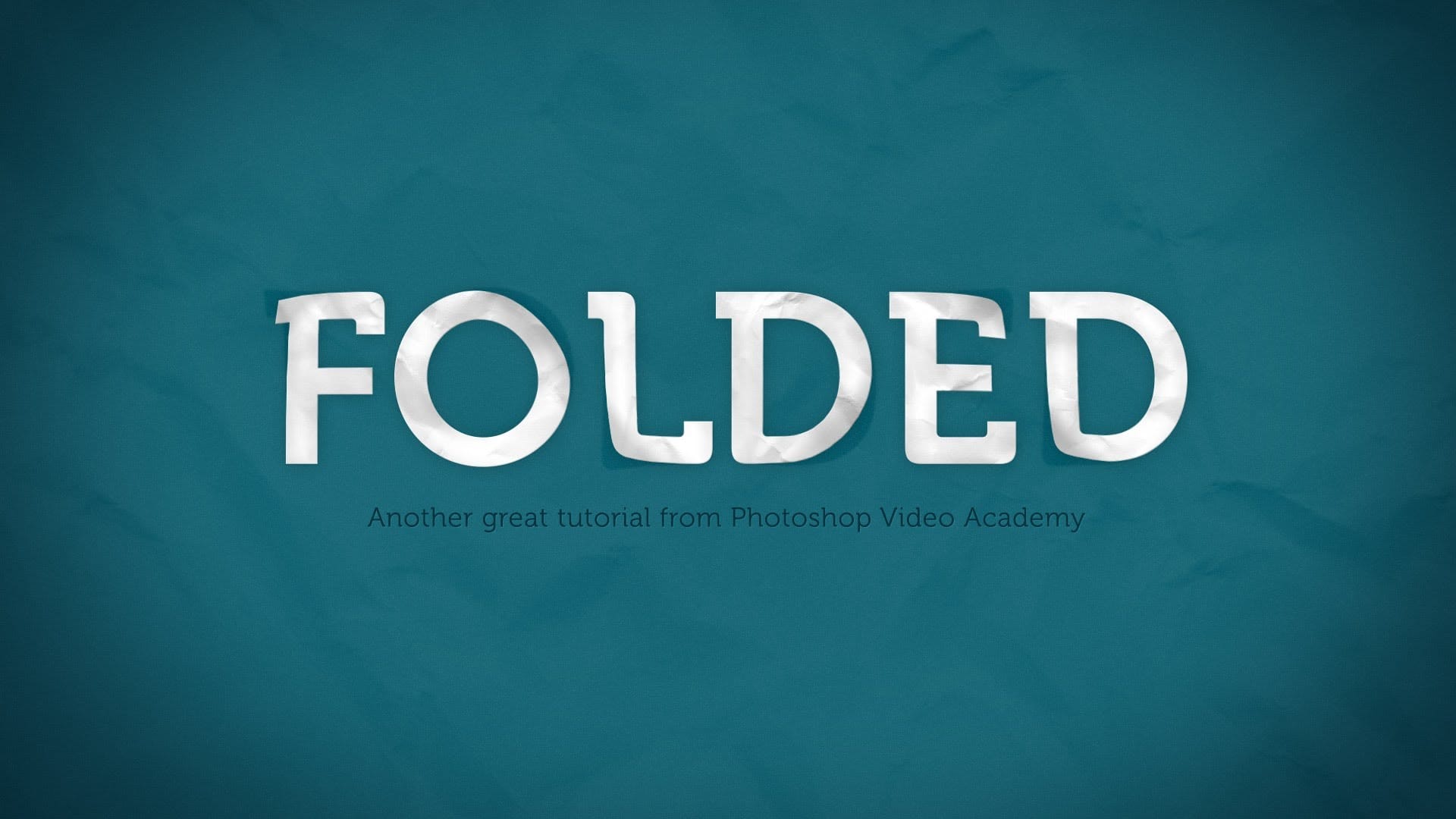
How to Create a Folded Paper Text Effect in Photoshop
In this tutorial you’ll learn how to create a folded paper text effect in Photoshop where the letters look like they’re peeling up from the page. More

7) Retro Vintage

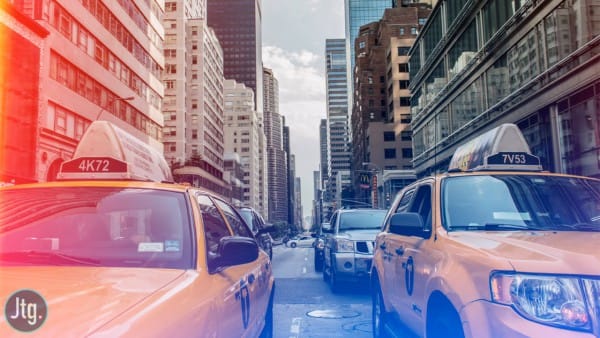
How to create retro color light leaks in Photoshop
In this photoshop Tutorial, you will learn how to add light leaks to your photos using gradient fill layers. This effect is really simple and easy to adjust for your own photo to add some interesting lighting. If you want to try different kinds of light leaks effects, then take a look at this professional […] More
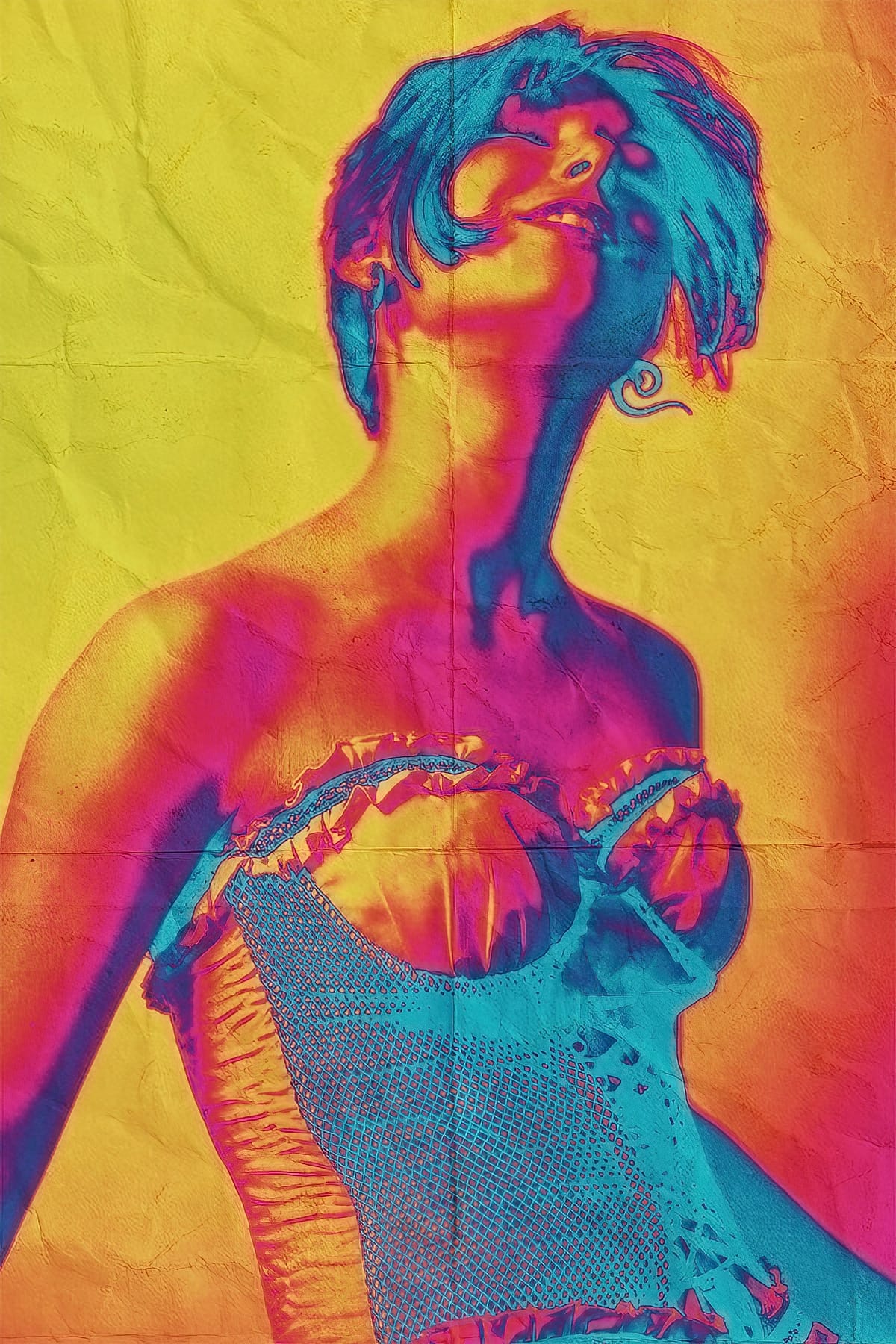
Quick and Simple Worn Out Psychedelic Poster in Photoshop
Adobe Photoshop offers a lot of ways to apply color effects to your images. But maybe the Gradient Map adjustment layer is the most flexible and easy to use of them all. With this tool you can apply one of the many great sample gradients provided by Adobe in the standard Photoshop installation. you can […] More
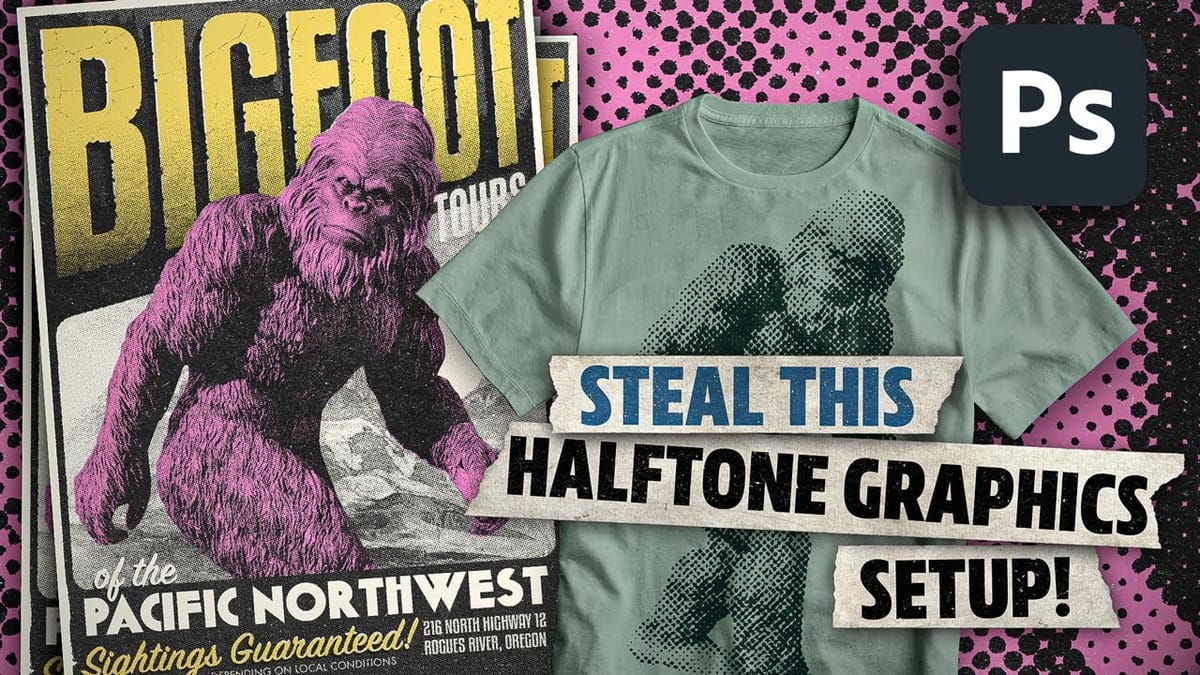
Create awesome retro halftone effects in Photoshop
In this tutorial, I’ll run through the setup I use to create halftone effects in Photoshop. Great for posters, apparel, stickers, or just making cool retro-lookin stuff! This approach will bypass the halftone filters and create the effect from scratch, with the added benefit of being live and adjustable. In the second half of the […] More

8) Face Makeover and Digital Makeup

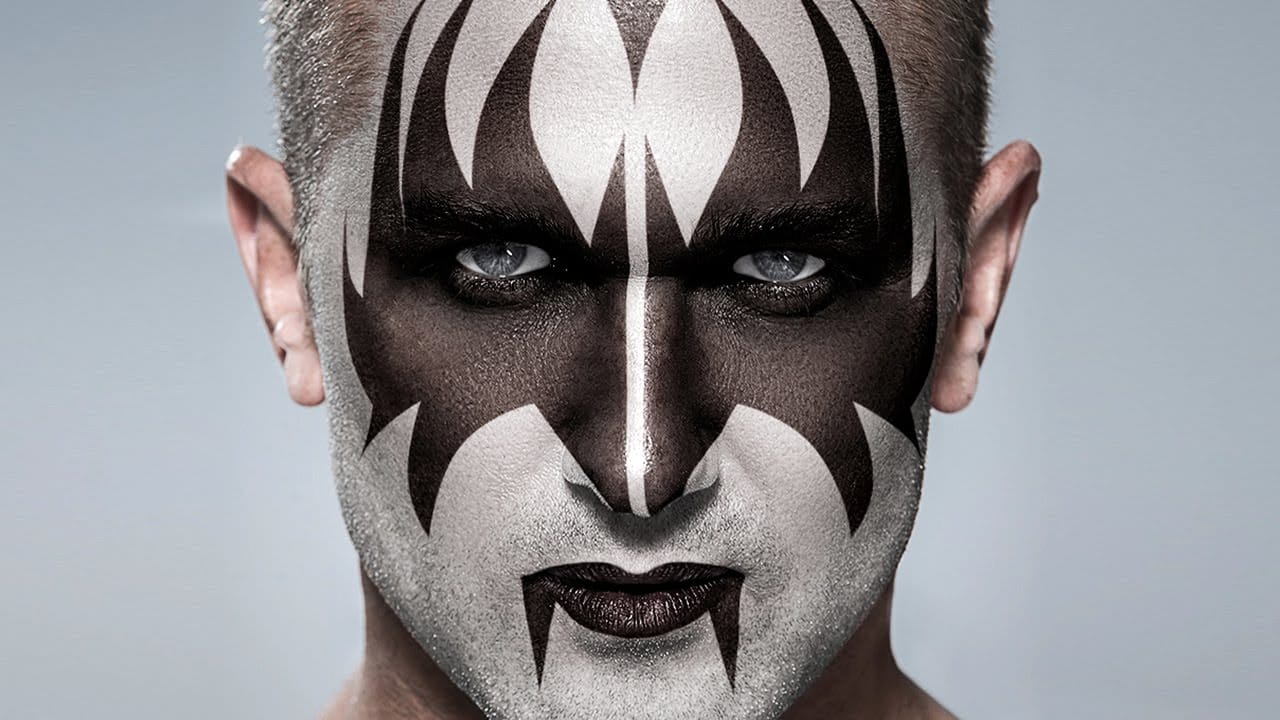
KISS! Apply Gene Simmons’ Makeup to a Photo in Photoshop – Photoshop Roadmap
This tutorial by Blue Lightning TV takes you step-by-step through the process of transforming a face into the iconic makeup of Gene Simmons. Learn how to achieve the signature elements – the dramatic eyes, the demonic mouth – using a combination of layer masks, blending modes, and adjustment layers. This is a
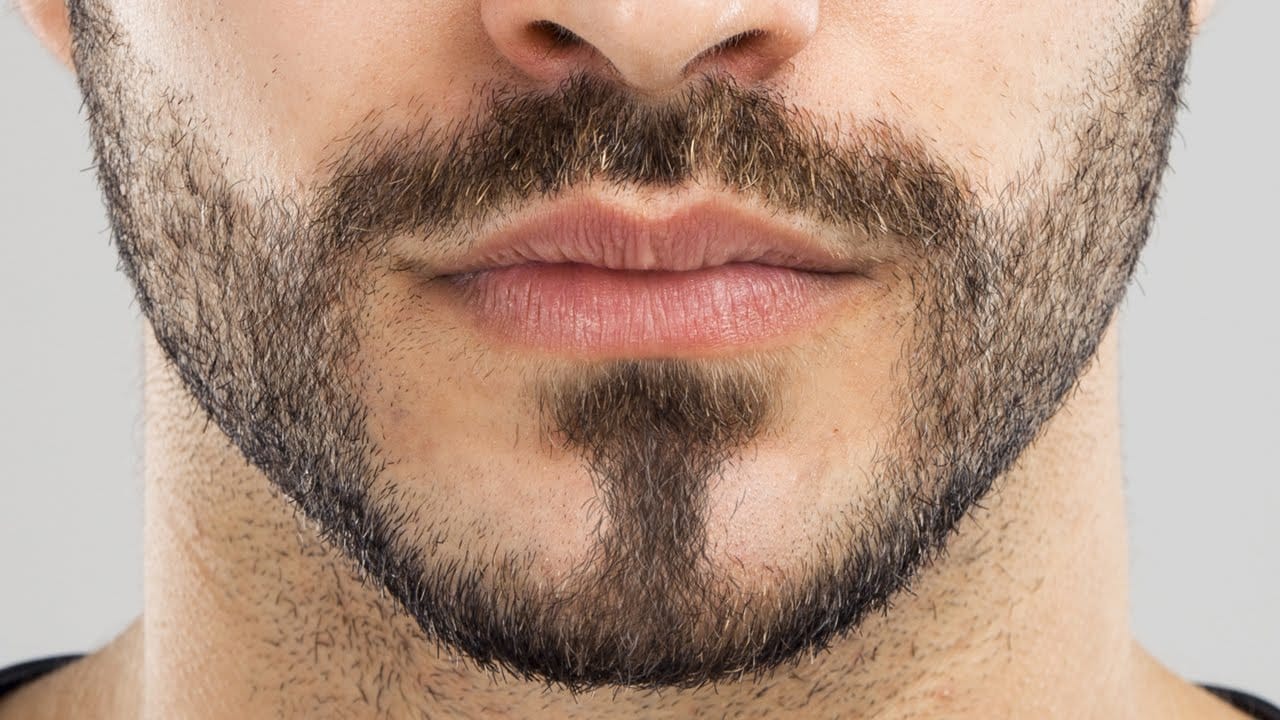
How to Create Facial Hair in Photoshop
This video by PHLEARN will teach you how to add realistic facial hair to your photos in Photoshop. Aaron Nace breaks down the process into clear steps. Whether you’re looking to fill in patchy beard areas or give someone a complete makeover with a mustache, goatee, or full beard,
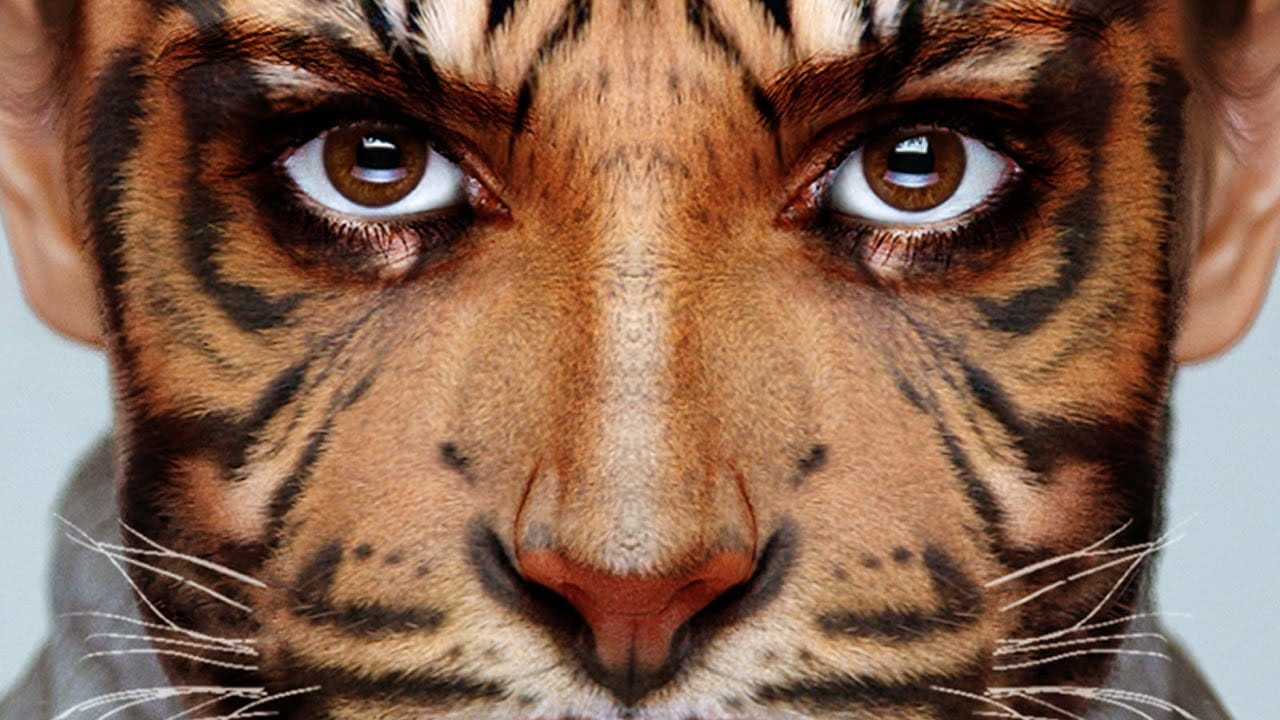
Transform your face into an animal – Photoshop Roadmap
This tutorial by Blue Lightning TV will teach you how to create a fantastical image by blending an animal face with a human one. Learn powerful techniques like using layer masks, warping tools, and adjustment layers to achieve a seamless transformation. The video guides you through aligning features, creating realistic

Get tutorials & freebies delivered to you.

Subscribe to the Photoshop Roadmap newsletter, a weekly roundup of new tutorials, insights and quality downloads, trusted by 6500+ readers.

You might also like

How Photoshop's Enhance Edge Feature Removes Hair Masking Halos

Hair masking has long been one of the most tedious tasks in photo compositing — especially when switching between dark and light backgrounds reveals unwanted halos along the edges. Photoshop's new Enhance Edge feature, available in beta 27.11, offers an AI-powered approach to this problem by generating...

How to Use Quick Compare and Dynamic Layers in Photoshop Beta

Photoshop Beta's latest update introduces two tools worth knowing: a Quick Compare toggle for instant before/after previews, and a Dynamic Layer feature that lets you control AI-generated effects with a simple slider. Together, they streamline how you review edits and apply prompt-based changes like adding...

Retouching Pet Portraits in Photoshop: Cleaning Fur, Eyes, and Fine Details

Pet photos rarely arrive perfectly clean — staining around the eyes, discolored fur near the mouth, and stray hairs are common problems that need fixing before any serious portrait work begins. This workflow covers how to remove those distractions manually using overpaint and fur brushes, then finish with eye enhancement techniques...

Before and After View Plus Dynamic Layers in Photoshop Beta

Photoshop Beta currently includes two features that work quite differently from each other. The first adds a straightforward before-and-after comparison tool directly into the editing workspace — something that sounds simple but solves a real problem when a file already has multiple layers. The second, Dynamic Layers, uses AI...

How to Blend Multiple Exposures for Car Light Trails in Photoshop

Stacking multiple exposures of a night scene lets you capture far more light trail detail than any single shot can deliver. This technique uses the Lighten blending mode to combine a bright base image with several car light trail frames, keeping only the brightest pixels from each layer for a...

You’ve successfully subscribed to Photoshop Roadmap
Welcome back! You’ve successfully signed in.
Great! You’ve successfully signed up.
Success! Your email is updated.
Your link has expired
Success! Check your email for magic link to sign-in.